
Every computer has its own IP address. But sometimes, you may encounter the “your computer has lost the lease to its IP address” issue. If you don’t know how to fix it, this post from MiniTool provides some methods for you.
Fix 1: Check Network and Restart Your Router
As the “your computer has lost the lease to its IP address” error is related to your network, you should check the network cables and routers at first. You need to make sure that the cables are in the right place. If you are using Wi-Fi, you can restart your router. If this doesn’t work, move to the next solutions.
Fix 2: Clear the DNS Cache
If there is a corrupt local DNS cache, then the lost IP address error will occur. Therefore, you can try to clear the DNS cache to fix the error. Here is the tutorial:
Step 1: Type cmd in the Search box and right-click Command Prompt to choose Run as administrator.
Step 2: Click Yes to open the Command Prompt window.
Step 3: Type ipconfig /flushdns and then press the Enter key.
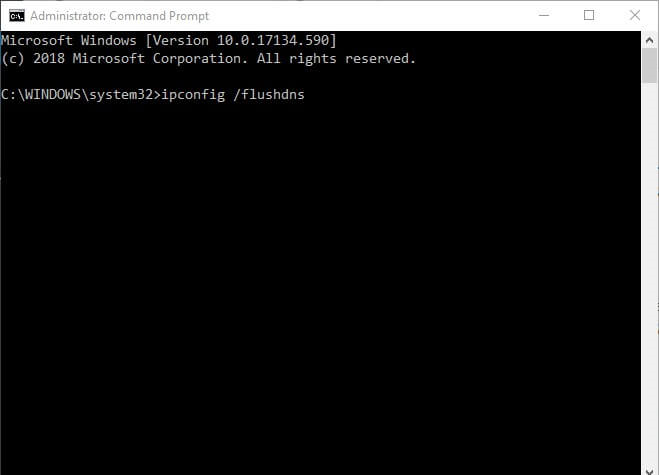
Step 4: Wait for the process to complete successfully until you see a message saying that Windows IP Configuration. Successfully flushed the DNS Resolver Cache.
Now check whether the your computer has lost the lease to its IP address error is gone.
Also see: How to Flush DNS Resolver Cache in Windows 10/8.1/7
Fix 3: Reset Network Adapter
You can also reset the network adapter to fix the issue. To do that, you can follow the steps below.
Step 1: Open Settings and then click Network & Internet.
Step 2: After clicking the Status tab, move to the right side of the window and then find and click Network reset.
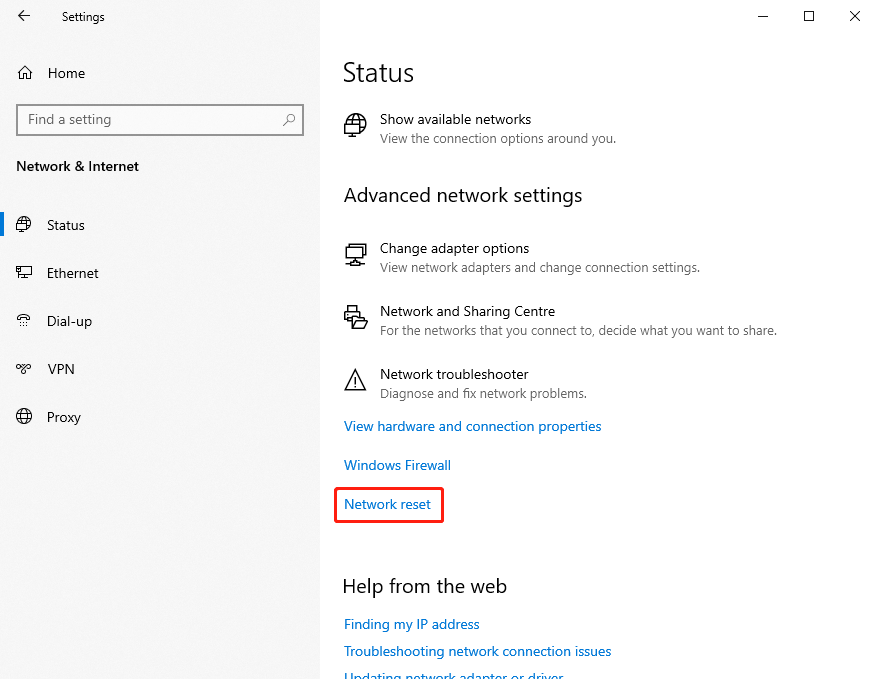
Step 3: Click Reset now and follow the pop-up instruction to finish the operation.
Also see: How to Reset Network Settings Windows 10 (the Influence)
Fix 4: Disable IPv6
If the methods above are not working, it’s recommended to disable IPv6 for the current Internet connection. You need to do the following steps:
Step 1: Press Win + I to open Windows Settings. Then click Network & Internet.
Step 2: In the right pane, select Network and Sharing Center.
Step 3: In Network and Sharing Center, click Change adapter settings. In the pop-up window, right-click the network you are using currently and select Properties.
Step 4: Go to Networking tab and uncheck Internet Protocol Version 6 (TCP/IPv6).
Step 5: Click OK to save the changes and then restart your PC.
After that, you can check if the “your computer has lost the lease to its IP address” issue has been fixed.
Final Words
To sum up, this post has introduced the methods to fix “your computer has lost the lease to its IP address” error with 4 different solutions. If you have encountered the same error, don’t worry, try these solutions.
User Comments :