
Zenless Zone Zero Stuck on Black Screen on PC
Since the release of Zenless Zone Zero (also known as ZZZ), a free-to-play action role-playing game from miHoYo, it has attracted a crowd of users because of its top-notch visuals, a level of consistent polish, slick combat and engaging story, and more. Like other games, some issues also crop up and one of the most common complaints is Zenless Zone Zero stuck on black screen.
Also read: How to Check Your PC Specs to See If It Can Run Zenless Zone Zero
Generally speaking, when attempting to load this game on your Windows 11/10 PC, it gets stuck on the loading screen or even a persistent black screen appears. Various reasons can give rise to ZZZ black screen and understanding them will help to troubleshoot the issue. Here are some common factors:
- Network issues
- Server overload
- Software conflicts
- Device performance
- Damaged game files
Then how to fix Zenless Zone Zero black background? You can figure out several solutions below to address this issue.
#1. Check Your Internet Connection
An unstable or slow internet connection can stop ZZZ from loading properly, causing a black screen. Hence, make sure you use a stable network. You can try to restart your router or switch to a wired connection if using a Wi-Fi connection to fix Zenless Zone Zero stuck on loading screen/black screen.
#2. Update Windows
Games can often face issues if they don’t play on optimized systems. So make sure you play Zenless Zone Zero on an up-to-date Windows.
MiniTool ShadowMaker TrialClick to Download100%Clean & Safe
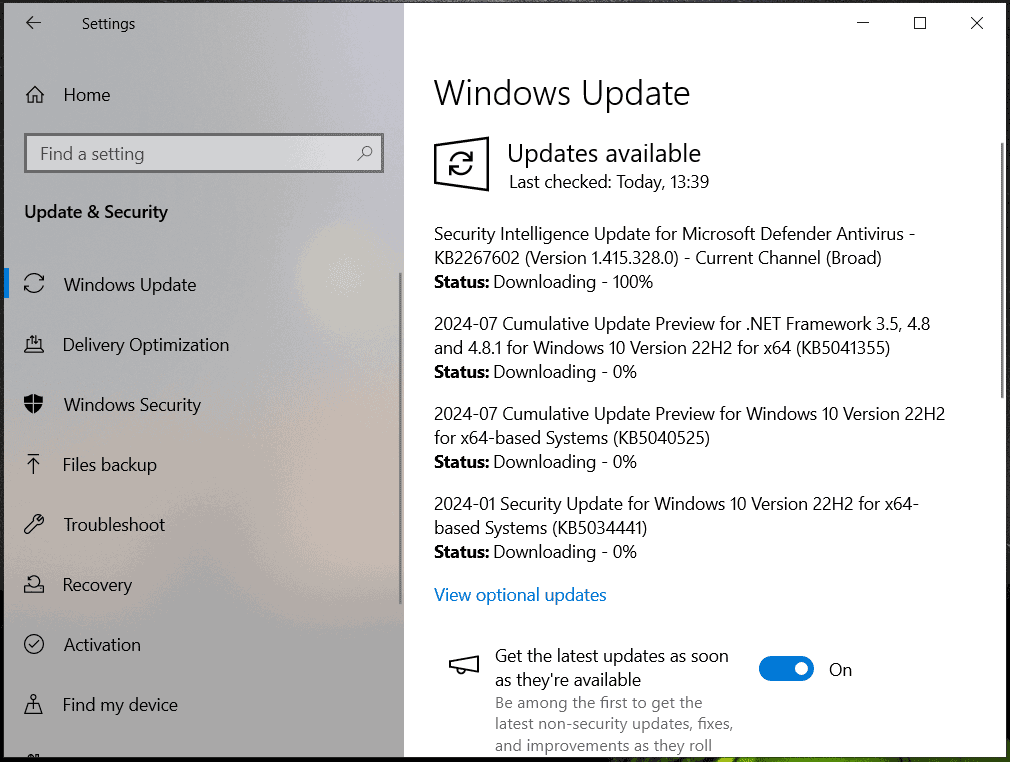
Step 1: First, press Win + I to open Settings, go to Update & Security > Windows Update (Win10), or directly go to Windows Update (Win11).
Step 2: Check for available updates and then start downloading and installing them on your PC.
#3. Run Zenless Zone Zero as Administrator
Zenless Zone Zero stuck on black screen/loading screen sometimes can be fixed by running it with admin rights. Take these steps:
Step 1: Go to the installation location of ZZZ and right-click on the game executable to choose Properties.
Step 2: In Compatibility, check Run this program an administrator.
Step 3: Also, you can tick Run this program in compatibility mode for and Disable fullscreen optimizations.
Step 4: At last, hit Apply > OK.
#4. Modify Game Launch Options (HoYoPlay Launcher)
If you play ZZZ via the HoYoPlay launcher and meet Zenless Zone Zero black background, try this way using the steps below.
Step 1: In the launcher, hit Menu (a hamburger icon) > Game Settings.
Step 2: Click Open Directory and right-click on ZenlessZoneZero.exe to choose Properties. Then copy the file location.
Step 3: Later, go to Desktop, right-click on an empty area, and choose New > Shortcut.
Step 4: Pate the path you have copied and then add \ZenlessZoneZero.exe in Windows 10. For Windows 11, add \ZenlessZoneZero.exe to the path and then give one space and add –force-d3d12, like “E:\ZenlessZoneZero\ZenlessZoneZero Game\ZenlessZoneZero.exe” –force-d3d12.
Step 5: Name the new shortcut and tap Finish.
#5. Verify Game Files
Corrupt game files can trigger a black screen in Zenless Zone Zero, thus you should repair or verify game files.
On HoYoPlay Launcher: Choose Zenless Zone Zero, click Menu and choose Repair Now.
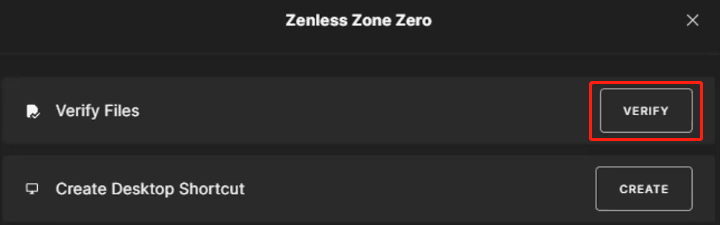
On Epic Games Launcher: Go to Library, click three dots under Zenless Zone Zero, and hit Manage > VERIFY.
#6. Close Unnecessary Programs
Some background apps can consume many of the system resources, leaving no power to run ZZZ, hence, Zenless Zone Zero black screen appears. You should close these unnecessary tasks.
Step 1: First of all, open Task Manager by right-clicking on Taskbar and choosing Task Manager.
Step 2: In Processes, choose the unnecessary programs and tap End task. Besides, note that you end tasks for Afterburner, Hwinfo, Razer Synapse, Rivatuner, or MSI Dragon Center.
MiniTool System Booster TrialClick to Download100%Clean & Safe
Other Fixes
- Update your graphics card driver
- Disable overlay
- Reinstall Zenless Zone Zero
- Disable antivirus
- Increase Virtual Memory
Verdict
How to fix Zenless Zone Zero stuck on black screen in your Windows 11/10 PC? You have a complete understanding of this issue. Hopefully, you can easily get rid of the trouble after trying those solutions.
About The Author

Position: Columnist
Vera has been working at the MiniTool Team for over 10 years as a technical editor and content writer. She mainly focuses on disk and partition management, data recovery, Windows backup and restore, and PC troubleshooting. Through in-depth software testing and hands-on experience, she has helped users solve a wide range of computer problems and better protect their data on Windows devices.
User Comments :