
You may forget your BitLocker password after encrypting your drive in Windows. This guide explains how to regain access to your BitLocker-encrypted drive using a recovery key and how to recover the deleted key file.
Quick Answer
If you forgot BitLocker password, it is easy to unlock the encrypted drive using the 48-digit BitLocker recovery key. Once the drive is unlocked, reset the forgotten password.
If you don’t know where the key is, find it through these methods:
- Check your Microsoft account
- View the work or school account
- Open a printout
- Check your USB flash drive or local location
When the recovery key file is deleted, recover it before it is overwritten.
However, if both the BitLocker password and recovery key cannot be found, formatting the drive is a practical step.
Understanding BitLocker Password and Recovery Key
When encrypting a drive with BitLocker, the built-in encryption feature in Windows, you may choose a password to unlock the drive.
At the same time, a 48-digit recovery key is automatically generated to act as a backup. You can choose to save it to your Microsoft account, a USB flash drive, a file, or a printout. This key can be used to access your drive if you accidentally forgot BitLocker password.
After the encryption is complete, run the manage-bde -lock G: -ForceDismount command to lock this drive (replace G with your drive letter). Then unauthorized users cannot access the encrypted drive without the correct password or recovery key.
What to Do After Forgetting BitLocker Recovery Password
The steps to take depend on different cases, especially whether you have the recovery key. Check the table below to find the right solution for your situation.
| Situation | Available Solutions | Data Loss Risk |
| You have the BitLocker recovery key | Unlock the drive with that key and then reset the BitLocker recovery password | No |
| You don’t have the recovery key | Check your Microsoft account, work/school account, USB drive, or printed copy | No |
| You can’t find the recovery key | Recover the key if it was accidentally deleted | No (if the key file is recovered) |
| You forgot BitLocker password and recovery key | Format the encrypted drive | Yes |
Scenario 1: You Have the BitLocker Recovery Key
If you can find the 48-digit recovery key, use it to unlock the drive.
Step 1: Double-click the encrypted drive.
Step 2: Click More options > Enter recovery key.
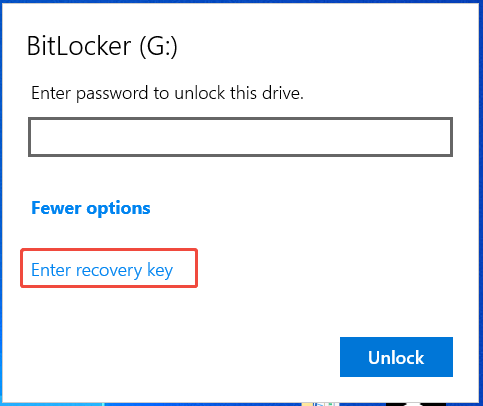
Step 3: Type the key and click Unlock.
Now you can access the drive data.
Scenario 2: You Don’t Have the Recovery Key
You may forget your BitLocker password and not know where the recovery key is. Don’t panic. The recovery key is often backed up automatically when BitLocker is enabled.
Check them in:
- Microsoft account
- Work or school account
- A USB flash drive or a local folder
- A printed file
Option 1: Check Your Microsoft Account
Step 1: Open a browser and access the website: https://account.microsoft.com/devices/recoverykey.
Step 2: Under Devices, find your BitLocker recovery key.
Option 2: Check the Work or School Account
If you ever signed into a work or school account on this device, your recovery key might be saved in that organization’s account. Contact the IT support for that organization to find the key.
Option 3: Check a USB Drive or a Local Folder
When setting up BitLocker, you may have saved the recovery key as a TXT file on a USB flash drive or in a local folder on your computer.
Step 1: Plug the USB drive into your computer.
Step 2: Open that drive and look for the TXT file. Then, locate the key.
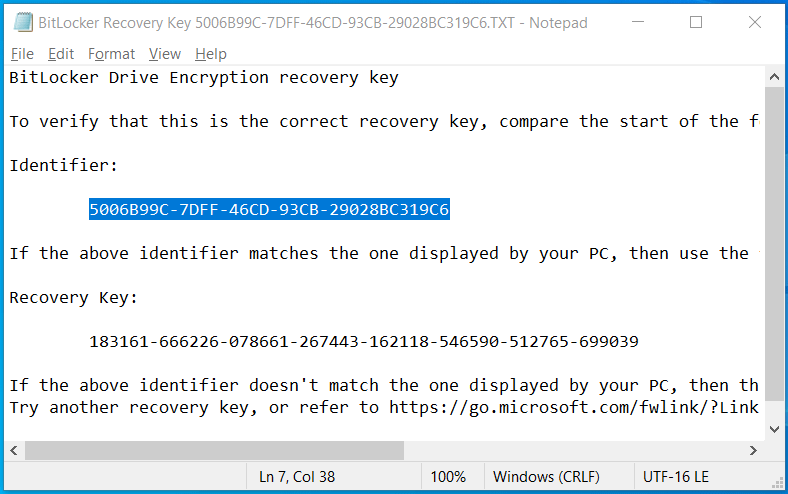
Alternatively, search the local drives for that file. The file name usually starts with “BitLocker Recovery Key.”
Option 4: Check a Physical Printout
You may have printed your recovery key after activating BitLocker. Look through physical files for a paper copy printed.
Scenario 3: You Can’t Find the Recovery Key Anywhere
If you check every possible location but still cannot find the BitLocker recovery key, perhaps the key file has been deleted accidentally. Fortunately, you can easily recover the deleted recovery key file with a professional data recovery tool.
MiniTool Partition Wizard is a powerful data recovery tool that can recover deleted files/partition/drive from Desktop, Recycle Bin, unallocated space, and different storage devices easily. In addition, it can help you recover data with MiniTool Partition Wizard Bootable Edition even when you can’t boot into the system.
Here’s how to recover the lost BitLocker recovery key with MiniTool Partition Wizard.
MiniTool Partition Wizard DemoClick to Download100%Clean & Safe
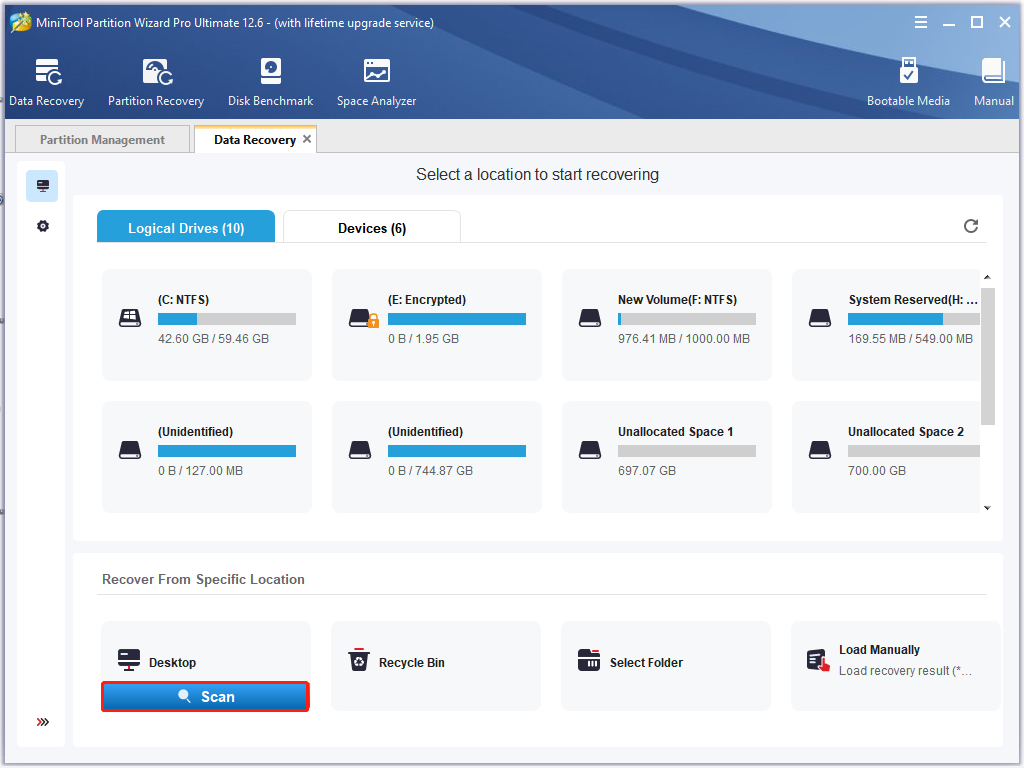
Step 1. Launch the MiniTool software to enter its main interface and click on Data Recovery from the top toolbar.
Step 2. Select the location where the BitLocker recovery key document file is stored and click on Scan. If you stored the file in the USB flash drive, make sure you plug it into your computer first. Here we take the Desktop location for example.
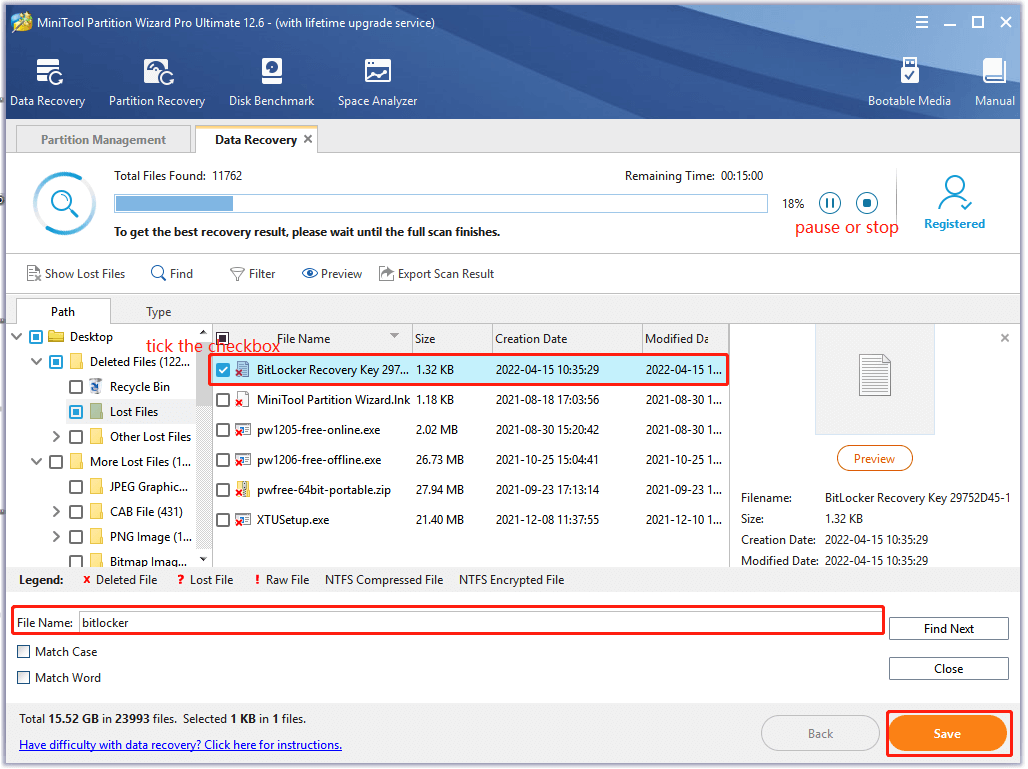
Step 3. Then this tool will start scanning your selected location. If you have found the BitLocker document file, click on the Pause or Stop icon to suspend the process, tick the checkboxes next to the file and click on Save. Also, you can click on the Find button, then type BitLocker in the search field and click on Find to find the file quickly.
Step 4. Select a directory to store the recovered file in the pop-up wizard and click on OK to confirm the location. Then follow the on-screen prompts to finish this process.
Step 5. Now, you can open the directory that you just stored the recovered file in and use the BitLocker recovery key to unlock the encrypted drive.
Scenario 4: You Forgot BitLocker Password and Recovery Key
If both the password and recovery key are unavailable, encrypted data cannot be accessed. If you have confirmed that there is no important data on the encrypted drive, then the fastest way to remove BitLocker encryption is to reformat the drive.
This method allows you to unlock the BitLocker drive without a recovery key and password.
In addition to data recovery, MiniTool Partition Wizard also supports formatting a drive to NTFS, FAT32, exFAT, and Ext 2/3/4. Just run it, right-click the BitLocker-encrypted drive, and select Format.
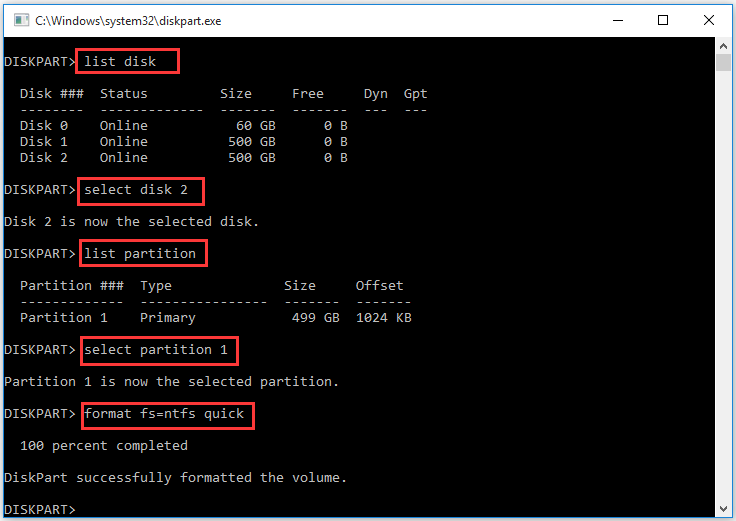
Also, you can run Command Prompt to format your drive.
Step 1. Open the elevated Command Prompt window again.
Step 2. In the elevated Command Prompt window, type the following commands in order and hit Enter after each one.
- diskpart
- list disk
- select disk * (replace * with the disk number that contains the BitLocker encrypted drive)
- list partition
- select partition * (replace * with the partition number of your encrypted drive)
- format fs=ntfs quick
Reset the Forgotten BitLocker Password
After unlocking your drive, you can reset the forgotten BitLocker password.
Step 1: Type Manage BitLocker into the Search box and press Enter.
Step 2: Locate the target drive and click Change password > Reset a forgotten password.
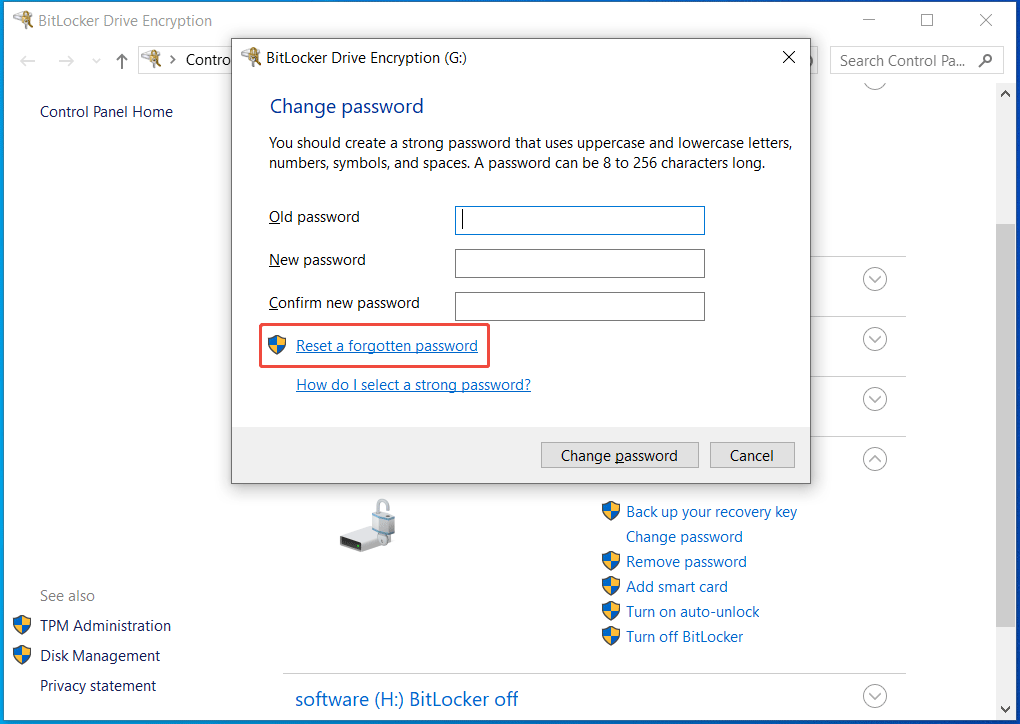
Step 3: Enter your password.
What’s Your Opinion
This post writes several accessible solutions to deal with the forgotten BitLocker recovery password issue. In addition, you can try using MiniTool Partition Wizard to recover a lost BitLocker recovery key. Of course, if you have better solutions to this problem, leave them in the comment area. You also can send us an email via [email protected] when you have difficulty using the MiniTool software.
Forgot BitLocker Password FAQ
About The Author

Position: Columnist
Vera has been working at the MiniTool Team for over 10 years as a technical editor and content writer. She mainly focuses on disk and partition management, data recovery, Windows backup and restore, and PC troubleshooting. Through in-depth software testing and hands-on experience, she has helped users solve a wide range of computer problems and better protect their data on Windows devices.
User Comments :