
When attempting to format a 64GB SD card on Windows, the FAT32 option may not be available. To format your 64GB SD card to FAT32, use the Format Partition feature in MiniTool Partition Wizard, which is completely free. Follow this simple MiniTool guide.
Quick Answer:
To format a 64GB SD card to FAT32, you need to use third-party tools like MiniTool Partition Wizard, as Windows restricts FAT32 formatting for drives over 32GB.
This professional formatter is also applicable in the following situations:
- Format a 128GB SD card to FAT32
- Format a 128GB USB drive to FAT32
- Format FAT32 on drives larger than 32GB
Many Reddit users report that they need to format their SD cards for printers or cameras to FAT32. However, they face difficulties when trying to format a 64GB SD card or larger, as Windows does not allow FAT32 formatting for these sizes.
I bought a 64GB SanDisk microSD to use in my 3DS. It needs to be FAT32 to be read by the 3DS but this wasn’t an option in File Explorer. So I tried it using Win + R CMD and it said the disk was too big to be formatted. Is there any other way I can do it (preferably free)?reddit.com
Why Can’t Format 64GB SD Card to FAT32 in Disk Management
Windows limits FAT32 formatting to drives over 32GB in Disk Management or File Explorer to encourage the use of more modern file systems like NTFS or exFAT. As a result, when you attempt to format a 64GB SD card, the FAT32 option won’t appear.
Even using the DiskPart tool, it will report that the volume size is too large to format as FAT32.
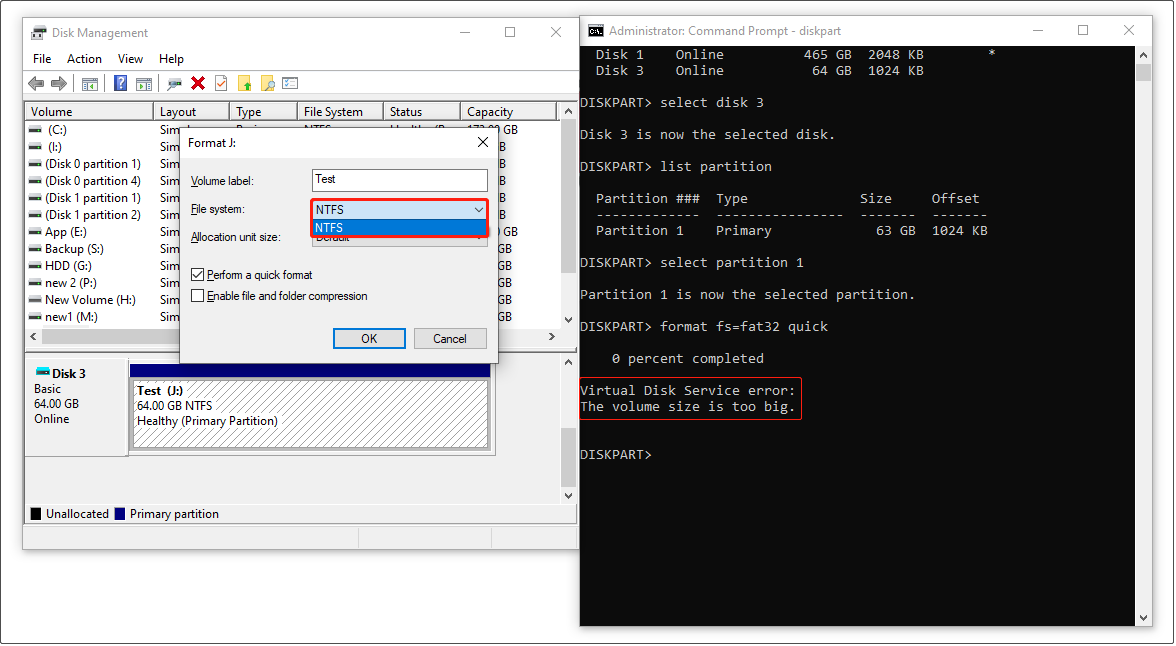
To bypass this limitation and format a 64GB SD card to FAT32, you will need a third-party disk formatter like MiniTool Partition Wizard.
How to Format a 64GB SD Card to FAT32
MiniTool Partition Wizard offers a Format Partition feature that allows you to format SD cards to FAT32.
This feature is completely free. From my tests, formatting a 64GB drive with MiniTool Partition Wizard does not produce any errors and completes in just several seconds.
Get the Free Edition of MiniTool Partition Wizard and follow these 3 simple steps:
MiniTool Partition Wizard FreeClick to Download100%Clean & Safe
Step 1. Select the 64GB SD card partition (not the entire disk) and click Format Partition from the left panel.
Step 2. In the new window, expand the drop-down menu and choose the FAT32 file system. You can also specify the partition label and cluster size. After that, click OK.
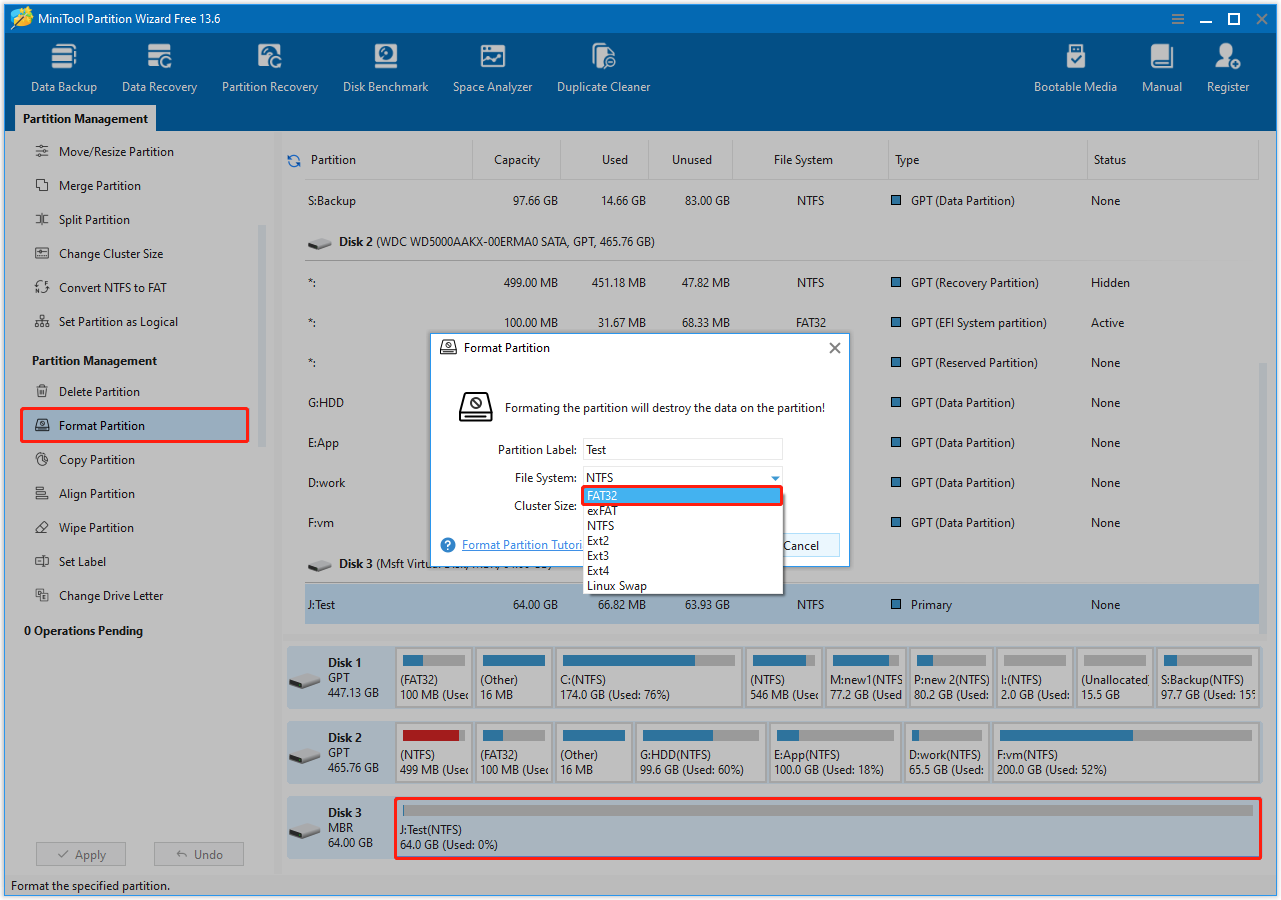
Step 3. Click Apply to confirm.
This partition formatter also supports formatting 128GB or larger SD cards, USB drives, or hard drives to NTFS, exFAT, Ext2/3/4, and other file systems.
How to Format 64GB SD Card to FAT32 Without Data Loss
MiniTool Partition Wizard also offers a feature called Convert NTFS to FAT. This feature is specifically designed for users who want to convert NTFS to FAT32 without losing any files.
Step 1. Launch a registered MiniTool Partition Wizard. Select the NTFS SD card partition and click Convert NTFS to FAT.
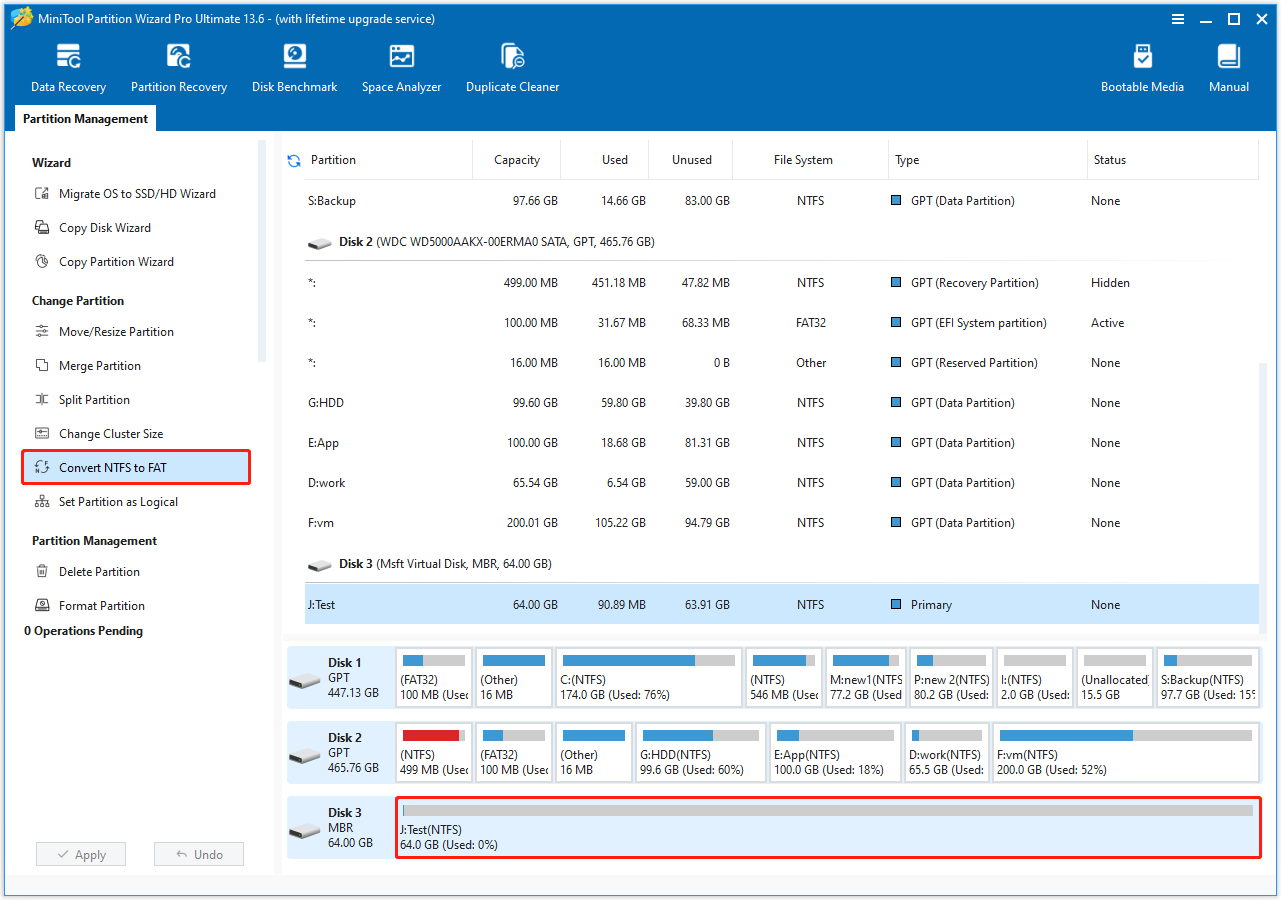
Step 2. Click Apply and confirm the operation.
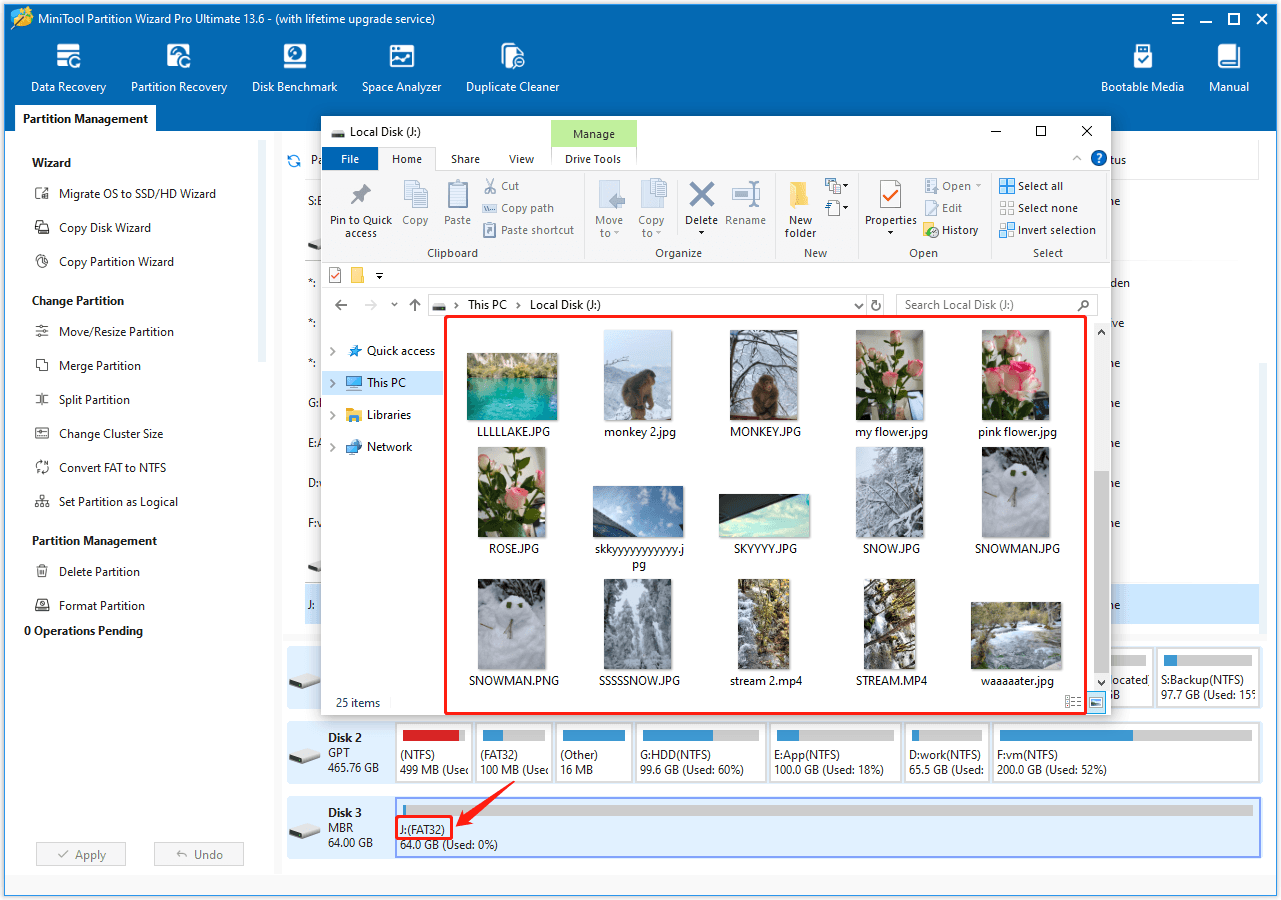
After the conversion, all my files stored on the original NTFS drive are preserved without any edits or deletions.
This is a comparison table for formatting an SD card to FAT32 using Windows built-in tools and MiniTool Partition Wizard.
| Support for FAT32 | Support for FAT32 ≥ 32GB | Data retention | Pros | Cons | |
| File Explorer/Disk Management | Yes | No | Removed | Built-in, no need for third-party tools | Does not support FAT32 for ≥ 32GB drives |
| MiniTool Partition Wizard (Format Partition) | Yes | Yes | Removed | Free, supports FAT32 for large drives | Data loss during formatting |
| MiniTool Partition Wizard (Convert NTFS to FAT) | Yes | Yes | Retained | Converts NTFS to FAT32 without data loss | Paid feature |
Bottom Line
To sum up, Windows built-in tools do not allow you to format 64GB SD card to FAT32. To do this, use MiniTool Partition Wizard’s Format Partition or Convert NTFS to FAT feature.
Both of them support formatting a 64GB or larger SD card to FAT32 in just seconds.
Should you encounter any issues or have any questions while using MiniTool Partition Wizard, please contact the support team at [email protected].
Format 64GB SD Card to FAT32 FAQ
To format a 64GB USB drive to FAT32, you will need to use third-party tools like MiniTool Partition Wizard.
It is recommended to back up your files before formatting, as this removes all files on your exFAT drive.
exFAT is a more modern file system and is recommended for SD cards, especially those larger than 32GB or used to store large files.
About The Author

Position: Columnist
Shirley holds a bachelor’s degree in English and has been an editor at the MiniTool Team for many years. She specializes in IT-related content, with a focus on data recovery, file backup, disk management, and other technical topics. She is committed to delivering clear, accurate, and practical solutions to help users resolve common computer issues.
User Comments :