
People meet some issues when they attempt to sign in to OneDrive and 0x8004deef error is one of them. If you are also struggling with this OneDrive error 0x8004deef, you can read this post on the MiniTool Website to find some useful methods for troubleshooting.
OneDrive Sign-in Error 0x8004deef
What is the OneDrive sign-in error 0x8004deef? Sometimes, when you try to sign in to the OneDrive account, it turns out to tell you that fails with the error code 0x8004deef. The issue can block you from your account and the next moves, such as file sharing and backup, can’t be allowed.
To discuss the triggers for this error code, you can focus on these possible culprits:
- Network connection issues. OneDrive, as an online storage service, requires a stable network connection; otherwise, the file-sharing or backup will be interrupted, let alone the sign-in issue.
- Issues with account credentials. Incorrect account credentials or passwords can lead to denied access to the OneDrive sign-in error 0x8004deef.
- Corrupted local cache. If the OneDrive cached files get corrupted, which partly triggers program malfunction, your access to the account will be denied, throwing error codes like 0x8004deef.
- Configuration issues. Usually, it is related to the system time and date settings. Apart from that, you can consider if the program glitches stop the sign-in process.
After knowing these factors, you can go to the next part to follow the troubleshooting methods.
Fix OneDrive Error 0x8004deef
Fix 1: Check for Basic Mistakes
When you encounter the OneDrive error 0x8004deef, the first thing you should do is verify the login credentials, like your user ID and password, and then check the network connection issues.
You can use the following tips to fix the network issues.
- Restart your computer.
- Restart the Internet modem and router.
- Scan your computer for viruses and malware.
- Move your device closer to the network source.
- Use the Internet Connections troubleshooter.

Fix 2: Use OneDrive Alternative
If you are urgent in using file backup & sharing, you can find another choice to replace OneDrive for your demands. MiniTool ShadowMaker is a free backup software, available for local and NAS backup and synchronization. Different from the cloud service, you don’t need to worry about the network issue.
You can also use it to clone SSD to larger SSD, or move Windows to another drive.
Please download and install the program to get a 30-day free trial version.
MiniTool ShadowMaker TrialClick to Download100%Clean & Safe
Step 1: Launch the program and click Keep Trial to get into the interface.
Step 2: In the Sync tab, click SOURCE to choose what you want to sync. There are three options – User, Computer, and Libraries.
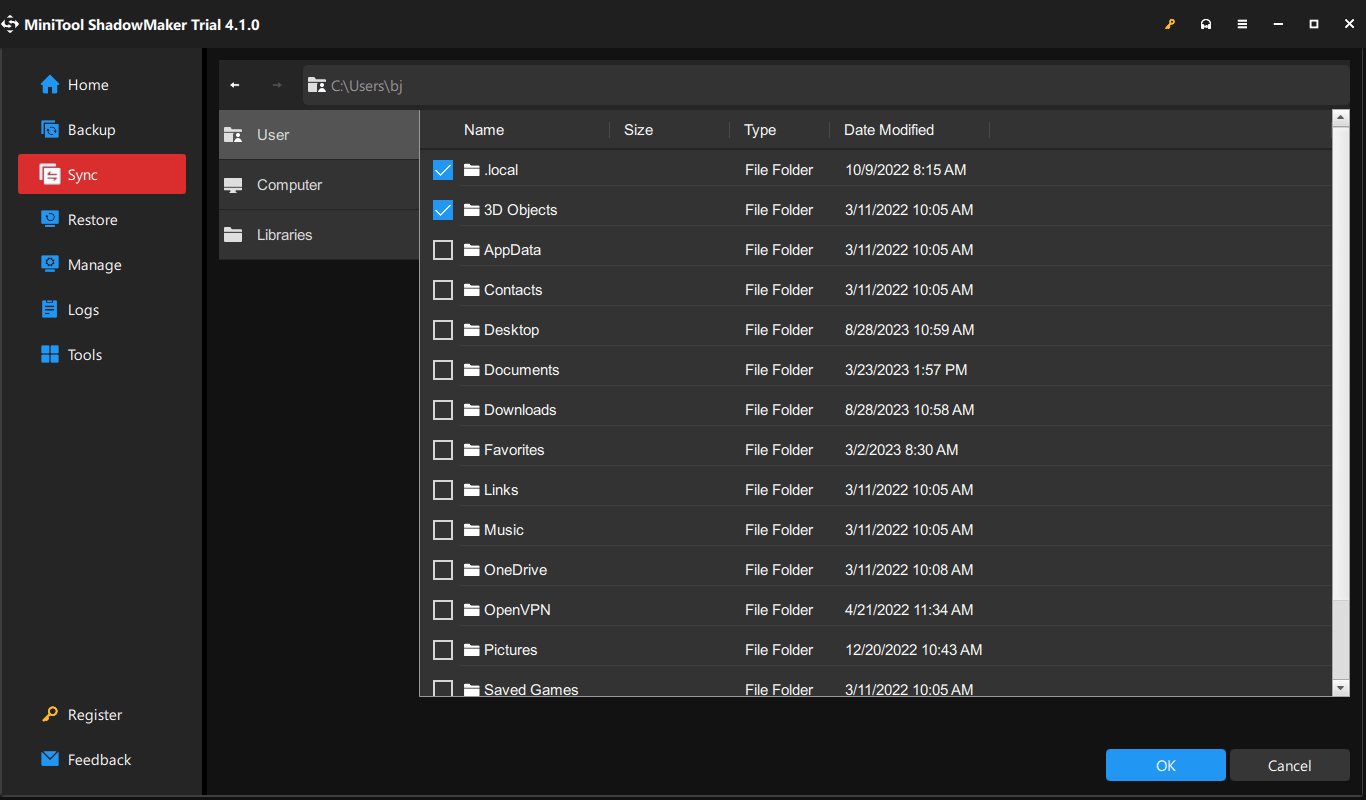
Then in the DESTINATION section, you need to choose where to sync to.
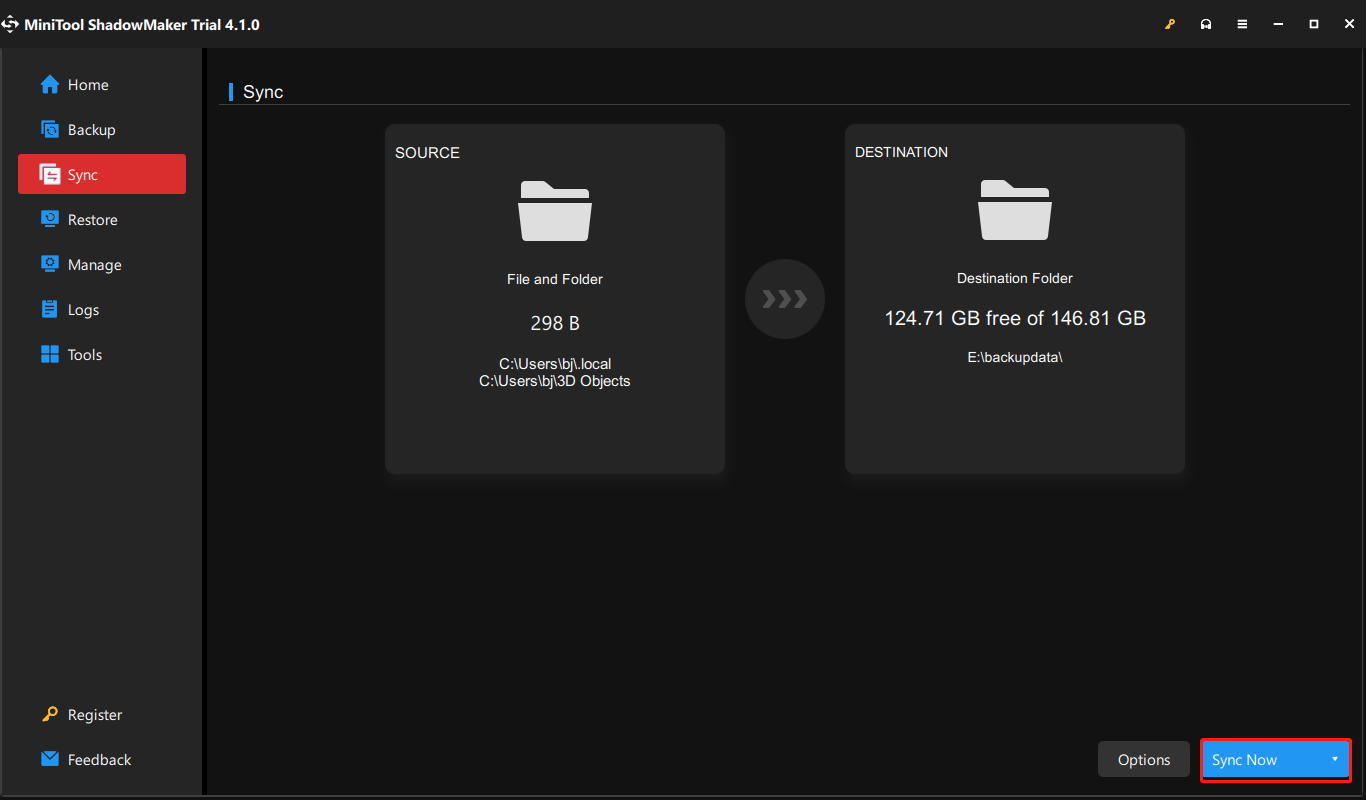
Step 3: Click Sync Now to start the task immediately or Sync Later to start it later. The delayed task will be placed in the Manage tab.
Fix 3: Check System Date and Time
To fix the configuration issues, you need to check the system date and time with these simple steps.
Step 1: Right-click on the time & date section in the taskbar and select Adjust date/time from the menu.
Step 2: Please check your current date and time; if it is incorrect, you can disable the automatic time and time zone settings and then click Change under Set the date and time manually.
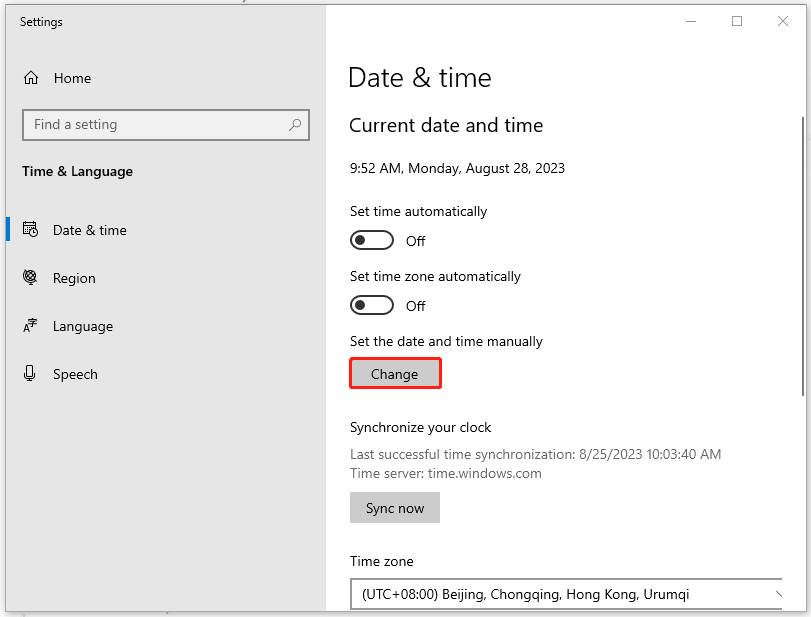
Step 3: Then you can change your date and time and click Change to save it. However, setting it to Set time automatically is always recommended. Besides, you may need to restart your PC to apply the settings.
Fix 4: Remove Cached Account Identities
You can force OneDrive to prompt for login credentials by removing cached account identities. This can help resolve the error 0x8004deef.
In case you accidentally delete other important entries and registries, we highly recommend you back up the registry. These related articles can be helpful for you:
- How to Backup and Restore Registry in Windows 10
- How to Back up Individual Registry Keys Windows 10/11?
Step 1: Open Run by pressing Win + R and type regedit to hit Enter.
Step 2: Copy and paste this address in the path bar and press Enter to locate it.
HKEY_CURRENT_USER\SOFTWARE\Microsoft\Office\16.0\Common\Identity
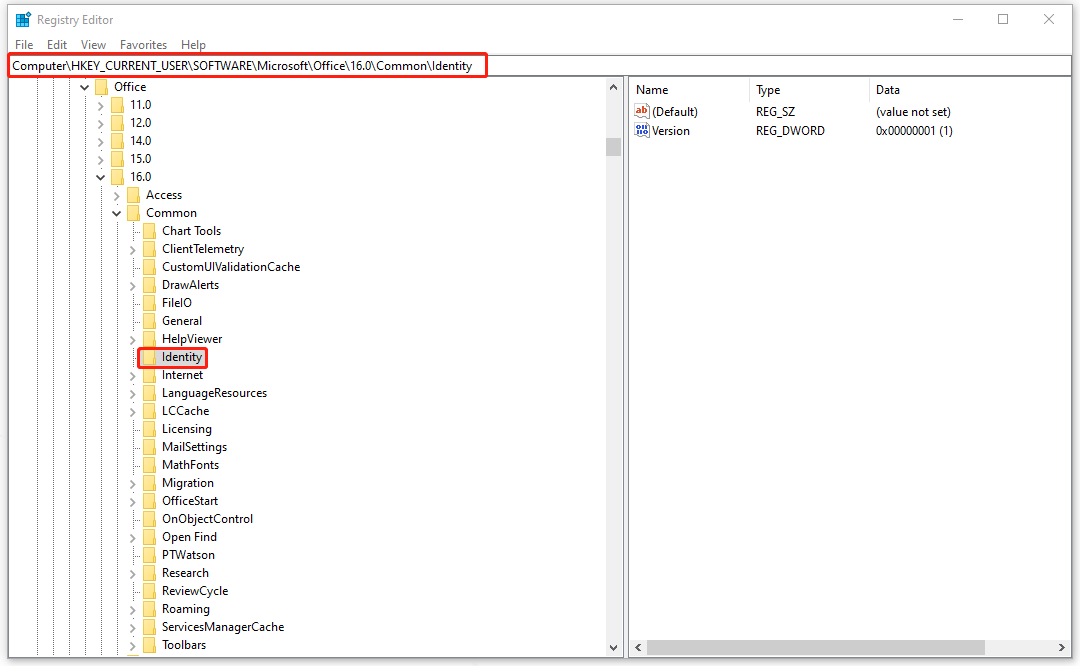
Step 3: Then right-click on Identity from the left panel to choose Delete to remove the registry.
Fix 5: Disable Proxy
Proxy can disguise your device’s IP address and that may affect the OneDrive sign-in. You can try to disable the connection and check if the error is fixed.
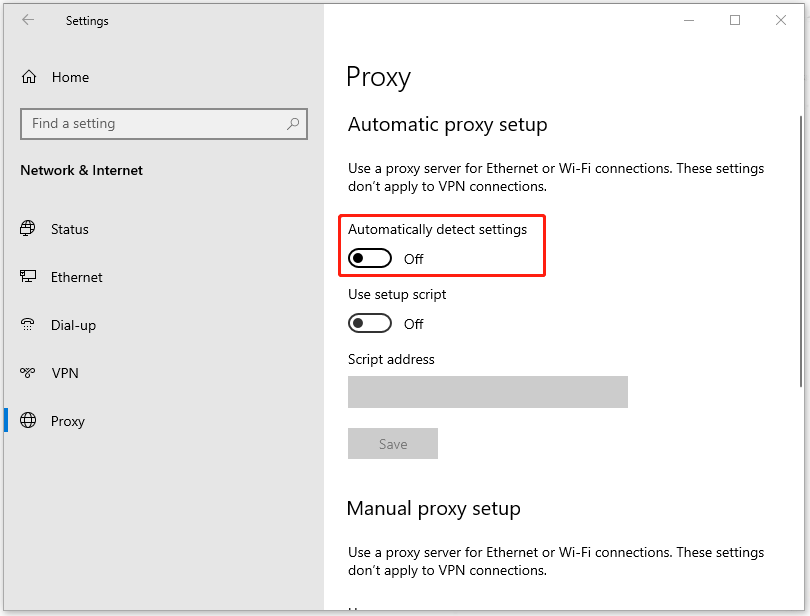
Step 1: Open Settings by pressing Win + I and go to Network & Internet.
Step 2: In the Proxy tab, turn off the Automatically detect settings option.
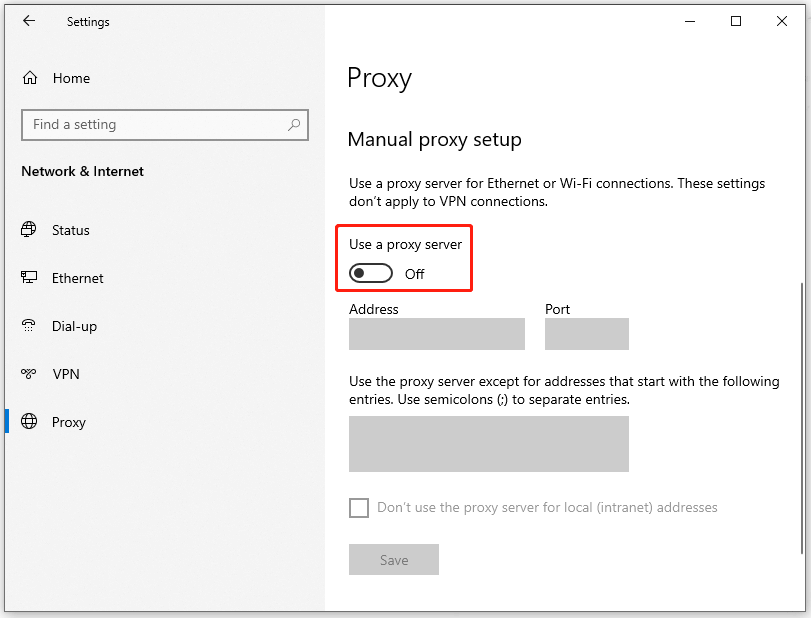
Step 3: Scroll down to the Manual proxy setup and disable the option of Use a proxy server.

Fix 6: Reset OneDrive
If all the above methods can’t resolve your issue, you can attempt to reset OneDrive, which can help fix most of the program glitches. Besides, reinstalling OneDrive is what you can try for troubleshooting.
Step 1: Open the Run dialog box and copy and paste this command.
%localappdata%\Microsoft\OneDrive\onedrive.exe /reset
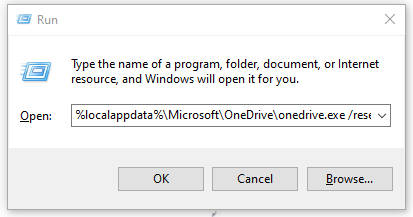
Step 2: Hit Enter to initiate the reset process. This process can restore OneDrive to its default settings and re-sync your files.
Bottom Line:
What should you do when you run into the OneDrive sign-in error 0x8004deef? There are six methods issued in this post and you may find the suitable one from above for troubleshooting. If you have any other related issues, you can contact us via [email protected].
User Comments :