
You can easily automatically sync local folders to Google Drive in two methods: run MiniTool ShadowMaker to schedule sync tasks from your PC to the cloud; use Google Drive for Desktop to keep selected local folders synced with the cloud.
Keeping local folders synced with Google Drive helps you access your files across devices and keep them up to date. Instead of manually uploading files whenever they change, you can set up automatic folder sync in Windows 11/10.
This guide explains how to automatically sync local folders to Google Drive using MiniTool ShadowMaker or Google Drive for Desktop, depending on your needs.
How to Automatically Sync Local Folders to Google Drive with MiniTool ShadowMaker
MiniTool ShadowMaker is a professional file sync software for Windows 11/10 and Windows Server 2025/2022. Its Cloud Sync feature can help sync your files and folders to the cloud, such as Google Drive and OneDrive.
Additionally, MiniTool ShadowMaker supports one-way sync, uploading selected files and folders to the cloud without syncing changes to the source locations. It also supports file comparison and filtering to avoid unnecessary duplicate transfers.
Importantly, MiniTool ShadowMaker offers an option to automatically sync your data on a daily, weekly, or monthly schedule. This eliminates the need for manual intervention and keeps your files regularly synced to Google Drive.
Recommended use cases:
MiniTool ShadowMaker supports several scheduled sync scenarios, including:
- Sync frequently updated folders daily, including work documents, business files, and ongoing project folders.
- Sync completed client projects weekly.
- Sync photos or large media folders monthly if they rarely change.
- Sync sensitive documents like financial records monthly to a dedicated folder in Google Drive.
Steps to set up automatic cloud folder sync:
Step 1: Download, install, and launch MiniTool ShadowMaker on your PC.
MiniTool ShadowMaker TrialClick to Download100%Clean & Safe
Step 2: Navigate to the Sync tab and choose Cloud Sync.
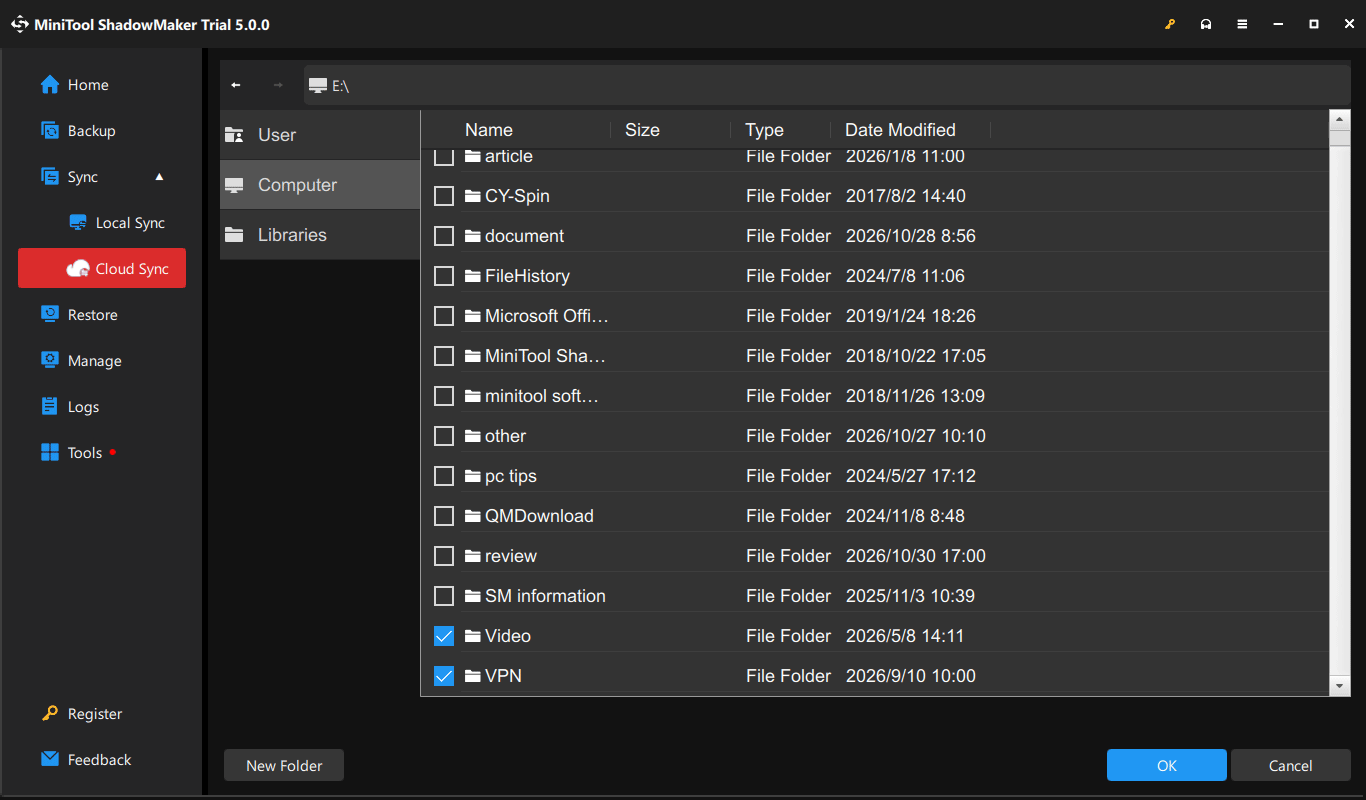
Step 3: Click SOURCE and select the folders you need to sync from User, Computer, or Libraries.
Step 4: Specify a destination folder.
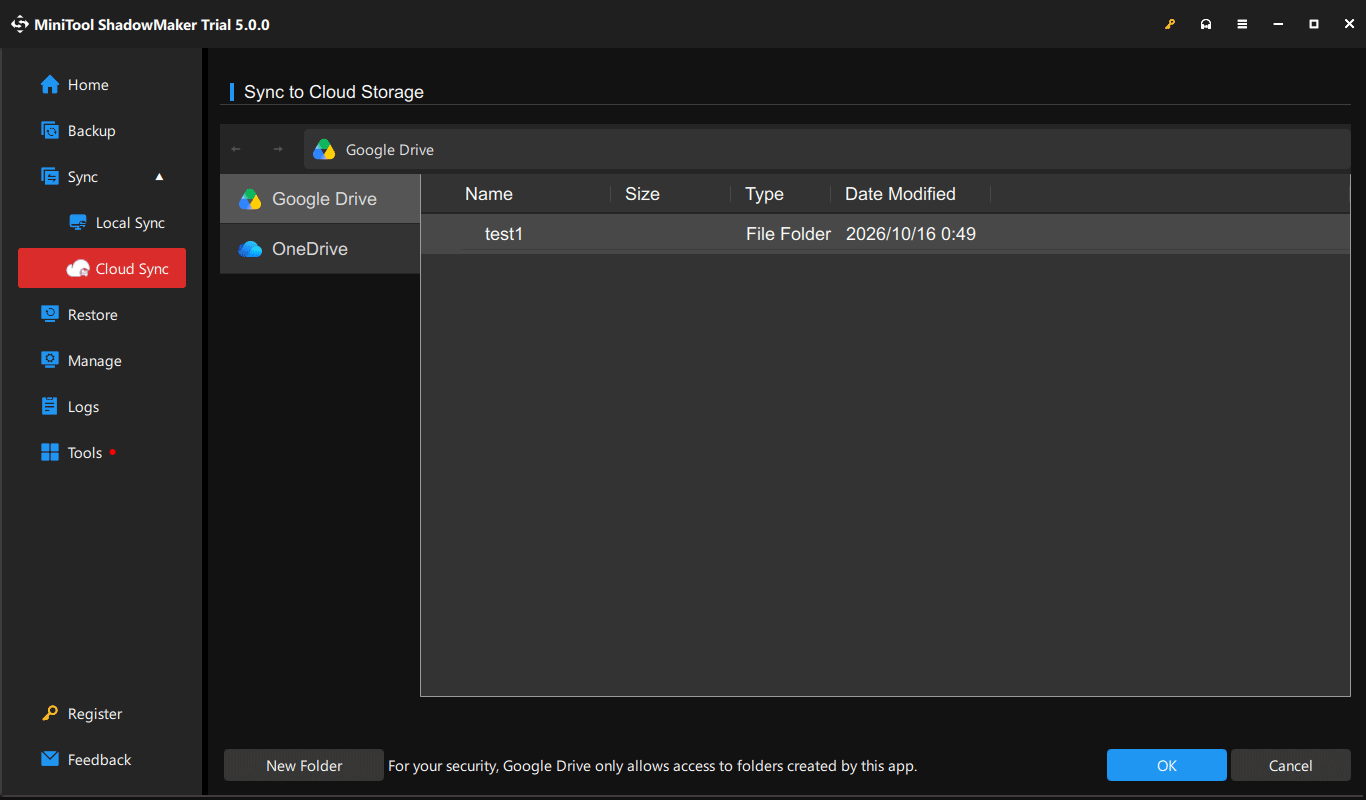
- Click DESTINATION and go to Google Drive.
- Allow MiniTool ShadowMaker to access your account.
- Create a new folder in Google Drive if you use it for the first time and choose it as the destination folder.
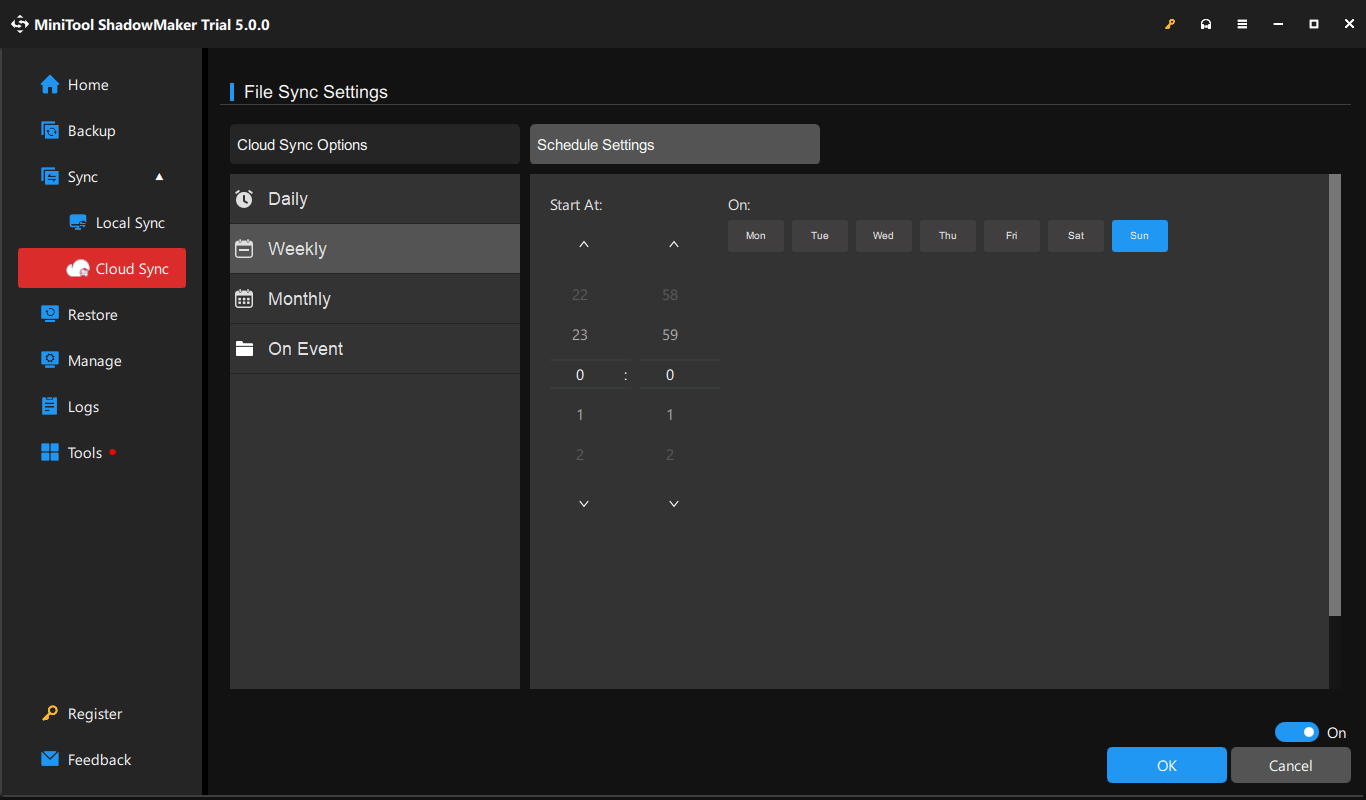
Step 5: Click Options > Schedule Settings, enable this feature, and set up daily, weekly, monthly, or event-triggered synchronization plans.
Step 6: Click Sync Now to begin the sync task. Then the scheduled tasks will be executed automatically.
How to Automate Folder Sync via the Google Drive for Desktop App
Google Drive for Desktop is the official desktop app for Windows and macOS. It can be a practical choice for active files including documents, spreadsheets, and other folders you edit regularly.
It supports two-way sync (via the Mirror files option), automatically synchronizing changes between your computer and Google Drive. This can keep files up to date without repeatedly uploading them manually.
Steps to sync local folders to Google Drive:
Step 1: Install Google Drive for Desktop and sign in with your account.
Step 2: Click Settings > Preferences.
Step 3: Choose a syncing option: Stream files or Mirror files.
Mirror files vs Stream files:
Compare them below to choose the one that best suits your needs.
| Feature | Mirror files | Stream files |
| File storage | Store My Drive files in the cloud and on your computer | Store My Drive files in the cloud |
| Local disk usage | Use more space | Use less disk space |
| Offline access | Automatically available offline | Choose specific files and folders to make available offline |
Step 4: Access the My Computer tab.
Step 5: Click Add folder and select your work folder or another folder you want to sync.
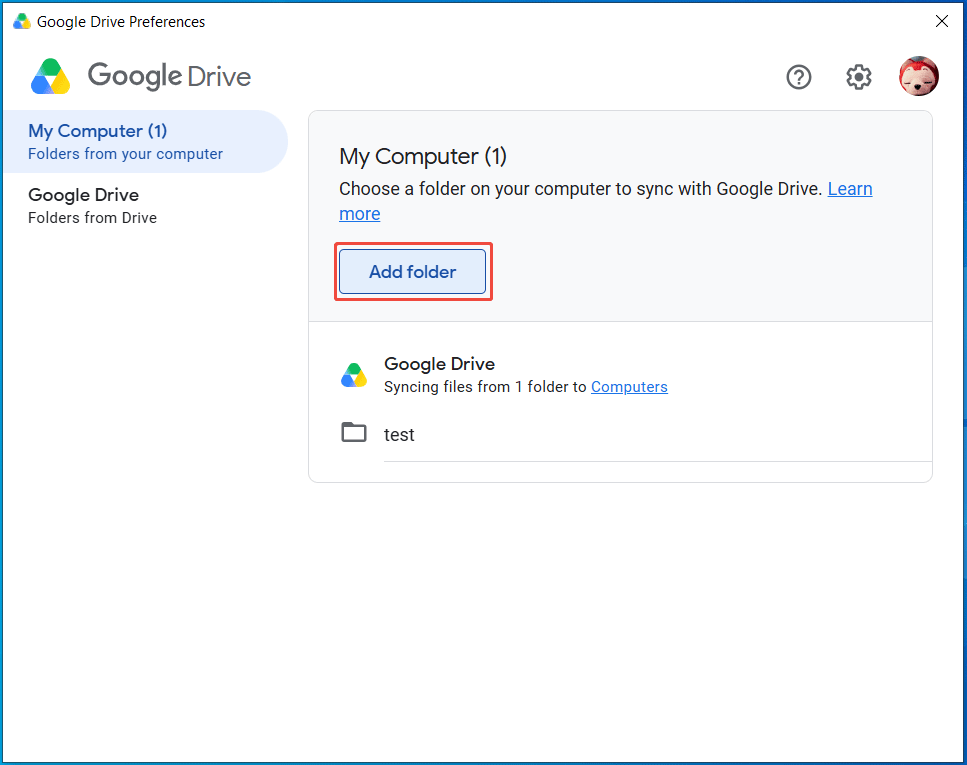
Step 6: Check the Sync with Google Drive setting and save it to start syncing.
Once syncing is complete, your files remain in their original local folder and are also available under Computers on the Google Drive website.
MiniTool ShadowMaker vs Google Drive for Desktop: Which One to Use?
Both MiniTool ShadowMaker and Google Drive for Desktop can automatically sync local folders to Google Drive. The table below highlights their key differences to help you choose.
| Feature | MiniTool ShadowMaker | Google Drive for Desktop |
| Sync direction | From PC to Cloud | Between Computer and Cloud (Mirror files) |
| Automatic synchronization | Scheduled | Ongoing |
| Select local folders | Yes | Yes |
| Best for | Large, rarely updated archives, such as completed projects and photo collections | Frequently edited documents and projects requiring automatic syncing, quick access, and collaboration |
How to Make Automatic Folder Sync More Efficient
#1. Check Available Google Drive Storage
Ensure there is enough cloud space for your selected folders. Each personal Google Account includes 15 GB of free storage shared across Google Drive, Gmail, and Google Photos.
Remove unnecessary cloud files or upgrade storage if needed.
#2. Organize Local Folders Before Syncing
- Group related files together.
- Do not synchronize system folders, application folders, or folders containing a large number of temporary files.
- Use a separate backup folder in Google Drive, keeping it separated from your everyday Drive folders.
#3. Choose a Suitable Sync Schedule
As mentioned above, use Google Drive for Desktop to sync frequently updated folders and MiniTool ShadowMaker to schedule sync tasks for less frequently updated folders.
#4. Avoid Syncing the Same Folder with Both Tools
Assign different folders to each tool instead of syncing the same folder with both, to reduce potential sync conflicts.
#5. Test and Review Your Setup
Start with a small folder, confirm that files are synced to the correct destination, and check the sync results regularly.
Automatically Sync Local Folders to Google Drive FAQ
Bottom Line
Automatically syncing local folders to Google Drive in Windows 11/10 can save time and keep important data up to date. Follow the instructions above to easily run MiniTool ShadowMaker to schedule folder sync to Google Drive or use Google Drive for Desktop for two-way synchronization.
When encountering issues with MiniTool software, please contact us at [email protected].
About The Author

Position: Columnist
Vera has been working at the MiniTool Team for over 10 years as a technical editor and content writer. She mainly focuses on disk and partition management, data recovery, Windows backup and restore, and PC troubleshooting. Through in-depth software testing and hands-on experience, she has helped users solve a wide range of computer problems and better protect their data on Windows devices.
User Comments :