
Why Sync Files to Google Drive
Syncing computer files to Google Drive can keep copies of the files in the cloud, let you access them across devices, and share them with others.
The following are key benefits:
- Protect files from local device failure: Important files on your PC can be lost due to hard drive failure, malware attacks, or system crashes. Syncing documents, videos, and photos to Google Drive helps keep an extra copy in the cloud and reduces the risk of permanent data loss.
- Access files anywhere: Files synced to Google Drive can be accessed from your phone, tablet, or another computer using the same Google account. This lets you open your files at home, in the office, or while traveling, especially useful for remote workers or students.
- Collaborate in real time: You can share files with your team members for collaboration. Everyone can view, comment on, or edit these files.
What Files Should You Sync
You should sync files that you often need to access or edit from multiple devices, including:
- Work documents: Sync files you use for work, such as Word documents, PDF files, Excel spreadsheets, PowerPoint presentations, and other important documents.
- Personal photos and videos: Upload your family photos, travel pictures, and screenshots to Google Drive for convenient online access.
- Design and creative files: For designers, video editors, or other creators, sync design drafts, video projects, photos & images, PSD files, and other files to Google Drive.
- School and study files: For students and researchers, sync research papers, reference materials, experiment data, and notes.
- Project folders: Sync folders that contain reports, drafts, and other related files if you are working on projects.
- Important personal documents: Upload receipts, tax forms, or identification copies to Google Drive.
Things to Check Before Syncing Files
Before syncing PC files to Google Drive, check a few things to avoid common issues.
#1. Available Google Drive storage
Storage space is limited. Check how much space is left in your account. Google Drive offers 15 GB of free storage shared across Google Drive, Gmail, and Google Photos.
#2. Internet connection
A stable internet connection is required for file upload, while a weak connection may cause sync errors or slow transfers.
#3. File size and type limits
Ensure individual files don’t exceed Google Drive file limits.
#4. File and folder permissions
Make sure you have read and write access to the files and folders you want to sync.
After checking, learn how to sync PC files to Google Drive.
How to Sync Files to Google Drive in Windows 11/10
There are two methods to sync local files to Google Drive:
- Run third-party software, MiniTool ShadowMaker.
- Use Google Drive for Desktop
Use MiniTool ShadowMaker
MiniTool ShadowMaker is a professional backup and sync tool designed for Windows 11/10 and Windows Server 2025/2022.
In addition to backing up files, systems, partitions, and disks to a local drive, this program lets you sync specific files and folders from your computer to Google Drive, OneDrive, or an external drive.
Moreover, MiniTool ShadowMaker provides an option for automatic file sync, allowing you to keep your important files up to date without manually syncing them each time.
MiniTool ShadowMaker TrialClick to Download100%Clean & Safe
Follow these steps to sync files to Google Drive:
Step 1: Launch MiniTool ShadowMaker.
Step 2: Navigate to the Sync tab and choose Cloud Sync.
Step 3: Click SOURCE, select the files you want to sync, and click OK to confirm.
Step 4: Set up Google Drive configurations.
1. Click Google Drive to open the Google Sign-in page.
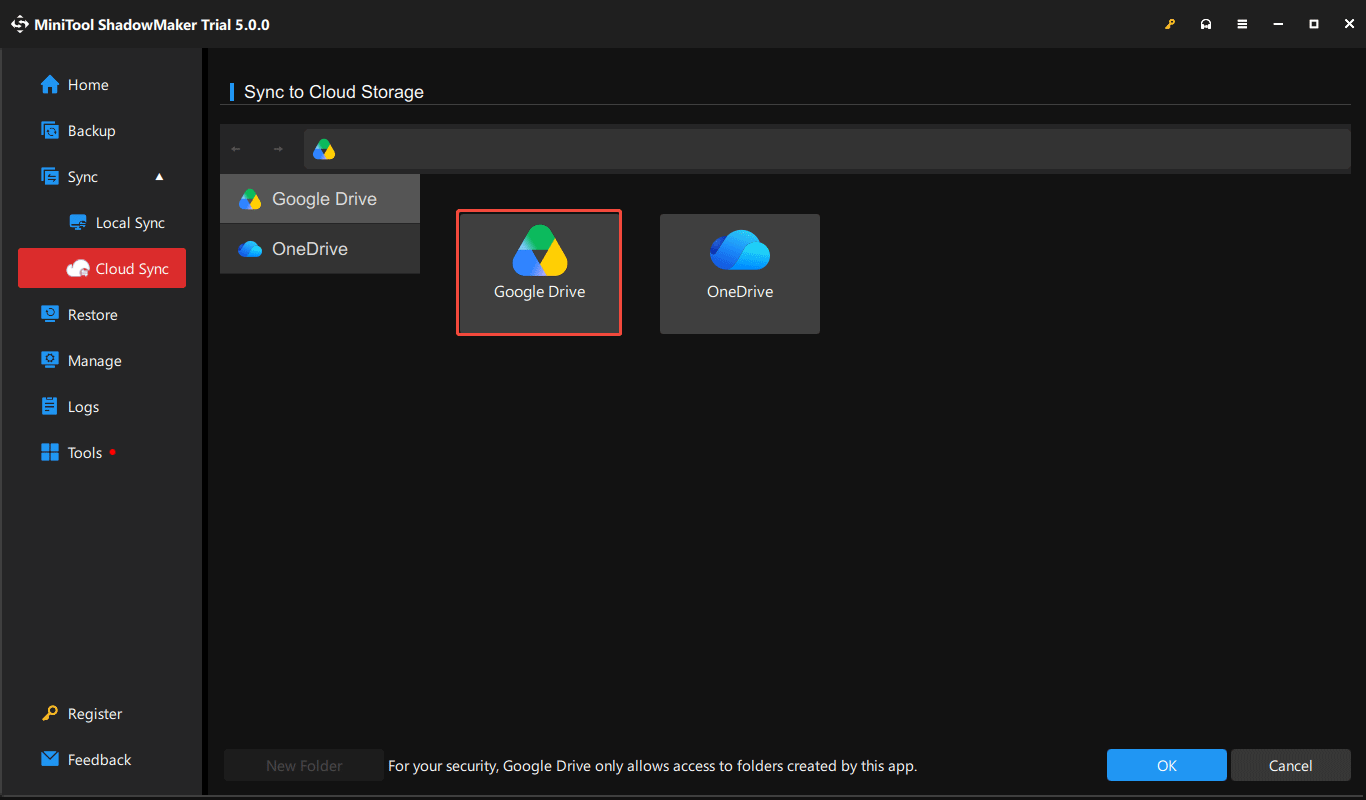
2. Allow MiniTool ShadowMaker to access your Google account.
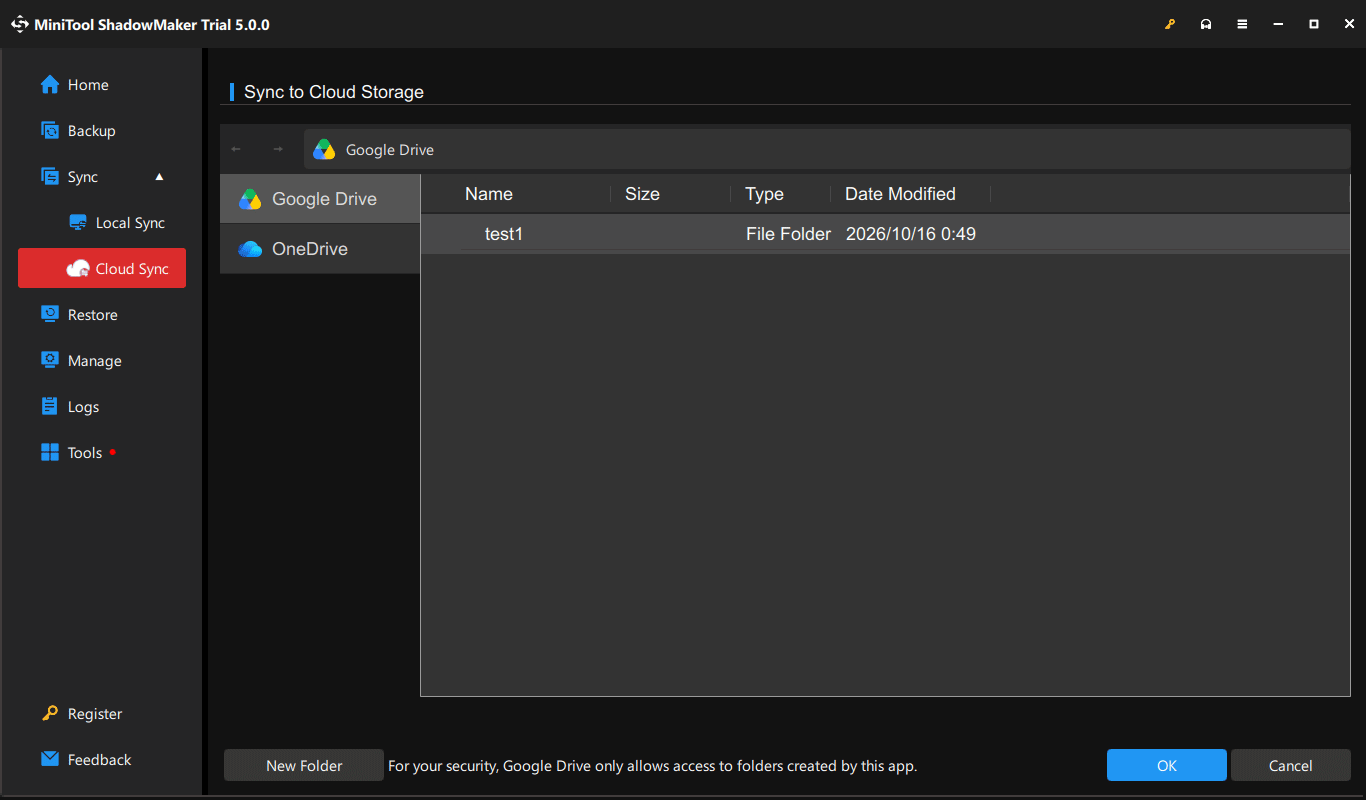
3. Create a new folder like test1 under Google Drive in the app window and choose it.
Step 5: Click Sync Now to start syncing files.
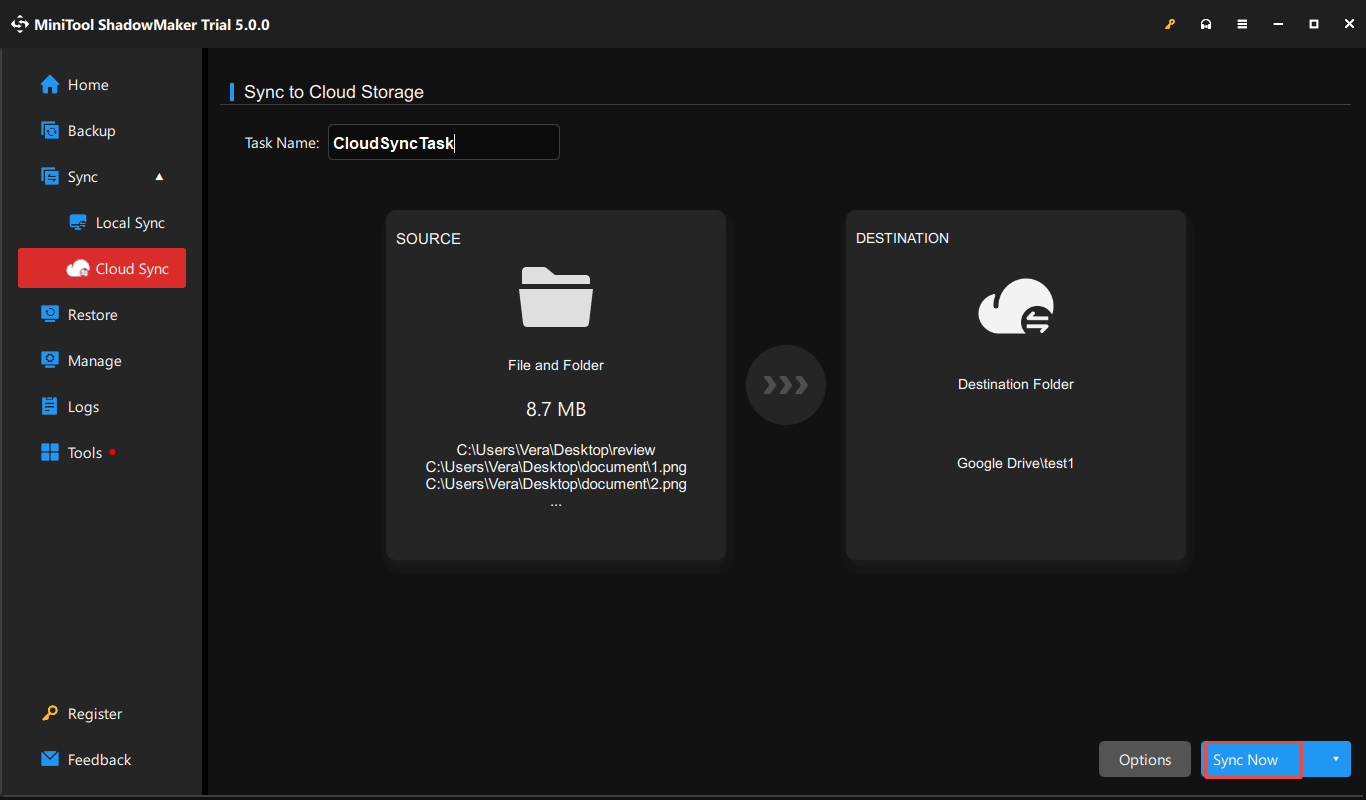
After finishing the sync, you can open your Google Drive and find the synchronized files.
Use Google Drive for Desktop
Additionally, use the Google Drive desktop app to sync files from your PC to the cloud.
Step 1: Download and install Google Drive for Desktop.
Step 2: Sign in with your Google account.
Step 3: Click the Settings icon, choose Preferences > Google Drive, and select your sync mode.
Step 4: Choose My Computer in the left menu, click Add folder, and choose a folder on your computer to sync with Google Drive.
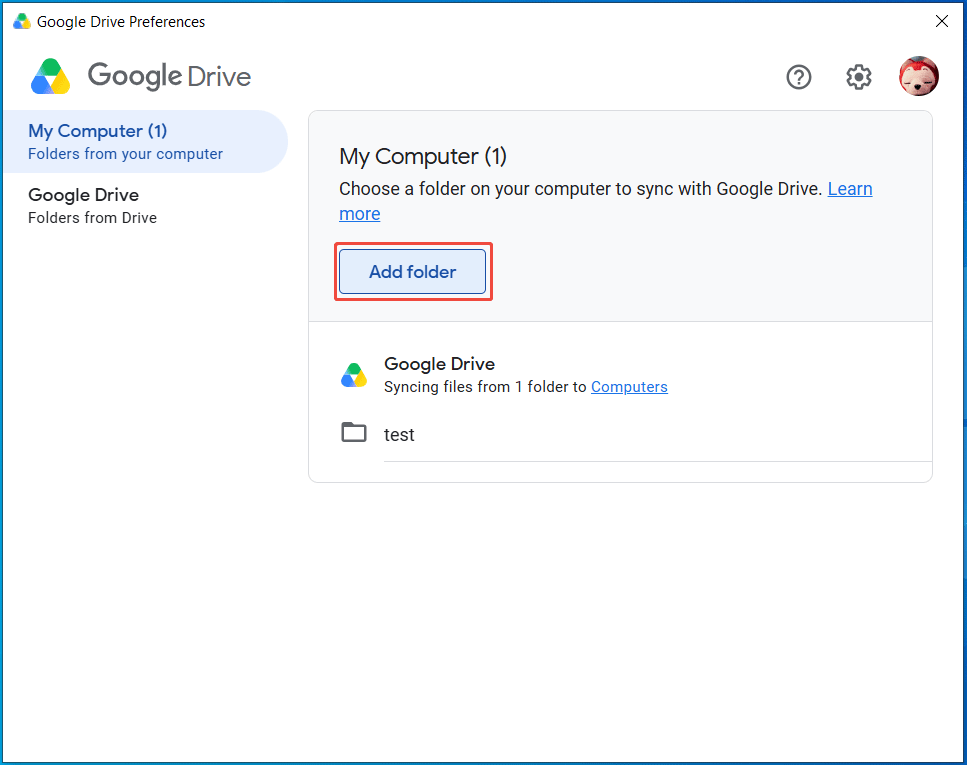
Step 5: Check Sync with Google Drive and click Done > Save.
MiniTool ShadowMaker vs Google Drive for Desktop
The following table compares MiniTool ShadowMaker and Google Drive for Desktop, helping you choose the right option to sync files.
| Feature | MiniTool ShadowMaker | Google Drive for Desktop |
| Sync Direction | One-way sync (PC to cloud) | Two-way sync |
| File Selection | Select individual files or folders | Select folders only |
| Schedule options | Daily, weekly, monthly, or on an event | No |
| Cloud Storage | Google Drive and OneDrive | Google Drive |
| Best for | Users who want to sync specific files or folders on a schedule | Users who want to sync folders between computers and Google Drive |
Sync Files to Google Drive FAQ
Conclusion
It is easy to sync your PC to Google Drive in Windows 11/10. Follow the instructions above to run MiniTool ShadowMaker or Google Drive for Desktop for cloud file sync.
If you want to sync computer files regularly, choose MiniTool ShadowMaker. When encountering issues with this software, contact us at [email protected].
About The Author

Position: Columnist
Vera has been working at the MiniTool Team for over 10 years as a technical editor and content writer. She mainly focuses on disk and partition management, data recovery, Windows backup and restore, and PC troubleshooting. Through in-depth software testing and hands-on experience, she has helped users solve a wide range of computer problems and better protect their data on Windows devices.
User Comments :