
Quick Answer
Avast may block websites to protect your computer from malware, phishing links, and other online threats. However, some legitimate websites can be blocked due to expired certificates, misconfigured security settings, or false positives.
To fix this issue:
- Update Avast to the latest version
- Disable Avast Webshield and HTTPS scanning
- Add the URL to Avast’s exception list
- Temporarily turn off Avast protection
- Repair the Avast program
- Reset Avast to default Settings
- Report a false positive
Why Is Avast Blocking Safe Websites
However, this antivirus program can also block legitimate websites even when they are safe. This can happen for these reasons:
- The website may have recently changed its hosting provider or domain and has not yet established a reputation in Avast’s threat database.
- The website’s SSL certificate is invalid or has expired, preventing Avast from verifying a secure connection.
- The website contains suspicious scripts or advertisements that are detected by Avast.
- Corrupted browser cache or outdated virus definitions can cause incorrect security warnings.
How to Fix The “Avast Blocking Websites” Issue
You always get a pop-up notification “threats blocked” on your screen when Avast blocks something. That can be a grave problem, thus, I will introduce how to fix the “Avast blocking websites” issue.
Method 1: Update Avast Antivirus to the Latest Version
You can try to update Avast antivirus to the latest version to fix the “Avast blocking Internet Windows 10” issue. Here’s how to do that:
Step 1: Open Avast on your Windows 10. Then click Menu and click the Settings tab.
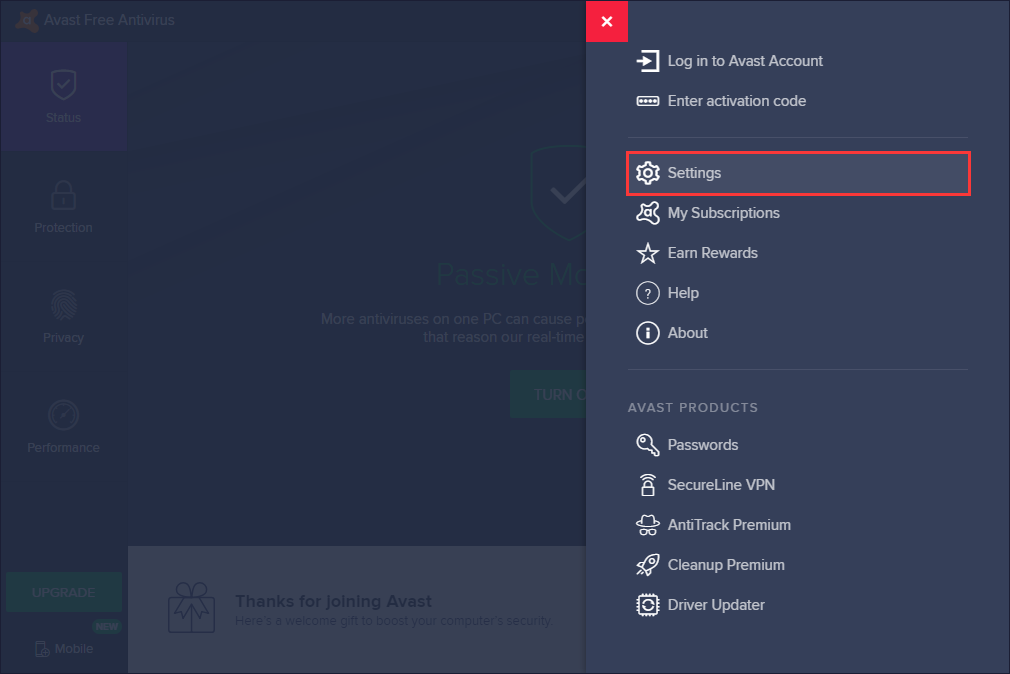
Step 2: On the left pane, click Update under the General tab.
Step 3: Then you should click CHECK FOR UPDATES. If there is a new update, you just need to update it.
You can also update Avast in another method. It is also feasible.
Step 1: Right-click the Avast icon on your taskbar.
Step 2: Go to the Update option from the drop-down menu and then right-click it to choose Program.
Step 3: Then you just need to follow Step 3 in the previous method.
Once you have updated Avast antivirus, you can check if the Avast blocking websites issue has been fixed. If the issue isn’t solved, try the methods presented below.
Method 2: Disable Avast Webshield and HTTPS scanning
You will need to disable some of Avast protection protocols if it blocks the site. You can fix the issue by turning off HTTPS scanning and disabling Avast Web Blocking. Here is the tutorial:
Step 1: Open Avast on your computer. Then go to the Avast dashboard.
Step 2: Then click Menu and click the Settings tab. Then you should click Core Shields under the Protection tab.
Step 3: Next, under the Configure shield settings page, navigate to Web Shield. Then you should uncheck the Enable HTTPS scanning option.
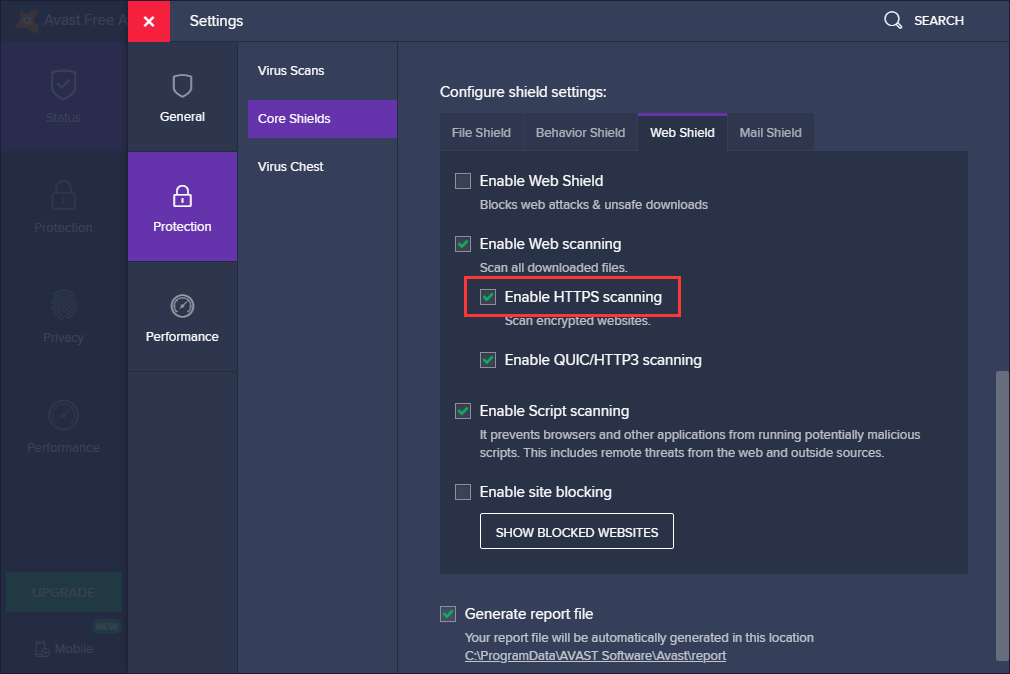
Then you have disabled the HTTPS scanning process successfully and can access the Internet without Avast’s interference. If the Avast blocking your Internet access issue still exists, you can try the next method.
Method 3: Add the URL to Avast’s Exception List
If Avast blocks any website, you can exclude it from the blacklist to access it. Avast provides a whitelist. You can enter file paths, URLs, and specific applications into this list, and use Avast to exclude it from being scanned. To exclude URLs from Avast protection, you need to do the following steps.
Step 1: Open Avast on your computer and go to the Avast dashboard.
Step 2: Then click Menu and click the Settings tab. Click the Exceptions tab under the General tab
Step 3: Under this tab, click ADD EXCEPTION and a new window will pop up. Then you can type the URL that you want to add in it.
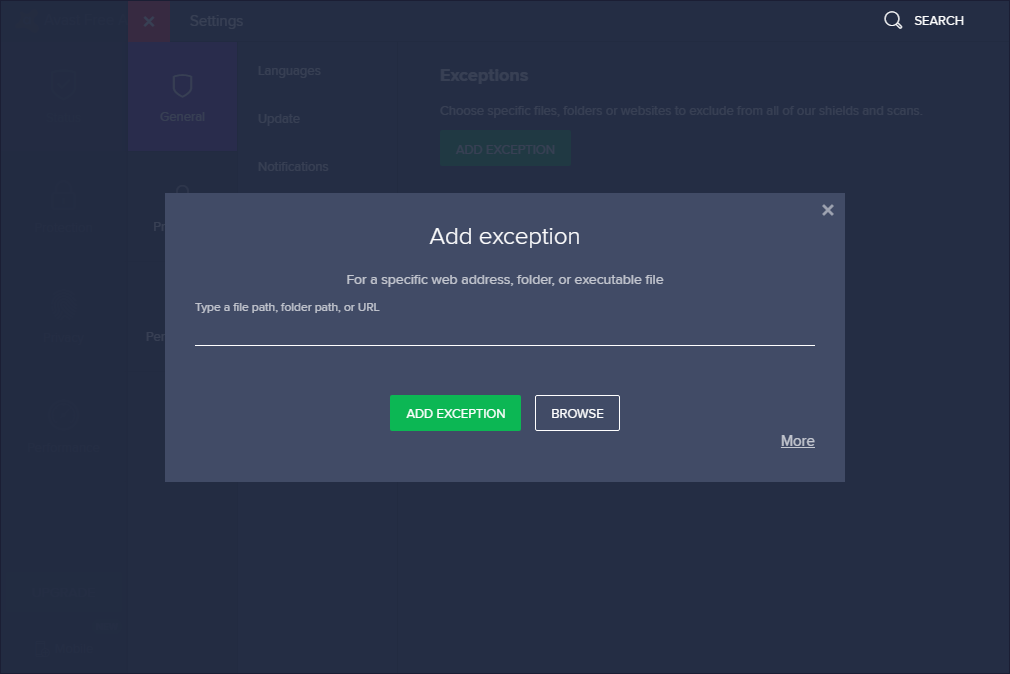
Step 4: Click ADD EXCEPTION to save the URL.
Then you should go back to your browser and try to access the URL to check if the issue has been fixed or not. If it still exists, try the next one.
Method 4: Temporarily Turn Off Avast Protection
You can also turn off Avast protection temporarily. Follow these simple steps to do that and see if you can access websites smoothly.
Step 1: Go to Windows 10 taskbar. Right-click the Avast antivirus icon and choose the Avast shield control option from the menu.
Step 2: Choose one option from the following options to disable Avast protection temporarily.
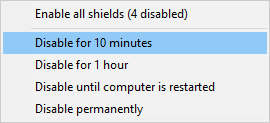
Step 3: This action opens the Avast security suite, and you just need to click Yes to confirm the temporary disabling.
You have turned off Avast, then you can try revisiting the blocked websites to see if the “Avast blocking Internet” issue is gone.
Method 5: Repair Avast Installation Program
For Windows 10, you can fix the Avast blocking websites issue by fixing the security program itself. You can configure Avast installation and stop it from blocking internet access on Windows 10. Here is how to repair the Avast installation program.
Step 1: Click the shortcut of Avast on the desktop to launch it.
Step 2: After entering its main interface, click the Menu button on the upper right corner to continue.
Step 3: Then click Settings. Click the Troubleshooting tab under the General tab and then click REPAIR APP to continue.
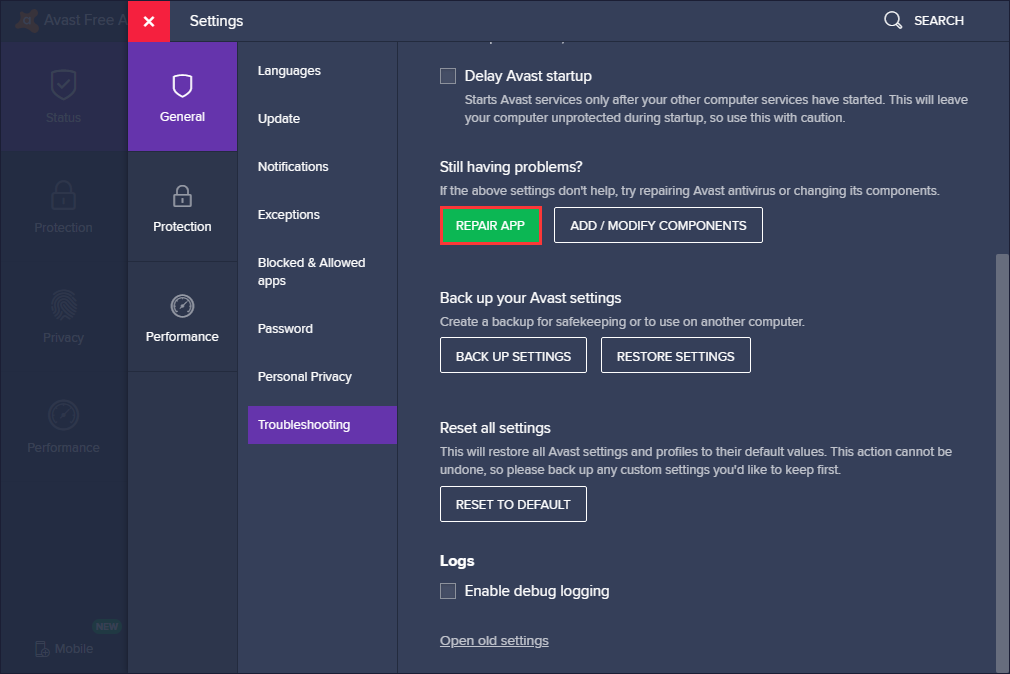
The repairing process will take some time and you need to wait patiently. After repairing, reboot the Avast antivirus program and check whether the issue of Avast blocking websites is solved. If this solution is not effective enough, try the following method.
Method 6: Reset the Antivirus to Default Settings
If you meddled with the implemented firewall on your own or a peculiar update changed something, as a result, Avast blocked the internet access. In this case, you should just reset Avast to its default values. That seems to be the best way to fix the Avast blocking your Internet access issue.
Reset everything to default values, restart your PC and look for changes. If the Avast is till blocking websites, here is the last method for you.
Method 7: Report a False Positive Detection to Avast
The last method for you is to report the detection you believe is a false positive directly to the Avast team. They will investigate it and finally confirm whether the website is clean or not. Here is how to it:
You should go to the official web form for reporting false positive detection. Then you just need to type the URL that you want to report and click SUBMIT.
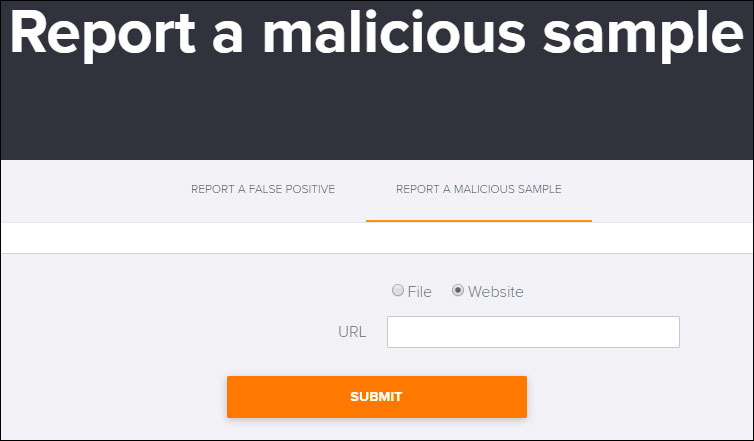
The methods mentioned above can help you fix the Avast blocking Internet connection issue. However, your computer is exactly harmed by some websites. As a result, Avast blocks such websites to protect your data from cyber-attacks.
If you still can’t access these websites after you try these methods. I think you shouldn’t access them, especially there is some important data stored on your computer.
Why Is Avast Blocking Websites and How Can You Stop It?Click to Tweet
Make a Backup to Protect Your Computer
If you only use Avast to protect your computer, that is not enough. Just imagine such a scene – once your computer was infected by the virus and it destroyed your important files, what should you do?
If you back up your files in advance, then you can recover your data when your data gets lost. Thus, it’s essential to back up your important data after fixing the issue. It is recommended to make a backup for your computer. After that, you can keep your PC and data safe.
Meanwhile, how to back up your important data? To do that, you can use the professional Windows backup software – MiniTool ShadowMaker. It is designed to back up the operating system, partitions, disks, files, and folders.
It is also a clone tool that can help you to clone the OS from HDD to SSD without data loss. So, besides creating a system image, you can also choose to clone the OS disk to another hard drive so as to safeguard your PC.
This backup software offers a Trial Edition that allows a 30-day free trial for all backup features. If you want to use it permanently, get its Pro Edition. Now you can download and try MiniTool ShadowMaker to back up your PC.
MiniTool ShadowMaker TrialClick to Download100%Clean & Safe
Here I take file backup as an example:
Step 1: Launch MiniTool ShadowMaker and enter its Backup tab.
Step 2: Click SOURCE > Folders and Files, choose the items you want to back up, and click OK.
Step 3: Navigate to DESTINATION and choose a drive to save the backup image file.
Step 4: Click Back Up Now to start the process.
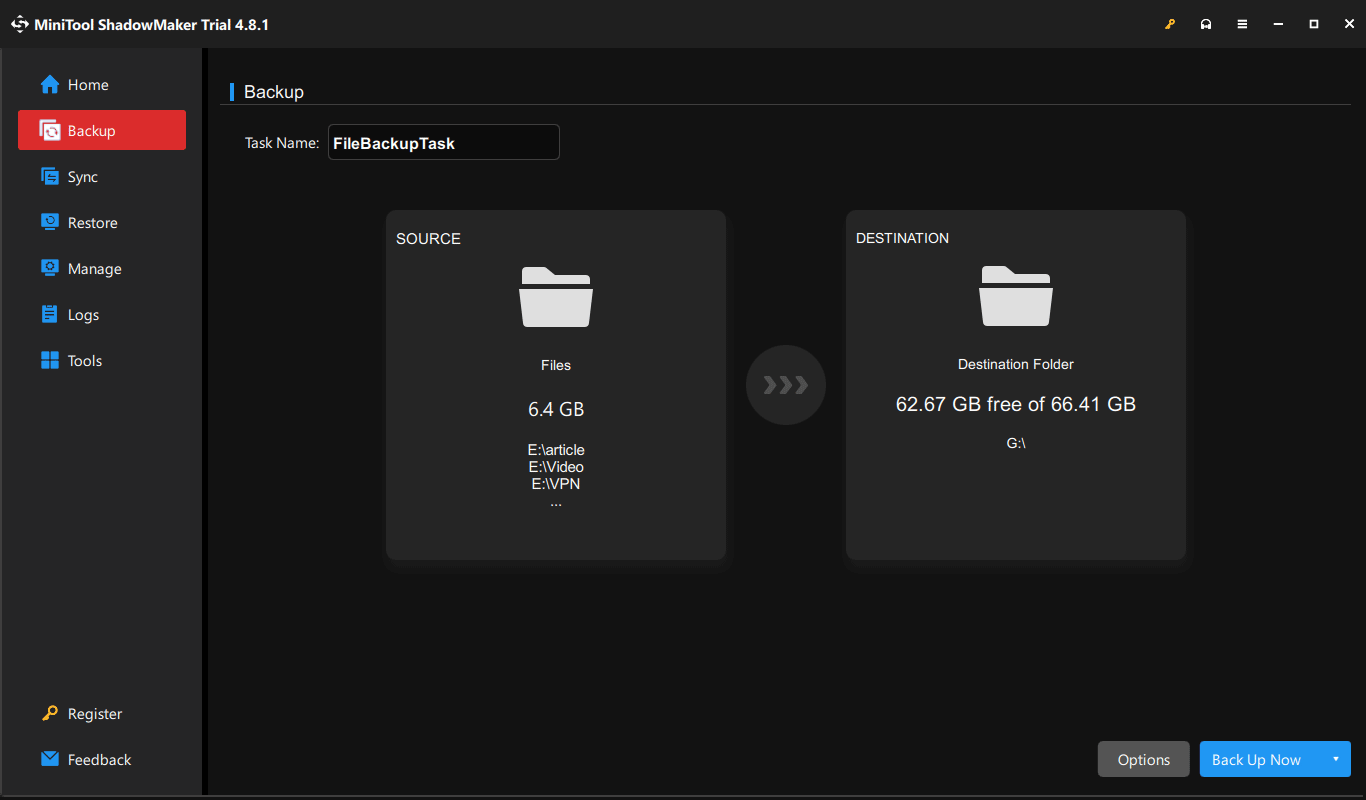
After all of the steps are finished, you have successfully backed up your data. With MiniTool ShadowMaker, you can provide better protection for your computer and keep it safe.
Why Is Avast Blocking Websites and How Can You Stop It?Click to Tweet
Conclusion
It’s time to make a conclusion. This post has introduced several solutions to solve the problem of Avast blocking websites. If Avast on your computer has the same problem, try these solutions above.
To better safeguard your computer, it is recommended to back up your data with MiniTool ShadowMaker. Thus, if you have any problem with MiniTool ShadowMaker, please feel free to contact us via the email [email protected] and we will reply to you as soon as possible.
Avast Blocking Websites FAQ
However, keeping it enabled is recommended to maintain protection against online threats.
About The Author

Position: Columnist
Vera has been working at the MiniTool Team for over 10 years as a technical editor and content writer. She mainly focuses on disk and partition management, data recovery, Windows backup and restore, and PC troubleshooting. Through in-depth software testing and hands-on experience, she has helped users solve a wide range of computer problems and better protect their data on Windows devices.
User Comments :