
Backing up art files is important to protect digital artwork. Choose a method that suits your needs: run MiniTool ShadowMaker for automatic backups; manually copy small collections to an external drive; use an automated cloud service for offsite backups; or use a NAS device for centralized storage across multiple devices.
Why Should You Back Up Digital Art?
Creating digital art takes considerable time and effort. A single project may involve hundreds of files, including editable project files, reference images, and finished illustrations.
Whether you are a professional artist or a hobbyist, backing up these files is essential. Losing these files could mean losing hours or years of creative work.
The following are the common reasons for digital art backup:
- Prevent permanent data loss: Hard drive failure, accidental deletion, device theft, and malware infections can put your digital artwork at risk. Keeping multiple backup copies ensures you can quickly recover your files if something goes wrong.
- Preserve your creative history: Storing multiple versions of your artwork lets you revisit earlier drafts, reverse unwanted edits, and restore previous designs when needed.
- Save time and effort: A reliable backup helps resume your work without having to recreate everything from scratch.
Which Digital Art Files Should You Back Up?
When backing up, don’t limit it to finished images. Include all the files and resources you need to edit or recreate your work:
| File Type | Examples |
| Original project files | PSD, AI, KRA, CLIP, Blender, and other files that preserve layers and editing details. |
| Final exports | Finished artwork in PNG, JPG, PDF, or TIFF formats. |
| Reference images and resources | Reference images, textures, custom brushes, and fonts used in your projects. |
| Project documentation | Client requirements, contracts, delivery records, and version notes. |
How to Backup Digital Artwork
There are 4 approaches to backup digital art files. Let’s explore each method.
Method 1: Use MiniTool ShadowMaker for Automatic Backups
MiniTool ShadowMaker is a practical solution for protecting your digital artwork. This professional backup software provides comprehensive data protection and flexible backup options to meet different needs.
With it, you can:
- Select specific folders to back up containing editable project files and finished images.
- Schedule daily, weekly, or monthly automatic backups.
- Use incremental or differential backup schemes to back up changed data, reducing backup time and storage space.
- Automatically delete old backup versions according to configured retention settings.
- Compress backup source to image files and save them to an external hard drive, USB drive, or NAS.
Follow these steps to backup digital art files:
Step 1: Connect an external hard drive to your computer.
Step 2: Download, install, and launch MiniTool ShadowMaker.
MiniTool ShadowMaker TrialClick to Download100%Clean & Safe
Step 3: Go to Backup, click SOURCE > Folders and Files, choose the folders that contain your digital artwork, and click OK.
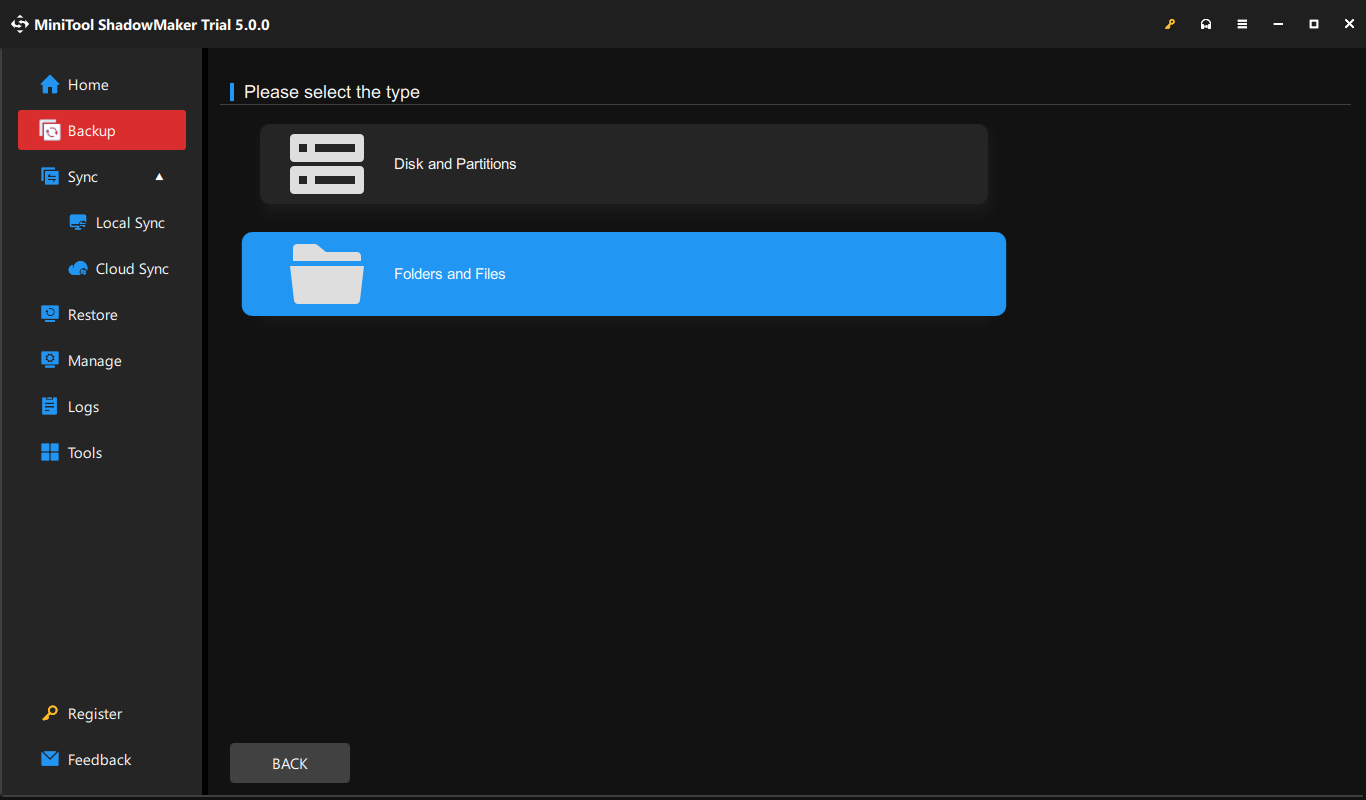
Step 4: Go to DESTINATION and select the connected external drive as the destination drive. To back up digital art to NAS, go to Shared > Add and configure & choose your NAS device.
Step 5: Navigate to Options and make advanced settings for digital art backups.
- Go to Backup Options > Compression to set the compressed level to high or medium.
- Click Backup Scheme and choose Incremental or Differential to back up only changed data and automatically manage older backup versions.
- Enable Schedule Settings and set up a scheduled plan.
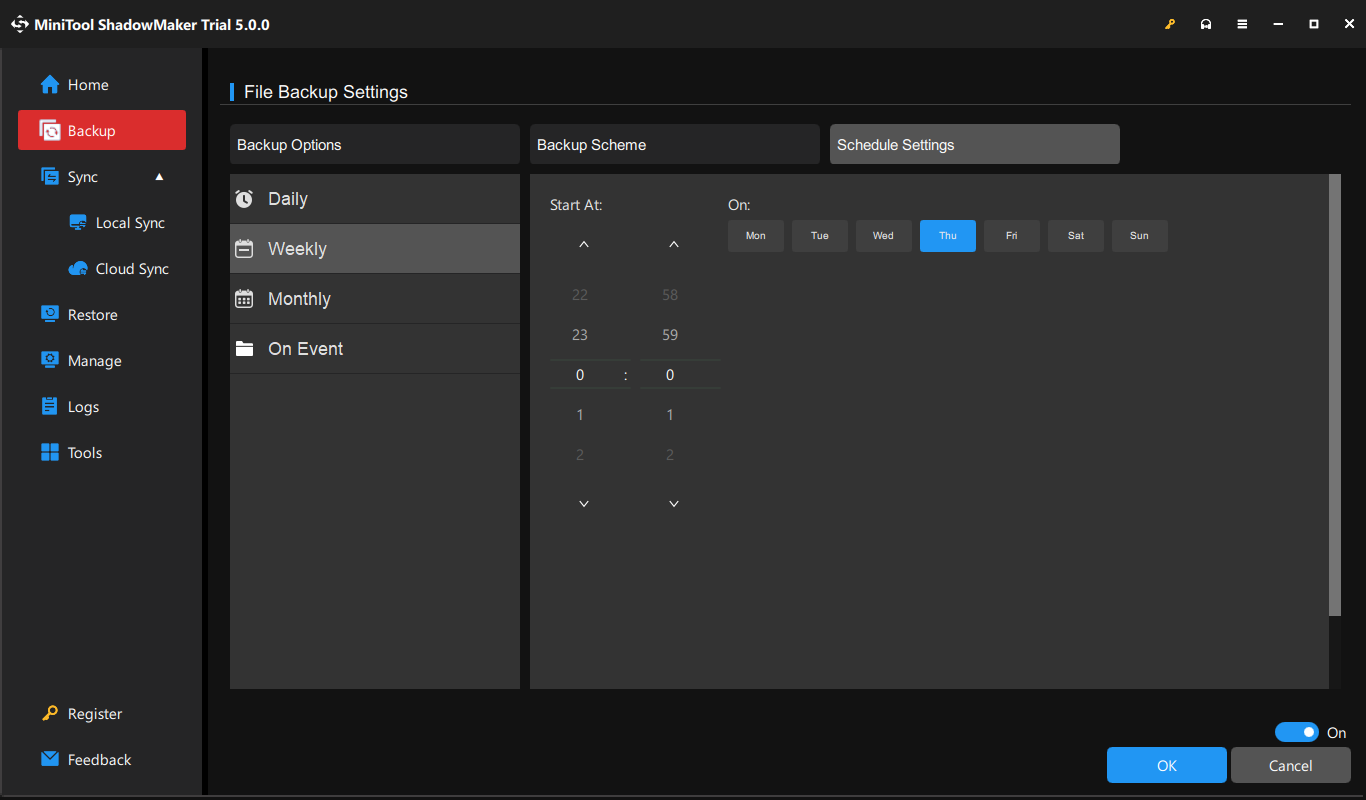
Step 6: Click Back Up Now to start the backup task immediately.
To learn the differences between incremental and differential backups, refer to the incremental vs differential guide.
Method 2: Manually Copy Artwork Files to External Drives
Some digital artists on Reddit recommend storing backup copies of their artwork on external hard drives to protect against computer or drive failures. This method is simple and convenient, requiring no additional software installation or network connection.
Step 1: Connect your external hard drive to the PC.
Step 2: Locate your artwork folders and copy them to that drive.
Method 3: Use an Automated Cloud Service
Dedicated automated cloud services like Backblaze or IDrive provide an easy method to keep offsite copies of your digital art files.
Install the software on your computer, select the artwork folders you want to protect, and set up automatic backups to run quietly in the background. This eliminates the need to manually upload files each time.
Method 4: Use a NAS Device
Some Reddit users recommend using a Network Attached Storage (NAS) device to back up digital artwork.
A NAS device provides centralized storage, and it is particularly useful for digital artists who:
- Work with large files
- Manage multiple projects
- Use several computers in a home studio
Just purchase reputable devices like Synology or QNAP, complete the initial setup, and schedule regular backups of your artwork and project assets. Since the exact setup steps vary by NAS model, follow the setup guide provided by your NAS manufacturer.
Comparison of 4 Digital Art Backup Methods
The best backup method depends on your needs and budget. Check the table below to find the suitable method for digital art backups.
| Method | Key Features | Limitations | Best for |
| Run MiniTool ShadowMaker | Supports scheduled, incremental, and differential backups to local drives and NAS. | Requires installing backup software. | Artists who want automatic, customizable backups. |
| Manually copy files to an external hard drive | Simple to use, fast file transfers, and no internet required. | Easy to forget; version clutter | Artists with small collections who prefer a simple, low-cost backup method. |
| Use an automated cloud service | Stores an off-site copy. | Requires an internet connection and usually a subscription; takes a long time to upload large files. | Artists who want off-site protection against device loss or damage. |
| Use a NAS device | Stores artwork on a network-connected device and configures scheduled backups, snapshots, or versioning. | Costs a lot upfront for hardware and drives; Require technical knowledge to set up and maintain. | Artists who work across multiple devices or in a shared studio. |
Best Practices for Backing Up Digital Art
Choosing a backup method is just the first step. Follow these best practices to better protect your digital artwork.
- Follow the 3-2-1 backup rule: Keep at least 3 copies of artwork, store them on 2 different storage media, and keep 1 copy offsite (NAS or cloud).
- Back up regularly: Set up daily, weekly, or monthly backups based on how frequently you create or modify artwork.
- Keep multiple versions: Save separate copies of your artwork to restore earlier versions after accidental edits or file overwrites.
- Verify your backups: Test your backups regularly to check if they are accessible and recoverable.
Back Up Digital Art FAQ
Bottom Line
Backing up digital art helps protect creative projects from accidental loss, hardware failure, or malware infections. Choose a backup method that fits your needs and follow the instructions above.
If you have issues when running MiniTool ShadowMaker for automatic backups, contact us at [email protected].
About The Author

Position: Columnist
Vera has been working at the MiniTool Team for over 10 years as a technical editor and content writer. She mainly focuses on disk and partition management, data recovery, Windows backup and restore, and PC troubleshooting. Through in-depth software testing and hands-on experience, she has helped users solve a wide range of computer problems and better protect their data on Windows devices.
User Comments :