
Key Takeaways
- As data continues to grow, reducing backup size is essential for better storage management.
- Backup compression offers an efficient way to compress backup files.
- MiniTool ShadowMaker includes a built-in feature to compress the source data for file, folder, system, disk, or partition backup.
What Is Backup Compression
Backup compression is a technology that reduces the storage size of backed-up files by compressing data. It uses algorithms to reorganize data and create smaller backup image files instead of storing data at its original size.
During backup creation, the tool compresses source data before saving it locally or transferring it over a network. This only changes how the data is stored—it does not change your original files or affect data integrity.
Check the table to understand the difference between a normal backup and a compressed backup.
| Regular Backup | Compressed Backup |
| Keeps the original backup size | Shrinks backup file size |
| Uses more storage space for the same data | Requires less disk space |
| Stores data without compression | Compresses data before storage |
Why Compress PC Backups
Data compression during backups offers three main benefits:
- Save disk space: Compression can reduce the size of backup files, allowing you to store more backup versions on limited devices.
- Lower costs: This minimizes the storage space required for backups, reducing the need to purchase larger physical drives or expensive cloud storage plans.
- Deliver faster transfer speeds: Smaller backup files can be transferred more quickly to external drives, NAS devices, or other storage locations.
How to Compress Backups with MiniTool ShadowMaker
When it comes to PC backup, many tools are available on the market. However, not all of them support the compression feature, including Windows’ built-in backup tools. To back up files with compression, MiniTool ShadowMaker is a reliable solution.
Best PC Backup Compression Software
Designed for Windows users, MiniTool ShadowMaker supports system, disk, partition, folder, and file backups to provide comprehensive data protection for your computer.
This backup software offers the Compression feature to compress backup image files, reducing their size while maintaining data integrity.
It provides multiple compression levels to meet different needs:
- None: Backup image files are created without compression.
- Medium: This is the recommended option that gives a good balance between backup speed and storage savings. The backup file is about 50% the size of the original data.
- High: This option provides maximum compression to minimize backup file size, but it uses more CPU resources and may take longer to complete the backup process. The backup image file is only about 30% of the original data size after compression.
Steps to Back Up Files with Compression
In the following steps, we’ll show you how to compress backups with MiniTool ShadowMaker.
Step 1: Connect an external hard drive or USB flash drive to your computer properly.
Step 2: Download MiniTool ShadowMaker, finish the installation, and launch this tool.
MiniTool ShadowMaker TrialClick to Download100%Clean & Safe
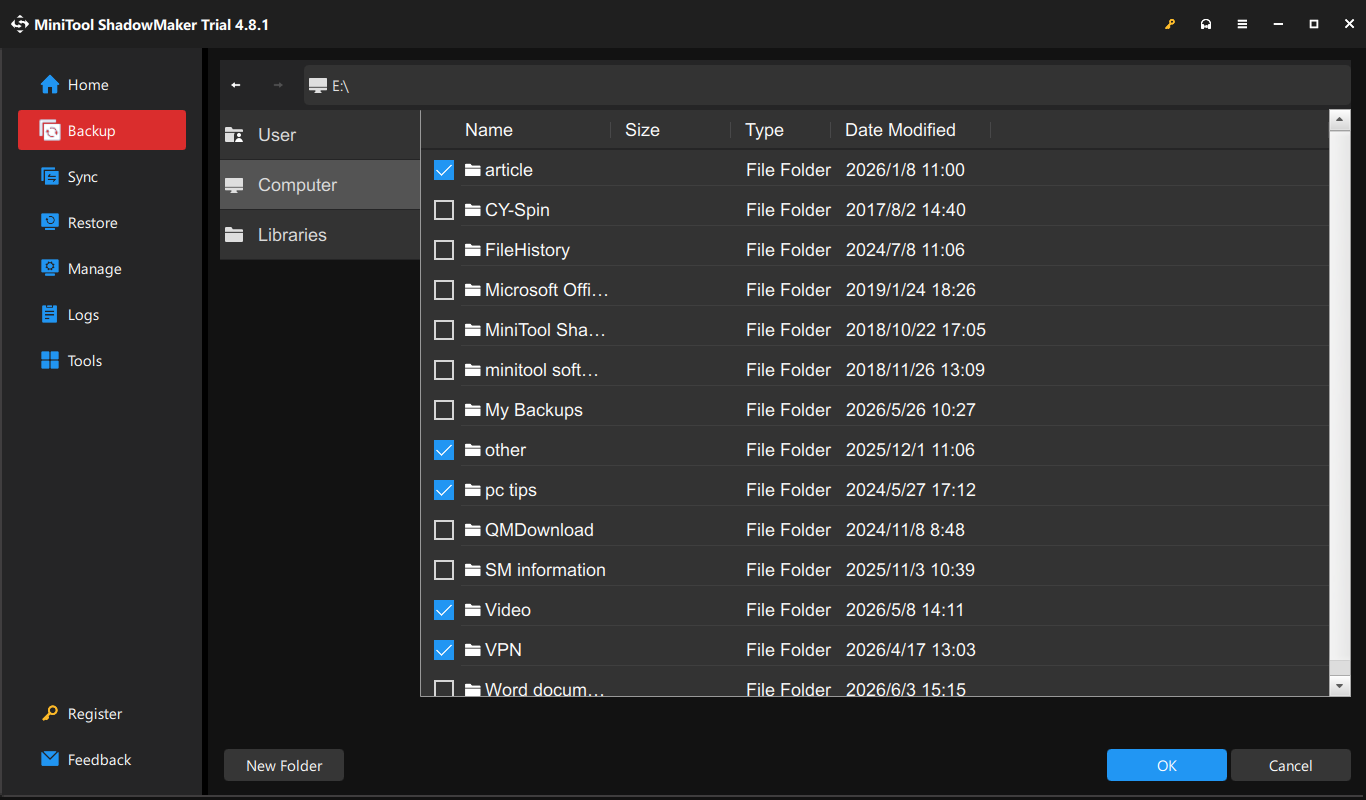
Step 3: Choose the files you need to back up.
- Go to the Backup tab.
- Click SOURCE > Folders and Files.
- Open the drive and select the items you need.
- Click OK to confirm.
Step 4: Select a destination to save the image file.
- Click DESTINATION under Backup.
- Choose the connected external drive or USB drive.
- Click OK.
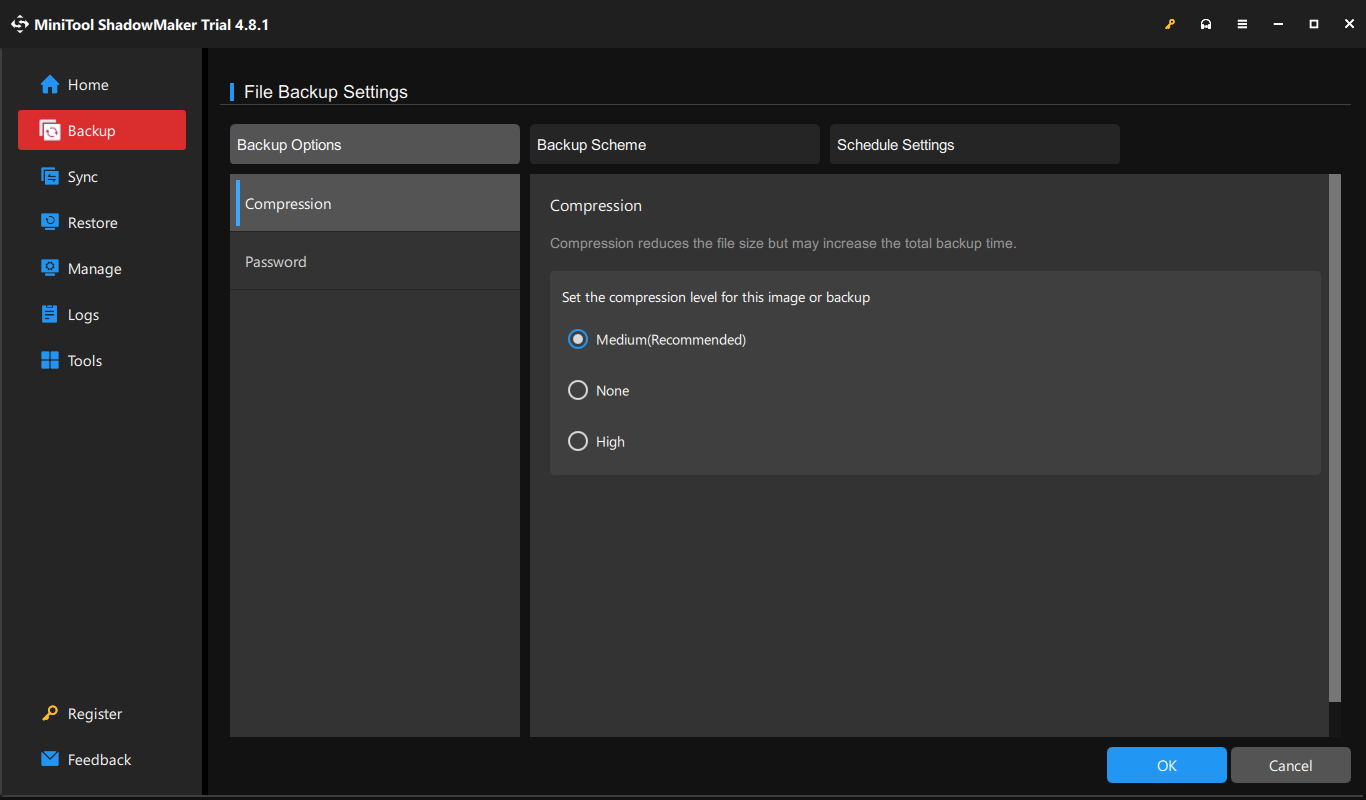
Step 5: Configure the compression level.
- Click Options on the bottom right.
- Navigate to the Compression tab.
- Choose Medium or High as the compression level.
- Click OK.
Step 6: Click Back Up Now to start the backup process.
The backup time varies with the amount of data, the type of backup, the compression level, and the disk speed.
Once all steps are complete, you will receive a compressed image backup file that uses less storage space.
Factors That Affect Backup Compression Efficiency in MiniTool ShadowMaker
The compression efficiency in MiniTool ShadowMaker may vary depending on the data being backed up and the compression level. Understanding them enables you to choose the ideal setting based on your storage needs and time requirements.
#1. Amount of Backup Data
Each backup type in MiniTool ShadowMaker captures a different scope of data.
Consequently, file, system, partition, and disk backups may produce different sizes and compression ratios, even under identical compression settings.
#2. Compression Level
As noted above, you can use MiniTool ShadowMaker’s Medium or High compression settings to optimize storage space.
As a rule, higher compression levels minimize backup size and save more space. Lower compression levels, on the other hand, prioritize backup speed.
Tips to Reduce Backup Storage Usage
Beyond compression, MiniTool ShadowMaker allows you to customize your backup strategy and automatically delete old backup files to minimize storage consumption.
#1. Use Incremental or Differential Backup
Instead of executing a full backup every time, you can configure incremental or differential backups to capture only modified data. This can effectively save backup time and storage space.
When paired with automated backups, this approach keeps your data continuously protected while minimizing storage consumption.
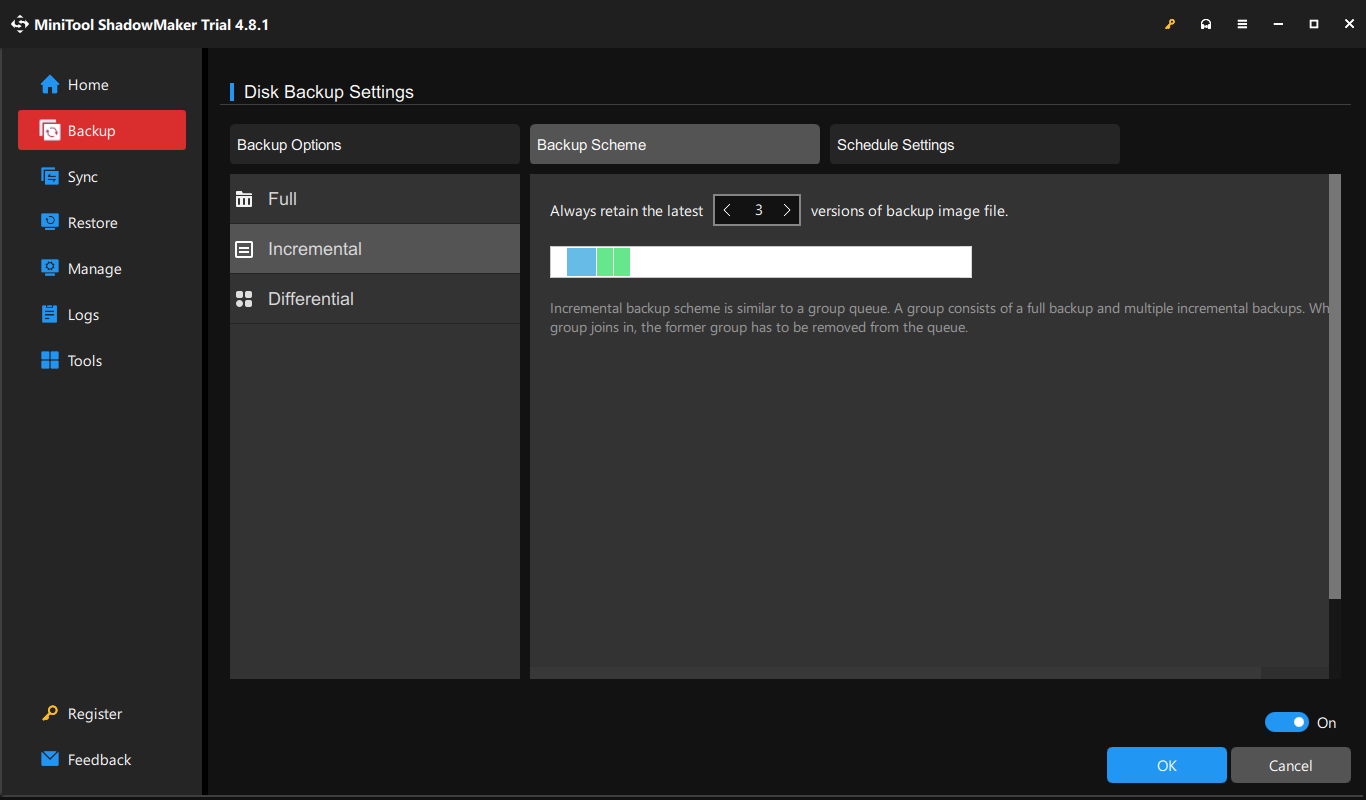
In MiniTool ShadowMaker, navigate to Options > Backup Scheme, then select Incremental or Differential as your preferred backup scheme. Additionally, go to Schedule Settings to set up a schedule for automatic backups.
#2. Clean Old Backup Versions
Retaining excessive backup versions can quickly exhaust your storage. To reclaim disk space, periodically deleting old backup images is recommended. This can also ensure your most important backups remain available.
MiniTool ShadowMaker allows you to delete unnecessary backup versions and keep only the backups you need. Under Backup Scheme, you can set the number of backup versions to retain.
Backup Compression FAQ
Conclusion
Backup compression is an effective way to reduce backup image size and save space.
With MiniTool ShadowMaker, you can choose a suitable compression level to back up your data or system. Additionally, use it to create incremental or differential backups and delete backup versions to optimize storage space.
When meeting issues with this software, feel free to contact [email protected].
About The Author

Position: Columnist
Vera has been working at the MiniTool Team for over 10 years as a technical editor and content writer. She mainly focuses on disk and partition management, data recovery, Windows backup and restore, and PC troubleshooting. Through in-depth software testing and hands-on experience, she has helped users solve a wide range of computer problems and better protect their data on Windows devices.
User Comments :