
Quick Answer
CHKDSK may take a long time because of a large drive, heavily fragmented files, or bad sectors. If the scan is still running, wait patiently until it finishes. If it has been running for more than 24 hours with zero progress:
- Back up important data first
- Run DISM & SFC
- Run Startup Repair
- Optimize the drive
- Check for drive failure
Why Is My CHKDSK Taking So Long?
CHKDSK (also known as Check Disk) is a Windows system tool that can verify the integrity of the file system, list and correct the errors on the disk.
It can take a long time due to various factors:
- The drive is large with many files.
- Your disk has bad sectors or other disk errors.
- Running /r forces a deep surface scan can take hours on large drives.
- Missing or damaged Windows files may stall CHKDSK during Stage 4 verification.
- Improper shutdowns interrupt disk operations.
How to Tell if CHKDSK Is Really Stuck
A CHKDSK scan may get stuck even when it is still running. Refer to the table below to determine whether it is actually hung based on your situation.
| What you see | What it means | What to do |
| The progress percentage changes occasionally. | CHKDSK is likely still running. | Let CHKDSK finish |
| There is no progress for a long time. | CHKDSK gets stuck | Back up important data and try troubleshooting |
| CHKDSK moves to another stage | The scan is progressing | Let it continue |
Before You Start: Back Up Important Data
If CHKDSK is taking too long because of bad sectors, data may be at risk. To avoid data loss, back up your important files to an external or USB drive.
Speaking of Windows file backup, most people tend to choose a free backup software – MiniTool ShadowMaker. This hand tool simplifies the backup process and it is easy to follow. Here’s how to create a file backup on Windows machine:
Step 1. Download & install MiniTool ShadowMaker Trial and then launch it.
MiniTool ShadowMaker TrialClick to Download100%Clean & Safe
Step 2. In the Backup page, go to SOURCE > Folders and Files to choose the files/folders you want to protect. In DESTINATION, choose an external hard drive or USB flash drive as the storage path for the backup task.
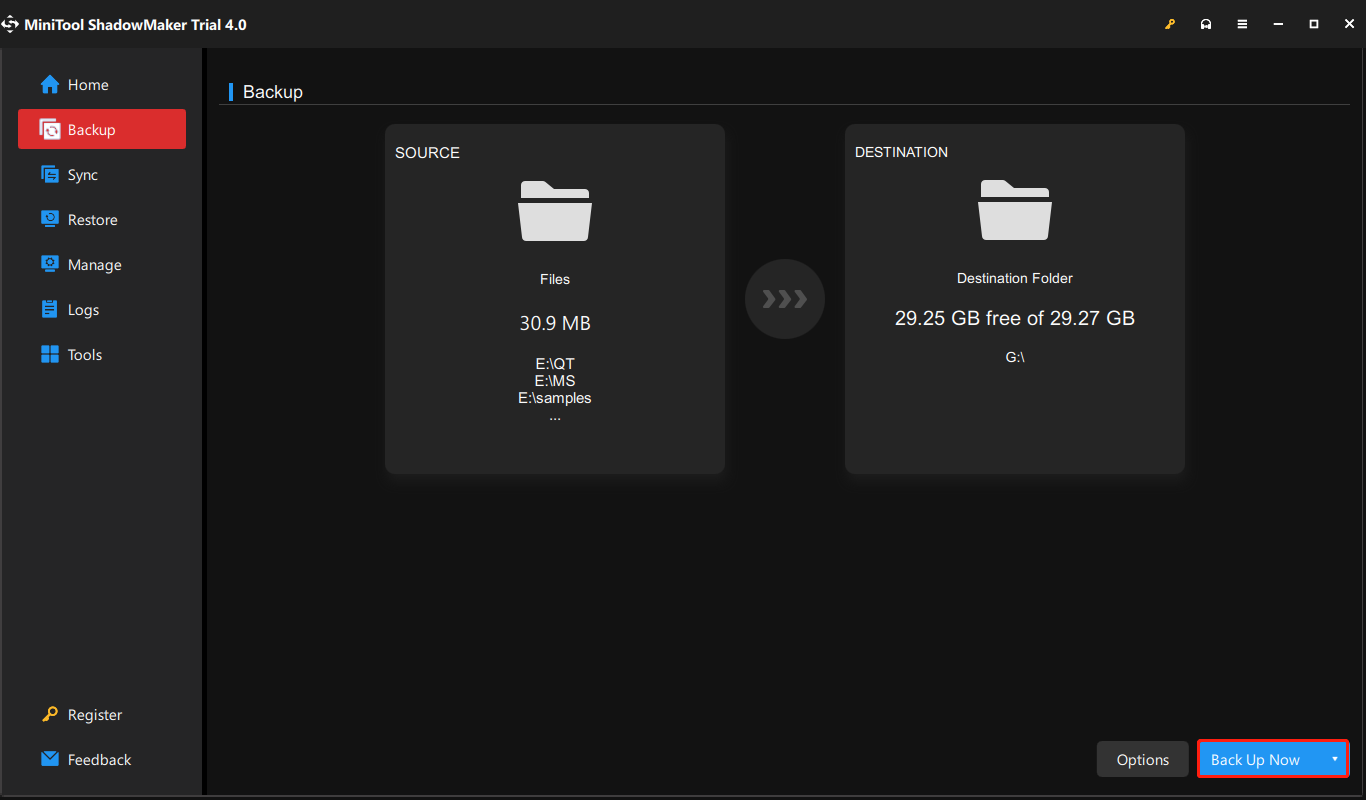
Step 3. Click on Back Up Now to start the process at once.
How to Fix CHKDSK Taking Forever
Fix 1: Wait for CHKDSK to Finish
CHKDSK may get stuck when scanning a large drive or performing a deeper check using/r.
If the percentage changes at times, CHKDSK is still running. Don’t interrupt the scan because this may damage the drive. Wait for it to complete.
If there is no progress for an extended period, please try the following solutions.
Fix 2: Run DISM & SFC
Corrupted system files can result in CHKDSK taking forever. To fix this issue, try DISM (Deployment Image Servicing and Management) and SFC (System File Checker) to repair corruption.
Step 1: Run Command Prompt with administrative rights.
Step 2: Type the command and press Enter.
DISM.exe /Online /cleanup-image /restorehealth
Step 3: Run an SFC scan using the following command:
sfc /scannow
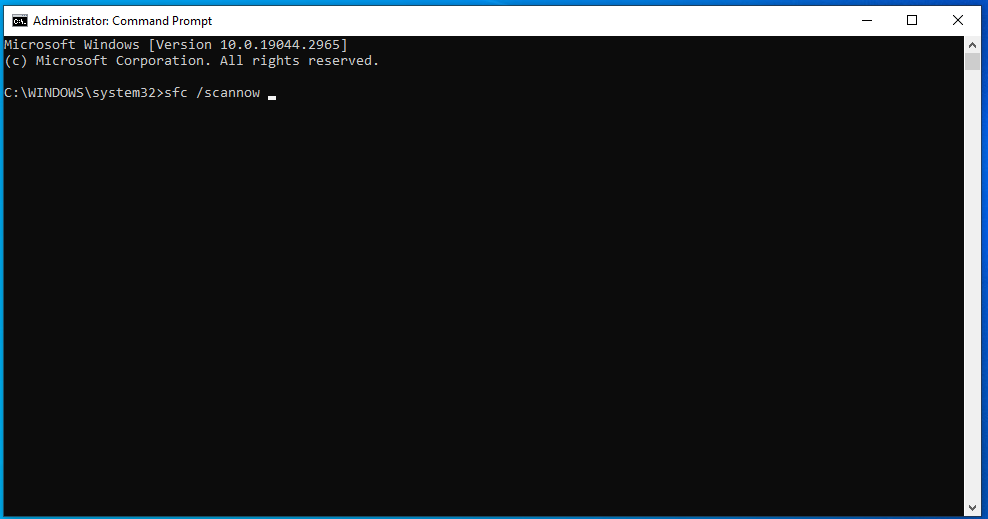
Once all steps are complete, restart your Windows 11/10 PC and check if the issue is resolved.
Fix 3: Run Startup Repair
If CHKDSK taking forever still persists and you cannot boot into Windows, you can use Startup/Automatic Repair to fix boot issues like this.
Step 1. Press and hold the power button to shut down your computer.
Step 2. After a while, reboot your computer and press the power icon again when you see the Windows logo.
Step 3. Repeat these steps two or three times until the Startup/Automatic Repair screen appears.
Step 4. Click on Advanced options > Troubleshoot > Advanced options > Startup/Automatic Repair.
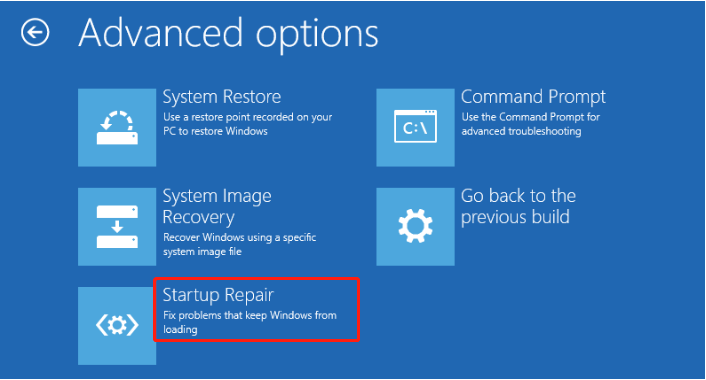
Step 5. Choose your account, enter the password and hit Continue to start the process.

Fix 4: Optimize Your HDD
If you are using a traditional hard disk drive (HDD), optimizing the drive can reorganize fragmented files. This may improve disk performance and help CHKDSK run more efficiently.
Use the Windows built-in Defragment and Optimize Drives tool for this task.
Step 1. Type defrag to locate Defragment and Optimize Drive and hit it.
Step 2. Select the drive you want to defrag and hit Optimize to start the process.
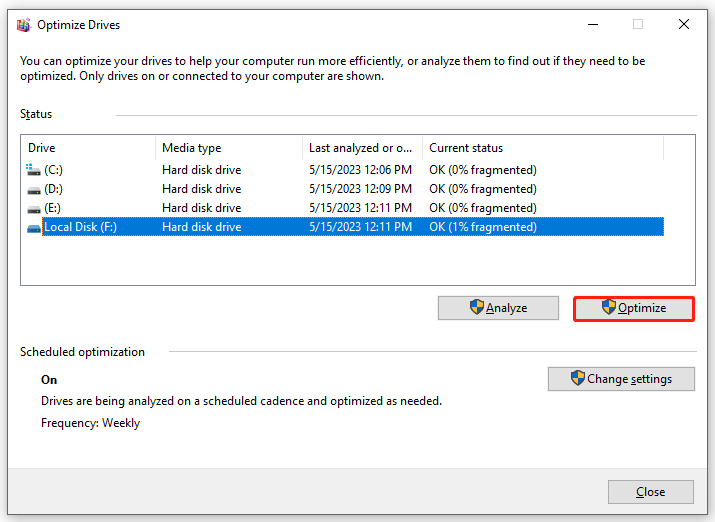
Fix 5: Check for Drive Failure
If CHKDSK continually hangs at the same percentage, the drive may have many bad sectors or be failing.
Follow these steps to check for drive failure:
Step 1: Download and launch CrystalDiskInfo.
Step 2: Check the health status of your drive.
If it reads Caution or Bad, back up critical data immediately. Then, replace the failing drive with a new one.
We Need Your Voice
That’s all causes and solutions about CHKDSK taking forever on Windows 10/11. For any questions regarding our product, welcome to share them with us by sending an email via [email protected]. Have a nice day!
CHKDSK Taking Forever FAQ
About The Author

Position: Columnist
Vera has been working at the MiniTool Team for over 10 years as a technical editor and content writer. She mainly focuses on disk and partition management, data recovery, Windows backup and restore, and PC troubleshooting. Through in-depth software testing and hands-on experience, she has helped users solve a wide range of computer problems and better protect their data on Windows devices.
User Comments :