
Dell reset and update not available for this computer can occur in Windows 11/10. To fix it, check if your PC supports the feature, enable Windows Recovery Environment, try the Windows reset feature, or use a Dell OS recovery USB drive.
Why Is Dell Reset and Update Not Available
Reset and update is the cloud restore option, which is a function on Dell SupportAssist OS Recovery. It downloads and installs the most recent operating system during the recovery process, but it requires an Internet connection. However, many users report that they encounter the “Dell reset and update not available for this computer” issue when trying to reset their PC.
This issue can stem from the following causes:
- Your Dell model doesn’t support the Reset and update feature.
- SupportAssist OS Recovery may be outdated, damaged, or unable to load the required components.
- The internet connection is unstable or unavailable.
- The factory-installed OS image on the hard drive cannot be detected.
- Windows Recovery Environment may be disabled.
Back up Your Important Files Before Resetting
Resetting is a way to restore your PC to its original state and all of your data including programs, files, settings, etc. will be removed. Thus, make sure you have made a complete backup of your data before taking any further steps. If you don’t have created it, continue to read.
To back up crucial files, the free backup software – MiniTool ShadowMaker is recommended. MiniTool ShadowMaker is designed to back up files, folders, partitions, disks, and the operating system. Besides, it allows you to move Windows to another drive and clone SSD to larger SSD.
1. Download MiniTool ShadowMaker from the following button, install it, and launch it.
MiniTool ShadowMaker TrialClick to Download100%Clean & Safe
2. Click Keep Trial. After entering its main interface, go to the Backup page.
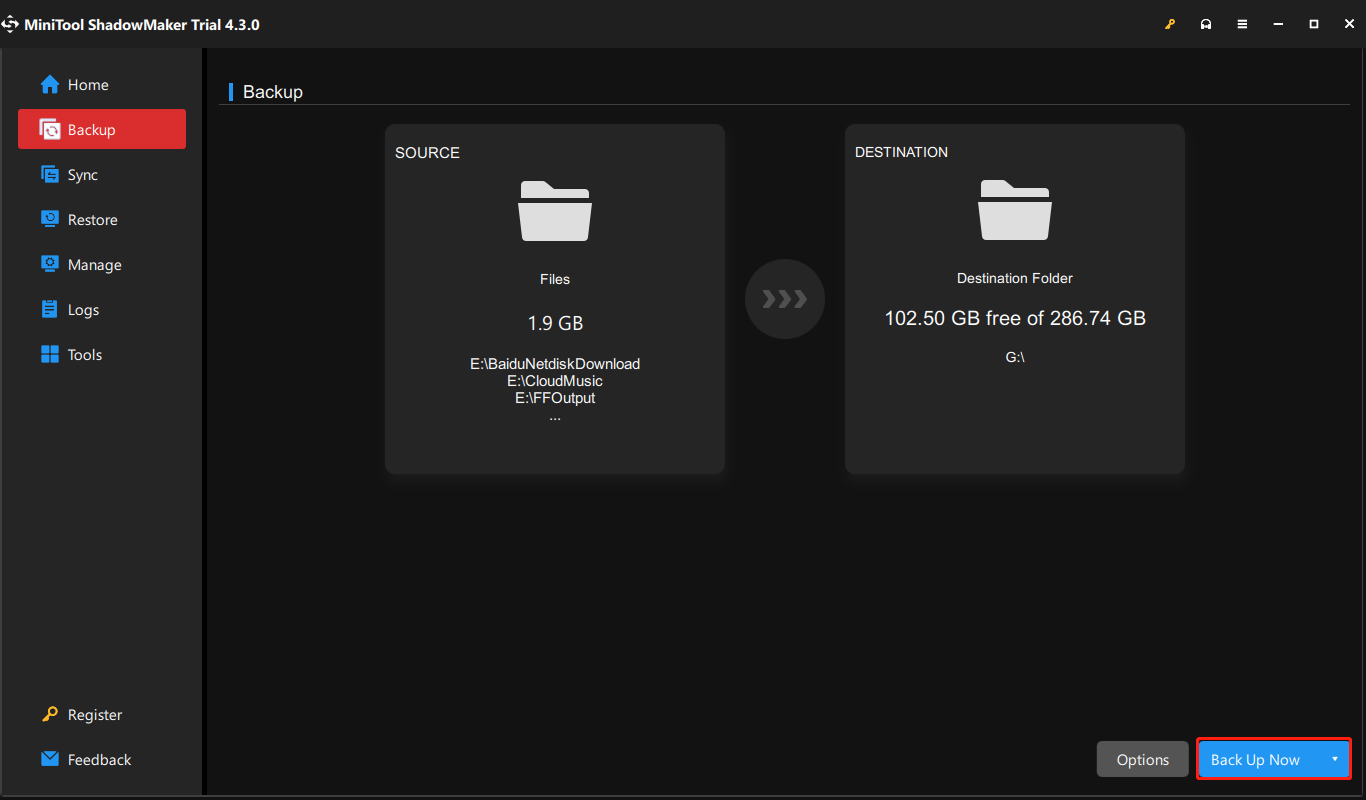
3. MiniTool ShadowMaker selects the operating system by default. To back up files, click the SOURCE module and choose Folders and Files. Then check the files you want to back up to continue.
4. Next, click the DESTINATION module to choose a target disk. It’s recommended to choose an external hard drive. Then click OK.
5. Next, click Back Up Now to start the backup process.
How to Fix Dell Reset and Update Not Available Windows 11/10
Fix 1: Check Whether Your Dell Model Supports Reset and Update
Not every Dell computer supports the Reset and update feature. Follow these steps to perform a check.
1. Go to the official Dell Support website.
2. Enter your Service Tag or product ID.
3. Check the SupportAssist OS Recovery Support Matrix documentation.
If the feature is listed, try the following fixes.
Fix 2: Reinstall SupportAssist
You can try uninstalling Support Assist and then reinstall it to fix the “SupportAssist not working” issue. To do this, follow the steps below:
1. Press the Windows + I keys together to open the Settings application
2. Go to Apps. Now, find Dell SupportAssist and uninstall it.
3. Once the uninstall is completed, restart the system and then reinstall the latest version of Dell SupportAssist from the Internet.
Then, check to see if the “Dell reset and update not available for this computer” error has been fixed.
Fix 3: Enable Windows Recovery Environment
Dell SupportAssist OS Recovery relies on Windows Recovery Environment (Windows RE) for certain recovery functions. If Windows RE is disabled, the Reset and update feature may not work.
Check its status and enable it if necessary.
1. Launch Command Prompt as an administrator.
2. Type the following command and press Enter to check Windows RE status.
reagent /info
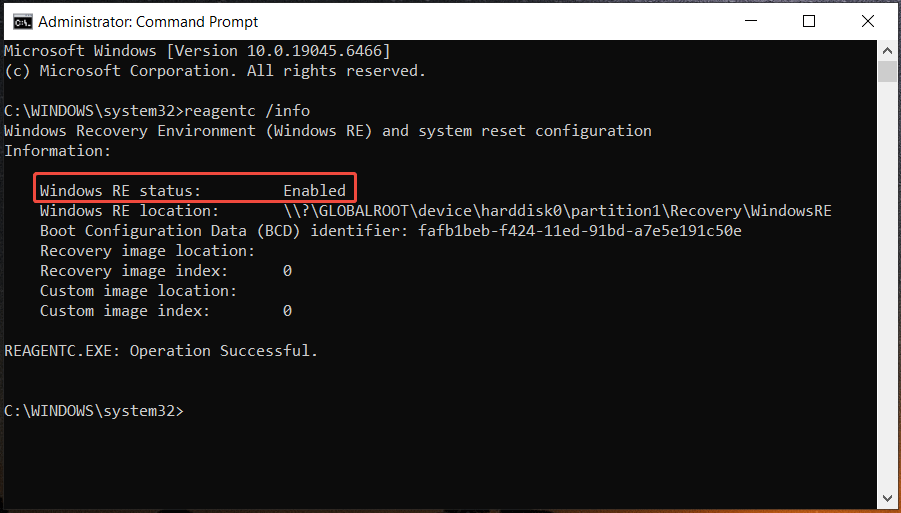
3. If it is disabled, execute the command below.
reagentc /enable
4. Restart Windows 11/10 and check if the feature is available.
Fix 4: Use the Standard “Reset to Factory Settings”
Dell SupportAssist OS Recovery offers another option for you to reset your PC. If the Reset and update option is greyed out, try the Reset to factory settings option.
1. Restart your Dell computer and repeatedly press F12 when the Dell logo appears to open the One-Time Boot Menu.
2. Select SupportAssist OS Recovery.
3. On the home page, select Start Reset > Reset to factory settings.
4. Follow the on-screen instructions to finish the resetting process.
Fix 5: Use the Windows Built-in Reset Feature
Additionally, the Windows built-in Reset this PC feature can be used when Reset and update is not available for this computer.
1. Press Windows + I to open Settings.
2. Go to System > Recovery > Reset PC in Windows 11.
4. Choose Keep my files or Remove everything on the following window based on your requirements.
5. Select Local reinstall or Cloud download, then click Next.
6. Click the Reset button. Your PC/laptop will begin the reset process automatically, which might take a long time. If you use the laptop, you had better plug in the power cord to avoid running out of power.
Fix 6: Use a Dell OS Recovery USB Drive
If Reset and update is still unavailable after trying the previous fixes, use Dell OS Recovery Tool to create a bootable drive on a working computer. This can reinstall Windows 11/10 using an official Dell recovery image.
1. Download Dell OS Recovery Tool and launch it.
2. Insert a USB drive (at least 16 GB) into the working PC.
3. Turn on the computer and immediately tap F12 until the boot menu appears.
4. Select your USB drive from the boot options.
5. Follow the prompts to complete the system reinstallation.
Conclusion
It is easy to fix Dell Reset and update not available in Windows 10/11. Check your PC’s compatibility and enable the recovery environment. If the issue persists, use other options to reset your PC. Always back up important files beforehand to prevent data loss.
If you encounter issues with MiniTool software, leave a comment or contact [email protected].
Dell Reset and Update Not Available FAQ
About The Author

Position: Columnist
Vera has been working at the MiniTool Team for over 10 years as a technical editor and content writer. She mainly focuses on disk and partition management, data recovery, Windows backup and restore, and PC troubleshooting. Through in-depth software testing and hands-on experience, she has helped users solve a wide range of computer problems and better protect their data on Windows devices.
User Comments :