
What is eMMC storage? Can you upgrade eMMC storage on your PC? How to upgrade eMMC to M.2 SSD for more disk space and optimal PC performance? MiniTool covers all the information you want. Let’s explore the eMMC upgrade now.
What Is eMMC Storage
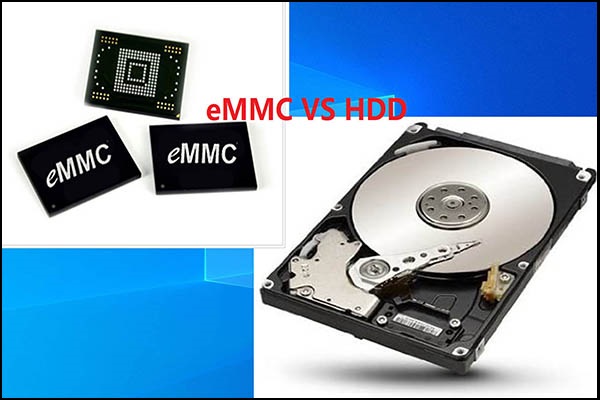
eMMC, short for Embedded MultiMediaCard, refers to a small MMC chip that is integrated into the motherboard. It consists of NAND flash memory and a storage controller. In many portable devices, such as tablets, smartphones, compact/budget laptops, etc. the eMMC storage acts as the primary storage.
Generally, the eMMC storage space is small, and its common capacity includes 32GB, 64GB, 128GB, and 256GB. However, the insufficient space cannot meet users’ needs.
If you also use a laptop with eMMC storage, you may notice that the space is not enough for you to play games, install necessary apps, update Windows, etc. This is why you consider an eMMC upgrade.
Can You Upgrade eMMC Storage
Speaking of eMMC storage upgrade, usually, we mean upgrading eMMC to an SSD. The chip is soldered over the circuit board and it is impossible to upgrade 64GB eMMC to 128GB eMMC or a larger one. An SSD also uses the NAND flash, offering optimal read & write speed. Its capacity ranges from 128GB to 8TB or even larger. Wonder about more differences between eMMC and SSD? Refer to this guide on eMMC vs SSD.
Of course, we don’t mean you can always upgrade eMMC to an SSD. This depends on the computer you are using. Some laptops with an eMMC drive have an M.2 slot or a SATA slot, allowing you to install a new SSD for more space and fast speed.
For laptops that don’t offer an SSD slot, the upgrade is unavailable. But you can choose to expand your storage according to your situation.
Below let’s explore possible cases.
Upgrade eMMC to M.2 SSD or SATA SSD
Check your device to see if it supports SSD expansion. For this task, you can view the website of your manufacturer or the user manual. If the laptop with eMMC storage is upgradeable, follow the step-by-step guide here.
Preparatory Work
Before the eMMC upgrade to an SSD, pay attention to some things.
Purchase a right SSD: If your device comes with an M.2 slot, prepare an M.2 SSD (which has various factors) that should be compatible with your laptop. If it has a SATA connector, use a 2.5-inch SATA SSD.
Connect your SSD to the PC: Use a connector to attach the SSD to your PC or directly install the SSD into your PC. Then, go to Disk Management to initialize the new SSD.
Install cloning software: When it comes to an eMMC upgrade, use a piece of professional cloning software to clone the eMMC hard drive to your SSD. Then, boot the PC from the solid-state drive.
In the market, MiniTool ShadowMaker, PC backup software, and disk cloning software, stands out due to its powerful features. Besides the capacities of file backup, system backup, disk backup & partition backup, this tool also supports cloning HDD to SSD, cloning SSD to a larger SSD, cloning eMMC drive to SSD, etc. Now, download and install MiniTool ShadowMaker. Then, get started.
MiniTool ShadowMaker TrialClick to Download100%Clean & Safe
How to Upgrade eMMC to M.2 SSD or SATA SSD
It’s time to perform an eMMC storage upgrade using an SSD. So, how can you run this task? Take these steps.
Step 1: Launch MiniTool ShadowMaker and click Keep Trial to proceed.
Step 2: On the left side, click Tools and then choose Clone Disk to go on.
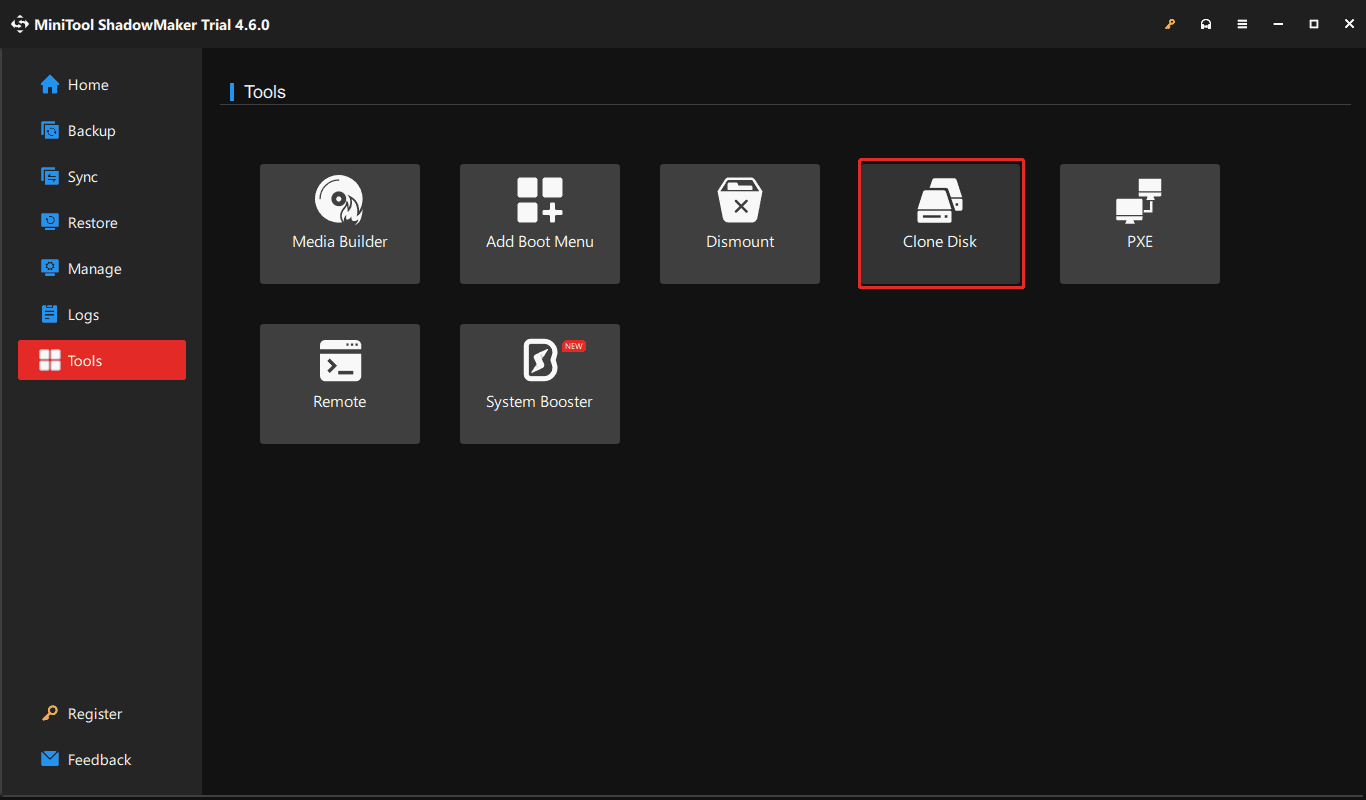
Step 3: In the new window, select the eMMC disk as the source disk and your new SSD as the target disk. Since your eMMC hard drive contains the entire operating system, you need to purchase a key to register MiniTool ShadowMaker and then begin the cloning process.
Install SSD to Laptop
If you previously didn’t install your SSD to the PC but only connected it to the device for disk cloning, now you should install it carefully.
Step 1: Shut down your laptop and remove all the external devices including your charger, mouse, USB drive, printer, etc.
Step 2: Open the laptop’s back panel using a screwdriver.
Step 3: Find the SSD slot and insert it into that slot. Install it properly.
Step 4: Put back the back panel.
Boot PC from SSD
The last step is booting the laptop from your new SSD.
Step 1: Restart the system to its BIOS menu using a boot key like F2, Del, etc.
Step 2: Change the SSD as the first boot order and save the change.
Step 3: Windows will run from the SSD fast.
What if eMMC Upgrade via SSD Isn’t Possible
Some laptops don’t come with an SSD slot, so it is impossible to upgrade eMMC to M.2 SSD. In this case, how can you ensure your PC has enough disk space? Here are 2 options for you.
Use an SD Card for eMMC Upgrade
Some eMMC-based laptops come with an SD card slot instead of an SSD slot, allowing you to expand the storage. So, prepare a microSD card, format it, insert it into your PC, and save some data to that card.
Optimize Your PC
In case you cannot expand the eMMC storage, optimizing your device can help. For example, running Disk Cleanup helps free up disk space, disabling unnecessary background apps reduces system resources, uninstalling unwanted apps releases disk space, etc.
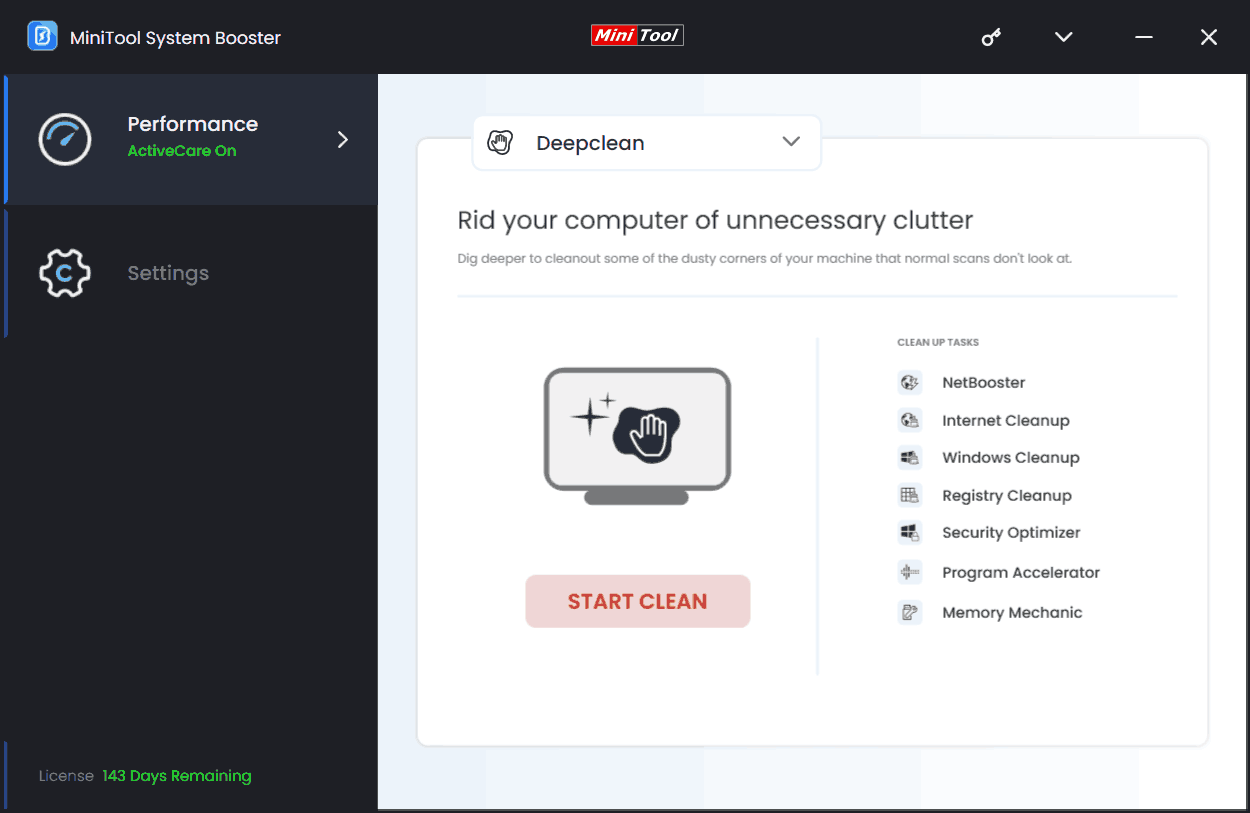
As for PC optimization, the professional tune-up software, MiniTool System Booster comes in handy. It allows you to clean up the system to free up disk space, end background apps, disable startup items, uninstall programs, free up RAM, defragment a hard drive, and more.
MiniTool System Booster TrialClick to Download100%Clean & Safe
Final Words
That’s information on the eMMC upgrade. Make sure your laptop supports an SSD, prepare the right one, and use cloning software like MiniTool ShadowMaker to upgrade eMMC to M.2 SSD or SATA SSD. If the eMMC storage is not upgradeable, use an SD card to extend the space or optimize the PC.
About The Author

Position: Columnist
Vera has been working at the MiniTool Team for over 10 years as a technical editor and content writer. She mainly focuses on disk and partition management, data recovery, Windows backup and restore, and PC troubleshooting. Through in-depth software testing and hands-on experience, she has helped users solve a wide range of computer problems and better protect their data on Windows devices.
User Comments :