
This post explains the 7 best free disk cloning software, including Hasleo Disk Clone, DiskGenius Free, MiniTool ShadowMaker Free, and Clonezilla, covering their key features, pros, cons, user suitability, and personal experience.
Quick Answer
- Best for beginners: MiniTool ShadowMaker, MiniTool Partition Wizard and Hasleo Disk Clone.
- Best for IT professionals (mass deployment): Clonezilla.
- Best for reliable system cloning: Macrium Reflect
- Best free options: DiskGenius Free and MultiDrive.
About Disk Cloning
Disk cloning/copy is the process of creating an exact copy of an HDD or SSD on another hard drive. The cloned content includes the operating system, installed apps, system settings, and files.
Consider a disk copy if you need to upgrade from a slow HDD to a fast SSD, replace a failing hard drive, or deploy identical machines. It can be ideal for these cases, without having to reinstall Windows and applications.
For a successful disk cloning, a piece of dedicated software is essential.
Selection Criteria of Best Free Disk Cloning Software
When choosing the right free disk clone software, the key factors to consider include:
- Core Functionality: Ensure the software supports full disk cloning and system migration. Additionally, advanced features such as 4K alignment, partition editing, and sector-by-sector copy can be supported.
- Usability: An intuitive interface with clear instructions or step-by-step guidance is crucial for non-technical users.
- Performance: Look for software with high-speed transfer methods, low resource consumption, and high stability to upgrade a disk or migrate the system drive.
- Compatibility: Use the cloning software that can support Windows 11/10, and handle NVMe SSDs, different file systems, and partition styles (MBR and GPT). If necessary, verify whether it can clone from a larger drive to a smaller SSD.
Quick Decision Guide: Which Software Is Right for You
Different users have different needs. Check this quick comparison guide that helps you identify the software that best fits your requirements.
| Disk Cloning Software | Best for | License | Ease of use |
| MiniTool ShadowMaker | All-in-one OS backup & fast cloning | Free for non-system disk cloning | Very easy |
| Hasleo Disk Clone | HDD/SSD upgrade and system migration | 100% free | Easy |
| DiskGenius | Disk cloning and partition management | Free edition | Moderate |
| Macrium Reflect | High-speed, reliable cloning | 30-Day free trial | Moderate |
| MiniTool Partition Wizard | Full disk management & OS migration | Free for non-system disk cloning | Very easy |
| Clonezilla | IT pros performing mass deployments | Total free and open-source | Steep learning curve |
| MultiDrive | Basic, lightweight disk-to-disk copy | 100% free | Very easy |
#1. MiniTool ShadowMaker (Intuitive Cloning Utility)
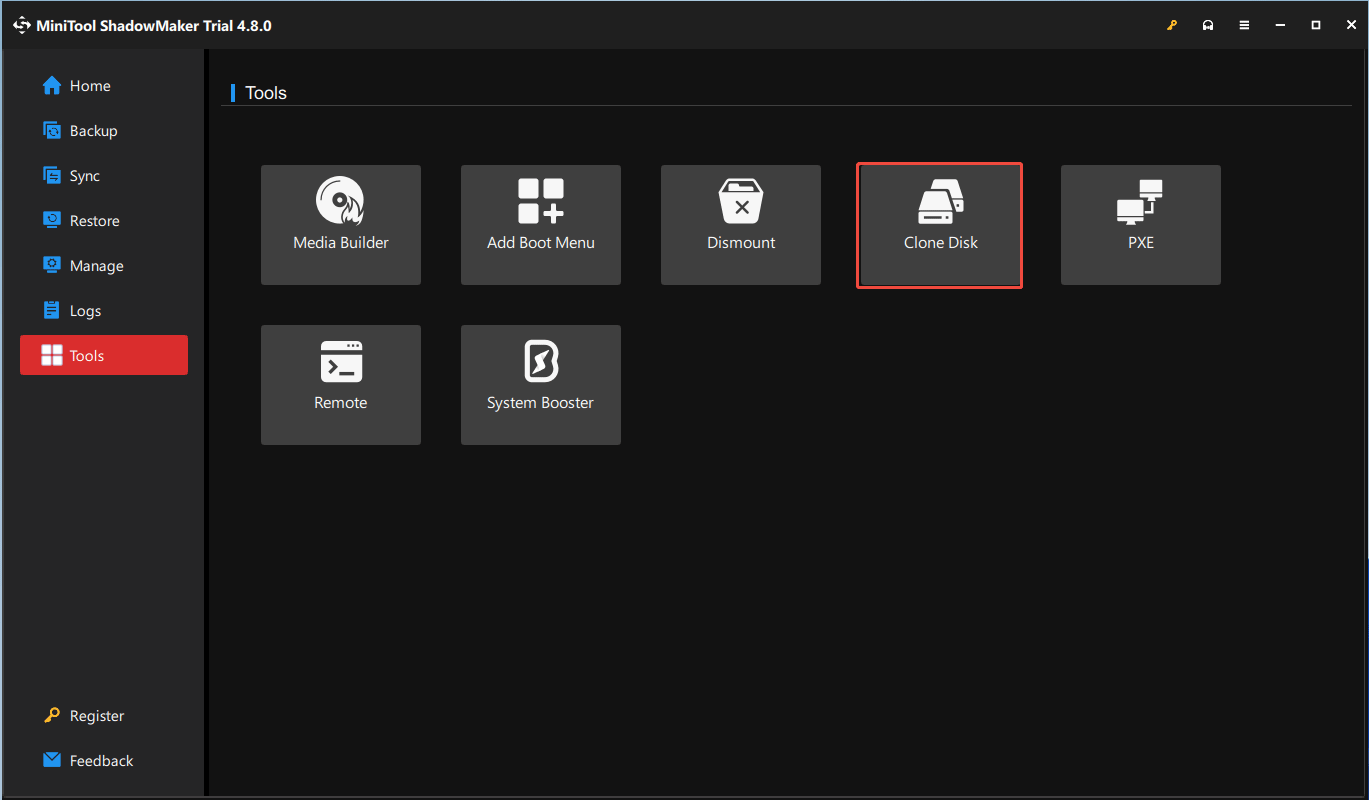
Designed for ease of use, MiniTool ShadowMaker Trial Edition functions as an intuitive cloning utility and backup and recovery tool. This edition is available on Windows 11/10/8/7 and Server 2025/2022/2019/2016.
It can be an ideal entry-level choice for beginners who need to clone a hard drive or migrate Windows. All operating system files, applications, and personal files are transferred to a new drive, without the need for a clean Windows installation.
Key Features
- Creates an exact copy of an entire hard drive, making it a dependable utility for disk upgrades.
- Migrates Windows from a larger HDD to a smaller SSD for fast drive performance.
- Allows you to copy either the only used sectors for efficiency or all sectors (including used or unused) for an exact 1:1 replica.
- Chooses between maintaining the same disk ID or using a new ID on the target drive.
- Creates a WinPE-based bootable USB stick or CD/DVD for disk cloning to secure data even if Windows fails to boot.
- Performs the cloning operation while Windows is running.
Pros and Cons
| Pros | Cons |
| 1. Intuitive interface. 2. Supports large-to-small disk cloning. 3. Offers flexible sector-level cloning options. 4. Allows for target disk ID configuration to avoid disk signature collision. 5. Includes a WinPE-based recovery media builder. | 1. Lacks support for both system-level migration and partition-specific cloning. 2. Omits advanced features, such as 4K alignment and partition adjustment during cloning. |
Personal Experience
MiniTool ShadowMaker is a piece of accessible, free disk cloning software that features a clean interface. By using a simplified toolbar with clear icons for its primary tabs, it ensures a direct setup and navigation experience for novice users.
This tool can flexibly handle migrations from a larger HDD to a smaller SSD, as long as the target drive can accommodate the source disk data.
However, it is strictly limited to disk-to-disk cloning, indicating that you cannot select a specific partition to clone or execute a system-level migration.
While marketed as free, system cloning and migration features are available only in the Pro Edition or above, necessitating an upgrade.
#2. Hasleo Disk Clone Free (Competent Entry-Level Solution)
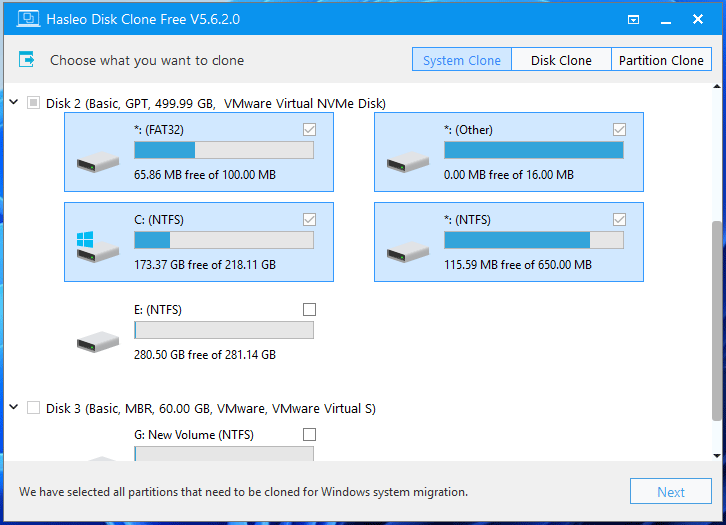
Engineered for efficiency, Hasleo Disk Clone Free offers a competent entry-level solution exclusively for Windows systems. It simplifies the process of system migration and drive upgrades, making it a viable free alternative to some paid tools.
The Free Edition is only compatible with Windows Vista or above and is designed for home users.
Key Features
- Migrates the entire operating system without Windows reinstallation, clones a system disk/data disk to ensure identical data, and copies a specific partition.
- Provides flexible target disk layout options to resize partitions before cloning, including Edit disk layout, Automatic disk layout, Keep disk layout, and Keep partition size.
- Supports 3 disk alignment methods, including Cylinder, 4K, and 1M to ensure optimal SSD performance.
- Creates a sector-by-sector disk copy, ensuring an exact, bootable replica of the source drive.
- Clones a larger drive to a smaller drive.
- Converts MBR to GPT or GPT to MBR during cloning and ensures Windows can boot from the converted drive.
Pros and Cons
| Pros | Cons |
| 1. Full cloning functionality, without payment for the final execution. 2. Approachable for beginners. 3. Versatile cloning options. 4. Partition adjustment during cloning. | 1. Limited features in Free Edition, such as Delta Clone, GPT/MBR conversion, and support for ARM64 and Windows Server. 2. Dated design. |
Personal Experience
Hasleo Disk Clone Free Edition provides full disk cloning and system migration functionality without restricting core features. It also includes advanced features, such as 4K alignment and flexible partition editing on the target disk.
The simple interface simplifies disk cloning by providing clear, step-by-step instructions.
The Free Edition is licensed for personal use only. Business and commercial environments require a Professional or Enterprise Edition license.
#3. DiskGenius Free (Versatile Disk Cloner)
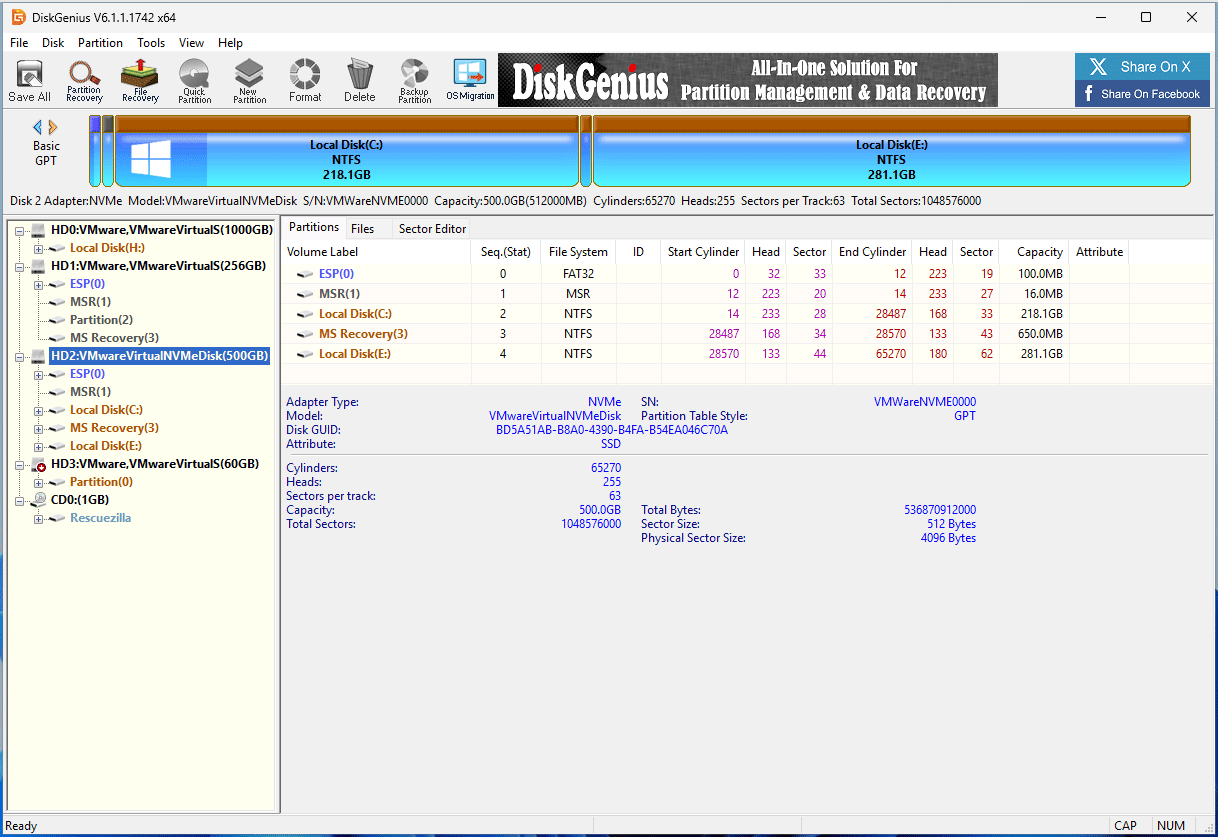
DiskGenius Free is a free, all-in-one Windows utility designed to handle a range of tasks related to disk partition management, cloning, and data recovery.
Serving as a versatile disk cloner, DiskGenius facilitates system migration and disk cloning with stable performance and comprehensive cloning options.
Key Features
- Migrates Windows to a new HDD or SSD without restarting the computer. During cloning, it allows you to configure the boot sequence (UEFI Only).
- Executes a complete disk clone or selectively clones specific partitions with 3 modes: Copy all sectors, copy valid data sectors only, and copy all files.
- Clones larger HDDs to smaller SSDs for efficient storage upgrades, allowing you to resize the partition on the target drive.
- Supports Hot Migration to carry out the cloning operation by taking snapshots without restarting the current system.
- Performs a sector-level cloning for a hard drive with bad sectors, allowing skipping bad sectors during the cloning process.
- Automates 4K alignment during the cloning process to ensure peak SSD/HDD performance.
Pros and Cons
| Pros | Cons |
| 1. Offers comprehensive free features without requiring a paid upgrade. 2. Enables Hot Migration. 3. Supports cloning a drive with bad sectors. 4. Creates a WinPE bootable USB drive. | 1. Software layout is outdated and crowded. 2. Some features are restricted in the Free Edition, such as sector-by-sector copy and cloning to multiple target disks simultaneously. |
Personal Experience
The download and installation processes of DiskGenius are simple, allowing for a quick setup without unnecessary configuration in Windows 11.
After launching this free disk cloning software, the user interface feels cluttered with dense technical menus. This can make navigation challenging, especially for users unfamiliar with its structure.
Despite these design hurdles, this software excels in functionality by providing diverse cloning methods in its Free Edition.
DiskGenius Free can perform free system-level cloning, a feature that most competitors restrict to premium versions, making it a powerful, no-cost solution for OS migration.
#4. Macrium Reflect X Home (Adaptive Migration Tool)
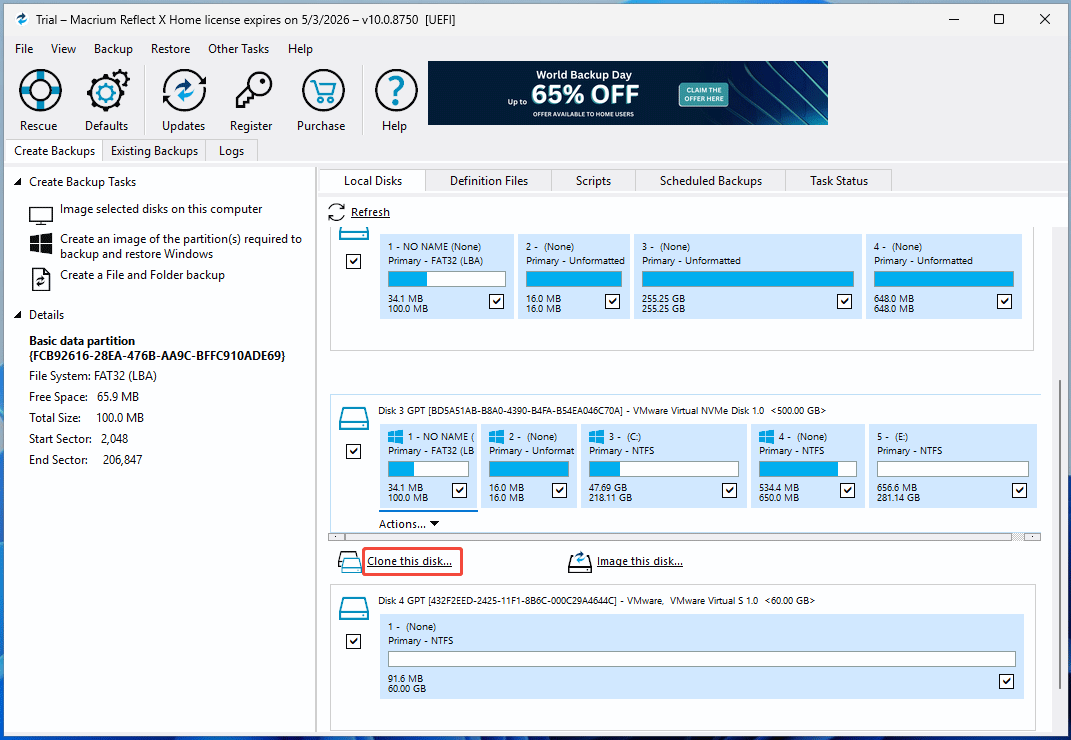
Macrium Reflect X Home is designed for robust backup and recovery of Windows, files, folders, partitions, and disks, compatible with Windows 11/10.
Additionally, it can function as an adaptive migration tool with the ability to resize partitions on the target during the cloning phase. This flexibility ensures the source drive can fill the target drive, without leaving wasted, unallocated space.
Due to its reliability and high-performance cloning features, this free disk cloning software has become a popular choice for many users.
Key Features
- Clones a running Windows system or an entire hard drive to an HDD or SSD without rebooting into a special environment.
- Perform a Forensic Sector Copy (copies all sectors) and an Intelligent Sector Copy (copies used sectors).
- Helps verify the file system before the cloning operation to ensure data integrity and prevent cloning failures.
- Enables SSD TRIM to improve drive performance and increase its lifetime.
- Supports Rapid Delta Cloning to only copy the differences between the source and target drives.
- Shrinks or extends partitions to fill the target drive.
- Drags and drops partitions to the destination disk for partition cloning.
Pros and Cons
| Pros | Cons |
| 1. Offers intelligent partition adjustment during cloning. 2. Supports living cloning and Rapid Delta Cloning (RDC). 3. Enables SSD TRIM. 4. Creates rescue media. | 1. RDC is restricted to NTFS file systems. 2. Error 9 often occurs while cloning. 3. The trial period is limited to 30 days, which reverts to a limited version afterward. |
Personal Experience
The process of downloading and installing Macrium Reflect involves extra steps compared to other software, notably requiring an email address for account registration.
Though its old-school interface looks complex to a beginner, it is logically well-organized for easy navigation due to the detailed partition maps and sidebars.
Macrium Reflect features Rapid Delta Cloning to copy the differences between the source and target disk, making it a viable and fast disaster recovery solution.
Moreover, its ability to intelligently extend or shrink partitions can ensure data fits on the target drive.
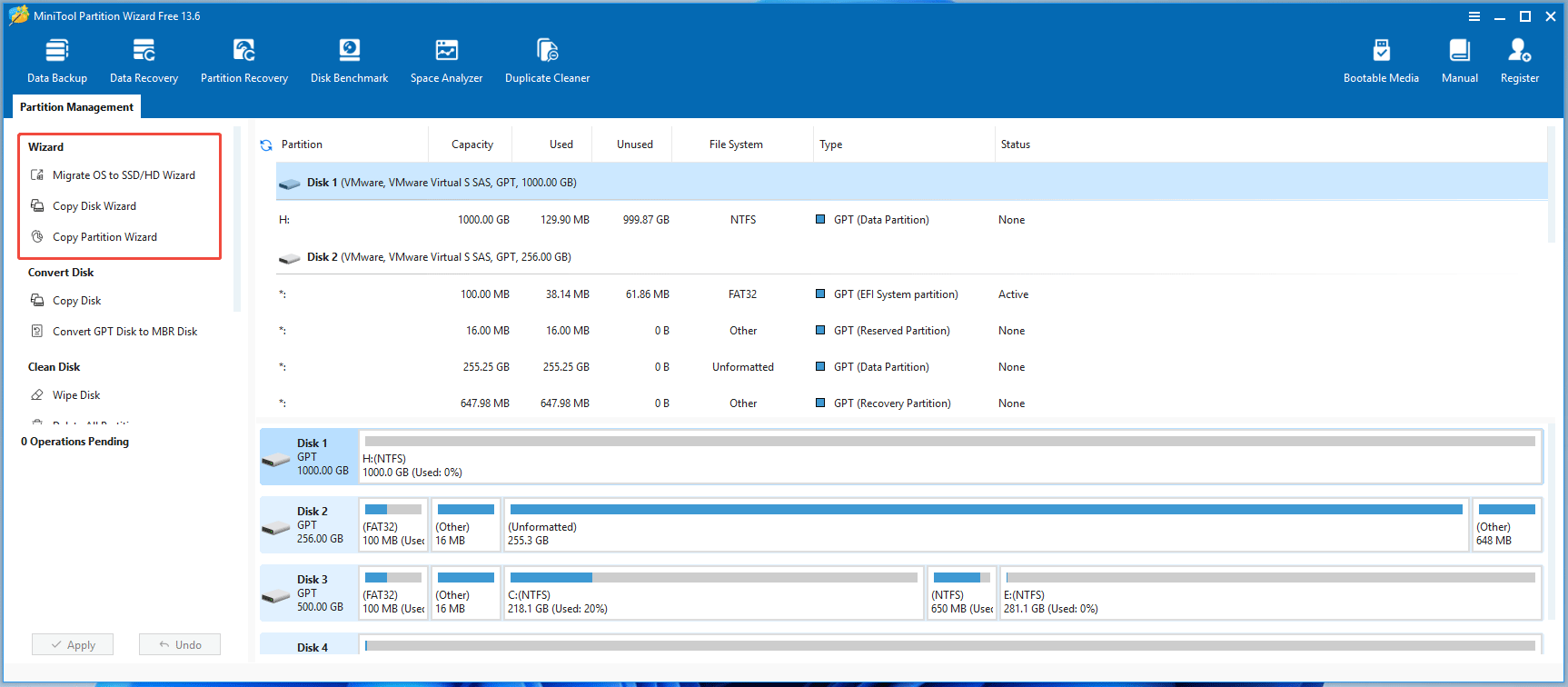
#5. MiniTool Partition Wizard Free (All-In-One Migration Suite)
MiniTool Partition Wizard is a comprehensive disk management utility engineered for Windows environments.
In addition to data recovery and disk conversion, it operates as an all-in-one migration suite, enabling full-disk cloning, partition cloning, and system migration.
The Free Edition maintains native compatibility with Windows 11 and 10, providing essential cloning features.
Key Features
- Copies an entire non-system disk to another, ensuring total data integrity.
- Migrates Windows or clones a system disk for upgrades (available in Pro Edition or above).
- Copies a single partition to unallocated space for flexible data management.
- Offers flexible options to fit partitions to the entire disk or copy partitions without resizing during cloning.
- Aligns partitions to 1MB, maximizing SSD read/write speeds and longevity.
- Includes an option to convert the target disk from MBR to GPT during cloning, ensuring full compatibility with the modern UEFI boot mode while bypassing legacy 2TB capacity limits.
Pros and Cons
| Pros | Cons |
| 1. Features a clean, intuitive layout. 2. Includes flexible cloning options. 3. Creates a bootable USB stick, CD/DVD, or ISO. 4. Allows undoing actions before permanent execution. | 1. System migration and system cloning are exclusive to Pro or higher. 2. The software doesn’t support sector-by-sector copy. 3. A restart is required to implement the final cloning operation. |
Personal Experience
MiniTool Partition Wizard adopts a user-centric design that minimizes navigation effort. This simplifies complex disk cloning and system migration tasks, enabling efficient execution with minimal technical learning.
It provides practical features, including MBR to GPT conversion during cloning, 1K partition alignment, and automatic scaling of partition layouts.
Despite its robust capabilities, system migration and cloning are locked behind a paywall. After setting up all the operations, clicking Apply triggered a pop-up that interrupts the workflow and asks for a paid registration.
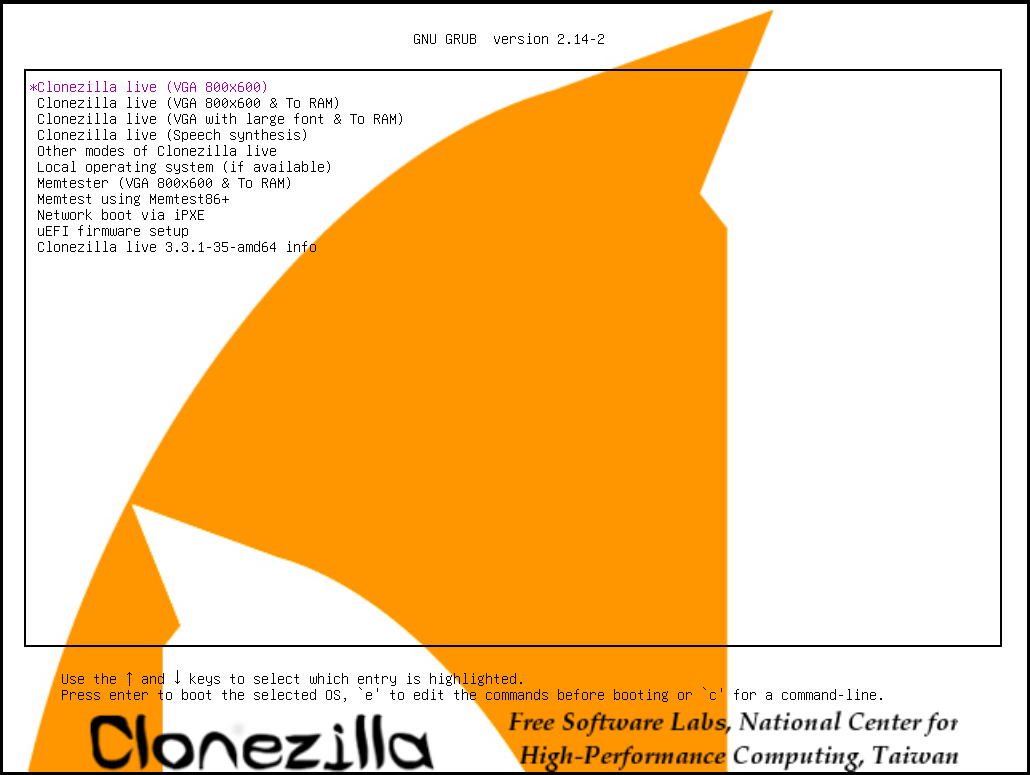
#6. Clonezilla (Mass Deployment Engine)
Clonezilla is a free, open-source utility for system backup, recovery, and disk cloning.
Functioning as a mass deployment engine, it excels at cloning a single source drive to multiple machines simultaneously.
Built on Linux and widely adopted by IT professionals, it enables efficient system duplication in enterprise and educational environments requiring large-scale deployment of identical setups.
Key Features
- Capable of cloning 40+ computers at the same time (in its Server Edition).
- Delivers versatile cloning options, including disk-to-disk and partition-to-partition cloning.
- Supports a wide range of file systems, such as NTFS, HFS+, UFS, and others, with full compatibility across Windows, Linux, macOS, FreeBSD, and OpenBSD.
- Uses Parclone to copy only used blocks on a drive, improving efficiency and minimizing storage requirements.
- Fully compatible with MBR and GPT disk formats, supporting both BIOS and UEFI firmware.
Pros and Cons
| Pros | Cons |
| 1. Supports block-level cloning to copy only used data. 2. Provides full compatibility with various file systems and operating systems. 3. Completely free and open-source, with no cost. 4. Supports mass cloning. | 1. A text-based interface can pose a learning curve for beginners. 2. Advanced features, such as 4K alignment and partition layout adjustments during cloning, are restricted. |
Personal Experience
Clonezilla, free disk cloning software, provides block-level cloning and mass deployment features that facilitate efficient duplication across multiple systems.
The Parclone feature allows Clonezilla to clone drives more efficiently by copying only the occupied blocks. It demonstrates strength in large-scale deployments, supporting simultaneous cloning of 40 or more computers.
Overall, it is an open-source, reliable solution, best suited for technically proficient users.
While powerful, Clonezilla’s text-based interface may present a learning curve for less experienced users. And advanced features, including partition resizing, are somewhat limited.
#7. MultiDrive (Effortless Migration Assistant)
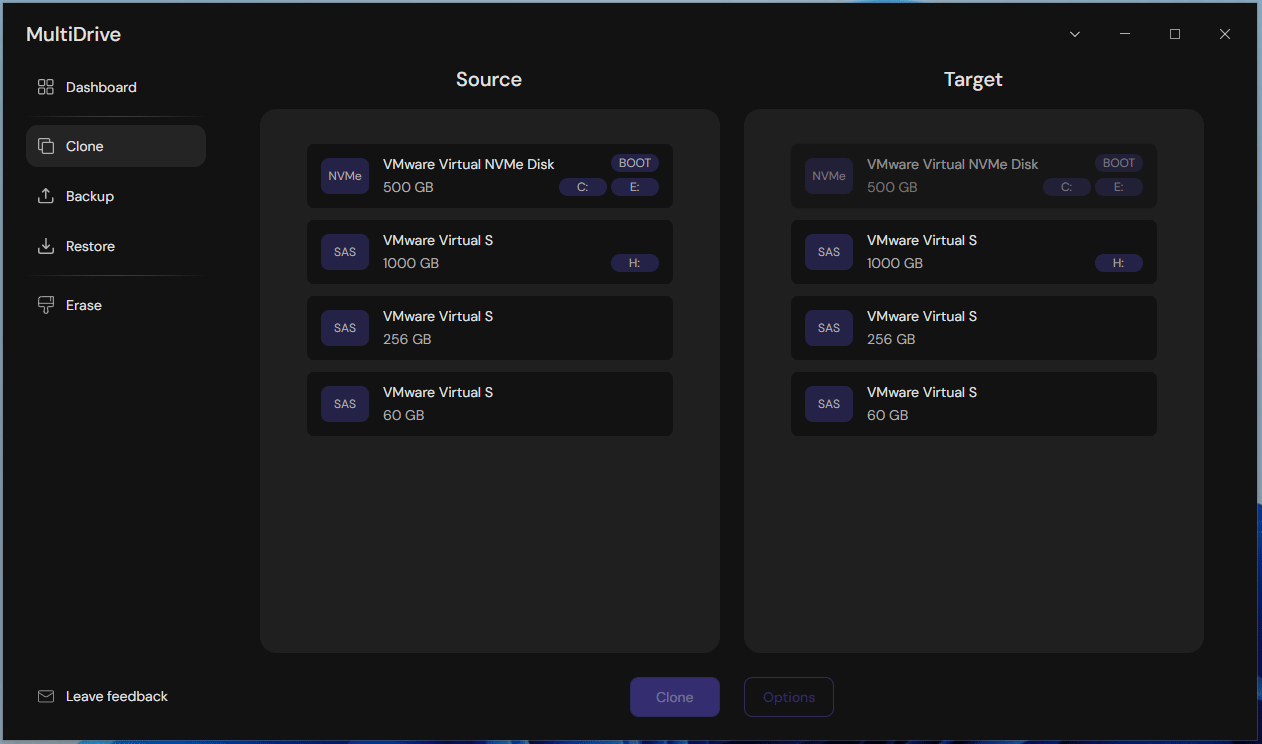
MultiDrive is a free, comprehensive Windows utility designed for backup, recovery, cloning, and data erasure.
As an effortless migration assistant, it can create an exact disk copy within a few clicks. Whether using SATA or NVMe interfaces, this utility ensures a reliable and high-speed cloning process for any HDD or SSD upgrade.
It is fully compatible with both desktop and server environments, including Windows 11, 10, and Windows Server 2025, 2022, and 2019.
Key Features
- Copies an entire HDD or SSD via the full-disk level mode, including the operating system, apps, and data to upgrade or replace drives.
- Allows you to pause and resume drive cloning tasks, providing enhanced control over the process.
- Includes a portable version that can be installed on a USB stick, ensuring a ready-to-use disk cloning tool whenever and wherever required.
- Supports running multiple disk cloning operations at the same time on a single dashboard, reducing overall time and improving workflow efficiency.
- Properly manages errors and bad sectors that may occur on aging drives.
- Performs mass disk cloning for free on the command-line interface.
Pros and Cons
| Pros | Cons |
| 1. Simple and intuitive user interface. 2. Truly freeware with no hidden costs. 3. Capable of cloning failing or problematic drives. 4. Compatible with popular drive types, such as SATA, SAS, IDE, M.2, U.2, and U.3. 5. Includes a portable version for on-the-go use. 6. Supports parallel task execution for improved efficiency. | 1. Lacks advanced features such as intelligent sector copy, partition resizing during cloning, and 4K alignment. 2. Misses options for partition-level cloning and system migration. |
Personal Experience
Installing MultiDrive is straightforward on a Windows PC.
Upon launching, the interface presents a clear and straightforward layout, with each function arranged in dedicated sections for easy navigation.
This completely free disk cloning software provides an efficient approach for system/data migration and disk cloning, with just a few steps. However, system cloning requires downloading MultiDrive WinPE image and creating & booting from a USB drive.
While MultiDrive improves efficiency and user-friendly operation for individual and professional users, it lacks some advanced features.
Comparative Analysis and User-Based Recommendations
To facilitate an objective assessment, we systematically evaluated the core strengths of each disk clone software and identified the best-fit scenarios for specific needs.
Feature & Performance Comparison
| Software Name | System Clone | Partition Clone | Disk Clone | Hot cloning | 4K alignment | Sector-by-sector copy |
| MiniTool ShadowMaker Trial Edition | Paid only, no explicit option | No | Yes | Yes | No | Yes |
| Hasleo Disk Clone | Yes | Yes | Yes | Yes | Yes | Yes |
| DiskGenius Free | Yes | Yes | Yes | Yes | Yes, automatically performed | Paid only |
| Macrium Reflect X Home | Yes (disk-level) | Yes, no explicit option | Yes | Yes | Yes, automatically performed | Yes |
| MiniTool Partition Wizard Free | Paid only | Yes | Yes | No | Yes | No |
| Clonezilla | Yes (disk-level) | Yes | Yes | No | No | Yes |
| MutiDrive | Yes (disk-level) | No | Yes | No | No | Yes |
User-Based Recommendations
- For home users: Hasleo Disk Clone, MiniTool Partition Wizard, or MiniTool ShadowMaker Free, with an intuitive user interface.
- For IT Professionals: DiskGenius or Clonezilla, with a cluttered/non-intuitive Interface showing technical information.
- For stability/enterprise-grade performance: Macrium Reflect X Home, designed for high reliability and consistently robust operation.
Bottom Line
In conclusion, the 7 best cloning software reviewed provide reliable solutions for handling disk cloning tasks effectively.
However, they differ in key aspects such as ease of use, flexibility, performance, and available features. This makes each option better suited to different types of users. Some tools are more beginner-friendly, while others offer advanced controls for experienced users.
By clearly understanding your own needs, technical level, and usage scenarios, it is simple to select the most suitable disk cloning solution.
Free Disk Cloning Software FAQ
The process involves connecting a new drive to a PC, choosing the source and target drives, configuring parameters for the task, and starting the cloning process. After cloning, the target disk is bootable to run Windows.
The key factor is not the total disk size, but the amount of space that is actually being used. Additionally, a reliable clone tool is necessary.
About The Author

Position: Columnist
Vera has been working at the MiniTool Team for over 10 years as a technical editor and content writer. She mainly focuses on disk and partition management, data recovery, Windows backup and restore, and PC troubleshooting. Through in-depth software testing and hands-on experience, she has helped users solve a wide range of computer problems and better protect their data on Windows devices.
User Comments :