
Backing up specific folders in Windows 11/10 is easy with the right tool. Use MiniTool ShadowMaker to back up selected files and folders to OneDrive or Google Drive, or an external drive. Alternatively, use File History to automatically back up personal files or OneDrive to sync folders to the cloud.
Most users store their personal files on Windows 11/10 PC and they want to back them up regularly to protect them. However, some users don’t want to back up all of them. The following part introduces why you need to back up specific folders and how to back up specific folders.
Why Do You Need to Back up Specific Folders
When you work, study, or enaage in entertainment on the PC/laptop, there will be many important personal files on your computer containing precious photos, movies, work documents, etc. You don’t want any data to be lost due to a computer crash or malware attack.
That’s why you need to back up these important files regularly. When you have backed up these specific files and folders, you can recover deleted files from the backup if your device crashes or gets damaged.
How to Back up Specific Folders in Windows 11/10
There are 3 tools for you to create a backup with certain files – MiniTool ShadowMaker, File History, and OneDrive.
Review the table to choose the right tool based on your needs.
| Feature | MiniTool ShadowMaker | File History | OneDrive |
| Backup scope | Files, folders, Windows systems, partitions, and entire disks | Files and folders in Windows libraries by default | Supported PC folders enabled through the Manage backup option |
| Storage destination | External drives, network locations, Google Drive, and OneDrive | External drives and network locations | Cloud |
| Scheduled backup | Yes | Yes | No |
| Main limitation | Requires installing third-party software | Limited folder | Requires internet; free storage is limited |
| Best for | Scheduled local backups and cloud file sync with more control | Simple local folder backups | Cloud access and cross-device sync |
Way 1: Via MiniTool ShadowMaker
Best for: Users who want to back up specific files or folders to a local drive, a network location, or Google Drive/OneDrive, with options to schedule automatic backups.
To back up specific folders on Windows 11/10, the PC backup software, MiniTool ShadowMaker is worth recommending.
It not only enables you to create a backup with certain files, but also allows you to back up systems, disks, and partitions on Windows 11/10. Besides, you can sync your important files to Google Drive or OneDrive.
MiniTool ShadowMaker TrialClick to Download100%Clean & Safe
1. After downloading MiniTool ShadowMaker, install and launch it. Then, click Keep Trial.
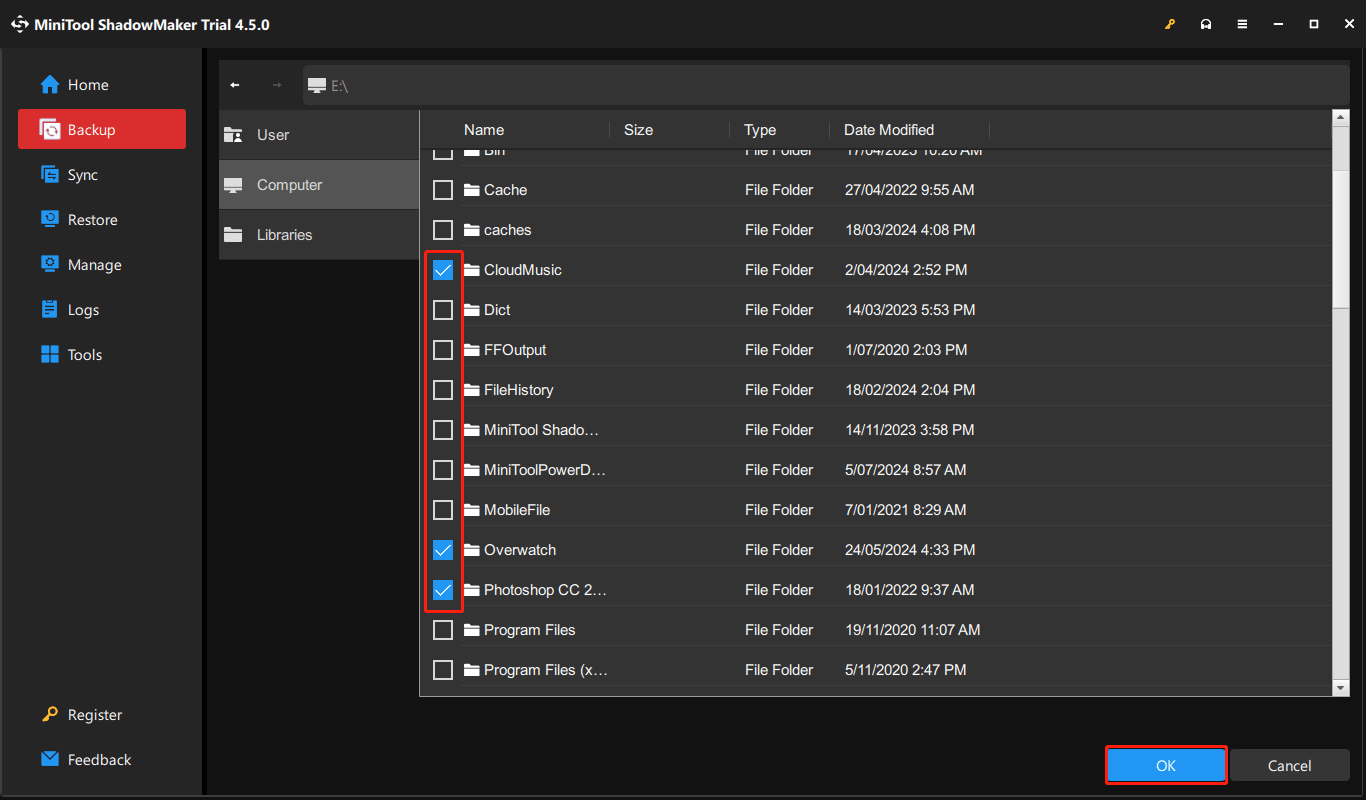
2. Then, go to the Backup page. Then click the SOURCE module to select the backup source. To back up specific folders, choose Folders and Files and check the specific files you want to back up. Click OK to continue.
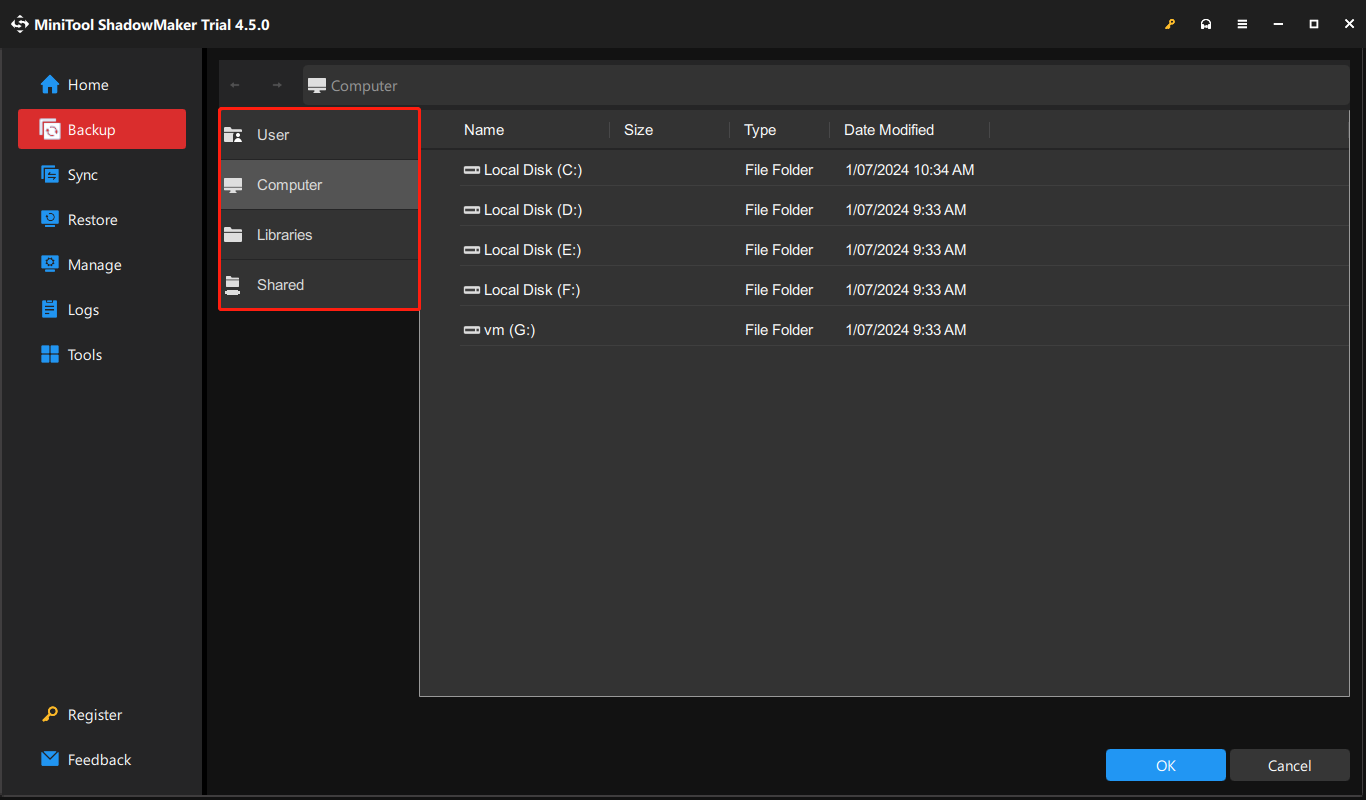
3. Now, click the DESTINATION module to select the destination path to save the backup image. It supports 4 paths and it’s recommended to choose an external hard drive.
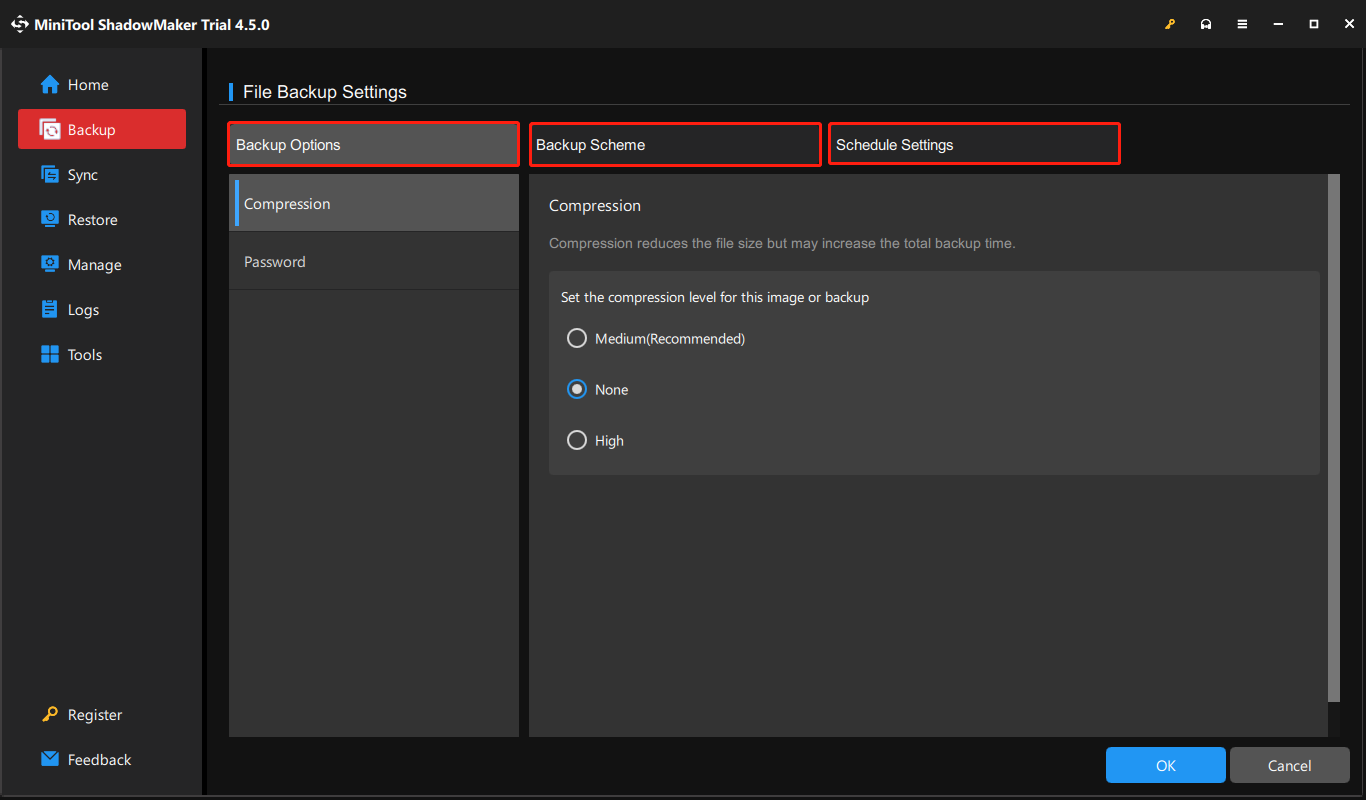
4. Click Options, and you can make some advanced settings.
- Backup Options – Compress the backup files and set a password for the image.
- Backup Scheme – Enable you to manage disk space by deleting some old backup images.
- Schedule Settings – Allow you to set an automatic file backup.
5. Now, you can click Back Up Now to start the backup task.
Way 2: Via File History
Best for: Users who want automatic backups of folders in Windows libraries, with the ability to restore previous file versions when available.
File History is a Windows 11/10 built-in backup utility for backing up specific folders such as Documents, Desktop, or Pictures to an external drive or network location.
1. Press the Windows + I keys together to open Settings.
2. Go to Update & Security > File backup. Under the Back up using File History part, click Add a drive. Then, select a drive as the destination.
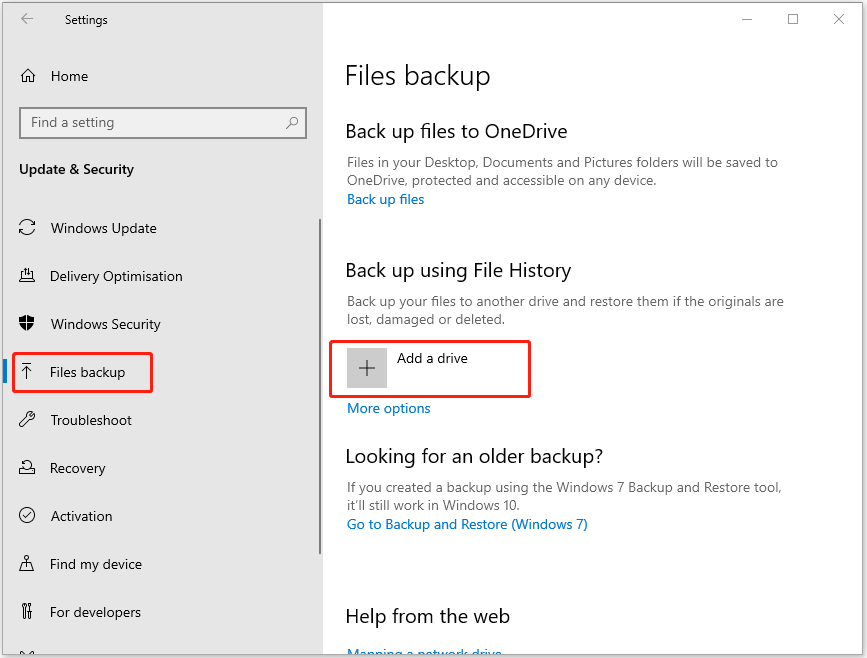
3. Click More options. Now, you can click Add a folder to select the specific folders.
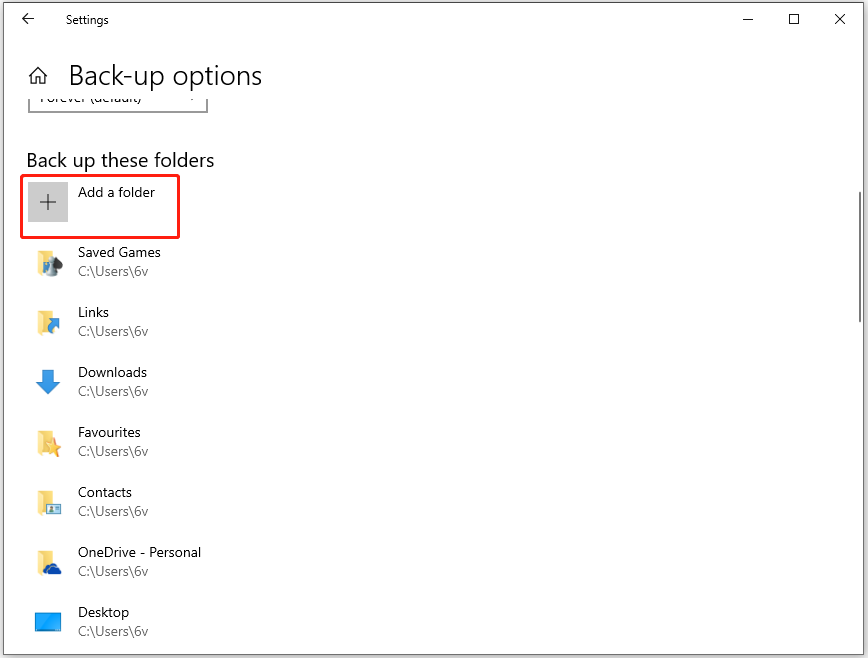
4. Then, click Back up now.
Way 3: Via OneDrive
Best for: Users who want to sync supported folders and files to cloud storage and access them across devices.
OneDrive is a cloud backup service provided by Microsoft that also allows you to back up specific folders. Follow the steps:
1. Log into your Microsoft OneDrive account and click the Help & Settings icon.
2. Go to Sync and backup and click Manage backup.
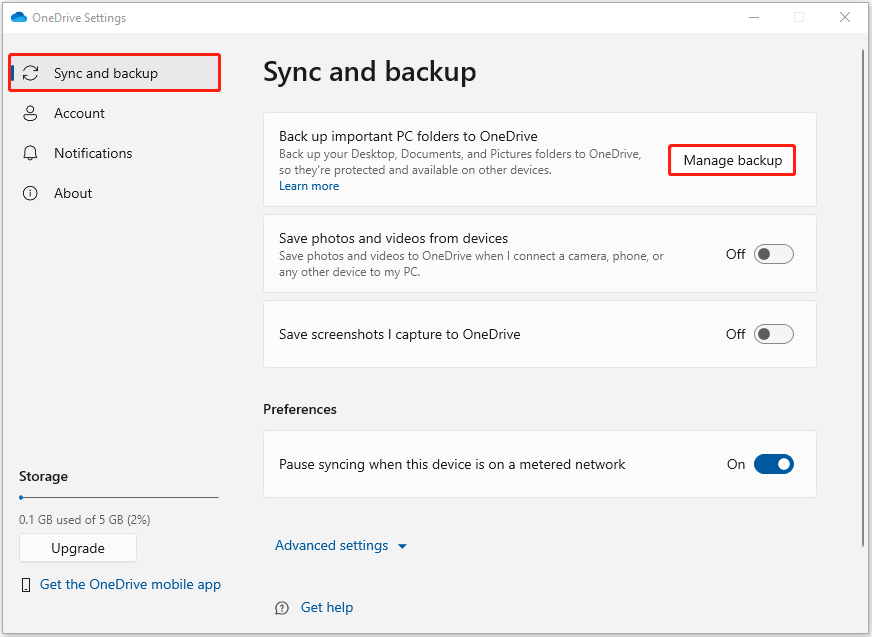
3. Then, choose the specific folders that you want to be available in your local OneDrive folder.
Bottom Line
In conclusion, you had better back up files regularly because it is a reliable way to offer protection for data and files and it even can prevent data loss. In this post, we have introduced how to back up specific files on Windows 11/10.
What’s more, if you have any problem with the Windows backup software – MiniTool ShadowMaker, please don’t hesitate to contact us via [email protected].
User Comments :