
Does Windows Backup only backup changed files? What program copy only changed files? Here, this post from MiniTool focuses on how to backup only new or changed files in Windows 11/10 in 2 ways. Let’s look over what you should do now.
Quick Answer
You can back up only changed files in Windows 11/10 via 2 simple methods:
- The Windows built-in Backup and Restore (Windows 7) for automatic backups.
- Professional third-party backup software, MiniTool ShadowMaker, for incremental or differential backups.
Can You Backup Only Changed Files Windows 10/11
On your computer, there may be many precious photos, files, documents, and other data. To safeguard your data, you may choose to back up these files. But if a mass of files are generated every day or at set intervals, the backups could take much disk space and it is troublesome to back up each day.
Then, a question comes: is there any way to only backup changed files? Yes. You can backup only new or changed files in Windows 10/11. This could help you save time and disk storage space.
Check the comparison table of incremental vs differential backup to know the key differences:
| Backup type | Backs up changes since | Recovery |
| Incremental | Last backup (full or incremental) | Requires the full backup and subsequent incremental backups |
| Differential | Last full backup | Requires the full backup and latest differential backup |
How to Backup Only New or Changed Files Windows 10/11
Windows Backup Only Changed Files
Best for: Users who want to use Windows’ built-in backup tool without installing third-party software.
Windows 11/10 includes the built-in tool, Backup and Restore (Windows 7), enabling you to create a backup for only the changed files. You can use it to make a scheduled plan.
Connect your external hard drive or USB drive to your PC and then follow the steps below to accomplish the task:
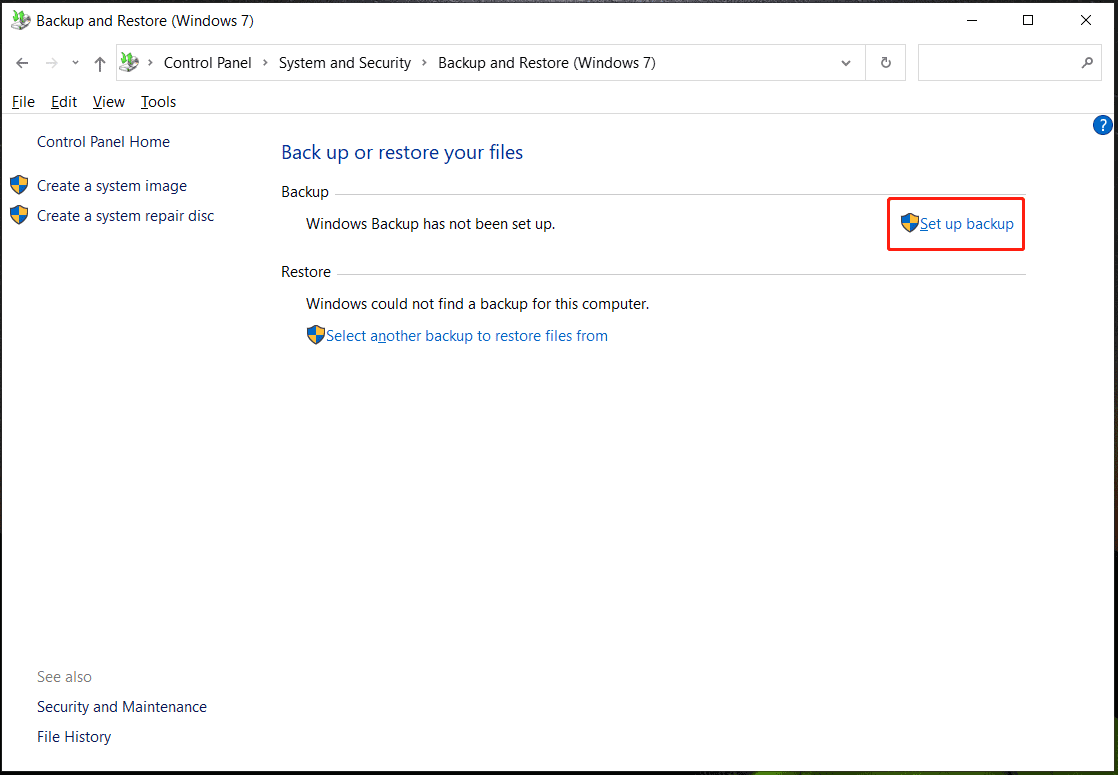
Step 1: Open Backup and Restore (Windows 7) in this way: go to open Control Panel, view all the items by large icons, and click Backup and Restore (Windows 7).
Step 2: In the new window, click Set up backup from the right pane.
Step 3: Choose a location to save the backup and go on.
Step 4: Choose the files you want to back up – Here we use the Let me choose option and then choose items for backup.
Step 5: After reviewing your backup settings, you can click Change schedule to re-configure how often you want to back up based on your needs.
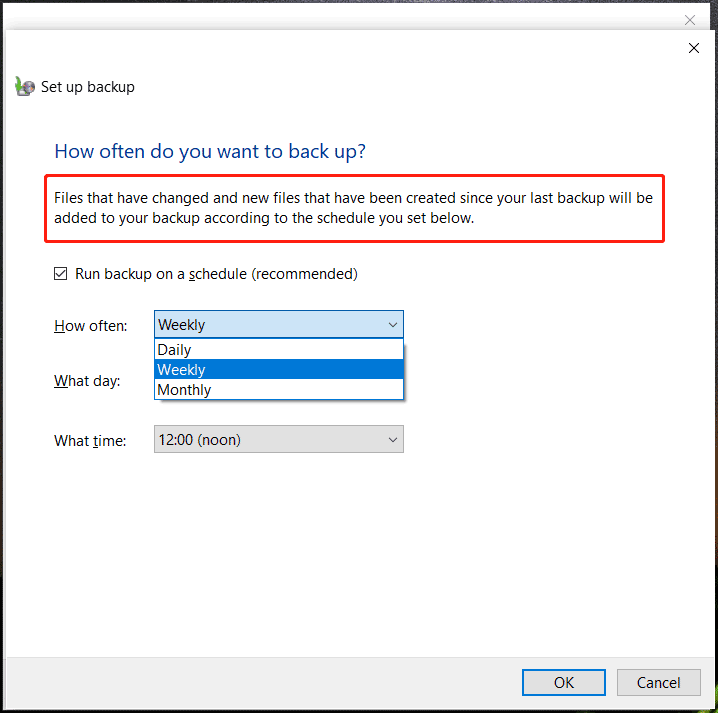
Step 6: Click the Save settings and run backup button to run the backup. Then, new files that have been created or files that have changed since your last backup will be added to your backup according to the schedule you have set.
When using Backup and Restore to create a backup, you may encounter some issues like error code 0x8100002F, Windows backup not working, error code 0x8078002a, etc.
Backup Only Changed Files Windows 10 via MiniTool ShadowMaker
In addition to Backup and Restore (Windows 7), you can run a powerful third-party backup software. Here, we advise you to use MiniTool ShadowMaker. It is an all-in-one backup tool that enables you to back up files, folders, systems, disks, and selected partitions.
It supports scheduled backups, incremental and differential backups, making it easy to back up only newly added or modified data in Windows 10/11.
MiniTool ShadowMaker TrialClick to Download100%Clean & Safe
See how to backup only new or changed files Windows 11/10.
Step 1: Run MiniTool ShadowMaker and click Keep Trial to continue.
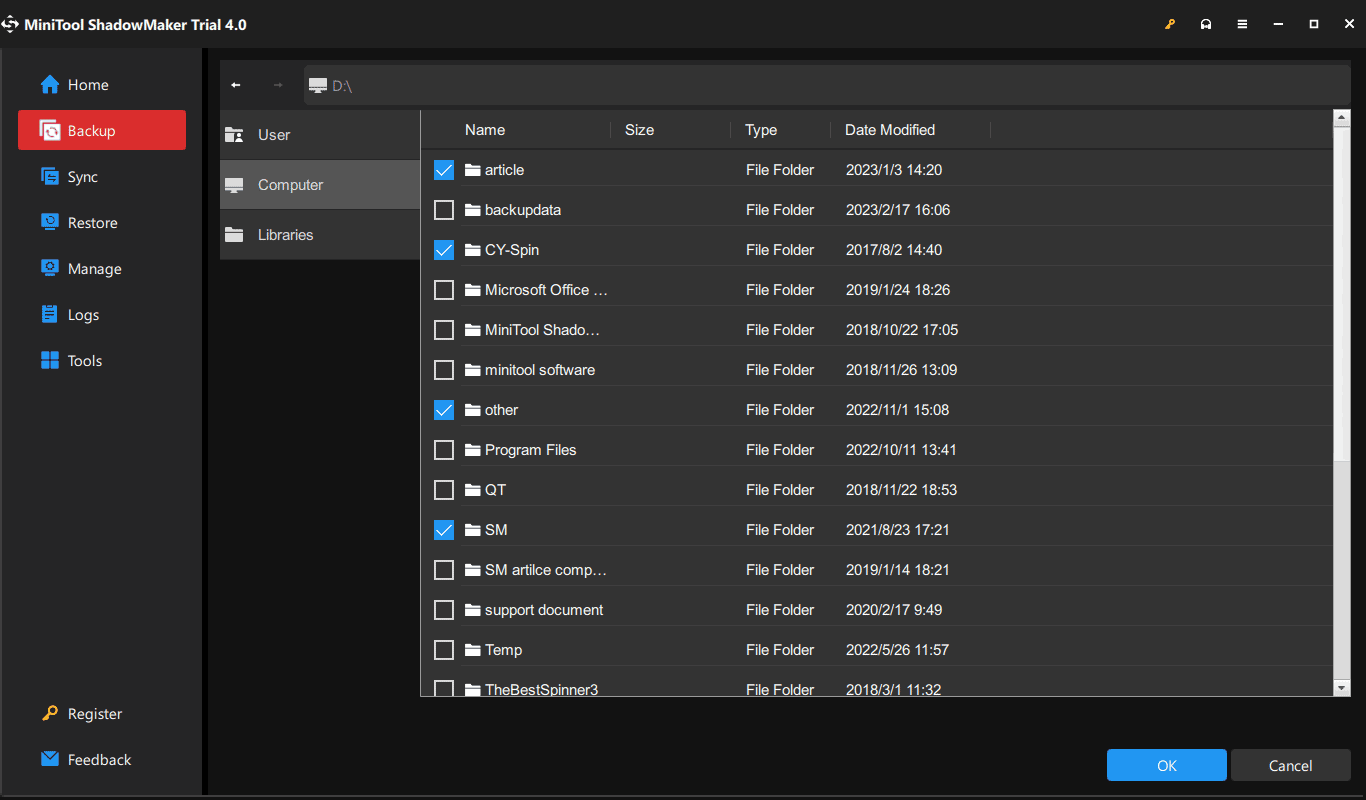
Step 2: Move to the Backup page, system partitions are selected by default. To back up files & folders, click SOURCE and then Folders and Files, open File Explorer under Computer, find files or folders you want to back up, and click OK.
Step 3: Click DESTINATION and choose the external hard drive or USB flash drive to save the image file.
Step 4: Click Options > Schedule Settings, enable this feature, and set a scheduled plan to back up data automatically at the time point you have configured.
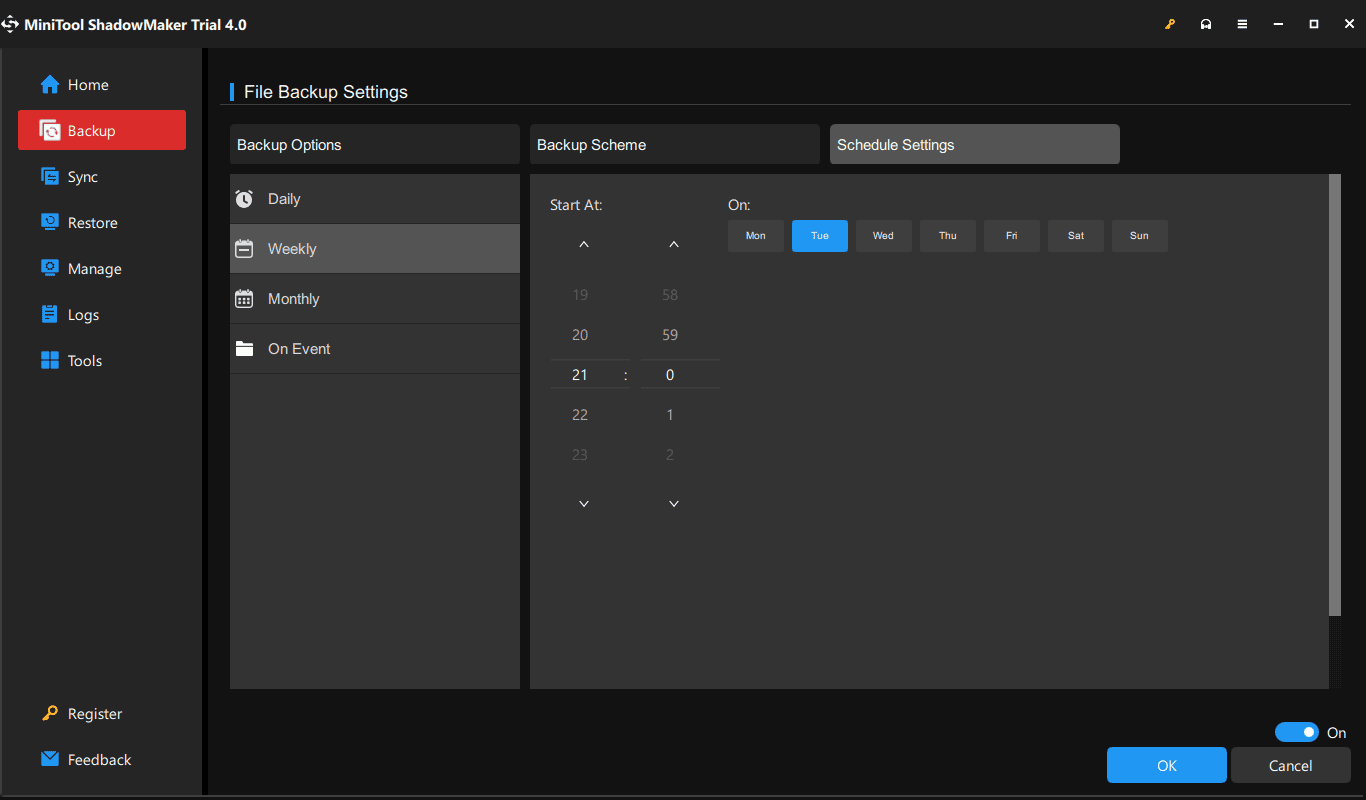
Step 5: To backup only changed files, click Options > Backup Scheme, enable the feature, and choose Incremental or Differential based on your needs.
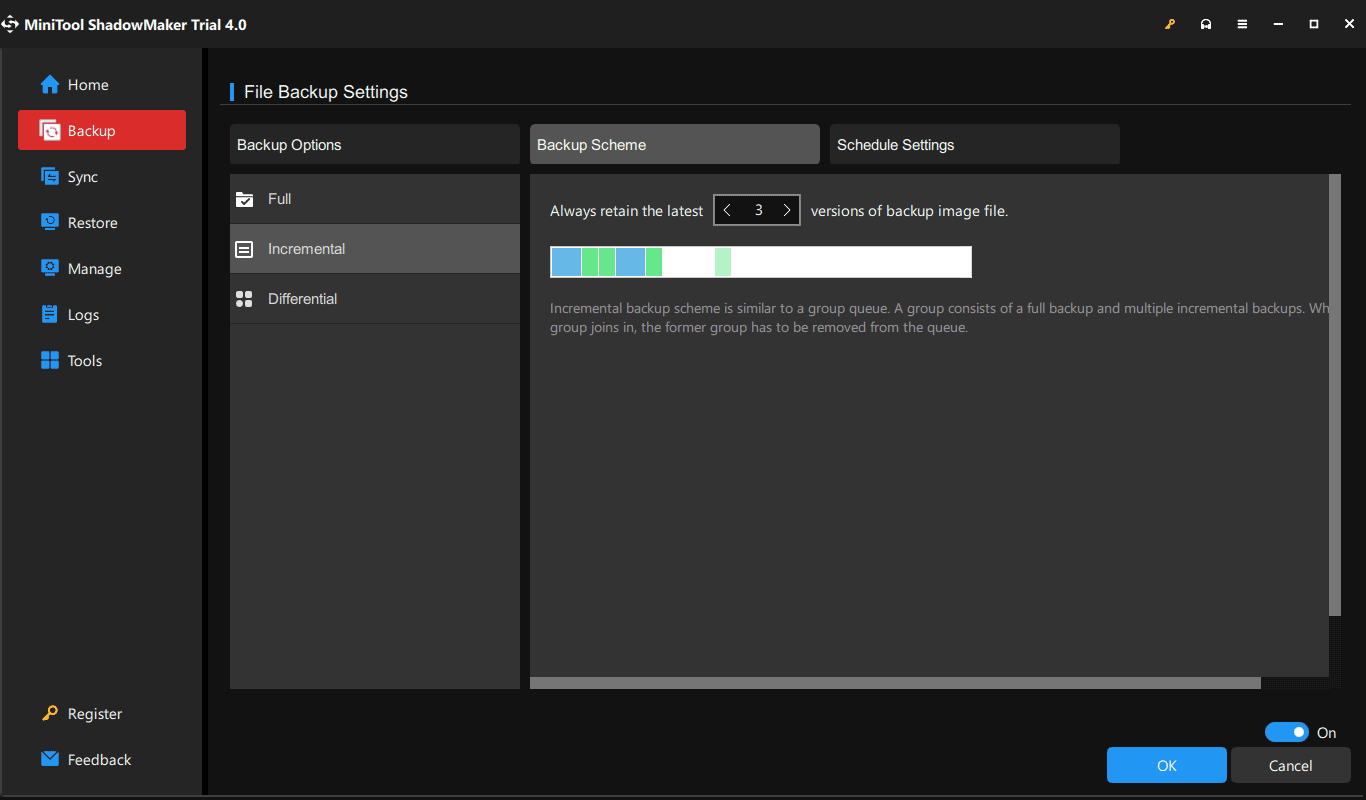
Step 6: Click Back Up Now on the Backup page after finishing the configurations. Then, MiniTool ShadowMaker will automatically backup only changed or newly added files at the set time point and delete some old backups at the same time.
Final Words
Now two ways to backup only changed files in Windows 11/10 are introduced to you. Compared to the inbuilt Windows backup tool, MiniTool ShadowMaker is more powerful in features to meet your many needs and it can easily create a backup for your PC under the easy-to-use user interface.
If you have any issues with our software during backup, contact us at [email protected].
Backup Only Changed Files FAQ
About The Author

Position: Columnist
Vera has been working at the MiniTool Team for over 10 years as a technical editor and content writer. She mainly focuses on disk and partition management, data recovery, Windows backup and restore, and PC troubleshooting. Through in-depth software testing and hands-on experience, she has helped users solve a wide range of computer problems and better protect their data on Windows devices.
User Comments :