
Many of us unknowingly develop habits that can damage our computers and lead to system issues. In this guide, you'll learn what can mess up a computer, what happens when the device is compromised, and how to avoid these mistakes to keep your computer running smoothly.
Quick Answer
Some common mistakes can break your computer, resulting in crashes, poor performance, and system instability.
The best way to avoid messing up a computer is to follow these safe practices:
- Keep Windows and software updated
- Download software from trusted sources
- Run an antivirus program
- Back up data regularly
- Use strong passwords
- Keep the computer clean
- Shut down properly
What Does “Mess Up a Computer” Mean
Messing up a PC means making changes or mistakes that affect the system performance, stability, or security. These mistakes include deleting important system files, changing system settings incorrectly, and ignoring updates.
In many cases, the system problems don’t appear immediately, which is difficult to identify at first. And you may not realize you’ve made a mistake until Windows starts running slowly, crashing unexpectedly, or failing to boot.
Typically, the messed-up computer can be restored through some troubleshooting tips. However, to reduce the risk of system failures and data loss, it’s best not to mess up your PC in the first place.
What Can Mess Up a Computer
Many common mistakes can mess up a PC, involving software issues, hardware problems, and user mistakes. Understanding them can help you take the right preventive measures and avoid system problems before they become serious.
#1. Software Issues
- Downloading and installing software from untrusted sources
- Incorrectly changing system configurations or the registry
- Ignoring Windows and software updates
- Installing corrupted or incompatible drivers
- Getting infected with malware or viruses
#2. User Mistakes
- Forcibly shutting down the computer
- Deleting important system files
- Formatting the wrong drive
- Disabling essential Windows services and security features
- Interrupting system updates
#3. Hardware Problems
- Blocking the vents to overheat the PC components
- Using off-brand or aging power supplies
- Removing RAM or graphics cards while powered on
- Spilling liquids into the internal
- Dropping the device
What Happens When a Computer Is Messed Up
The impact of messing up a computer depends on the underlying cause and how serious the issue is. It can range from slow performance and frequent crashes to data loss and boot failures.
Below are the most frequent outcomes.
| What happens | Description |
| Slower performance | Your PC may take longer to boot, launch apps, or respond to commands. |
| Frequent system crashes | The system may display a BSOD error, keep restarting, freeze, or get stuck on a black screen. |
| Software issues | Apps may fail to open, display unexpected errors, or crash during use. |
| File corruption or data loss | Files can become corrupted or permanently lost after accidental file deletion, formatting the wrong drive, or an unexpected system crash. |
| Time-consuming recovery | You may need to reinstall Windows, reconfigure settings, restore lost files, or reinstall programs, which can take hours. |
How to Avoid Messing Up a Computer
Maintaining a computer to prevent issues is significantly easier than repairing them after they occur. Here are some practical tips to help avoid breaking your PC to improve system performance and reduce data loss.
#1. Hardware Protection
Physical damage and severe overheating can permanently ruin a computer. To reduce these risks, follow these hardware protection tips.
- Keep drinks in a different place to avoid accidental spills.
- Place your laptop on a hard, flat surface instead of blankets or beds to prevent blocked air vents and overheating.
- Buy a surge protector to avoid sudden electrical spikes.
- Use a can of compressed air regularly and safely to clear out internal dust.
#2. Security Tips
Malicious software can damage system files, corrupt/steal your data, or even make the system unbootable. Don’t mess up a computer through some unsafe online activities.
- Download software from official app stores or sites instead of untrusted sources.
- Keep your antivirus program, like Windows Security, active to provide real-time protection.
- Always verify the sender before clicking links or downloading attachments, and only use trusted websites and verified online sources.
#3. System Maintenance
Regular system maintenance is essential to keep your PC secure, stable, and running smoothly. Here are some simple maintenance tips.
- Always keep some storage space to prevent slow performance caused by a full drive.
- Shut down your computer properly since the improper operation can corrupt critical system files.
- Regularly install security patches for your operating system or update software to improve performance and enhance security.
- Clean your computer by deleting temporary files, emptying the Recycle Bin, and uninstalling unused apps to free up disk space and prevent slow performance.
- Run an automatic backup software to back up your computer to an external hard drive to protect data against virus attacks, hardware failure, natural disasters, and system crashes.
Back Up Your PC for Data Protection
As mentioned above, mistakenly breaking your computer can result in data loss. To keep data safe, creating a backup for your important files is a critical step.
To better protect your data, consider creating regular backups with MiniTool ShadowMaker, a safe and reliable backup solution for Windows 11/10.
It supports file, folder, partition, disk, and system backups, providing comprehensive protection for your data and Windows system.
Additionally, this utility offers flexible options to create automatic, incremental and differential backups. This can keep your data up to date while saving storage space. With a recent backup available, you can restore your files or system quickly when unexpected problems occur.
MiniTool ShadowMaker TrialClick to Download100%Clean & Safe
Step 1: Run MiniTool ShadowMaker and navigate to the Backup tab.
Step 2: To create a system image, simply click DESTINATION to choose where to save the image file. The system partitions required for Windows startup are selected automatically.
For file backup, click SOURCE > Folders and Files, select the items you want to back up, and then click DESTINATION to select a drive.
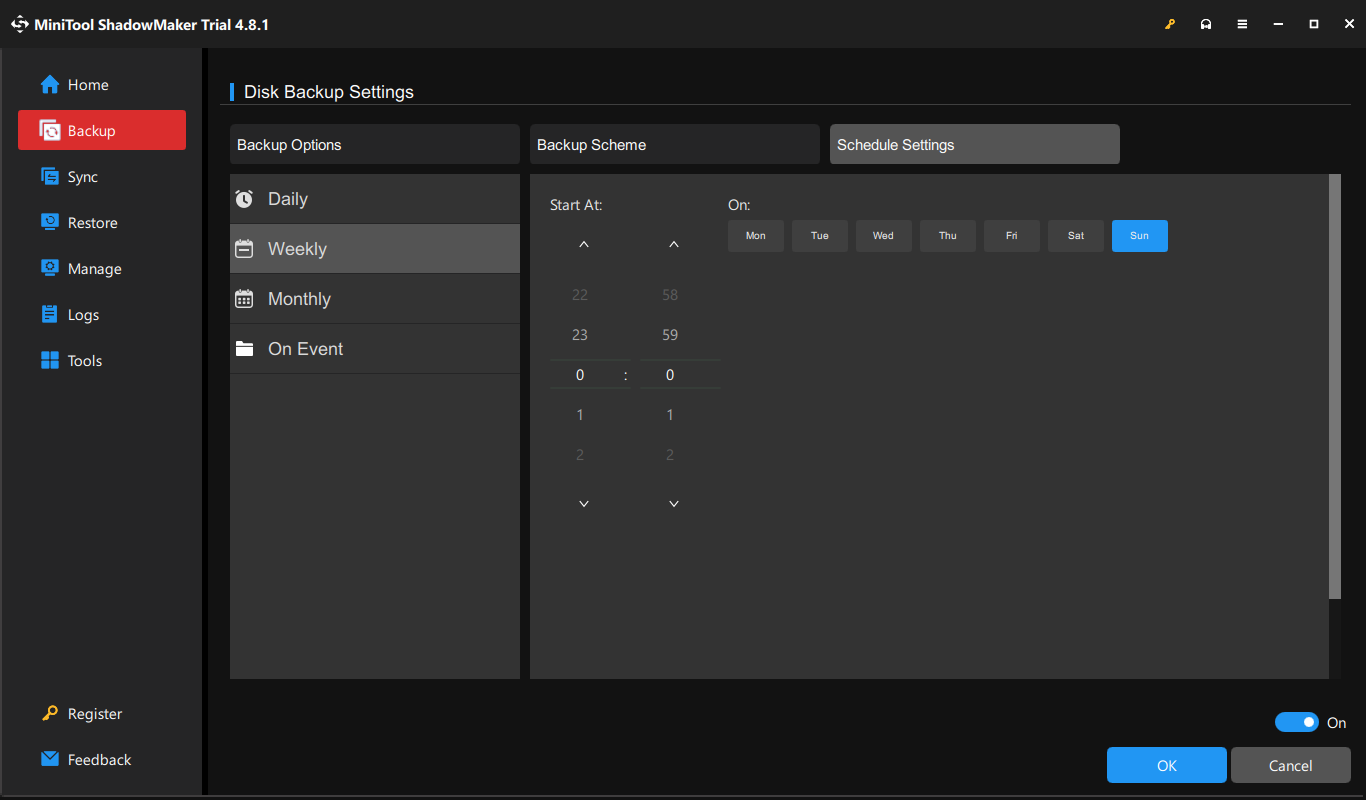
Step 3: Go to Options > Schedule Settings, enable this feature, and set a plan to regularly back up your PC.
Step 4: Start the backup by clicking Back Up Now.
Once the backup is complete, the computer is now protected.
Combining regular backups with the preventive tips discussed above can minimize data loss risks and ensure smooth computer performance.
Mess Up a Computer FAQ
Conclusion
A messed-up PC is often the result of avoidable mistakes. It is necessary to follow safe computing practices to eliminate unnecessary risks and ensure system stability and security.
If you have issues when using MiniTool ShadowMaker to back up your computer regularly, feel free to contact us at [email protected].
About The Author

Position: Columnist
Vera has been working at the MiniTool Team for over 10 years as a technical editor and content writer. She mainly focuses on disk and partition management, data recovery, Windows backup and restore, and PC troubleshooting. Through in-depth software testing and hands-on experience, she has helped users solve a wide range of computer problems and better protect their data on Windows devices.
User Comments :