
MSI running slow can result from outdated drivers, overheating, insufficient disk space, or excessive background processes. To speed up your laptop, close resource-heavy apps, update Windows & GPU drivers, adjust MSI Center performance settings, free up disk space, upgrade to an SSD, and change the power mode.
Why Is My Gaming Laptop Running So Slow?
If you are a PC game fan, MSI laptops might not be new to you. MSI laptops are known for their excellent build quality, innovative features, and high-performance hardware tailored for gaming.
However, it must be incredibly frustrating to find that your MSI running slow suddenly for no reason.
Multiple reasons might lead to MSI running slow and these elements include:
- Using an old HDD.
- Running too many startup or background apps.
- Outdated device driver.
- Insufficient disk space.
- Hardware issues.
- Use the Power Saver mode.
- Incorrect MSI Center settings
- Outdated operating system.
- Overheating
How to Fix MSI Running Slow on Windows 10/11?
Fix 1: Check CPU, Memory, and Disk Usage in Task Manager
Some processes may be consuming excessive system resources, such as CPU and RAM, slowing down your MSI laptop.
Check Task Manager and end resource-intensive apps.
Step 1. Right-click on the taskbar and select Task Manager.
Step 2. Go to the Processes tab and check CPU, Memory, and Disk usage.
Step 3. Choose the intensive app and end this task.
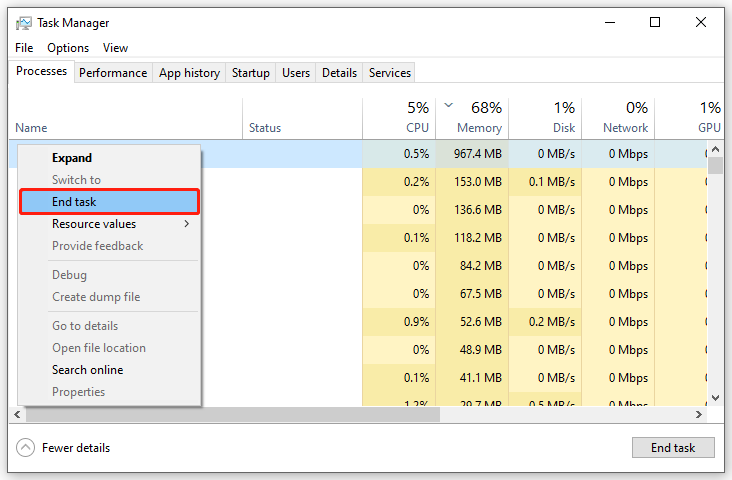
Step 4. Click Startup, find the unnecessary startup programs, and disable them.
Fix 2: Change Performance Settings in MSI Center
MSI Center offers different performance modes for supported laptops. If your MSI laptop runs slowly, check whether a power-saving mode is limiting its performance.
Step 1. Open MSI Center in Windows 11/10.
Step 2. Navigate to User Scenario.
Step 3. Choose a higher-performance mode.
Fix 3: Check for Overheating
High temperatures can slow down your MSI laptop. When overheating occurs, the CPU and GPU may reduce their performance to lower temperatures and prevent damage.
Follow these steps:
- Use MSI Center to check system temperatures.
- Keep vents clear.
- Remove dust from the cooling vents and fans.
- Use your laptop on a hard surface.
Fix 4: Update Your Windows
To run your MSI laptop more efficiently, it is important to update to the most current Windows operating system in time. The latest Windows OS might fix some known bugs, deliver some new features, and release security patches. Follow these steps:
Step 1. Press Win + I to open Windows Settings.
Step 2. Go to Windows Update > Check for updates.
Step 3. Download and install available updates.
Fix 5: Update Device Driver
Keeping your device drivers up to date might help to ensure your system runs more smoothly. Once your device drivers are corrupted, it might trigger issues on graphic output, video resolution, and internet connection.
Here, take updating graphics drivers as an example:
Step 1. Right-click on the Start icon and choose Device Manager.
Step 2. Expand Display adapters and right-click on your graphics card to choose Update driver.
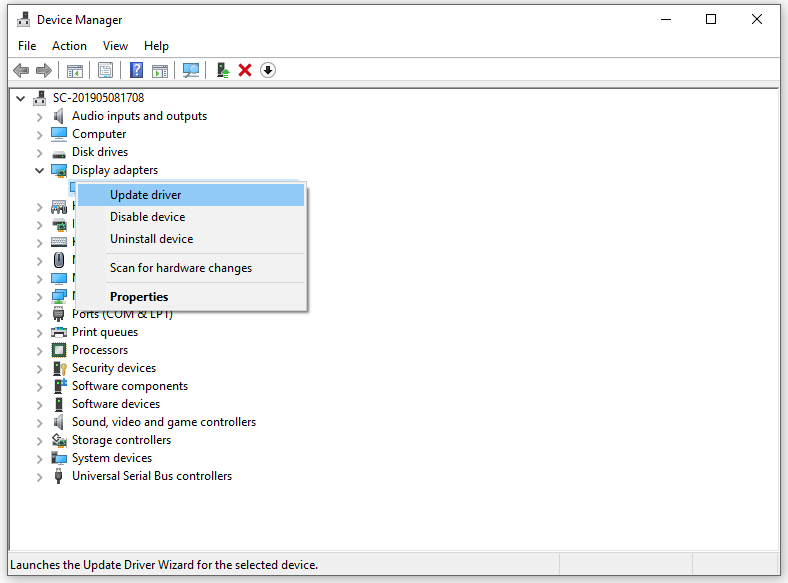
Step 3. Click on Search automatically for drivers and then follow the guidelines on the screen.
Fix 6: Uninstall Unused Programs
When you uninstall programs that you rarely use, it will free up valuable space on your hard drive. By doing so, the strain on your system resources will be reduced, making your MSI laptop faster and more responsive. To do so:
Step 1. Press Win + R to open the Run box.
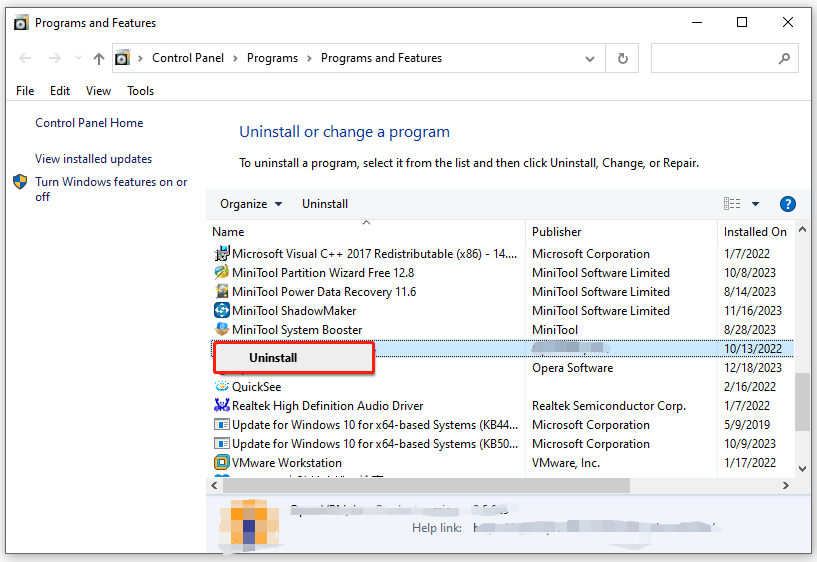
Step 2. Type appwiz.cpl and hit Enter to launch Programs and Features.
Step 3. Select the programs you don’t need > right-click on them to choose Uninstall > confirm this operation > follow the uninstallation wizard to complete the rest process.
Fix 7: Upgrade HDD to SSD
As is known to all, the read and write speed of SSD is much faster than that of HDD. Therefore, if you are running an HDD as the system disk, why not consider replacing it with an SSD? Speaking of cloning HDD to SSD, a free PC backup software called MiniTool ShadowMaker might help you out.
This tool is aimed to provide data protection and disaster recovery solutions for individuals and companies. It supports file backup, system backup, disk backup and partition backup. Furthermore, it also allows you to clone a disk and sync your files. If your MSI is running slow, you can migrate the entire system disk to an SSD via the Clone Disk feature without reinstalling Windows.
Step 1. Launch MiniTool ShadowMaker.
MiniTool ShadowMaker TrialClick to Download100%Clean & Safe
Step 2. In the Tools page, click on Clone Disk.
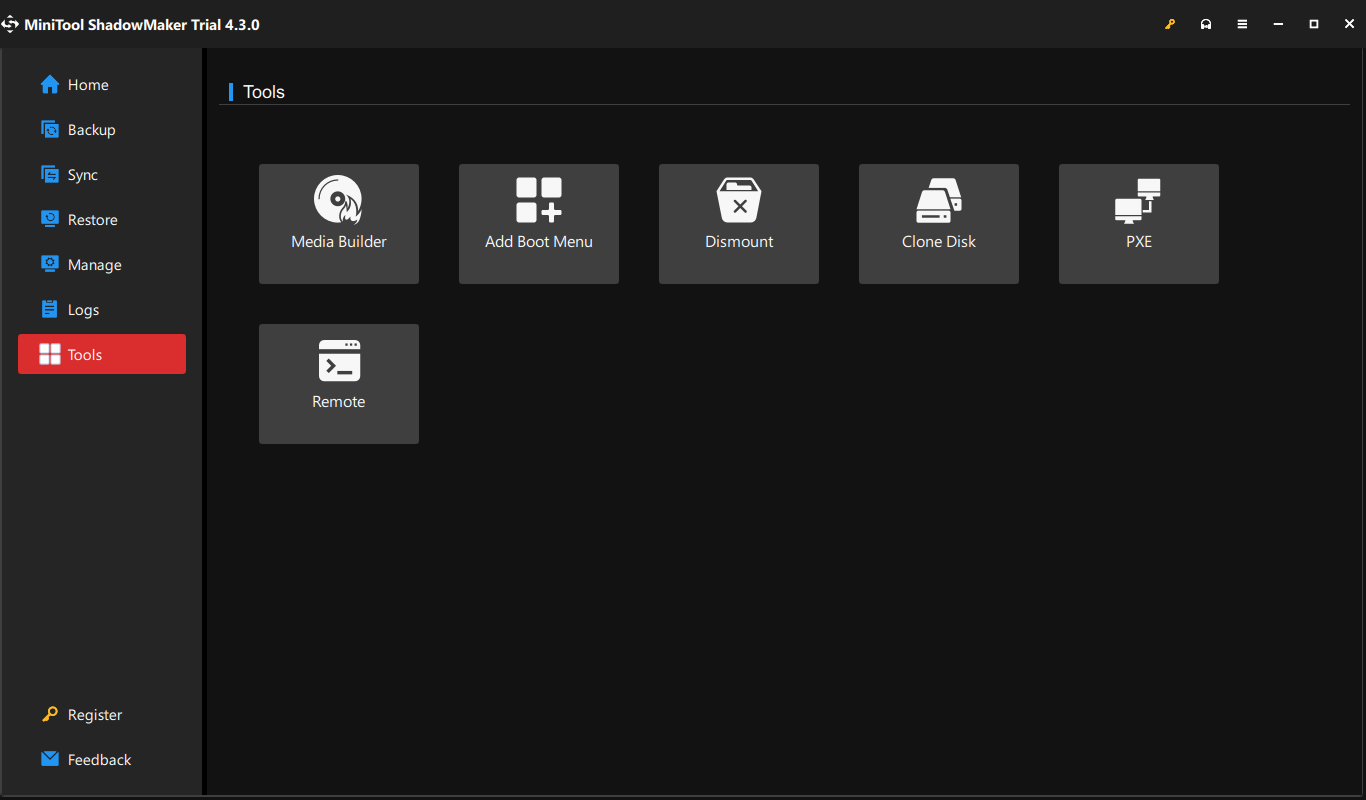
Step 3. In the lower right, click on Options. Then, you will see the New disk ID option is selected by default.
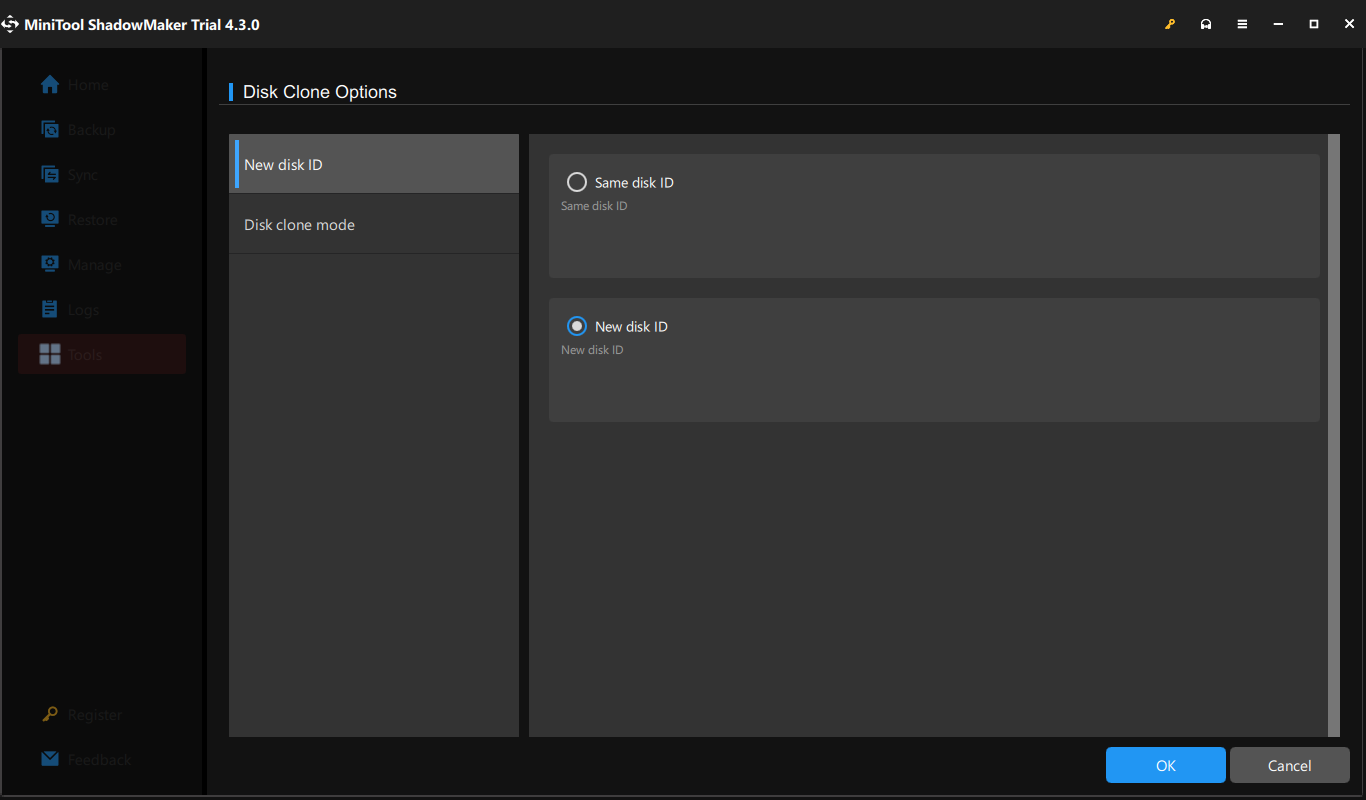
In Disk clone mode, you can select either of the two modes: Used sector clone and Sector by sector clone.
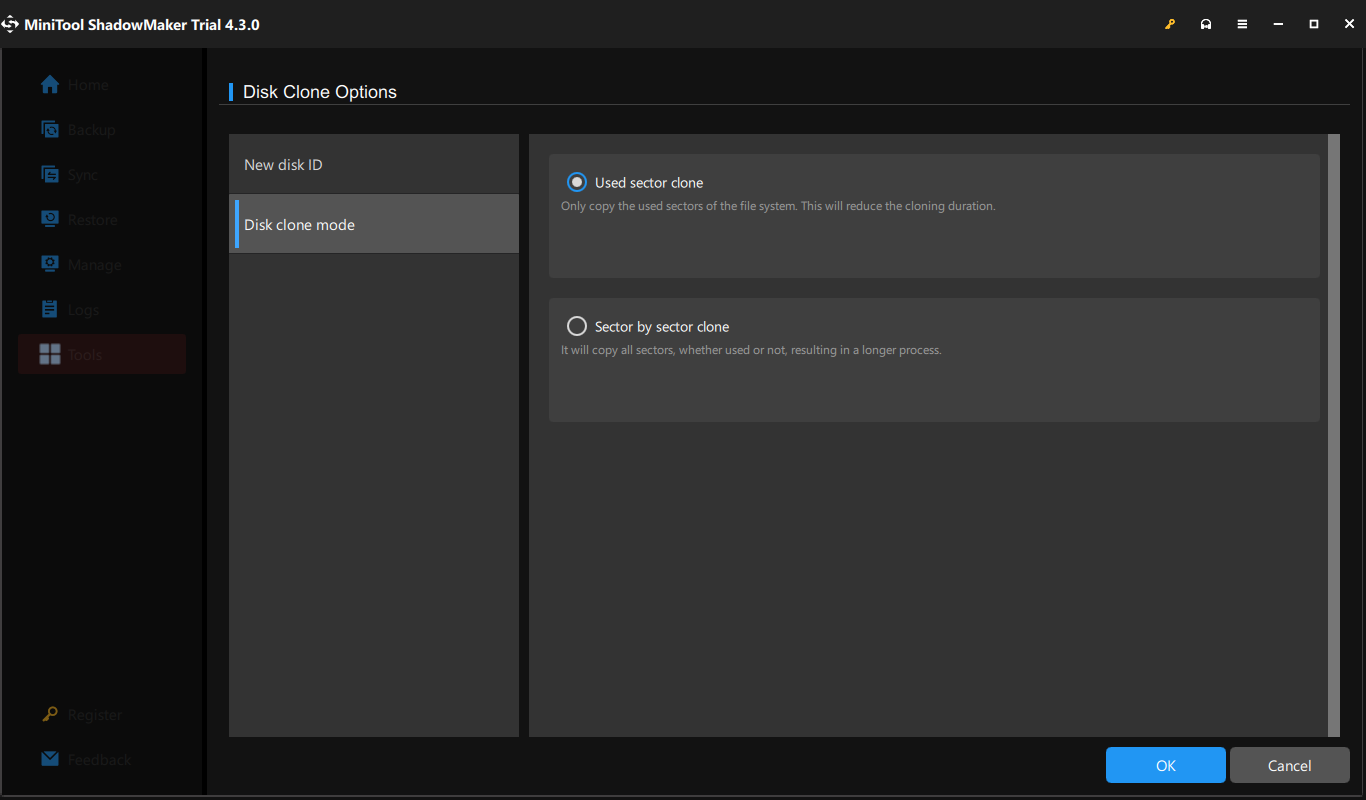
Step 4. Then, you need to choose your original hard drive as the source disk and the new SSD as the target disk.
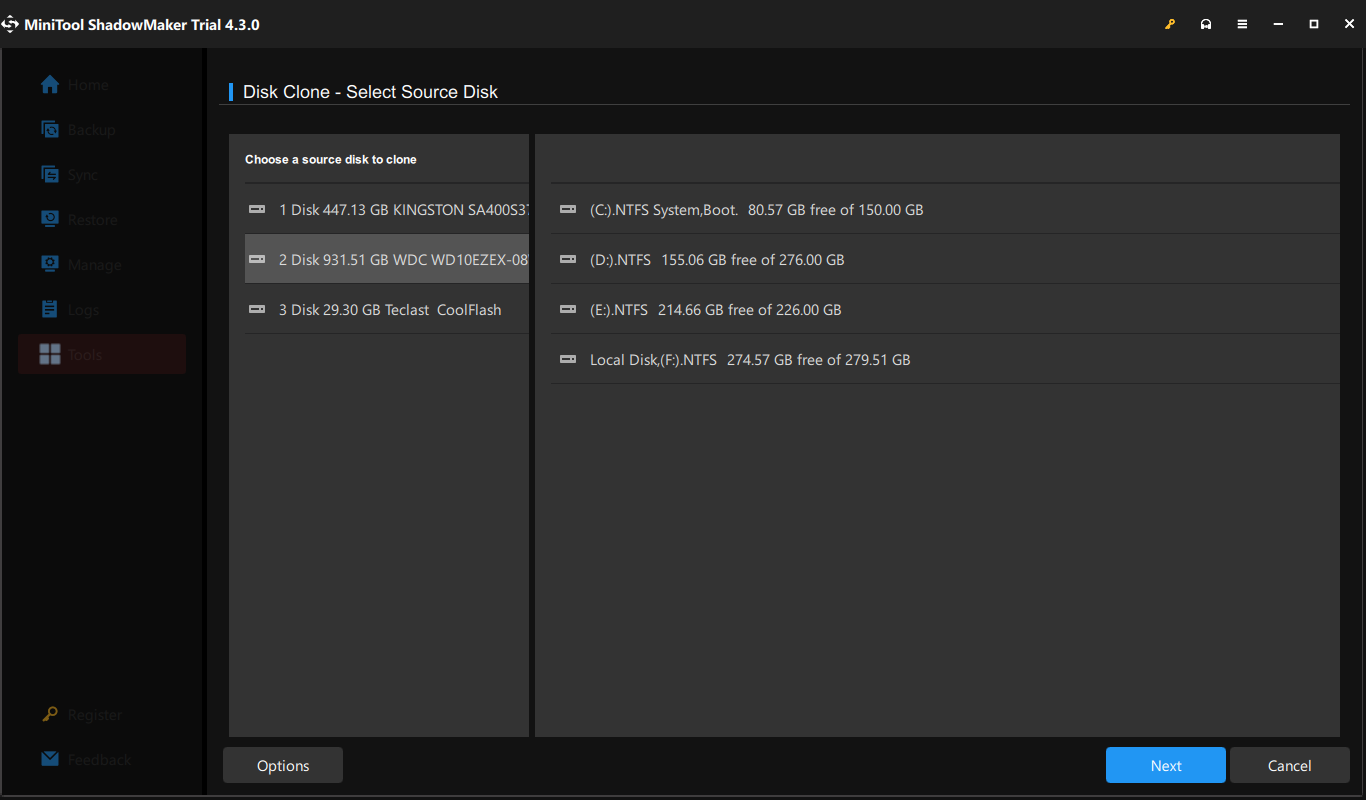
Step 5. MiniTool ShadowMaker will inform you that all data on the target will be destroyed, so make sure to back them up in advance.
Click on OK to confirm this operation and wait for the process to complete. If the disk you clone is a system disk, you can set the new SSD as the default boot device in BIOS.
Fix 8: Perform Disk Cleanup
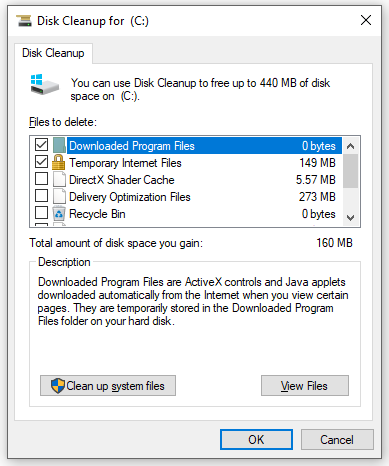
Windows is equipped with a utility called Disk Cleanup that enables you to delete unimportant files and data including Download Program Files, Temporary Internet Files, DirectX Shader Cache, Temporary Files, and Thumbnails. Here’s the detailed tutorial to free up disk space via this tool:
Step 1. Type cleanmgr in the Run dialog and hit Enter.
Step 2. Select the drive you want to clean up and hit OK.
Step 3. Tick the files you want to delete and then hit OK to start the process. After completion, check if MSI running slow is gone.
MiniTool System Booster TrialClick to Download100%Clean & Safe
Fix 9: Adjust Virtual Memory
Virtual memory is significant for multitasking and launching resource-hogging programs. If your MSI laptop is running slow and it is running out of physical RAM, increasing virtual memory might help to speed up your computer. To do so:
Step 1. Open Control Panel.
Step 2. Expand the drop-down menu beside View by and highlight Category.
Step 3. Go to System and Security > System > Advanced System Settings.
Step 4. In the Advanced tab, click on Settings under Performance.
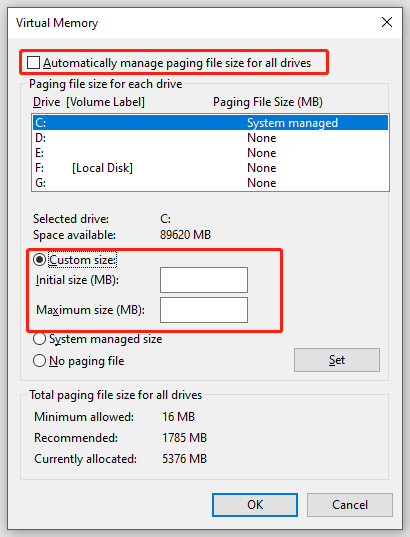
Step 5. In the Advanced tab of Performance Options, hit Change under Virtual memory.
Step 6. Uncheck Automatically manage paging file size for all drives > tick Custom size > enter the Initial size and Maximum size of the paging file based on the physical memory of your PC > save the changes.
Fix 10: Change Power Plans
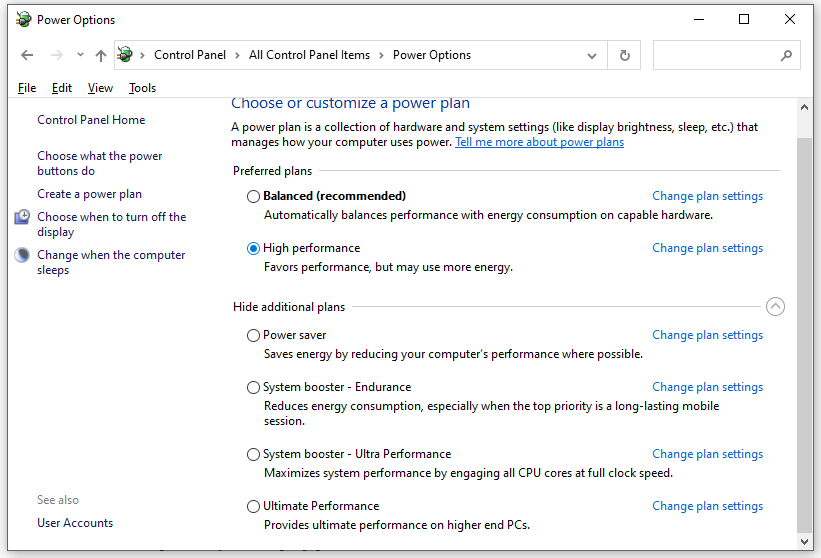
If you choose the Power Saver plan, the performance of your MSI laptop might be reduced to conserve energy. To prioritize system performance, it is a good option to choose the High performance plan (for higher-end PCs, select the Ultimate Performance plan). To do so:
Step 1. Open Control Panel.
Step 2. Expand the drop-down menu beside View by and select Small icons.
Step 3. Click on Power options to view all the power plans on your computer.
Step 4. In the right pane, tick High performance or Ultimate Performance as per your need.
We Need Your Voice
This guide demonstrates several ways to speed up MSI laptops and improve your system performance. For more ideas about MiniTool Software, feel free to contact us via [email protected]. We are willing to receive your feedback!
User Comments :