
Are you frustrated with Adobe Illustrator crashing and file vanished? You’re not alone. In this comprehensive guide on MiniTool, you can learn how to protect Illustrator files from crash error. Let’s get started!
Adobe Illustrator Crashed and File Vanished
Adobe Illustrator is a popular application for creating refined drawings, illustrations, and artwork on Windows or MacOS computers. This program includes many sophisticated drawing tools that can reduce time needed for creating illustrators. It is widely used by graphic designers, web designers, visual artists, and professional illustrators throughout the world to create high-quality artworks.
However, there have always been users reporting about encountering problems such as crashing, freezing, unsaved files, and more.
I was working on adobe illustrator and built a file, I had just made an export and the illustrator shut down in the background and the file vanished from my drive. I can't find a crash report or error log, can't find the file in App Data - Roaming - Adobe Illustrator - .... Why did this happen? https://community.adobe.com/
If you don’t want to face Adobe Illustrator crashing or AI file loss error, the best way to avoid such issues is to back up your Adobe Illustrator files. Here are two backup solutions in the below: Illustrator Autosave and professional backup software – MiniTool ShadowMaker. Now, we will demonstrate them to you step by step.
How to Protect Illustrator Files from Crash Error?
Option 1. Adobe Illustrator Autosave
Autosave is a new feature in Adobe Illustrator that can automatically save your work content at certain intervals. This feature is disabled by default. To protect Illustrator files from crash error, here’s how to set your works to auto save:
Step 1. Launch the Adobe Illustrator app.
Step 2. Go to the Edit tab > choose Preferences > File Handling & Clipboard.
Step 3. Under Data Recovery, check the box next to Automatically Save Recovery Data Every: > select the time interval from the drop-down menu.

Step 4. Click on Choose and you can choose where you want the file to be.
Step 5. When making your choices, hit OK to save the changes.
Then Illustrator will save your unsaved content every specific times so that you don’t have to worry about the files being gone and make efforts to recover them unsaved when it doesn’t respond.
Recover AI Files from Autosave
Step 1. Open File Explorer > navigate to C:/Users//AppData/Roaming/Adobe/Adobe Illustrator Settings/en_US*/x64/Adobe Illustrator Prefs.
Step 2. Open the Preferences file with a text editor and go to /aiFileFormat {/PDFCompatibility 1enableATEReadRecovery 0 /enableContentRecovery 0/enableATEWriteRecovery 0/clipboardPSLevel 3}.
Step 3. Change the enableContentRecovery value from 0 to 1 and save the file. If you don’t see enableContentRecovery in /aiFileFormat, add /enableContentRecovery 1 in the folder and save all changes.
Step 4. Relaunch Adobe Illustrator and you can see unsaved files on the window to ask you whether save the file or not. Click on OK to save.
Option 2. Backup Illustrator Files via MiniTool ShadowMaker
In addition, we also recommend you try an all-round and convenient backup software called MiniTool ShadowMaker. This tool stands out as light weight, robust, and user-friendly backup and disaster recovery solutions.
In terms of data backup, it just takes a few moments and mouse clicks to backup files, folders, the Windows system, selected partitions, and your whole disk. For more advanced settings, it allows you to select the compression level and choose the backup schemes to save your storage space and you can encrypt your backup to protect your privacy.
Here’s how to use MiniTool ShadowMaker to protect Illustrator files from crash error:
Step 1. Download, install, and then launch this freeware. Click on Keep Trial to enter its main interface.
MiniTool ShadowMaker TrialClick to Download100%Clean & Safe
Step 2. Select the Backup tab from the left sidebar.
To specify backup source, go to SOURCE > Folders and Files > choose Adobe Illustrator files > tap OK. Then click on DESTINATION to decide where to store the backup image.
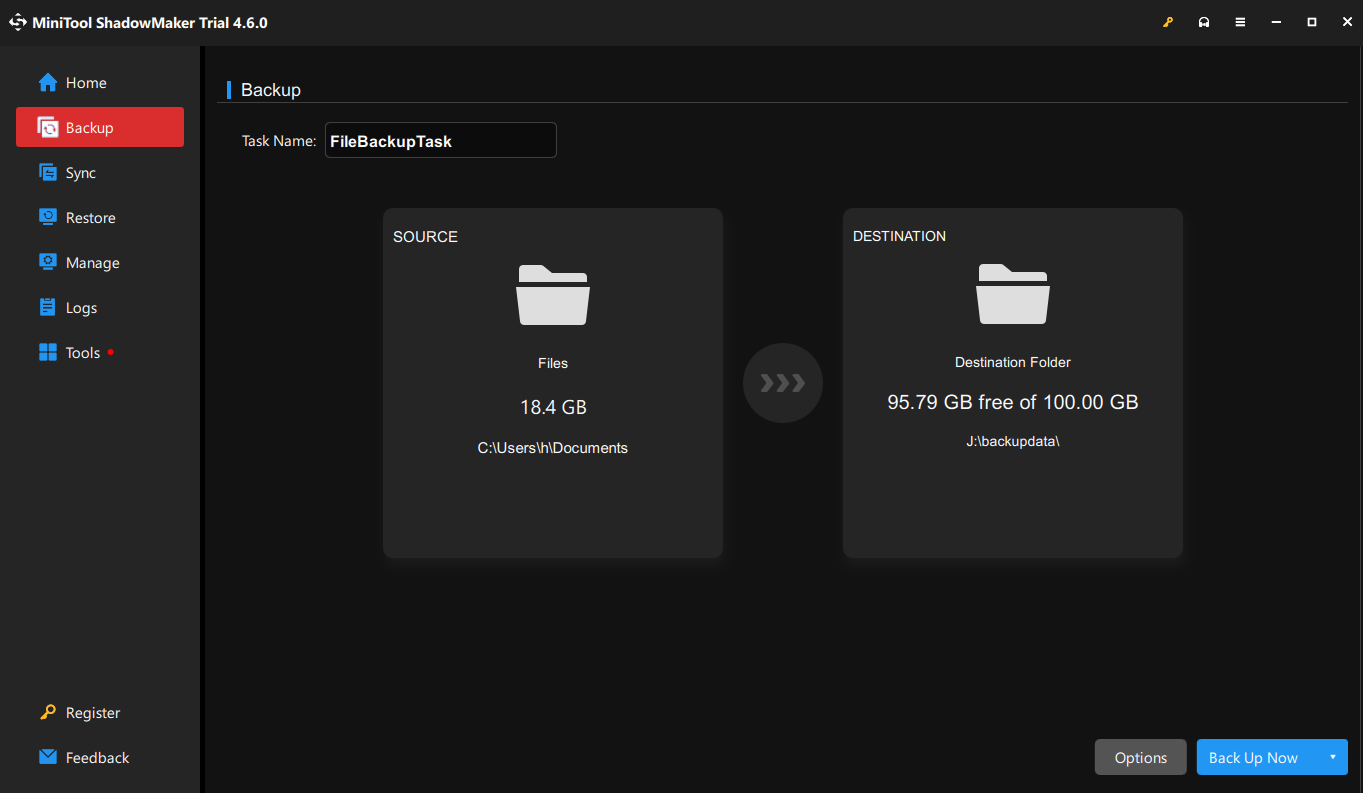
Step 3. In the bottom right corner, click on Options to create an automatic backup. To do so, toggle on Schedule Settings > select a preferred backup frequency (daily, weekly, monthly, or on event) > hit OK.

Step 4. Click on Back Up Now to initiate the process.
After that, it will start to backup Illustrator files automatically from the time you set.
For restoring file backup with MiniTool ShadowMaker, you can go to the Restore page and recover the backup image by clicking Restore beside it. If you don’t see your backup task in the list, tap on Add Backup in the top right corner and browse it. As you can see, the recovery step is easier than Illustrator autosave.
Bonus Tips
In order to avoid expected Adobe Illustrator crash error or working issues, here are some helpful suggestions for you:
- Immediately Update Adobe Illustrator and Windows System: If you are using an outdated Adobe Illustrator in the latest Windows system, you may not have a smooth experience while using AI; if the Windows version is too old, it may not support newly upgraded Adobe Illustrator.
- Don’t Run Similar Graphic Programs Together with Adobe Illustrator: Stop running similar graphic editors, programs, or software while you are using Adobe Illustrator in your PC. It may cause program crash, failure, or stuck issues.
Bottom Line
How to protect Illustrator files from crash error? We introduce the 2 free ways in this post, including Adobe Illustrator autosave feature and MiniTool ShadowMaker. Meanwhile, if you are interested in disk cloning or system image creation, the latter is really worth a shot.
If you have any questions or problems about our product, please tell us via [email protected] and we’ll reply to you as soon as we can. Appreciate your support!
User Comments :