
Scheduled backup software helps users protect important files by automatically creating backups at set intervals. This post introduces 6 scheduled backup software options, including MiniTool ShadowMaker, EaseUS Todo Backup, AOMEI Backupper Standard, and Macrium Reflect.
Introduction of Scheduled Backup Software
Scheduled backup software automatically creates copies of files, folders, partitions, or entire operating systems at preset intervals or in response to specific triggers.
Instead of manually copying important data, users can configure backups to run daily, weekly, monthly, or during events such as startup, shutdown, or user logon. This ensures that critical data is consistently protected without requiring regular manual attention.
Automatic backups are important for two main reasons: data security and efficiency.
From a security perspective, scheduled backups reduce the risk of losing valuable files due to hardware failure, accidental deletion, system crashes, ransomware attacks, or corrupted updates. A recent backup can significantly shorten recovery time and minimize permanent data loss.
From an efficiency standpoint, automation saves time and removes the need to remember backup tasks.
Once configured, the software runs quietly in the background while using incremental or differential methods to copy only changed data. This reduces storage usage, shortens backup time, and allows users or businesses to maintain protection with minimal effort.
How to Choose the Best Scheduled Backup Software
Choosing the best auto backup software depends on how much data you need to protect, how often files change, and how quickly you need recovery access. Not every user needs enterprise-level imaging tools, while some users need advanced features beyond basic file backup.
1. Backup Methods Available
Look for software that supports full, incremental, and differential backups. Full backups create complete copies, while incremental and differential methods save time and storage by backing up only changed files.
2. Scheduling Flexibility
Good software should support daily, weekly, monthly, hourly, or trigger-based schedules, such as startup, shutdown, or USB connection. More scheduling options mean better automation.
3. Recovery Speed and Reliability
Backup is only half the process. Check whether the software offers quick file restore, full system recovery, rescue media, and backup verification tools. Fast restoration is essential during emergencies.
4. Storage Compatibility
Choose tools that support external hard drives, NAS devices, network locations, and cloud storage. Follow the 3-2-1 backup rule (three copies, two storage types, one offsite copy) that provides stronger protection.
5. Ease of Use
Beginners may prefer clean interfaces and guided setup, while advanced users may want custom scripting, retention rules, or imaging controls. Select software that matches your technical comfort level.
6. System Performance
Efficient software should run backups in the background without causing noticeable slowdowns. Lightweight tools are especially useful for older computers or office systems used during backup windows.
7. Pricing Model
Some tools offer free versions, one-time licenses, or subscriptions. Compare long-term cost with included features such as cloud storage, ransomware protection, or premium support.
MiniTool ShadowMaker: Lean and Reliable
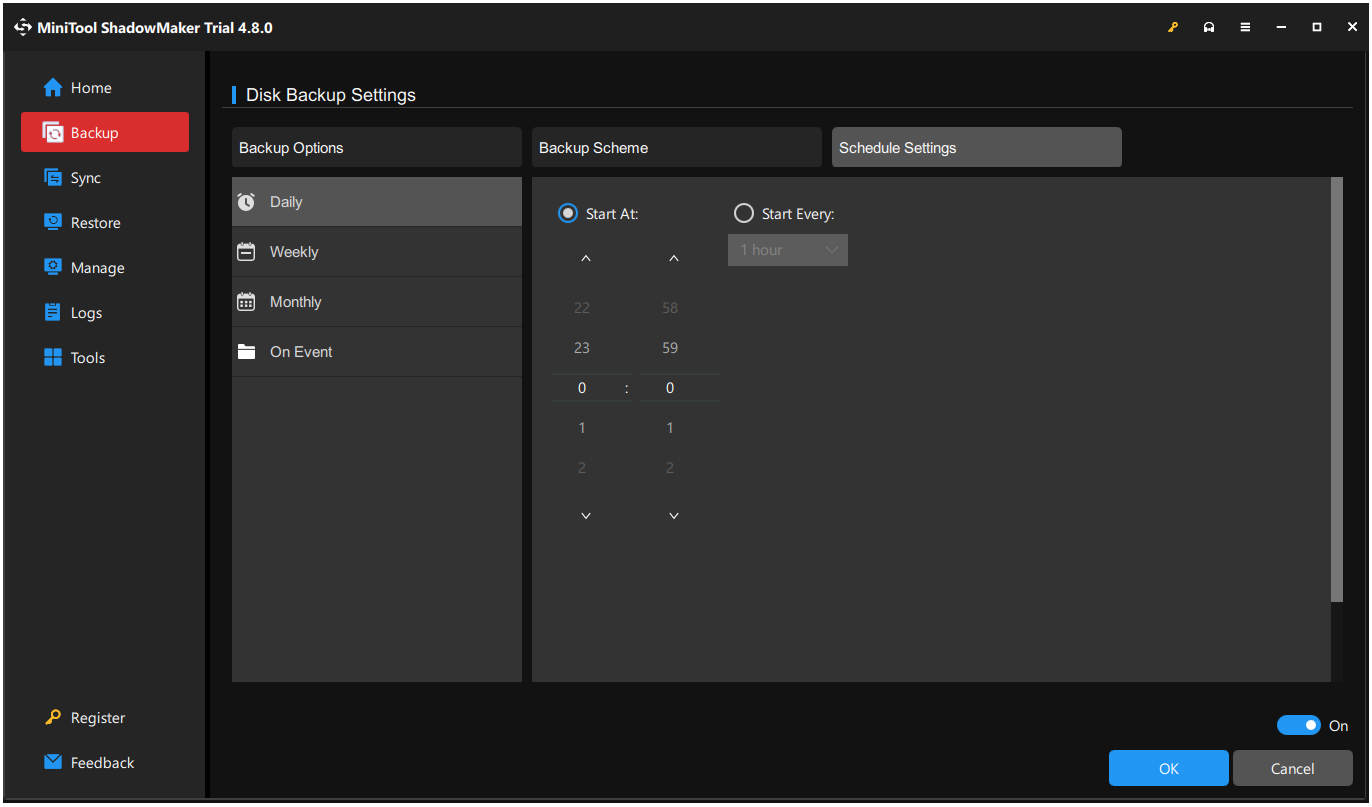
MiniTool ShadowMaker is a lean and reliable backup tool, which delivers many core features like file backup, system imaging, disk cloning, and scheduled automation. Its clean interface makes setup simple and efficient.
The lightweight design runs smoothly even on older PCs, while scheduled, incremental, and differential backups provide dependable protection with low storage use.
It is a strong choice for users who value simplicity, stability, and efficiency.
Key Features
- Supports multiple backup types, including system, disk/partition, and file/folder, meeting diverse data protection needs.
- Automates the removal of old backup versions to maintain sufficient storage space.
- Offers flexible backup schemes such as full backup, incremental backup, and differential backup.
- Allows users to save backups to local drives, external hard drives, USB drives, NAS devices, and shared network folders.
- Enables automatic backup scheduling with daily, weekly, monthly, or event-triggered options.
- Provides strong data security with password protection and encryption features.
- Includes file sync functionality for scheduled data synchronization.
- Supports disk cloning, including system disk cloning for OS migration and non-system disk cloning.
- Features a user-friendly interface with a clear layout, suitable for both beginners and advanced users.
- Delivers fast and stable backup performance with minimal system impact.
- Offers bootable media creation for system recovery in case of system failure.
Pros and Cons
| Pros | 1. Clean, minimalist interface suitable for beginners. 2. Easy to configure automatic backup plans. 3. Low system resource usage. |
| Cons | 1. Fewer advanced enterprise features. 2. The free edition has limited features. 3. Cloud integration is not supported. |
Personal Experience
MiniTool ShadowMaker provides a modern and clean interface with a well-organized layout. The design makes core functions easy to locate, even for first-time users. Scheduled file backup can be set up quickly with minimal steps.
The software runs in a lightweight way and has little impact on system performance during background tasks. Backup types are complete, including full, incremental, and differential options, and overall backup stability is reliable.
However, advanced automation features are relatively limited compared with more enterprise-level tools. Unlike some alternatives, it does not provide cloud backup support and mainly relies on local storage options. The free edition offers only basic functionality, which may not cover more advanced backup needs.
EaseUS Todo Backup: Versatile and User-Friendly
EaseUS Todo Backup stands out for its versatility, combining file backup, system imaging, disk cloning, sync tools, and recovery features in one platform.
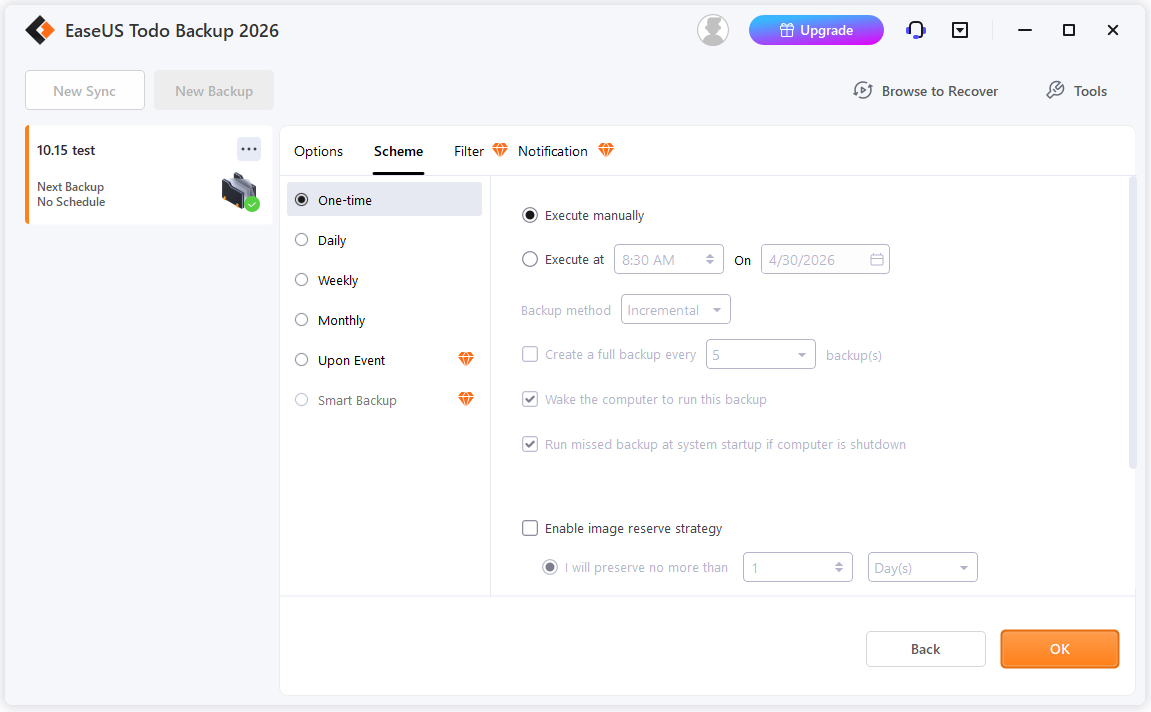
It supports flexible scheduling, multiple backup methods, and various storage destinations, including external drives, NAS, and cloud services.
For users who want one program to handle nearly every backup need, EaseUS Todo Backup is a convenient and feature-rich choice.
Key Features
- Provides comprehensive backup options, including system, disk, partition, and file-level backups.
- Supports flexible backup methods such as full, incremental, and differential imaging.
- Offers multiple storage destinations like local disks, NAS, cloud storage, and FTP servers.
- Includes customizable scheduling options (daily, weekly, monthly, or event-based triggers).
- Integrates AES-256 encryption to safeguard backup data from unauthorized access.
- Features Smart Backup for automatic detection and protection of frequently changed files.
- Implements automatic cleanup rules to optimize disk space usage.
- Enables system migration to new hardware via the universal restore functionality.
- Supports compression settings to balance speed and storage efficiency.
- Includes database backup capabilities such as SQL Server protection.
Pros and Cons
| Pros | 1. Broad feature set for home users. 2. Flexible scheduling options. 3. Various storage destination support. |
| Cons | 1. The interface can feel crowded. 2. Some advanced features require a paid edition. 3. Occasionally displays upgrade prompts for premium features. |
Personal Experience
EaseUS Todo Backup provides multiple scheduling options for file backup, including daily, weekly, monthly, and event-based triggers. The backup types are rich, covering full, incremental, and differential modes.
Storage options are also flexible, with support for local drives, external devices, NAS, and cloud services. The software has a high level of integration, offering additional tools such as system cloning, disk migration, and recovery environment creation. Recovery capabilities are generally complete and reliable.
However, the interface contains a high density of information, which may require time for new users to adapt. The free edition has clear limitations compared to the paid edition.
System resource usage can be relatively high during large backup tasks. Promotional prompts and upgrade reminders may also affect the overall experience.
AOMEI Backupper: Simple and Intuitive
AOMEI Backupper stands out for its simple and intuitive design, making backup setup easy for beginners while still offering useful tools like system imaging, disk cloning, and scheduled backups. Its clear interface helps users create and manage backup tasks with minimal effort.
For users who want straightforward backup protection without a steep learning curve, AOMEI Backupper is a smart choice.
Key Features
- Covers a wide range of backup types, including system, disk, partition, and file backups.
- Utilizes incremental and differential backup techniques to reduce storage consumption.
- Allows saving backups to local storage, external drives, NAS, and cloud drives.
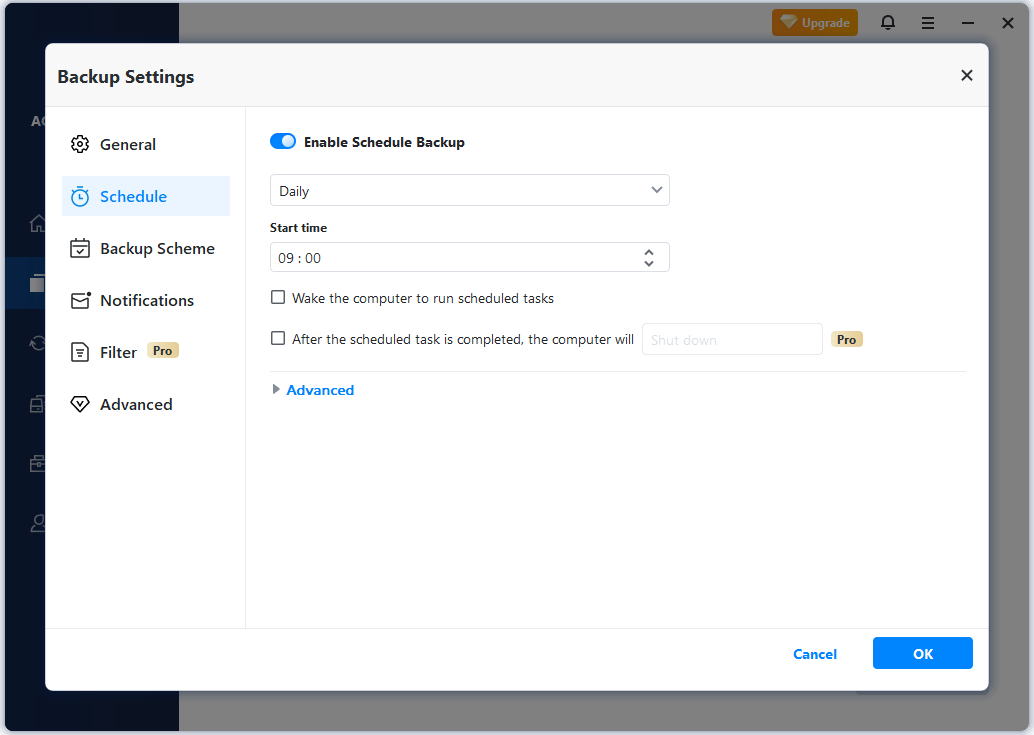
- Provides versatile scheduling modes with time-based and event-triggered execution.
- Offers password protection and encryption to enhance data security.
- Includes file synchronization, like basic and real-time sync modes.
- Supports disk cloning and system cloning for seamless OS migration.
- Features automatic backup scheme management to delete outdated images.
- Enables creation of bootable rescue media for system recovery scenarios.
- Delivers stable performance with a straightforward and intuitive interface.
Pros and Cons
| Pros | 1. Very user-friendly layout. 2. Strong balance between simplicity and features. 3. Reliable automation tools. 4. Strong value for free users. |
| Cons | 1. Some advanced functions are locked behind paid editions. 2. Design feels less modern than some rivals. 3. Large backup tasks can be slower on older hardware. |
Personal Experience
AOMEI Backupper provides a simple and intuitive setup for scheduled file backup, with a clear and easy configuration process. The software supports full, incremental, and differential backups, along with basic automation for managing backup tasks.
Both file-level protection and system recovery are supported, making the tool suitable for general backup needs.
However, advanced automation and enterprise features require a paid edition. The interface follows a traditional design style, and performance may be average during large backup tasks. Cloud backup support is also relatively limited.
Macrium Reflect: High-Performance and Precise
Macrium Reflect is known for its high-performance precision, delivering fast disk imaging, reliable restores, and accurate system recovery. It is especially strong for full system backups, drive migration, and advanced recovery tasks where speed and dependability matter.
For users who prioritize performance and precise backup control, Macrium Reflect is an excellent choice.
Key Features
- Specializes in disk imaging and cloning with high reliability and precision.
- Supports full, incremental, and differential image backups.
- Stores backup images on local drives, external media, and network locations.
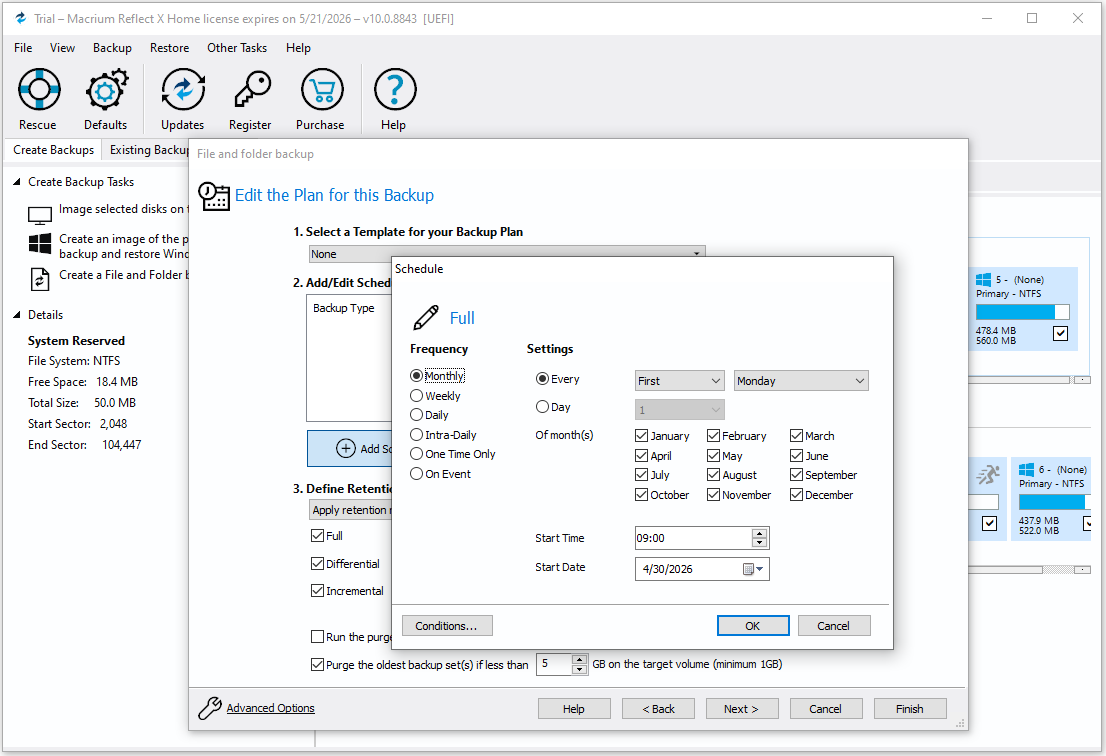
- Includes advanced scheduling with detailed retention rules.
- Protects backups with encryption and secure password settings.
- Features Rapid Delta Restore and Rapid Delta Clone for faster recovery and cloning.
- Offers viBoot for instant virtualization of backup images.
- Provides bootable rescue environments for system recovery.
- Ensures file integrity with automatic verification of backup images.
- Optimizes storage through compression and retention management policies.
Pros and Cons
| Pros | 1. Excellent backup and restore speed. 2. Highly reliable imaging technology. 3. Strong advanced options. 4. Ideal for full system recovery. |
| Cons | 1. The interface may feel technical for beginners. 2. Premium editions can be expensive. |
Personal Experience
Macrium Reflect provides precise and stable scheduled file backup. Backup tasks can be set with flexible schedule options, and execution is highly reliable.
Both backup and recovery processes are fast, especially for large data volumes. The software also supports incremental and differential backups, which reduces duplicate data and improves storage efficiency.
However, the interface is more technical in design and requires time for new users to adapt. The overall feature set is more professional, with many advanced settings that may not suit simple backup needs.
Some advanced features are no longer available in the free edition and require a paid upgrade.
Acronis True Image: Security-Focused and Reliable
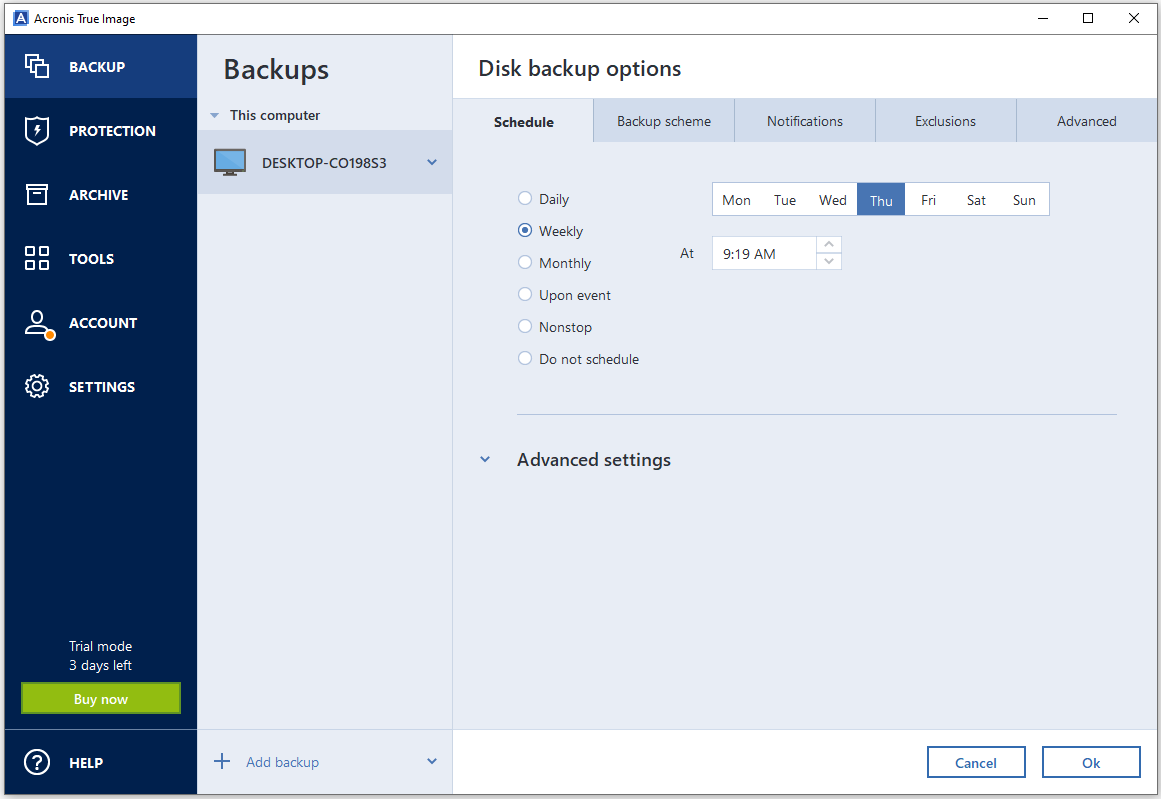
Acronis True Image stands out for its security-first protection, combining scheduled backups with anti-ransomware defense, encryption, and secure cloud storage. It helps ensure both data availability and data security within one platform.
For users who want backup software with built-in cybersecurity features, Acronis True Image is a strong premium choice.
Key Features
- Combines backup and cybersecurity with full-image and file-level protection.
- Supports incremental and differential backups to minimize backup time and size.
- Allows storage across local drives, network storage, and integrated cloud services.
- Includes flexible scheduling with continuous data protection options.
- Uses strong encryption standards to secure sensitive data.
- Integrates active ransomware protection and real-time threat defense.
- Enables universal restore to different hardware platforms.
- Provides disk cloning for system migration and upgrades.
- Offers automatic cleanup tools to manage backup versions efficiently.
- Includes cloud-based features such as remote access and backup syncing.
Pros and Cons
| Pros | 1. Backup and cybersecurity integration. 2. Strong cloud backup ecosystem. 3. Robust protection against ransomware. 4. Modern interface. |
| Cons | 1. Subscription pricing model. 2. Higher resource usage than lightweight tools. 3. May be excessive for simple backup needs. |
Personal Experience
Acronis True Image offers flexible scheduled backup options, including daily, weekly, and monthly. The scheduling system is stable and works consistently in background tasks.
Strong security features include anti-ransomware protection, encrypted backups, and secure cloud storage, which enhances overall data protection.
However, system resource usage is relatively high during operation, with noticeable CPU and memory consumption that may affect low-end devices. Subscription cost is also higher compared to many alternatives.
The interface contains many features and may feel complex. For basic scheduled backup needs, the software can feel more advanced than necessary.
Paragon Backup & Recovery: Flexible and Modern
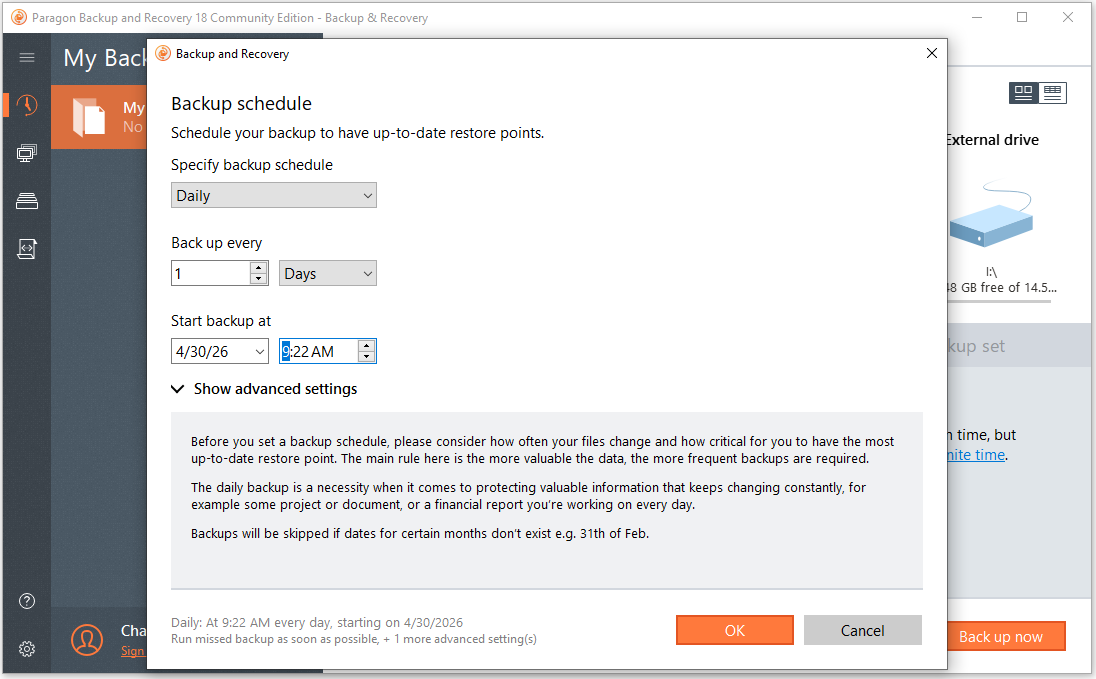
Paragon Backup & Recovery stands out for its flexible and modern approach, combining scheduled backups with migration tools and recovery features in one solution.
It supports multiple backup scenarios while offering practical tools for storage upgrades and system transitions. For users who need more advanced features than basic backup software offers, Paragon Backup & Recovery is a capable and versatile choice.
Key Features
- Delivers system, disk, partition, and file backup capabilities.
- Supports incremental and differential backup technology for efficient storage usage.
- Stores backups to local disks, external storage devices, and network locations.
- Provides basic scheduling options for automated backup routines.
- Includes backup encryption and password protection for data safety.
- Features recovery media builder for emergency system restoration.
- Supports restoring backups to different hardware.
- Focuses on essential backup functions with a lightweight design.
Pros and Cons
| Pros | 1. Strong recovery flexibility. 2. Suitable for advanced users. |
| Cons | 1. Less modern interface. 2. Fewer mainstream tutorials available. 3. Less beginner-friendly than simpler tools. |
Personal Experience
Paragon Backup & Recovery provides flexible scheduled file backup with support for various options. The software offers both file and system backup functions.
Recovery options are comprehensive, allowing different restoration scenarios. Backup tasks are handled smoothly, even for large amounts of data.
However, the overall design feels more like a utility tool, with a less modern interface style. The learning curve can be higher for new users due to its traditional layout.
Functionality is somewhat scattered across modules, and depth in certain features is limited compared to more specialized solutions.
Recommended Options
- Best for beginners: AOMEI Backupper
- Best all-around value: EaseUS Todo Backup
- Best for speed and imaging: Macrium Reflect
- Best for security: Acronis True Image
- Best lightweight option: MiniTool ShadowMaker
- Best for advanced disk tasks: Paragon Backup & Recovery
Final Verdict
Choosing the right auto backup software depends on your needs. Tools like MiniTool ShadowMaker and AOMEI Backupper focus on simplicity for everyday backup, while EaseUS Todo Backup offers more features.
For advanced tasks, Macrium Reflect provides high-performance imaging, and Acronis True Image adds ransomware protection and cloud support. Paragon Backup & Recovery combines backup and restore features.
Ultimately, the best software runs consistently in the background, requires minimal intervention, and ensures fast recovery when needed.
Scheduled Backup Software FAQ
This feature is designed to ensure that backups do not slow down your computer while you are actively working, allowing for a "set and forget" approach.
About The Author

Position: Columnist
Charlotte is a technology columnist with a strong focus on the Windows operating system, specializing in disk management, backup, and data recovery. She is passionate about analyzing computer errors, identifying root causes, and delivering practical solutions. In her free time, she stays updated on the latest developments in computer systems and hardware while continuously learning new technologies to broaden her expertise. Her writing style is clear and easy to understand, making complex technical topics accessible even to users with limited computer knowledge.
User Comments :