
Backing up your computer to a cloud drive is simple. Use MiniTool ShadowMaker to sync files from a PC to Google Drive or OneDrive and schedule sync tasks to keep files updated automatically. Alternatively, use a cloud service such as Google Drive, OneDrive, or Dropbox to sync files to the cloud.
Why Do You Need to Backup Computer to Cloud Drive?
When it comes to computer backup, there are two types of options for you: local backup and cloud backup. The former is to back up data to the local or storage devices connected to your computer like removable hard drives, USB flash drives, SD cards, and more. The latter refers to the process of back up data to the servers of third-party providers.
Compared with the traditional local backup, cloud backup is more accessible. Once logging into your account on any internet-connected device, you can access your data immediately. To improve your work efficiency, you can make full use of cloud backup in daily work to edit files or share them with your team members in real time.
How to Backup Computer to Cloud Drive on Windows 10/11
There are 4 options to back up your PC to a cloud drive. Check the table below to find the right solution based on your needs.
| Feature | MiniTool ShadowMaker | OneDrive | Google Drive | Dropbox |
| Backup Scope | Selected individual files and folders | Uploaded files and supported folders | Uploaded files and supported folders | Uploaded files and supported folders |
| Cloud destination | Google Drive & OneDrive | OneDrive | Google Drive | Dropbox |
| Scheduled sync | Yes (daily, weekly, monthly, or on an event) | No | No | No |
| Sync types | One-way | Two-way | Two-way | Two-way |
| Best for | Users who want scheduled, one-way sync of selected files to Google Drive or OneDrive | Users working within the Microsoft ecosystem | Gmail, Google Photos, Android, and cross-device users | Users who prefer Dropbox for cloud storage |
Way 1: Sync Files from PC to Google Drive or OneDrive with MiniTool ShadowMaker
If you want to back up computer files to a cloud drive and schedule sync tasks regularly, MiniTool ShadowMaker offers a convenient way.
This backup and sync software allows you to back up the Windows operating system, the entire hard drive, selected partitions, and files & folders to an external drive.
Additionally, it provides the Cloud Sync feature, allowing you to choose individual files and folders and sync them to Google Drive or OneDrive. It also enables you to configure automatic sync tasks daily, weekly, monthly, or at logon/logoff.
MiniTool ShadowMaker TrialClick to Download100%Clean & Safe
Step 1: Launch MiniTool ShadowMaker.
Step 2: Go to Sync > Cloud Sync.
Step 3: Click SOURCE and select the files or folders you want to back up to the cloud.
Step 4: Click DESTINATION and choose Google Drive or OneDrive to open its sign-in page.
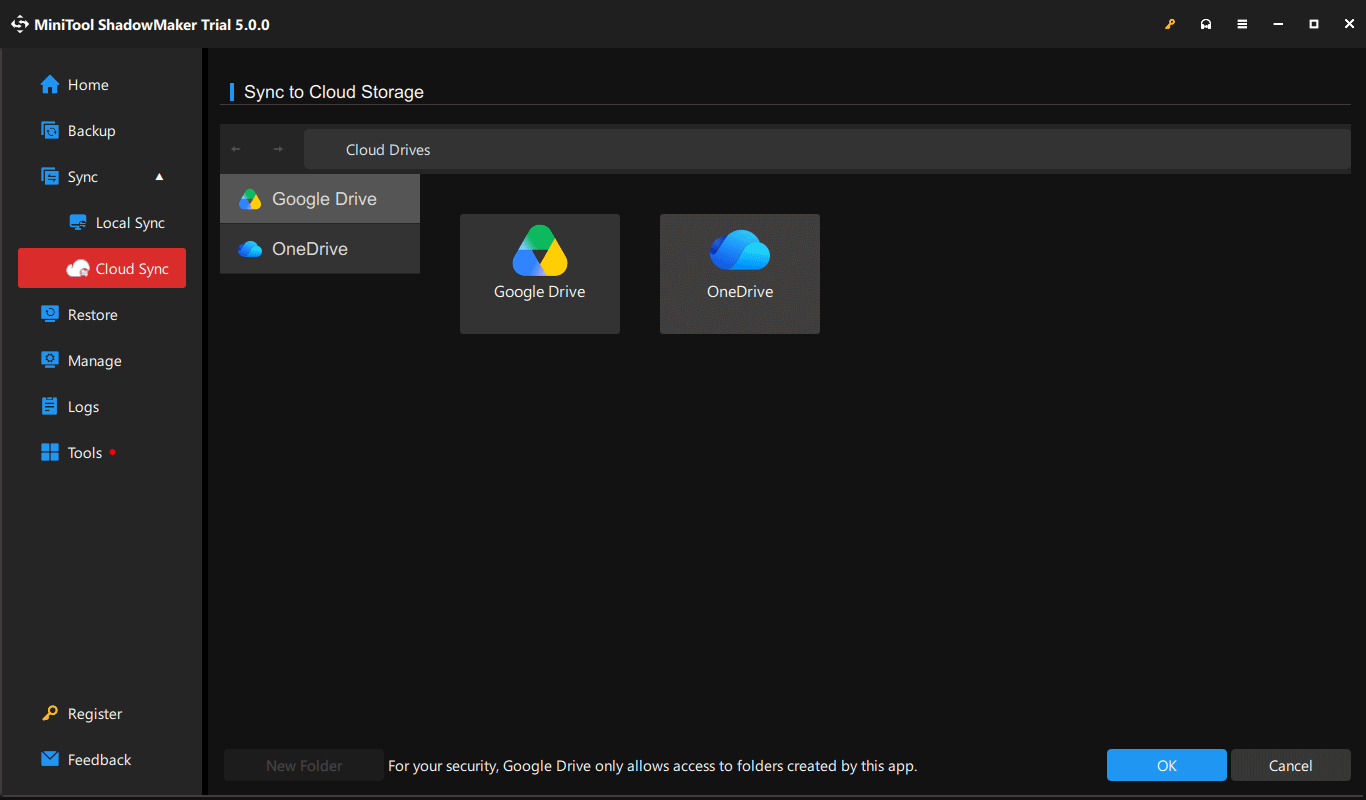
Step 5: Sign in with your account and authorize access to the software.
Step 6: Create a new folder and select it as the destination.
Step 7: Click Sync Now to begin the task.
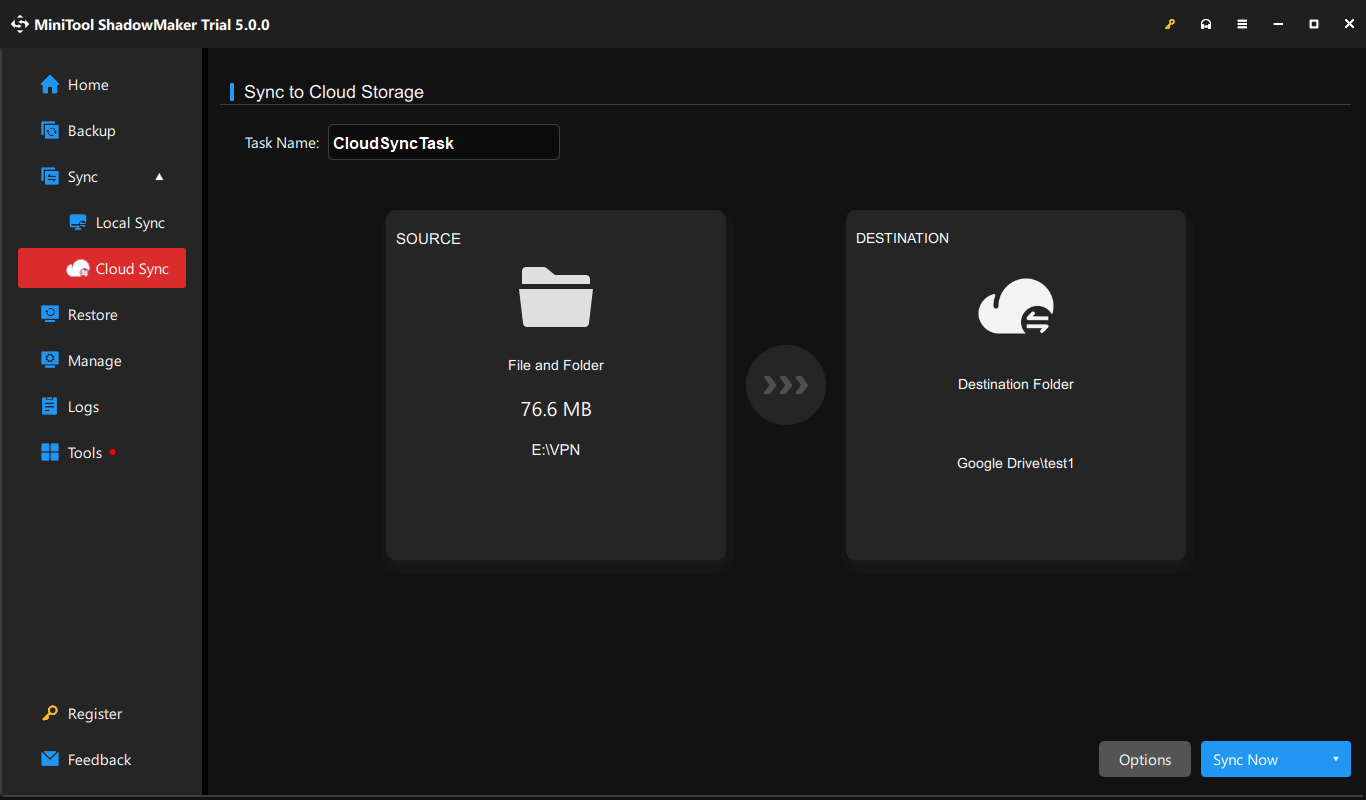
After syncing, go to Manage, locate the task, and choose Locate to open the website of Google Drive or OneDrive. Then, you can find the folder that contains the synced files.
Way 2: Backup Computer to OneDrive via Web Browser, Desktop App, or File Explorer
Best for: Windows users who want to protect Desktop, Documents, and Pictures folders, especially those already using Microsoft 365 or other Microsoft services.
Microsoft OneDrive is a cloud-based service provided by Microsoft. As long as you have a Microsoft account and an internet connection, you can store files online, access them from different devices, and share them with others in OneDrive.
# via Browser
Step 1. Access the OneDrive website and enter your Microsoft account and password.
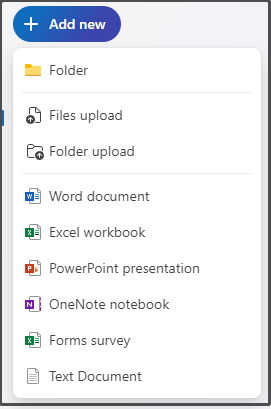
Step 2. Hit the Add new button in the top left corner > select Files upload or Folder upload > choose the items you want to back up > hit Upload.
# via Desktop App
Step 1. Download Microsoft OneDrive. Launch it and log in to your Microsoft account.
Step 2. Click on OneDrive icon in the system tray > tap on the gear icon > Settings.
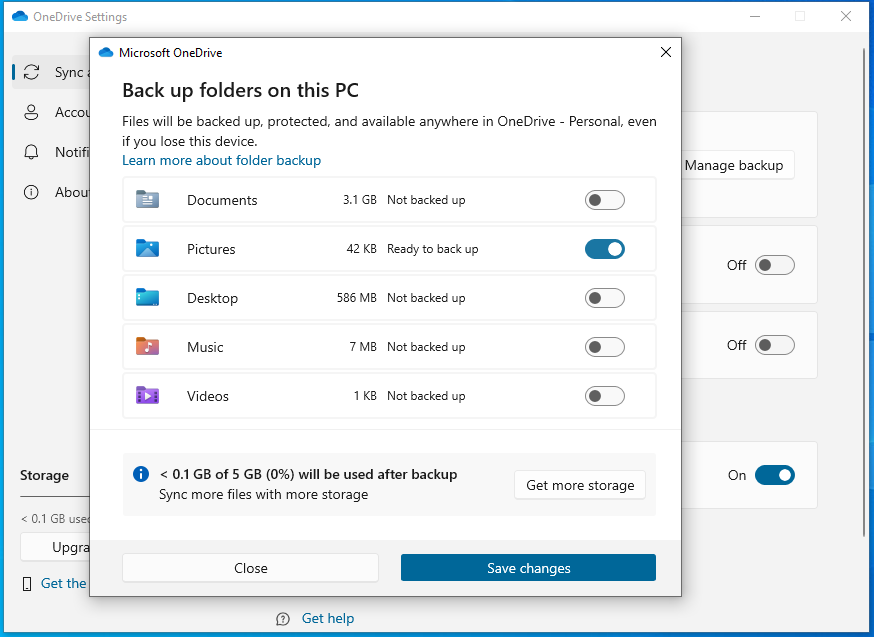
Step 3. In the Sync and backup tab, press Manage backup.
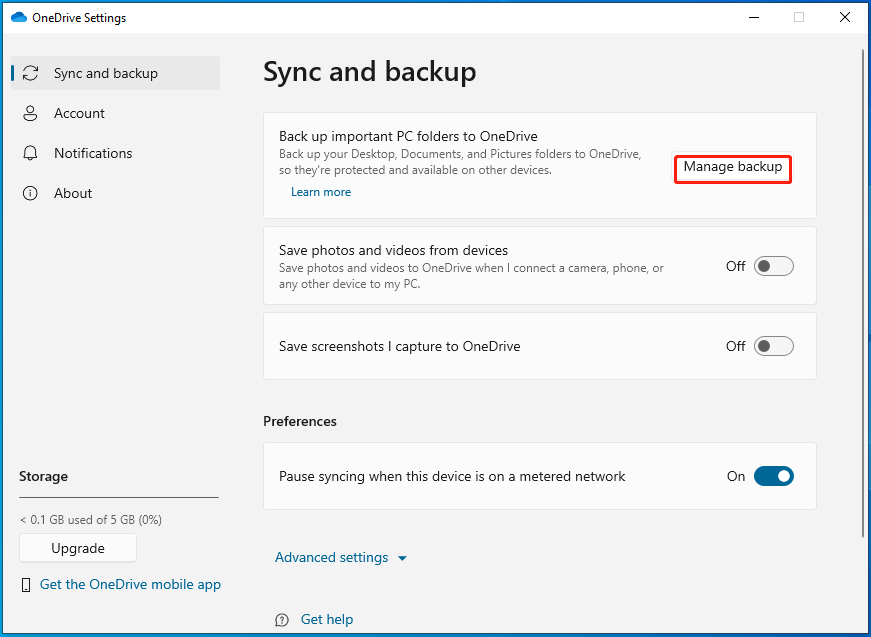
Step 4. Now, you can choose to back up files in Desktop, Documents, Pictures, Music, and Videos on your computer. Finally, click on Save changes.
# via File Explorer
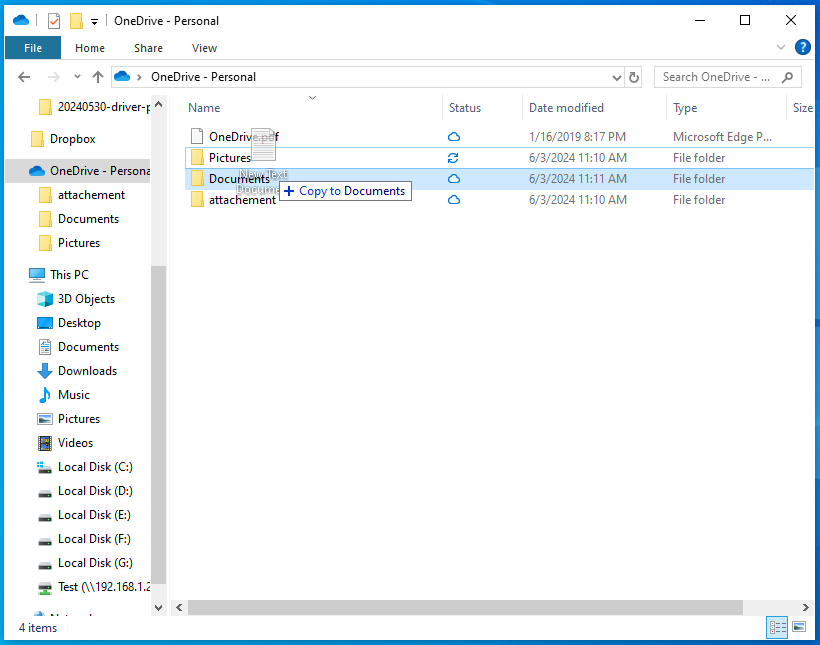
If you download OneDrive and log into your account on Windows 10/11, you can find your OneDrive files on File Explorer. Therefore, another way to back up computer to OneDrive is to drag and drop the files/folders manually to the OneDrive folder. To do so:
Step 1. Press Win + E to open File Explorer.
Step 2. In the left pane, find your OneDrive and hit it.
Step 3. Now, you can directly drag and drop the files or folders you need to back up to your OneDrive folder.
Way 3: Backup Computer to Google Drive via Google Chrome or Desktop App
Best for: Users who need cross-device access to files, especially those already using Gmail, Google Photos, or Google Workspace.
Google Drive syncs stored documents, photos, and more across all your devices including mobile devices, PCs, and tablets. Usually, it integrates Google’s other services like Gmail, Google Slides, Google Sheets, Google Docs, and more. You can either upload files from your computer or create some in Google Drive.
Now, let me show you how to backup PC to Google Drive via browsers and a desktop app respectively:
# via Google Chrome
Step 1. Launch Google Chrome.
Step 2. Go to Google Drive’s official website.
Step 3. Click on Go to Drive and sign in your Google account.
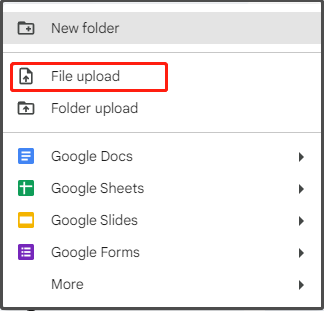
Step 4. Click on New on the top left > select File upload or Folder upload from the drop-down menu > choose the files and folders you want to upload from your computer.
# via Desktop App
Step 1. Download and install Google Drive on your Windows machine.
Step 2. Launch it and log in to your Google account.
Step 3. Click on the gear icon and select Preferences from the context menu.
Step 4. In the My Computer section, click on Add folder to pick the folder you want to sync from your computer.
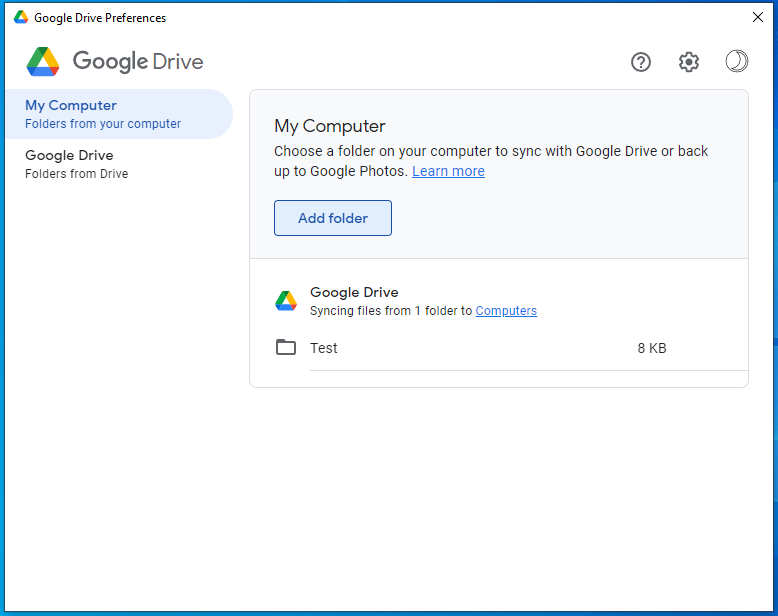
Step 5. Check Sync with Google Drive and hit Done.
Step 6. Tap on Save to start the process.
Way 4: Backup Computer to Dropbox via Browser or Desktop App
Best for: Users who need easy file syncing and sharing across Windows, Mac, and mobile devices, especially teams and individuals who frequently collaborate on documents.
Another widely used cloud storage is Dropbox. With it, you can access your files for free on Windows, Mac, iOS, Android, as well as web browsers. In addition to storage, it also offers a series of powerful features to streamline file sync, sharing, and collaboration. Here’s how to backup computer to Dropbox:
# via Browser
Step 1. Click here to log into your Dropbox account on your browser.
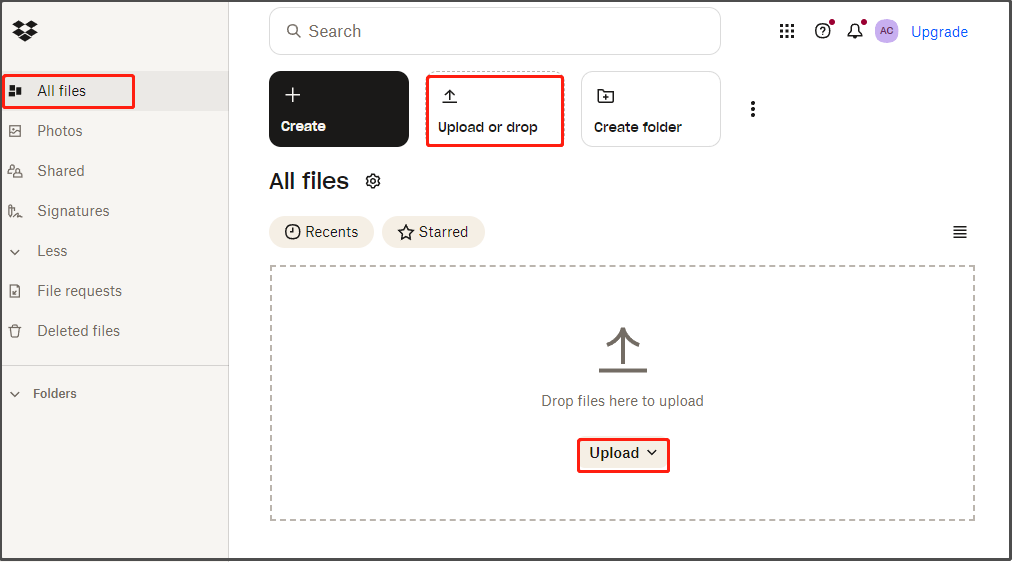
Step 2. In the All files tab, you can either directly drop files from your computer or hit Upload or drop/Upload.
# via Desktop App
Step 1. Download Dropbox from its official website and launch it.
Step 2. Then, there are 2 options for you: Make files local and Make files online-only. Select the latter and hit Continue with Basic.
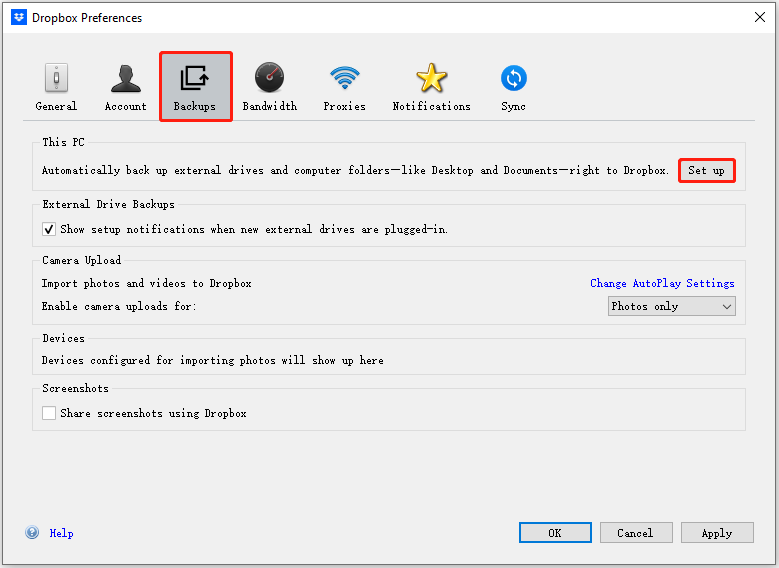
Step 3. Click on the Dropbox icon in the system tray > hit the profile icon > select Preferences from the context menu.
Step 4. In the Backups tab, click on Set up and then you can check the files you need to back up.
Step 5. Click Done to save the changes. After that, the items you select will be backed up automatically.
Conclusion
Backing up your computer to the cloud helps protect important files and makes them accessible across devices.
You can use MiniTool ShadowMaker to sync selected files to Google Drive or OneDrive with scheduled sync options, or upload and sync files through OneDrive, Google Drive, or Dropbox. Choose the method that best fits your needs.
If you encounter issues with MiniTool software, contact us at [email protected].
User Comments :