
Windows Defender may keep turning on in Windows 11/10, often because it is designed to resume protection automatically. To stop it from enabling again, disable Tamper Protection, edit Group Policy, modify the registry, or install third-party software.
Windows Defender Keeps Turning on/Re-Enabling Windows 11/10
Windows Defender, also known as Windows Security, is a powerful antivirus software built into the operating system like Windows 10 and 11. With it, you can keep your PC safe from viruses and malicious programs.
However, it may keep turning on after disabling real-time protection.
The common causes include:
- Enabled Tamper Protection prevents third-party apps or manual tweaks from permanently disabling real-time protection.
- Defender behavior may change after updates or configuration changes.
- Windows automatically reactivates Defender if it doesn’t detect a third-party antivirus program.
Fixes: Windows 10/11 Windows Defender Keeps Turning Back on
Method 1: Install a Third-Party Antivirus Program
In Windows 10/11, Windows Defender is enabled to keep your PC safe from malicious programs. However, it may automatically turn on when your PC is idle or when an external malware threat breaks into your machine.
To stop Windows Defender from turning back on, install third-party antivirus software to replace Windows Defender. After the installation, Windows Defender should stop right now.
On the market, there are a variety of antivirus programs and here we recommend using Total AV, McAfee, Bitdefender, Norton, Avast, AVG, Malwarebytes, etc. Just search for one in Google Chrome and download & install it on your PC to scan the system and remove threats.

Method 2: Renew the License of Your 3rd-Party Antivirus
Sometimes Windows Defender keeps turning on in Windows 10/11 due to the old license of the antivirus software. Once the license is outdated, Windows will detect that your PC isn’t under protection and automatically enables its antivirus component – Windows Defender to avoid security breaches.
Antivirus software offers limited validity and you need to update it to continue using its features. Thus, you can try to update this software to the latest version, continue the subscription or reinstall another one when Windows Defender keeps re-enabling. If you don’t know what to do, you can search for the specific steps to renew the license of your antivirus.
Method 3: Disable Tamper Protection
Tamper Protection is one of the key components of Microsoft Defender, and it plays an important role in protecting your computer from any cyberattack or external intrusion.
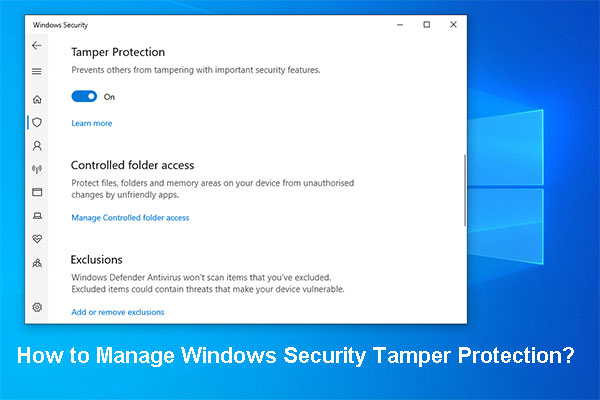
Once Tamper Protection detects an attempt to access data or install malware on your computer, Windows Defender will automatically open although you disable real-time protection or have installed a third-party antivirus program.
Follow the steps below to temporarily disable this feature:
Step 1: Type Windows Security into the search box and click the result to open this app.
Step 2: Click on Virus & threat protection and click the Manage settings link.
Step 3: Scroll down to the Tamper Protection section and turn off this feature.
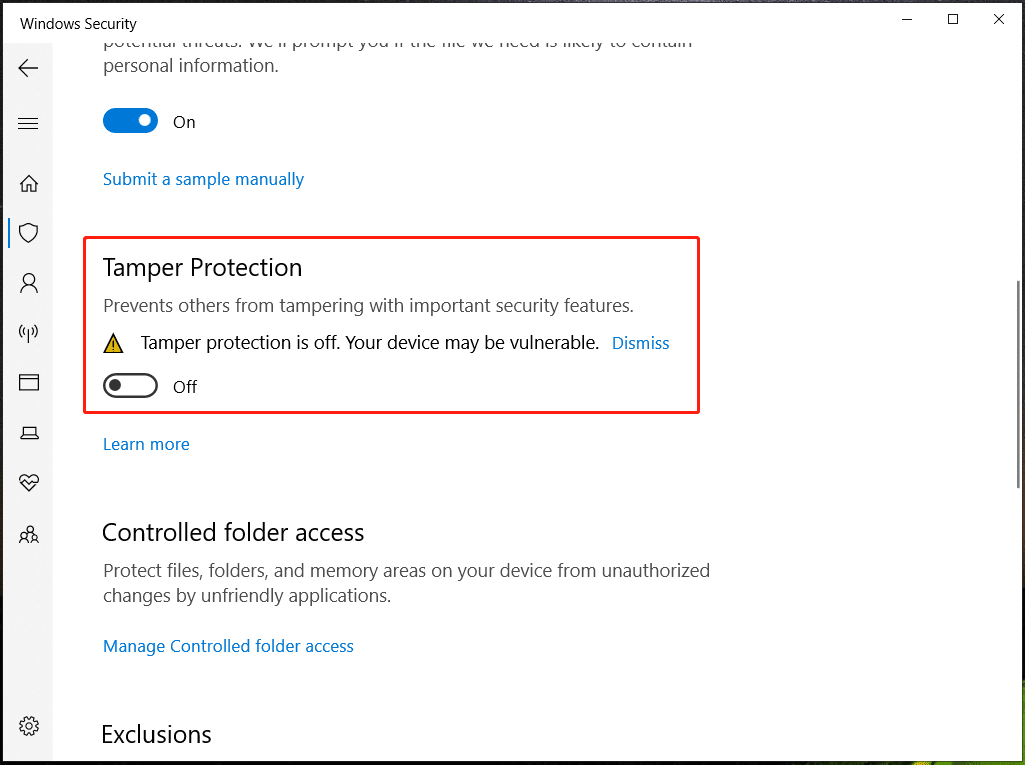
Disabling Tamper Protection may leave your PC vulnerable to malware threats that could have been avoided. Thus, we strongly recommend enabling it when you have installed a third-party antivirus program that is active on your PC.
Method 4: Disable Windows Defender via Group Policy
To keep Windows Defender always disabled, you can edit the related policy using Group Policy Editor.
This method is only applicable to Windows Pro, Enterprise, and Education editions. Windows Home does not include the Local Group Policy Editor.
See how to disable Windows Defender by changing a group policy:
Step 1: Open the Run window by pressing Win + R on the keyboard, type gpedit.msc in the text box and click OK to open Local Group Policy Editor.
Step 2: Navigate to this path – Computer Configuration > Administrative Templates > Windows Components > Microsoft Defender Antivirus.
Step 3: Locate the Turn off Microsoft Defender Antivirus policy. Double-click on this policy option to open a new window, check the option of Enabled, and then click Apply > OK to save the change to disable Windows Defender.
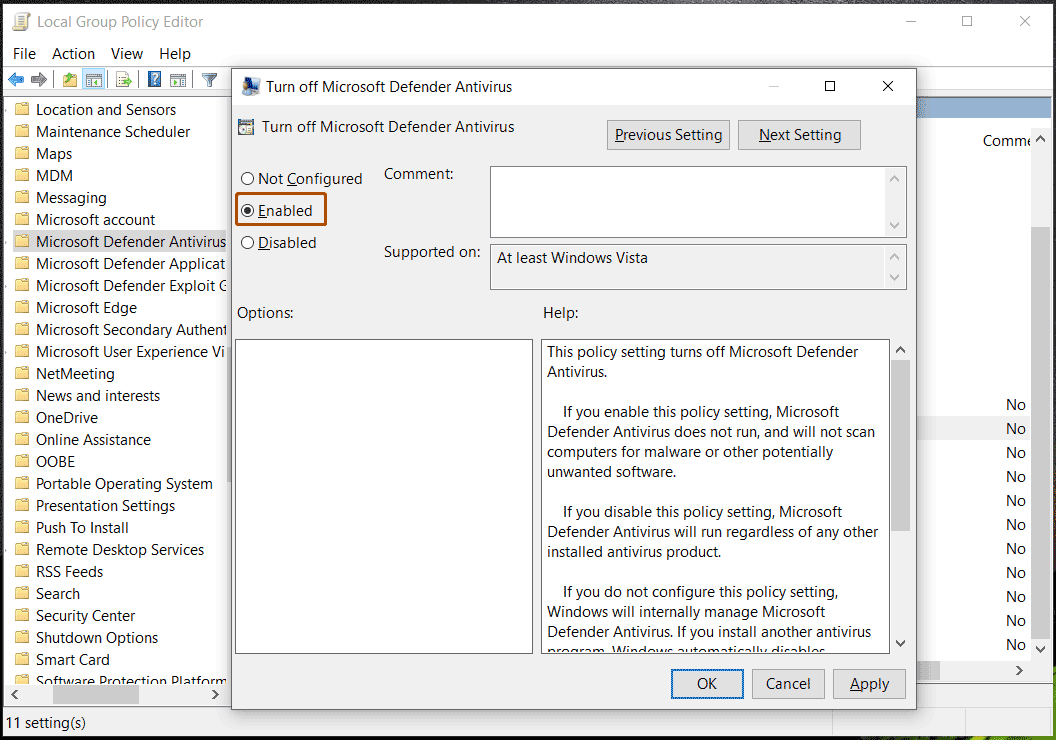
After the operation, Windows Defender may not keep turning on by itself.
Method 5: Disable Windows Defender via Registry Editor
If Group Policy Editor is not available on your Windows 11/10 PC, consider modifying the registry to disable Windows Defender.
Modifying the Windows registry is a risky operation since accidental mistakes could lead to unbootable Windows. So before proceeding, back up registry keys or create a restore point in Windows 10/11.
Step 1: Type Regedit into the search box and click Registry Editor to open this tool. If a prompt pops up, click Yes to grant admin rights.
Step 2: Navigate to the top bar and copy & paste the path –HKEY_LOCAL_MACHINE\SOFTWARE\Policies\Microsoft\Windows Defender and press Enter.
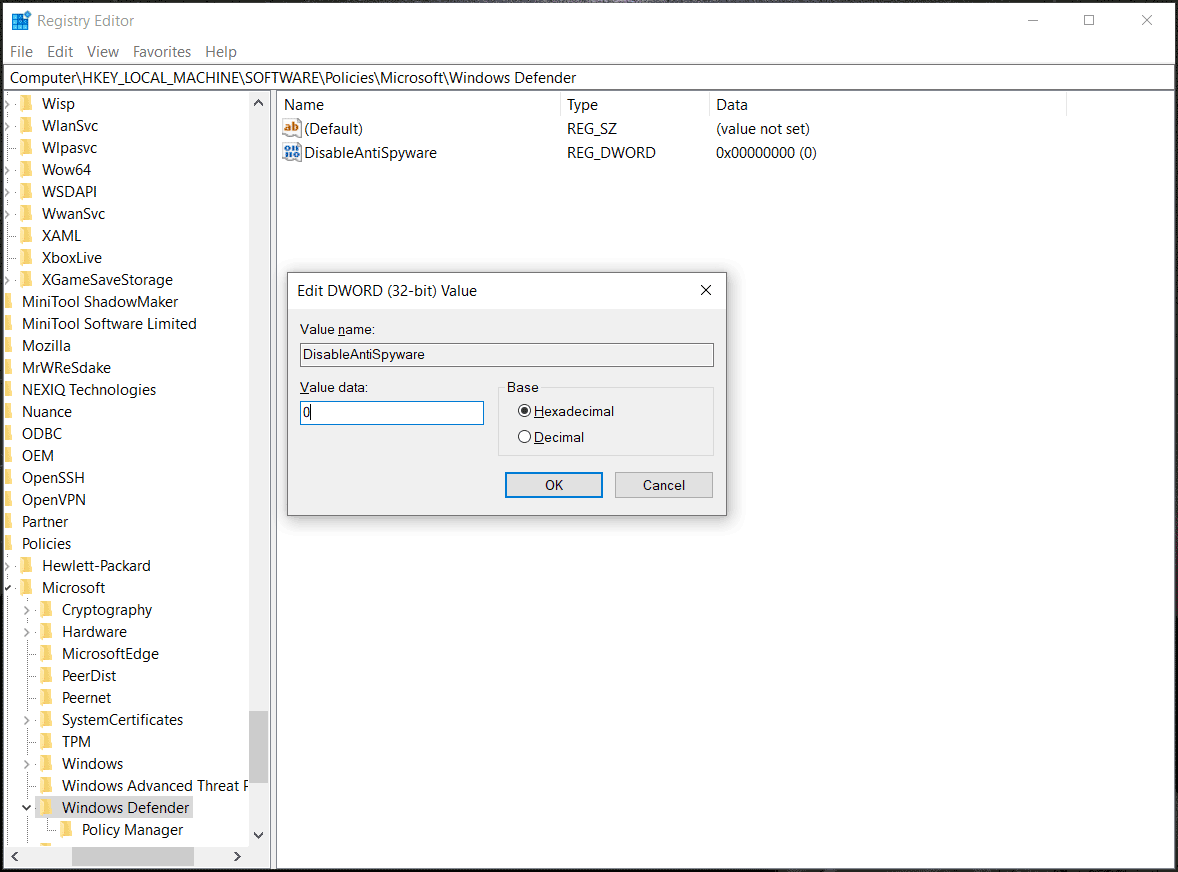
Step 3: Right-click on the Windows Defender key and click New > DWORD (32-bit) Value. Then, name it DisableAntiSpyware.
Step 4: Double-click on this new key, set the Base to Hexadecimal, and change its value data to 0.
Step 5: Then, click OK and exit Registry Editor. Reboot your Windows PC and see if Windows Defender keeps turning on after restart.
Suggestion: Back up Your PC
Windows Defender is a powerful antivirus program to stop your PC from virus attacks and malware. If you disable it due to some reason, the PC is risky for threats. In this case, we strongly recommend using a backup program to back up your important files to a safe location to avoid data loss.
To do this work, MiniTool ShadowMaker is a powerful and free backup software that can help create a backup for files, folders, disks, partitions, and Windows operating system. Automatic backups, incremental backups, and differential backups can be created.
MiniTool ShadowMaker TrialClick to Download100%Clean & Safe
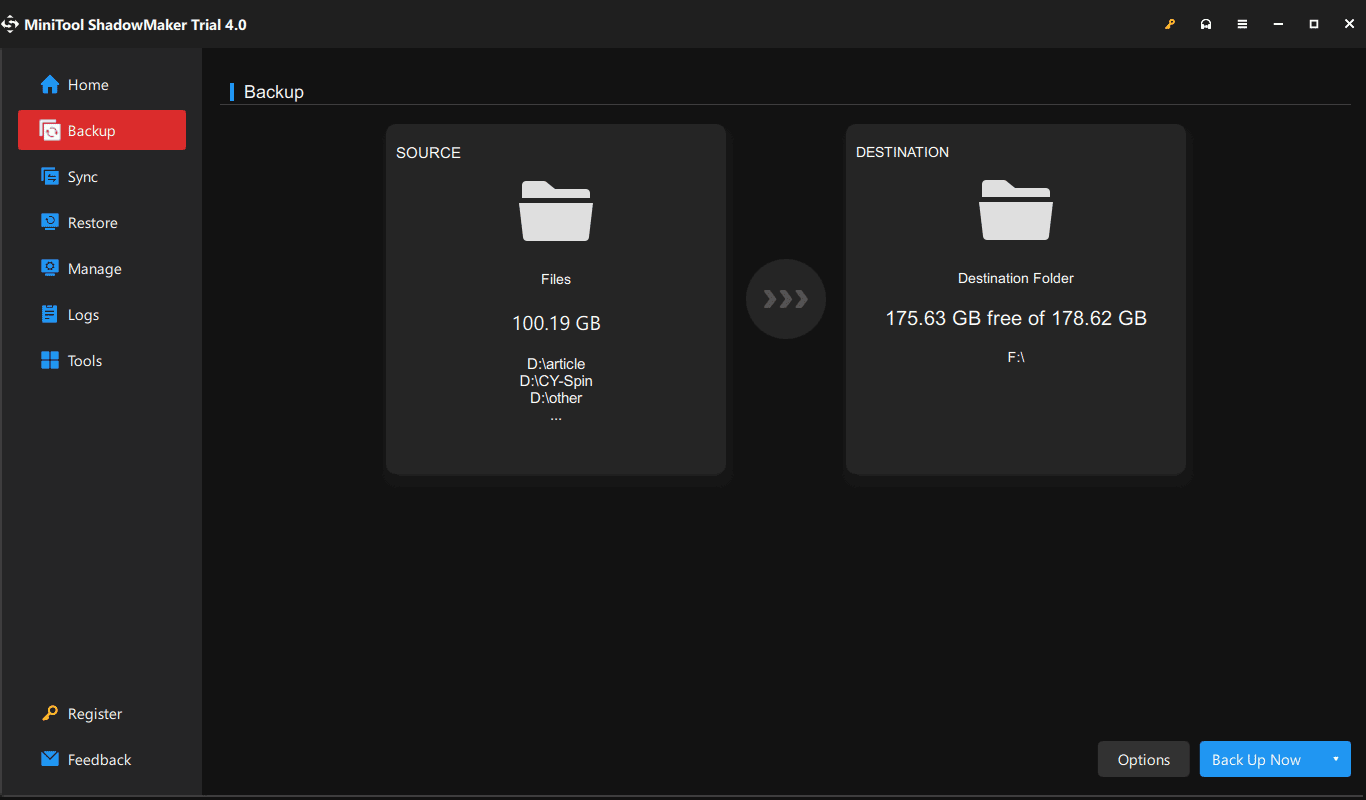
Step 1: Launch MiniTool ShadowMaker and click Keep Trial to continue using this edition.
Step 2: Go to the Backup window, click SOURCE > Folders and Files, choose the items you want to back up, and click OK.
Step 3: Click Back Up Now to execute data backup at once.
Conclusion
If Windows Defender keeps turning on in Windows 11/10, first check whether another antivirus program is installed and working properly. Then, try disabling Tamper Protection or editing Microsoft Defender policies or registry keys.
It is recommended to back up important files to protect data against malware and other threats. When having issues with our software, contact us at [email protected].
Windows Defender Keeps Turning on FAQ
About The Author

Position: Columnist
Vera has been working at the MiniTool Team for over 10 years as a technical editor and content writer. She mainly focuses on disk and partition management, data recovery, Windows backup and restore, and PC troubleshooting. Through in-depth software testing and hands-on experience, she has helped users solve a wide range of computer problems and better protect their data on Windows devices.
User Comments :