
Quick Answer: Fix “Your PC Ran into a Problem and Needs to Restart”
The “Your PC ran into a problem and needs to restart” error is a BSOD issue usually caused by driver problems, corrupted system files, Windows updates, or hardware failures.
To fix it, try restarting your PC, updating drivers, running SFC and CHKDSK scans, using Startup Repair, or restoring Windows. The right solution depends on whether your PC can boot normally.
What Causes “Your PC Ran into a Problem and Needs to Restart”
This BSOD error happens when Windows detects a critical system problem. Common causes include:
- Driver conflicts
- Corrupted system files
- Windows update failures
- Hardware problems
- Malware infections
- Disk errors
Case 1: Your PC Can Still Boot into Windows After the Error
Even if your Windows 11/10 can boot normally after restarting, you need to apply some troubleshooting steps to prevent the “your PC ran into a problem and needs to restart” issue from happening again.
First of all, you need to disconnect any external devices connected to your computer such as flash drives, external hardware, and other peripherals, and keep the mouse and keyboard.
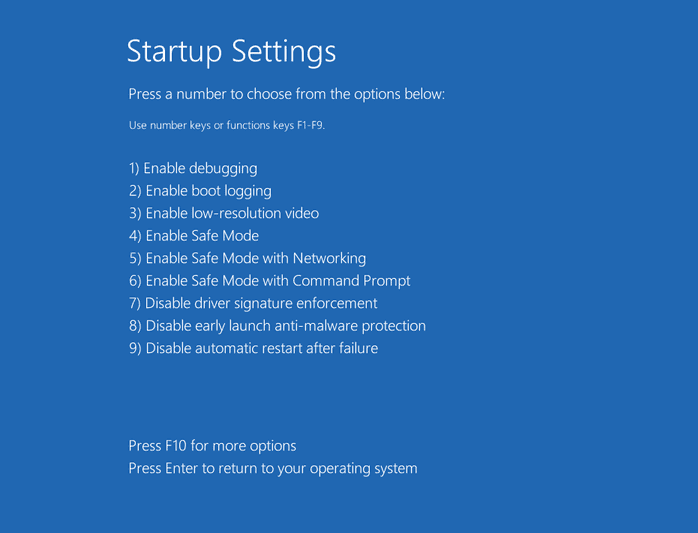
Next, you had better enter Safe Mode to fix the issue. Safe Mode is a diagnostic mode of Windows, which starts your PC with the minimum necessary programs and services.
Step 1: Click Start > Settings > Update & Security > Recovery.
Step 2. In the Advanced start-up section, choose Restart now.
Step 3. Then, choose Troubleshoot > Advanced Options > Startup Settings > Restart.
Step 4. Now you will see the Startup Settings screen. You can choose Enable Safe Mode.
Fix 1: Check System Log in Event Viewer
Checking the system log in Event Viewer is helpful to find the culprit of the “Your PC ran into a system” error in Windows.
Step 1: Type event viewer in the Search box and click Open.
Step 2: Expand Windows Logs and choose System.
Step 3: Check the errors that occurred simultaneously with the blue screen and fix the error according to the information.
Fix 2: Check Disk Error
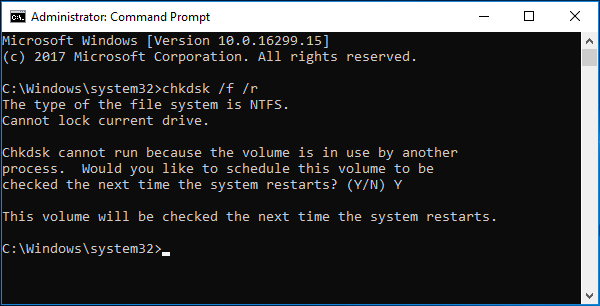
If there are some errors on your hard drive, the issue – “your PC ran into a problem and needs to restart” might happen. Running CHKDSK in Command Prompt can verify the file system and fix some issues with certain settings
Step 1: Run Command Prompt as an administrator.
Step 2: Type chkdsk /f /r and press Enter.
Step 3: Type Y and restart your PC.
Fix 3: Allocate More Space for System Drive
The Windows operating system and some installed applications require sufficient free space to boot properly. If your system drive is almost out of space, you should consider allocating more space for it. Maybe you need the following posts:
- How to Make Windows System Partition Bigger? Solutions Are Here
- How to Allocate a Hard Drive? Try This Full Guide Now!
Fix 4: Run SFC
If there are corrupted system files, your PC ran into a problem and needs to restart might happen in Windows. The next thing that you can do is to run a scan with System File Checker, which is a built-in tool for fixing various problems including blue screen of death errors.
Step 1: Type cmd in the Search box and right-click it to choose Run as administrator.
Step 2: Type sfc /scannow and press Enter. Please wait for some time and exit cmd after finishing verification 100%.
Fix 5: Run a Virus Scan
One of the most common reasons for a blue screen error is the infection of the device with a virus or malware. You had better run a virus scan to detect the virus or malware.
Step 1: Go to Settings by pressing the Windows + I keys together.
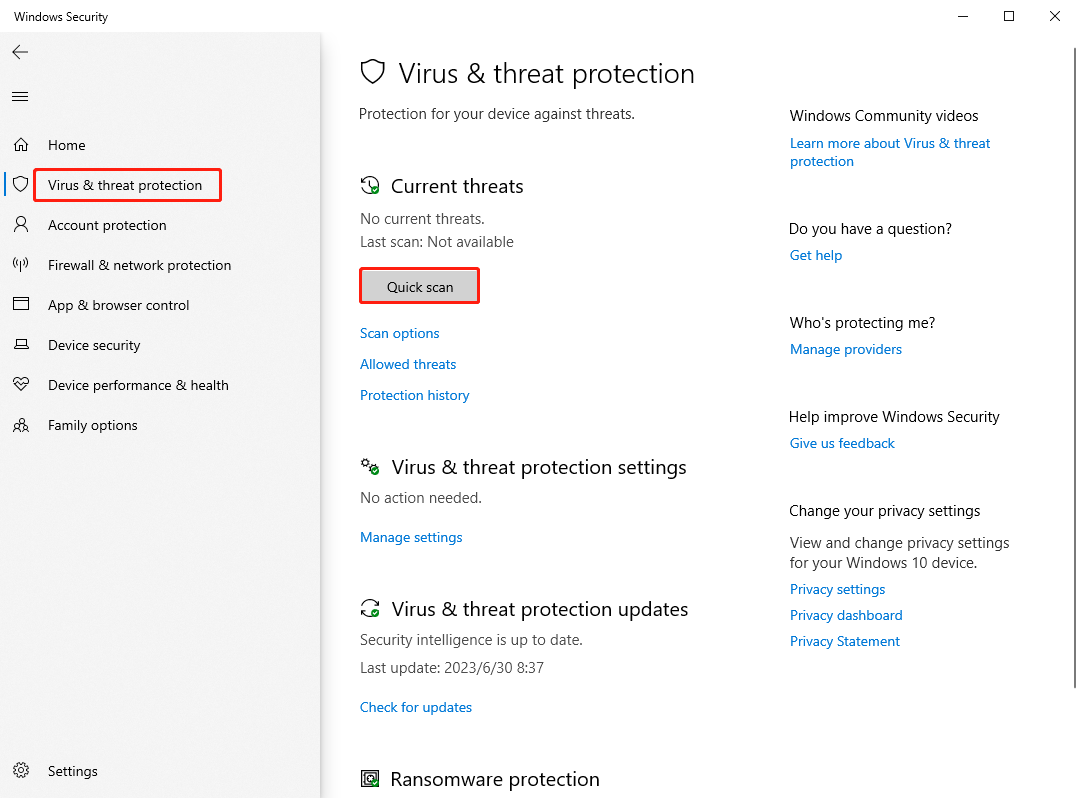
Step 2: Go to Update & Security > Windows Security > Open Windows Security > Virus & threat protection.
Step 3: In the Current threats section, click Quick Scan.
Fix 6: Update Your Windows
It’s recommended to update your Windows 11/10 to the latest version to remove the annoying issue. Follow the guide below:
Step 1: Press the Windows + I keys together to open Settings.
Step 2: Go to Updates & Security.
Step 3: Click the Windows Update section, and click the Check for updates button to check if there are any new updates. Then Windows will search for available updates. Just follow the on-screen instructions to finish the process.
Case 2: Your PC Cannot Boot After the Restart Error
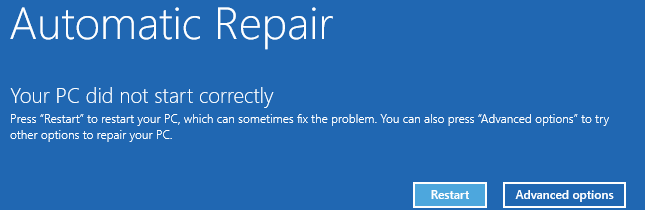
In some cases, your PC will restart and prepare a startup repair automatically after the error message appears, resulting in the “your PC did not start correctly” screen. Here you can see two options: Restart and Advanced options.
Fix 1: Perform a System Restore
If you have created a system restore point or system image backup with Windows snap-in tools, you can try using the restore point to restore your computer to fix the error message. Here are the steps:
Step 1: In the Search menu, input control panel and open it.
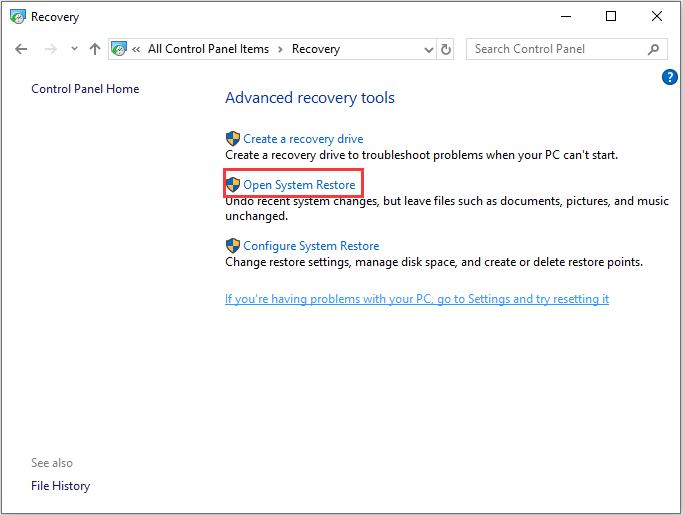
Step 2: Click Recovery and click Open System Restore to continue.
Step 4: In the Restore system files and settings interface, click Next to continue.
Step 5: Select a restore point and click Next to continue.
Step 6: You need to confirm the restore point and click Finish. After the system restore is finished, try to shut down your computer again.
Fix 2: Perform System Image Recovery
If you have created a system image before the “your PC ran into a problem and needs to restart” error occurred, you can perform a system image recovery. For more details, refer to this post – Perform System Image Recovery Windows 10 to Quick Restore PC.
Fix 3: Restore Registry Configuration
Your Device Ran into a Problem and Needs to Restart error often appears due to some error in the Windows 11/10 registry. You can restore the registry configuration to fix it.
Step 1: Open Command Prompt as administrator.
Step 2: Type the following command one by one and press the Enter key after each one:
- C:
- CD Windows\System32
- CD config
- DIR
- CD regback
- DIR CD..
- REN default default1
- ren sam sam1
- ren security security1
- ren software software1
- ren system to system1
- CD regback
- copy * c:\windows\system32\config
Step 3: Then, exit Command Prompt and restart your PC.
Case 3: Your PC Is Stuck in a Restart Loop
If your Windows 11/10 is stuck in the Windows loop, you have no options to choose from and your PC will repeat restarts and load error. In this case, you can use a Windows installation CD/DVD to fix the problem.
Fix 1: Run Startup Repair
Step 1: Create a Windows installation media.
Step 2: Connect the bootable media to your computer and boot your computer from the device.
Step 3: Wait for the installation files to load. In the Windows Setup window, click Next.
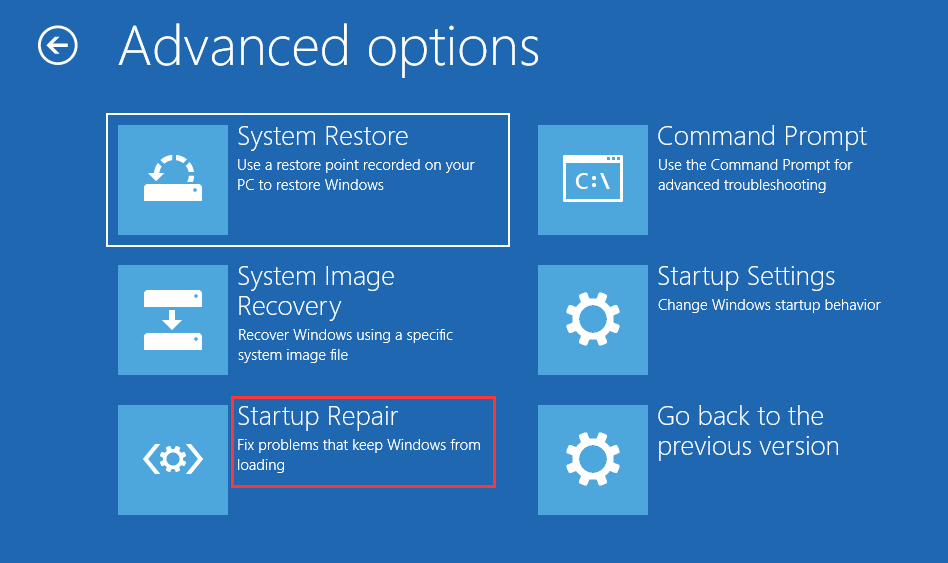
Step 4: Click Repair your computer > Troubleshoot > Advanced options.
Step 5: Click Startup Repair.
Fix 2: Enter Safe Mode to Uninstall Programs or Drivers
If you have recently installed a piece of software, you should try uninstalling it to check if this program is the cause behind the “your PC ran into a problem and needs to restart” stop code.
1. Uninstall the Recent Installed Software
Step 1: Type Control Panel in the Search box and click Open.
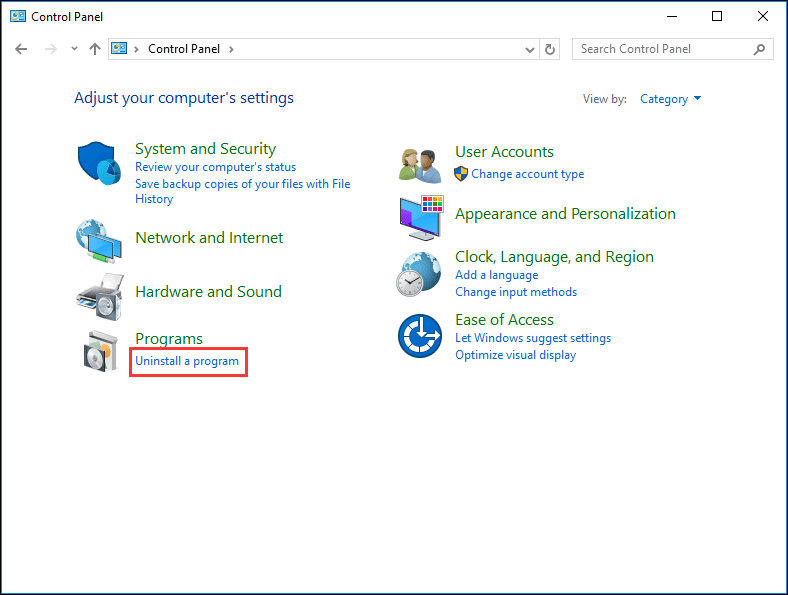
Step 2: View all the items via Category and click Uninstall a program from the Programs section.
Step 3: Locate the recent software from the app list and right-click it to choose Uninstall.
You can also roll back or uninstall drivers to fix the issue.
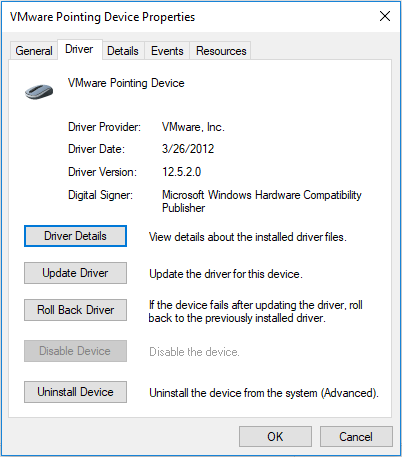
2. Roll back or Uninstall Drivers
Step 1: In Device Manager, double-click each driver and you can see some options.
Step 2: You can click Roll Back Driver or Uninstall Device and then follow the on-screen instructions to finish your operations.
Back up Your Windows After Fixing the Issue
After fixing your issue, now your PC can start normally. Then, what should you do? Here, we recommend that you back up your computer.
As mentioned, blue screen errors appear now and then, which brings many troubles for you, for example, you need to spend much time looking for solutions to fix it, the PC downtime lasts long, etc. If you have a backup of the operating system, things become easier.
Some blue errors can cause file loss. To avoid loss, we also suggest backing up your crucial files. How can you create a backup for your system or files? Here, MiniTool ShadowMaker is worth trying.
As a piece of professional PC backup software, it is useful to back up the Windows operating system, partitions, disks, files, and folders. This program is compatible with Windows 11/10/8/7.
Step 1: Download and install MiniTool ShadowMaker. Run it to choose Keep Trial.
MiniTool ShadowMaker TrialClick to Download100%Clean & Safe
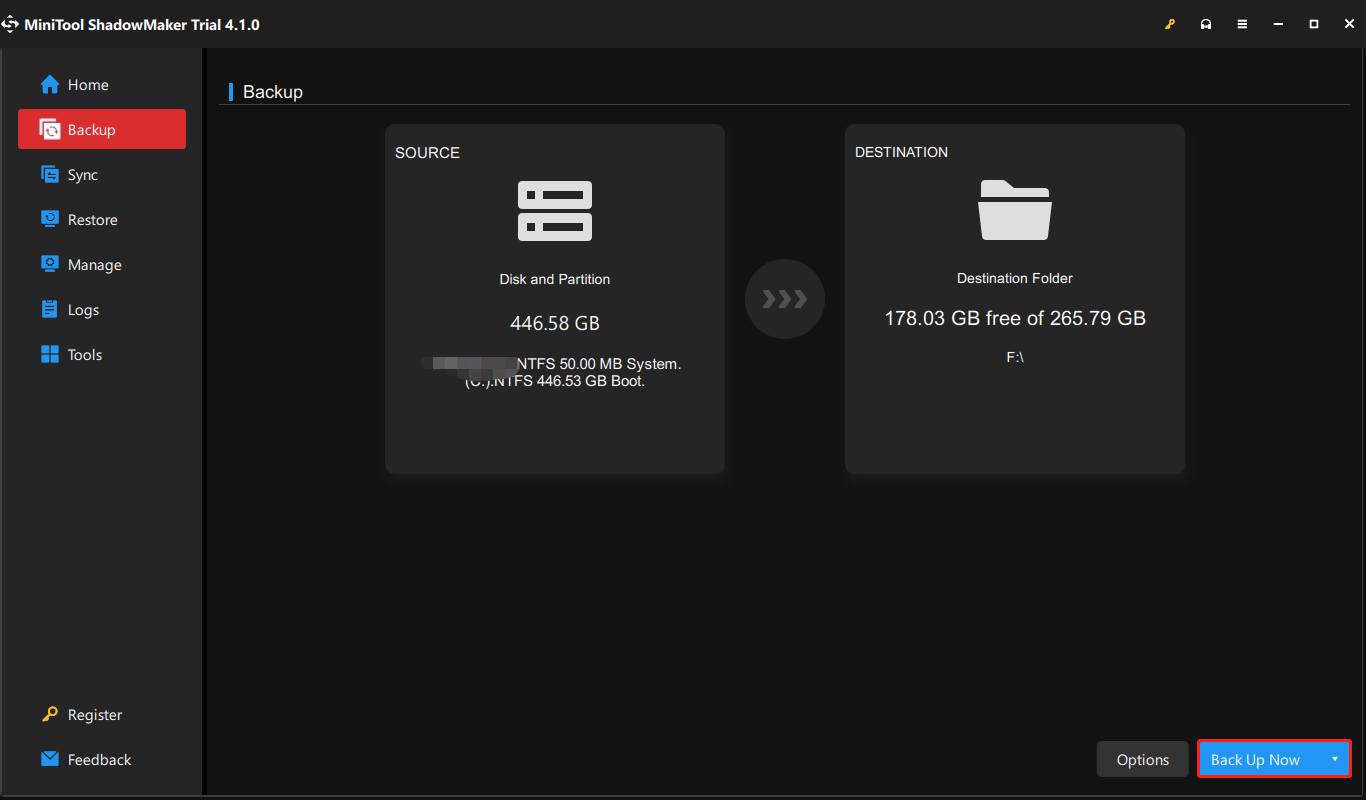
Step 2: Go to the Backup tab and you can see that system partitions are selected in the SOURCE section. Thus, you don’t need to choose it.
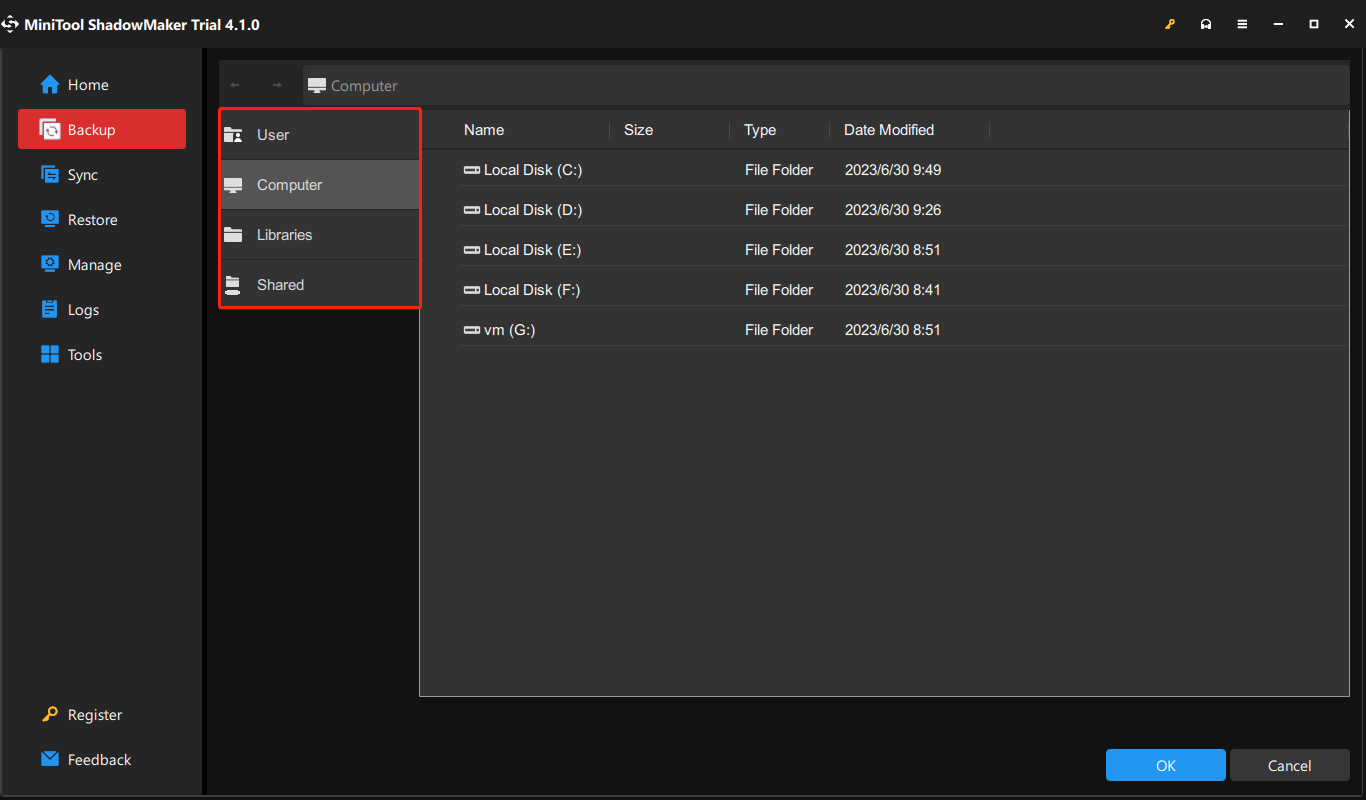
Step 3: Click the DESTINATION part to choose a location to store your system image. There are 4 paths available:
Tip: To create an automatic backup, go to Options > Schedule settings.
Step 4: At last, click the Back Up Now button to start the backup task.
Your PC Ran into a Problem and Needs to Restart FAQ
Summary
The “Your PC ran into a problem and needs to restart” error is usually caused by corrupted system files, problematic drivers, Windows updates, malware, or hardware issues.
To fix it, restart your PC, enter Safe Mode, run SFC and CHKDSK scans, update drivers, perform System Restore, or repair Windows startup files.
If the issue persists, back up your data and check your hardware. For questions about MiniTool software, feel free to comment below or contact [email protected].
About The Author

Position: Columnist
Charlotte is a technology columnist with a strong focus on the Windows operating system, specializing in disk management, backup, and data recovery. She is passionate about analyzing computer errors, identifying root causes, and delivering practical solutions. In her free time, she stays updated on the latest developments in computer systems and hardware while continuously learning new technologies to broaden her expertise. Her writing style is clear and easy to understand, making complex technical topics accessible even to users with limited computer knowledge.
User Comments :