
To recover deleted emails Gmail, here are two situations. If your emails were deleted for less than 30 days, recover from Trash, use the Gmail Search function, or check the built-in recovery tool. If it’s been more than 30 days, restore from the Admin console or Vault, or try the MiniTool software.
Gmail is one of the world’s most popular email services. It carries a vast amount of important information and communication records.
However, accidental email deletion can happen. When you realize a crucial email has been deleted, is there any chance of recovery?
This article explains the deletion process and details how to recover deleted emails from Gmail at different stages.
What Happens if You Delete Gmail Messages
The first part lists the answers to some of your questions about Gmail deletion.
The complete process of deleting Gmail emails:
- Moved to Trash. When you delete an email, it is not immediately and permanently deleted, but moved to the Trash. And the email in the Trash will remain for 30 days.
- Automatically deleted after 30 days. If you do not manually restore or empty your Trash, Gmail will automatically and permanently delete the email after 30 days.
- Manually empty the Trash. If you manually empty the Trash, the emails are permanently deleted immediately from the server.
Here are some things to note when deleting emails:
- Gmail can be deleted synchronously: If you delete an email on your phone or other clients (such as Outlook), Gmail will also delete it synchronously.
- Label is non-destructive: Removing a label does not delete the email. It only removes the label, and the email itself remains in All Mail.
- Archiving is not deletion: Clicking Archivewill remove the email from your inbox, but it won’t delete it. It can be found in All Mail.
Can deleted messages be recovered? That depends on whether the file is permanently deleted.
- File is deleted within 30 days: As long as the message is in the Trash and has been there for no more than 30 days, you can open the Trash and recover it.
- File is permanently deleted: Once the email is permanently deleted (manually or automatically), ordinary users cannot recover it, but administrators can.
- Special circumstances: If you think the message was deleted accidentally or by a hacker, contact Google Support to request recovery, but the success rate is low, and it must be done quickly.
Overall, Gmail emails can be recovered in most cases. The following content provides recovery solutions for deletion within 30 days and permanent deletion.

How to Recover Deleted Emails Gmail Within 30 Days
As mentioned before, deleted emails will go to the Trash and be retained for 30 days. During this period, use the following methods to recover deleted emails Gmail.
Here is a quick video guide:
Option 1: Recover from Trash
The best method to recover deleted emails is undoubtedly the Trash. Here are two options on different devices. Choose a suitable one based on your needs.
On a computer:
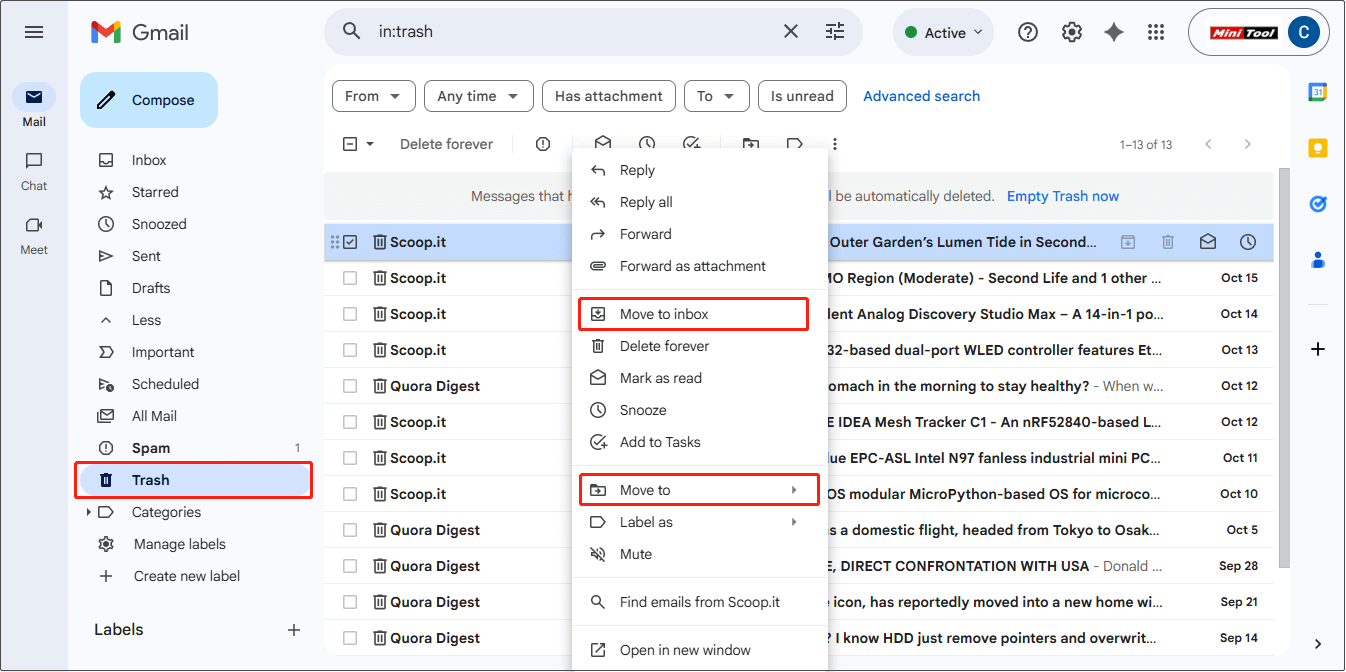
Step 1: Log in to your Gmail account and click More > Trash from the left sidebar.
Step 2: Browse the list to find the deleted Gmail message.
Step 3: Right-click the message and choose Move to inbox from the drop-down menu. The email is moved to your inbox.
Alternatively, click Move to and choose a category you want to put your Gmail into. After that, check your Gmail message in the matching location.
On a mobile device:
Step 1: Open the Gmail app.
Step 2: Tap the menu icon (three horizontal lines) in the top-left corner.
Step 3: Tap Trash. Then, select the message you want to recover.
Step 4: Tap the menu icon (three dots) in the top-right corner and select Move to.
Step 5: Select the folder you want to move the message to.
The Gmail message will return to the designated location. If this does not work, continue with the next solution.
Option 2: Use Gmail’s Search Function
Gmail’s search function helps you quickly locate accidentally deleted or lost emails without manually searching your entire inbox. Enter keywords to search all your emails, which greatly improves recovery efficiency.
Step 1: Input relevant keywords in the Gmail search bar and press Enter.
Step 2: Click View messages to display the matching emails.
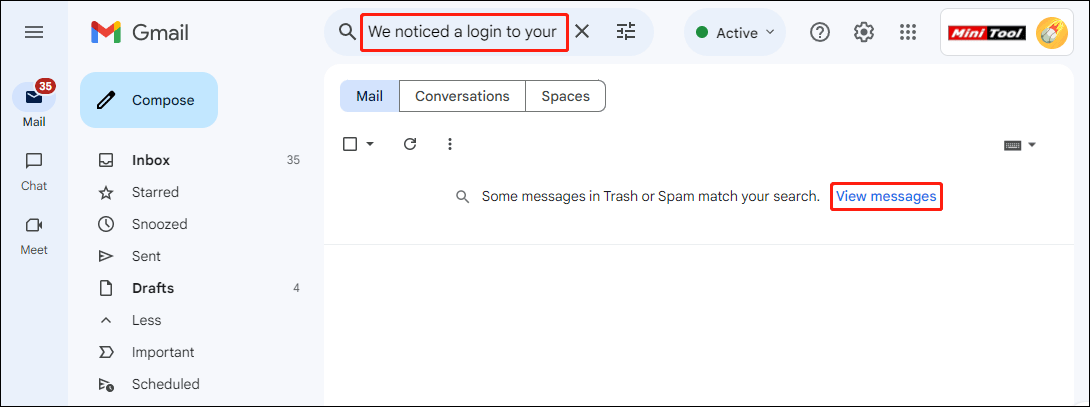
Step 3: Locate the wanted email and click Move to inbox to complete the recovery.
If the above methods fail, try Google’s built-in recovery tool.
Option 3: Try the Gmail Message Recovery Tool
Sometimes, emails lost due to system errors or account abnormalities may not appear in the Trash. At this time, use the Gmail Message Recovery Tool to recover deleted emails Gmail.
Step 1: Access the recovery tool page
Go to the Gmail Message Recovery Tool page. This is the official email recovery portal provided by Google.
Step 2: Sign in to your Google account
Select a Google account and enter the password. After signing in, click Continue.
Step 3: Wait for the recovery results
If recoverable emails are found, they will be automatically restored to your mailbox, usually under Inbox or All Mail.
If your email has been permanently deleted, keep reading the next part.
How to Recover Permanently Deleted Emails Gmail
Emails stored in Trash for more than 30 days will be permanently deleted. For individual users, there is no possibility of recovering permanently deleted emails, but administrators may have a chance. Here are a few methods to try them out.
Method 1: Recover Deleted Emails Gmail from the Admin Console
Google Workspace offers an additional 25-day recovery window, available only to administrators. Administrators can use the Restore data tool in the Admin console to recover these emails within an additional 25 days after permanent deletion.
Here is how to recover deleted Gmail emails from the Admin console:
Step 1: Sign in to the Admin console
Visit admin.google.com, and then sign in with an administrator account to the Google Admin console.
Step 2: Enter user management page
On the homepage, click Users in the left-hand menu. Locate and click the user account whose emails you want to recover.
Step 3: Open the data recovery tool
On the user details page, click More options in the upper right corner and select Recover data.
Step 4: Select time range and service
In the pop-up recovery window, select the date range from which the emails were deleted (data from the past 25 days can be recovered at most). Select the type of data you want to recover: Gmail.
Step 5: Start restoring emails
Click the Recover button. The recovery process starts. It may take several hours to several days to complete.
After it completes, check your Gmail inbox to see if there are any recovered emails.
Method 2: Retrieve Deleted Emails Gmail from Vault
If your organization uses Vault, emails beyond the additional 25-day period may be recovered. Google Vault is Google Workspace’s compliance and e-data discovery tool, designed for businesses and organizations.
When Gmail is used with Google Vault, Vault can retain and retrieve emails. Recovering these emails is possible as long as they are protected by retention rules or legal retention laws.
Here is how to retrieve deleted emails from Vault:
Step 1: Sign in to Vault
Visit the Vault site and sign in with your Google Workspace account.
Step 2: Create a matter
Click Matters, then click Create. Enter a name for the matter and click Create. This creates a workspace to store search queries and export packages.
Step 3: Search for deleted emails
After creating a matter, it will open to the Search tab. Select the Google service you want to search: Gmail, and click Search. When the search is complete, Vault will list a results table.
Step 4: Export emails
In the Search tab, click Export. When it is finished, click Download. You have 15 days to download the exported file after the export begins.
Vault only manages and retains data stored in the Google Workspace cloud service and does not affect local files on the user’s device. Therefore, if you lost local email files permanently, try using third-party data recovery software to recover them.
Method 3: Restore with MiniTool Power Data Recovery
Gmail files downloaded to your local computer are usually saved as .eml files. If they are lost, MiniTool Power Data Recovery is a good option for recovery.
MiniTool can scan your hard drive and attempt to recover them, even if they have been permanently deleted from your local drive.
This software can recover data from hard drives, SD cards, USB flash drives, and other devices. Besides this, it is capable of retrieving email files lost due to accidental deletion, formatting, or system crashes.
This free file recovery software gives you a 1 GB free recovery quota. It is compatible with Windows 11/10/8/8.1. Download and install it to recover your emails.
MiniTool Power Data Recovery FreeClick to Download100%Clean & Safe
Step 1: Launch the software and choose a scan location
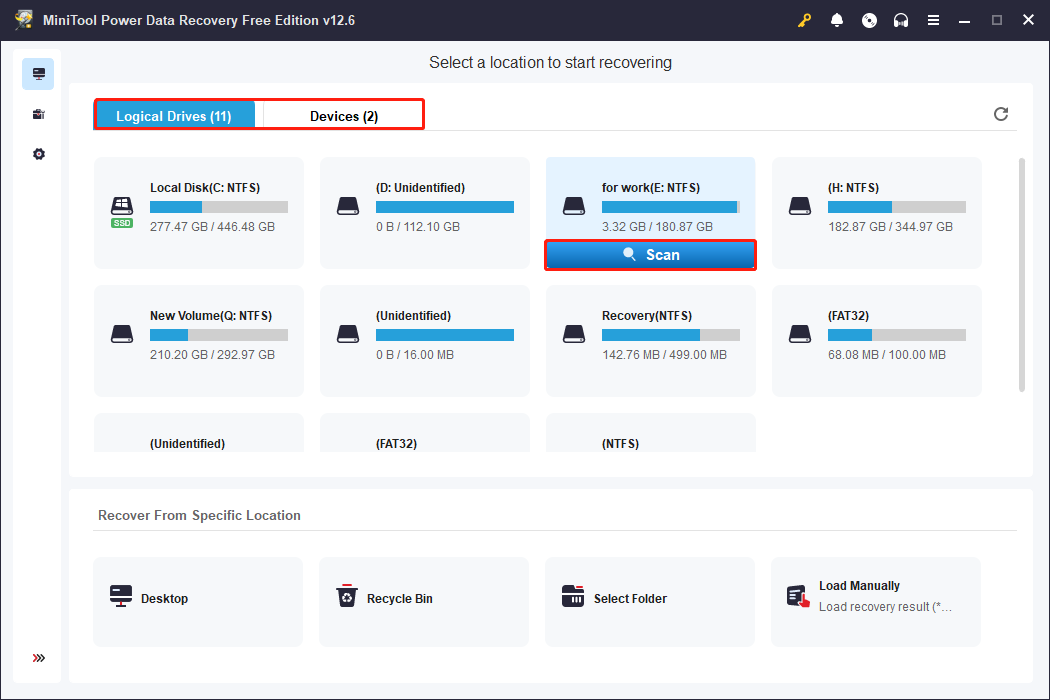
Open MiniTool Power Data Recovery. In the main interface, there are three sections: Logical Drives, Devices, and Recover From Specific Location. Here is a specific explanation of them.
- Logical Drives. This section lists all the partitions, including existing partitions, lost partitions, and unallocated space.
- Devices. It shows all the disks connected to your computer, allowing you to scan the entire physical storage device.
- Recover From Specific Location. This allows you to select specific folders for quick scanning and recovery, such as the Desktop, Recycle Bin, or a specific folder.
Select the drive, disk, or location and click Scan to start scanning.
Step 2: Use Type or Search to find the target emails
Wait for the scan process to complete. When it ends, files are listed under Path by default. Switch to the Type tab, which categorizes files according to file type. To find emails, expand E-mail > eml.
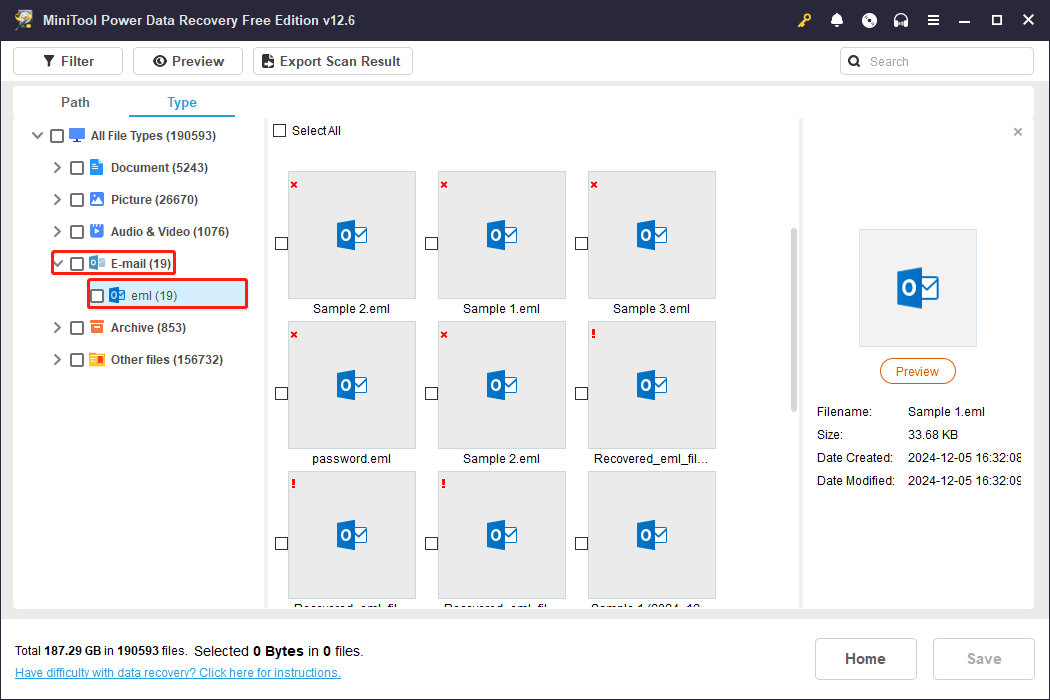
What’s more, the Search feature can help you locate a specific file. Type the full or partial file name in the box and press Enter. All unnecessary files will be filtered out, leaving only the target file.
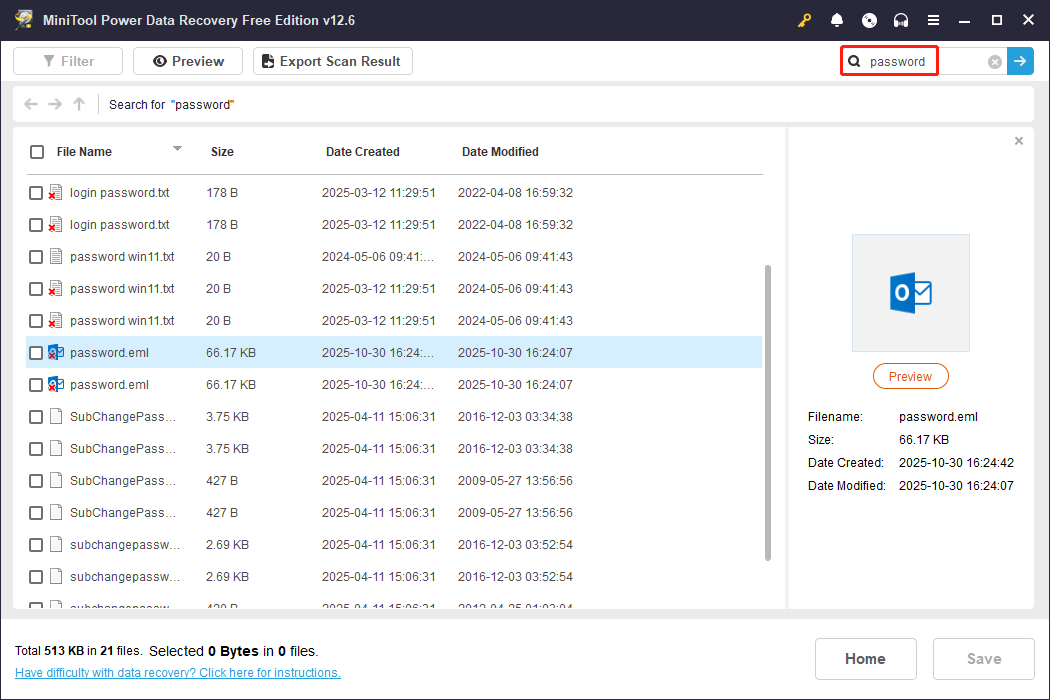
Step 3: Save the required emails to a new location
When finding the target file, tick it and click Save. In the new window, choose a new location and click OK. The recovery will start. When the Recovery Completed window pops up, check your recovered email.
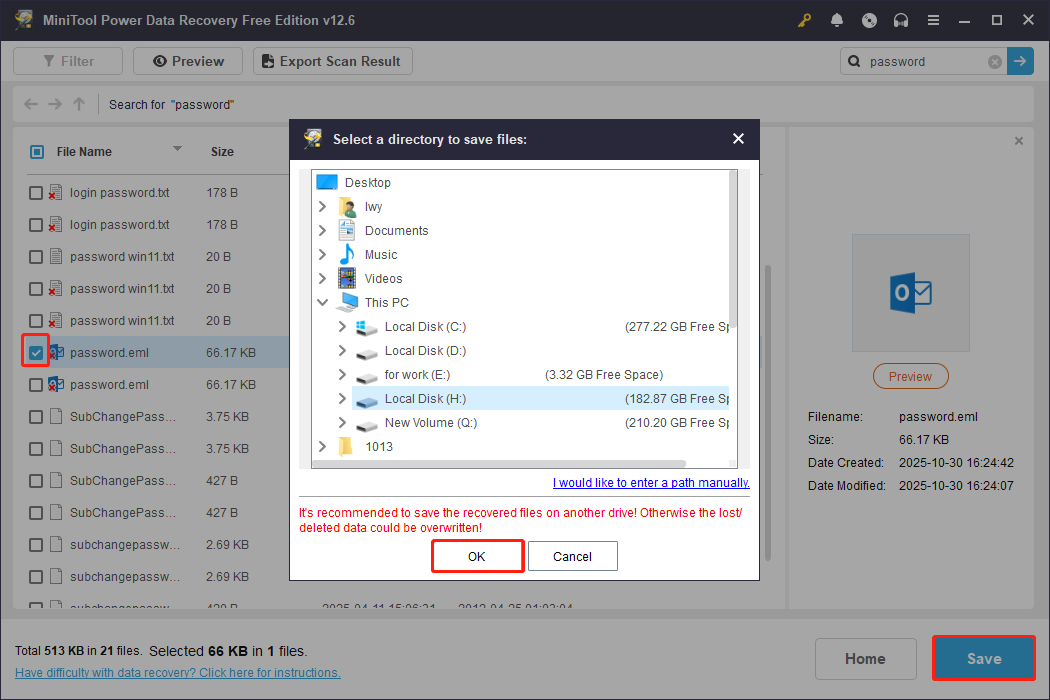
After recovering emails successfully, take some measures to protect them in the future.
Bonus Tips to Prevent Gmail Data Loss in the Future
If you don’t want to lose your emails unexpectedly, then this section is worth reading. Here is how to take measures to prevent your Gmail messages from being lost.
Regularly back up your emails. Use Gmail’s export features (such as Google Takeout) to regularly back up your email to your local device or the cloud. This will allow you to recover the message in case of accidental deletion or account issues.
Make good use of labels and categories. Label different types of emails and use the “Starred” or “Important” function to mark the email. This helps you quickly locate them, avoid accidental deletion, and make email management more efficient.
Enable two-step verification for the account. Enabling two-step verification can prevent unauthorized access to your Gmail account and protect against lost or maliciously deleted emails due to account theft.
Check your Trash folder regularly. Emails that have been accidentally deleted often remain in your Trash folder temporarily. Regularly checking these folders can help you find important emails before they’re permanently lost.
Master Gmail Search function. Learning to use Gmail’s advanced search function (such as from, to, subject, etc.) can quickly retrieve accidentally deleted emails. This makes it a key tool for email recovery.

Bottom Line
If your emails were deleted within the last 30 days, you can recover them from Trash or use Gmail’s search function and built-in recovery tool.
If they have been deleted for more than 30 days, individual users cannot recover them. However, for the administrator, we recommend recovering emails from the Admin console and Vault.
If the email you lost is stored locally, MiniTool Power Data Recovery is a good choice.
MiniTool Power Data Recovery FreeClick to Download100%Clean & Safe
Contact us through [email protected] anytime if you have questions about the MiniTool product.
User Comments :