
Want to recover deleted files from OneDrive? OneDrive Recycle Bin, as well as the Recycle Bin and Trash on your computer, should be your first choice. Cannot work? Try powerful data recovery software. If all fails, ask OneDrive Support for help.
What Is OneDrive
OneDrive is a personal cloud storage service launched by Microsoft. This service allows you to access, sync, and share your files and photos on any device. It is not only a storage tool, but also a bridge for cross-device collaboration.
Many people use it as a backup drive, but it’s more like a sync drive. If you delete a file locally, it’s also deleted in the cloud. To conserve local storage space, you can utilize the Files on-Demand feature to download files only when needed.
Here are some OneDrive core features:
- File sync: Add or modify files in your OneDrive folder on your computer, and they’ll automatically update in the cloud.
- Access across devices: Log in to your account and access your files from anywhere, whether you’re on Windows, Mac, iOS, or Android.
- Backup protection: Automatically back up important folders like your desktop, documents, and pictures to prevent data loss.
- Sharing and collaboration: Share files or folders with others and set permissions (read-only, editable, etc.).
- Personal vault: Provide an extra layer of security for sensitive documents (such as ID cards and contracts).
Where Do Deleted OneDrive Files Go
Where do files go after you delete them from OneDrive? This depends on which device you deleted them from, whether the files were synced, and your account type. Here’s a breakdown of where deleted files go.
1. If you deleted them from your local OneDrive folder:
These files will be deleted from the cloud. If you right-click to delete, the file will go to the Recycle Bin, where they remain for up to 30 days. If you press Shift + Delete, the file will disappear permanently.
2. If you deleted them from the OneDrive website:
The files go directly to the OneDrive Recycle Bin. They are also deleted from all synced devices.
3. If you deleted an online-only file (not downloaded locally):
The files do not go to the local Recycle Bin. They disappear from all devices and the cloud, but can still be retrieved in the OneDrive Recycle Bin.
If you accidentally delete your OneDrive files, the first thing you need to do is recover them. No matter how your files were deleted or where they went, you can find the solution in the following content.
Option 1: Recover Deleted Files from OneDrive Recycle Bin
When you delete files in OneDrive, they aren’t immediately and permanently lost. Instead, they’re temporarily stored in the OneDrive Recycle Bin, typically for 30 days.
Recovering files from the Recycle Bin is the quickest and safest way to restore files, as it completely restores them to their original location without requiring additional tools. It’s the preferred method for recovering accidentally deleted files.
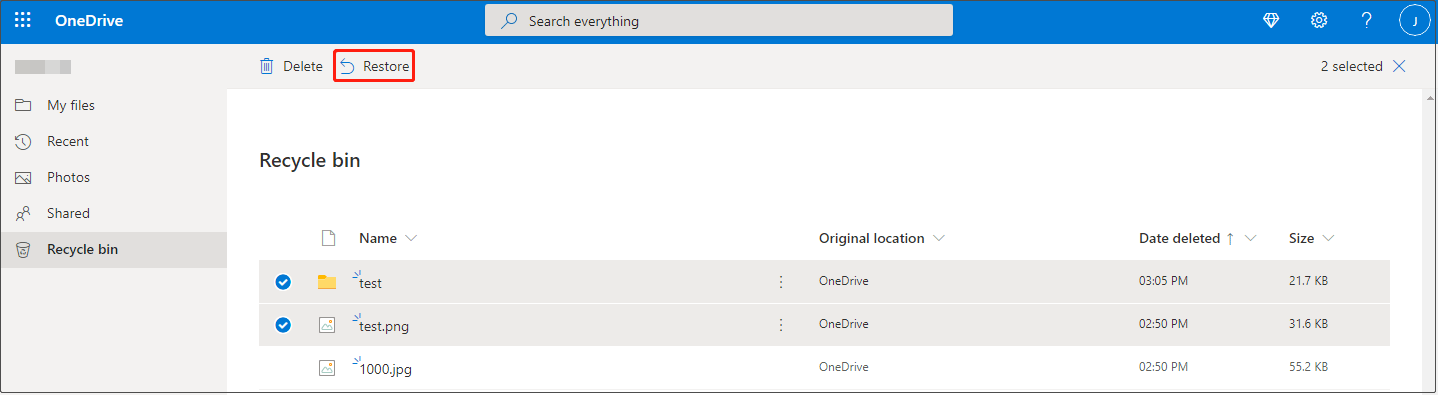
Step 1: Go to the OneDrive website and log in to your account.
Step 2: Switch to the Recycle Bin tab, and all deleted files are here.
Step 3: Select the wanted files and click Restore at the top.
Option 2: Restore Deleted OneDrive Files with Recycle Bin/Trash
1. From Windows Recycle Bin
When you delete files from your local OneDrive folder on Windows, they typically go to the Recycle Bin first. Recovering from the Recycle Bin allows you to restore files to your original location without delays or complications with cloud syncing.
This method is especially useful for files you’ve downloaded to your local OneDrive folder.
Step 1: Double-click the Recycle Bin icon on your desktop.
Step 2: Browse the list until you find the file you want.
Step 3: Select all the target files and right-click the selected files, and select Restore.
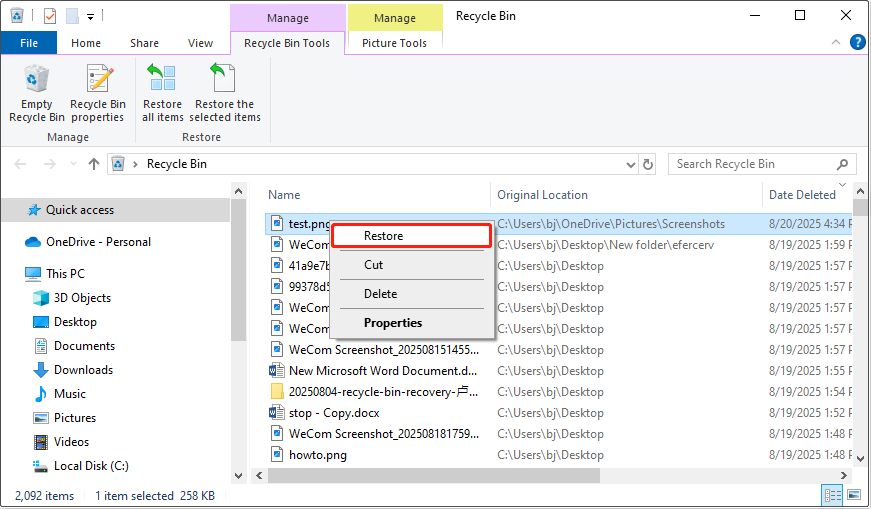
The files will automatically be restored to their original OneDrive folder location.
2. From Mac Trash
Mac also has a recycle bin to store deleted files, called Trash. When you delete files in OneDrive on Mac, they first go to the Trash. It is a temporary storage area that allows you to quickly recover files after accidental deletion.
Step 1: Click the Trash icon on the Dock.
Step 2: Find the file you want to restore, right-click it, and select Put Back.
Open the OneDrive folder to check if the file is here.
Option 3: Restore Files via the Restore your OneDrive Feature
If you accidentally delete a large number of files in OneDrive, you can use the Restore your OneDrive feature to revert your account to a previous point in time, undoing all changes at once.
It’s a powerful protection mechanism provided by Microsoft 365, especially useful when the Recycle Bin isn’t available. This feature is not only more efficient than restoring files individually, but also provides the greatest possible restoration of your data.
Step 1: Visit the OneDrive website and log in to your account.
Step 2: For the personal account, go to Settings > Options and select Restore your OneDrive in the left pane. For the work or school account, go to Settings > Restore your OneDrive.
Step 3: On the Restore Your OneDrive page, choose a date before your files are deleted from the Select a Date drop-down list. Also, you can click Custom date and time to set the date freely. Drag the slider to a specific date, then click Restore.
Step 4: Click Restore on the pop-up window to begin the restore process.
After the restore is complete, check if your OneDrive files are back to normal.
Option 4: Restore Files Through Data Recovery Software
None of the above methods works for you? The third-party software with powerful recovery functions can help you recover locally synced OneDrive files. If the deleted files only exist in the cloud, this method is not suitable.
Use MiniTool Power Data Recovery on Windows
If you’ve deleted files from your local OneDrive folder and emptied the Recycle Bin on Windows, MiniTool Power Data Recovery can help you recover OneDrive files.
This tool can perform a deep scan of your hard drive to recover deleted files. Even if an entire partition has been accidentally deleted or formatted, it can identify and recover the OneDrive files.
MiniTool cannot be limited to computer hard drives, but also recover OneDrive-synced files from devices like SSDs, USB drives, and SD cards. It is compatible with Windows 11/10/8/8.1
The free edition of this software allows you to recover 1 GB of files for free. Download and install MiniTool Power Data Recovery Free on your computer to get ready.
MiniTool Power Data Recovery FreeClick to Download100%Clean & Safe
Step 1: Open the software and select a scan location
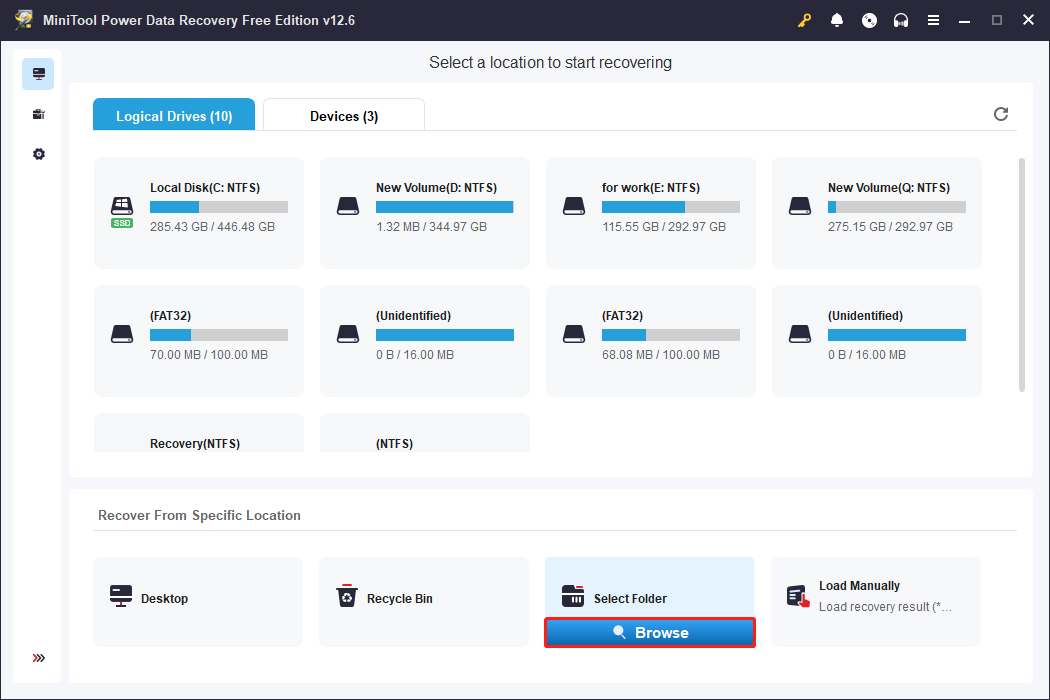
Open MiniTool Power Data Recovery. In the main interface, the Logical Drives, Recover From Specific Location, and Devices sections are here. If your OneDrive files are synced locally, select the corresponding local drive and click Scan.
If you know the folder where the files were previously stored, you can also select a specific folder to scan. Click Browse in the Select Folder part to select the OneDrive folder.
Step 2: Use Type, Filter, and Search to locate the files
The software will begin scanning the location. The scan process may take several minutes, depending on the size of the drive and the number of files.
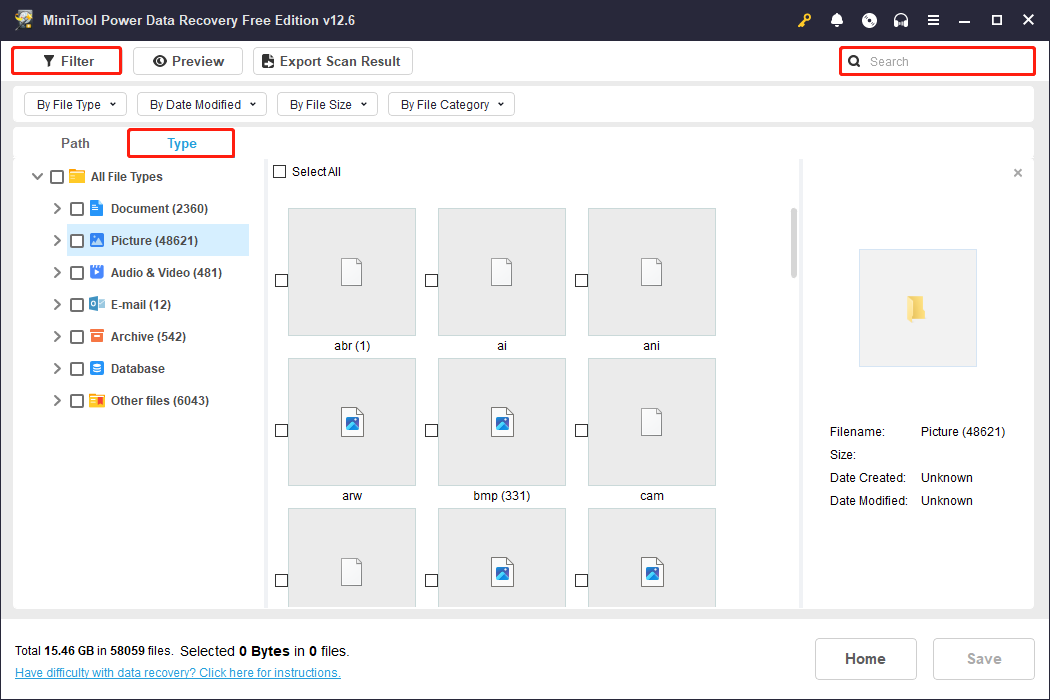
After the scan is complete, the interface may display files organized by path. This is useful for finding files based on their structure. However, this method can be time-consuming. Here are a few efficient methods to help you quickly locate the files you want.
- The Type feature allows you to browse files according to the file type, such as documents, pictures, videos, audio, etc. Switch to the Type tab and expand All File Types. All file types will be displayed.
- The Filter can help you quickly filter target files in the scan results and accurately locate the required data by conditions such as file type, size, category, modification date, etc.
- There is a search box at the top. Enter the full or partial file name and press Enter. The files will be filtered. Fuzzy search is supported and does not require an exact match.
Step 3: Perform a preview before recovery
You can preview various file types with the Preview feature, including documents, images, and videos, before recovery to ensure you’re recovering exactly what you need.
Step 4: Tick and restore the target files
Once you’ve checked the files you want to restore, select them. Click the Save button in the lower right corner. In the new directory window, select a new save path and hit OK. Avoid saving to the original location to avoid overwriting.
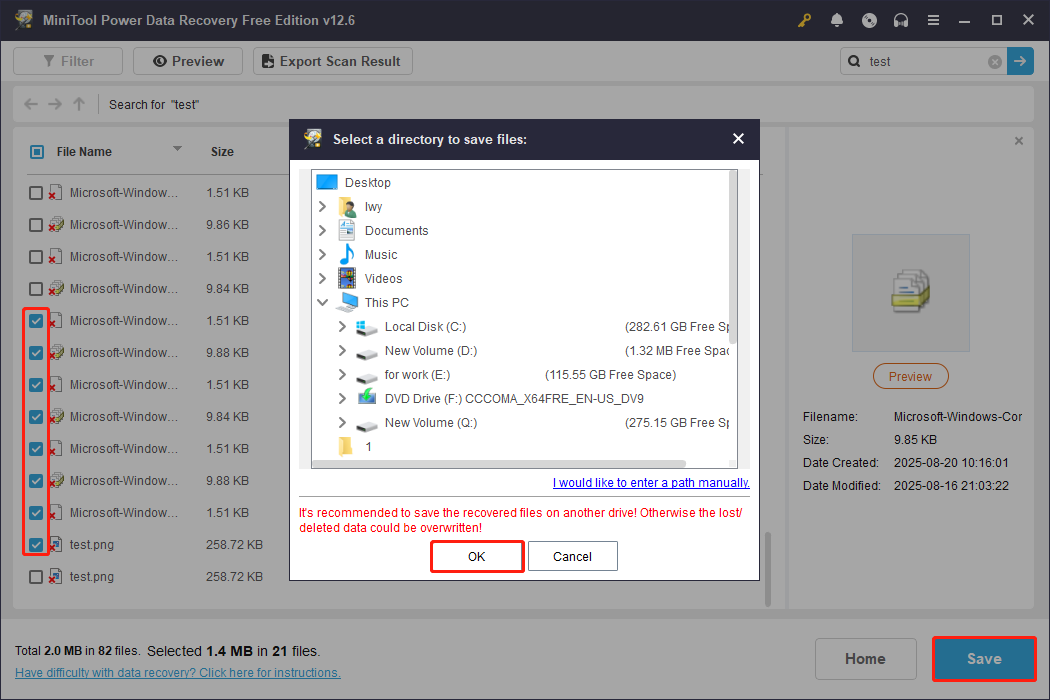
When the recovery completes, a window will pop up. It shows the size of the restored file and the remaining free recovery capacity. When the capacity is used up, upgrade to a full edition.
Try Stellar Data Recovery for Mac
For Mac users, using Stellar Data Recovery for Mac to recover deleted files from OneDrive is a great option, especially after deleting the local synced copy or emptying the Trash.
OneDrive on a Mac typically syncs files to the local drive. If these files are deleted, it can directly scan the drive containing the directory and recover the local copy.
Besides accidental deletion, this tool can handle complex data loss scenarios on Mac, such as disk formatting and virus attacks etc.
Step 1: Download and launch the software. In the What to Recover section, tick the box for Recover Everything and click Next.
Data Recovery for MacClick to Download100%Clean & Safe
Step 2: In the Recover From section, select the volume or disk where your OneDrive files are stored, and click Scan to scan for data.
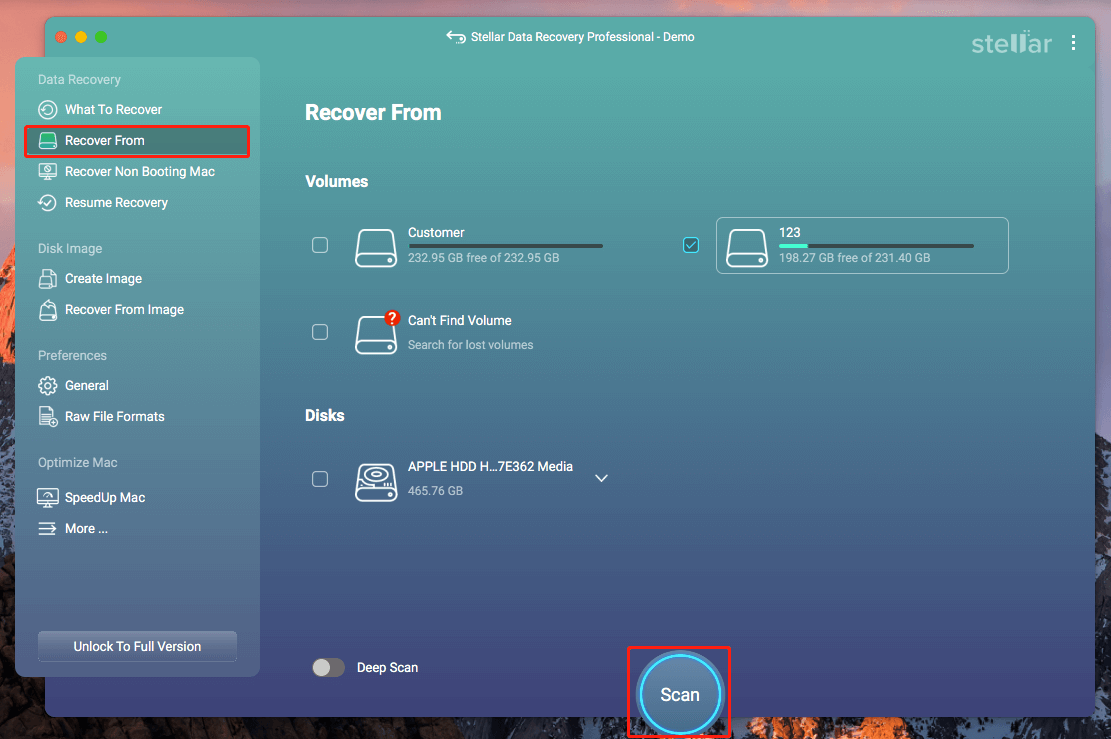
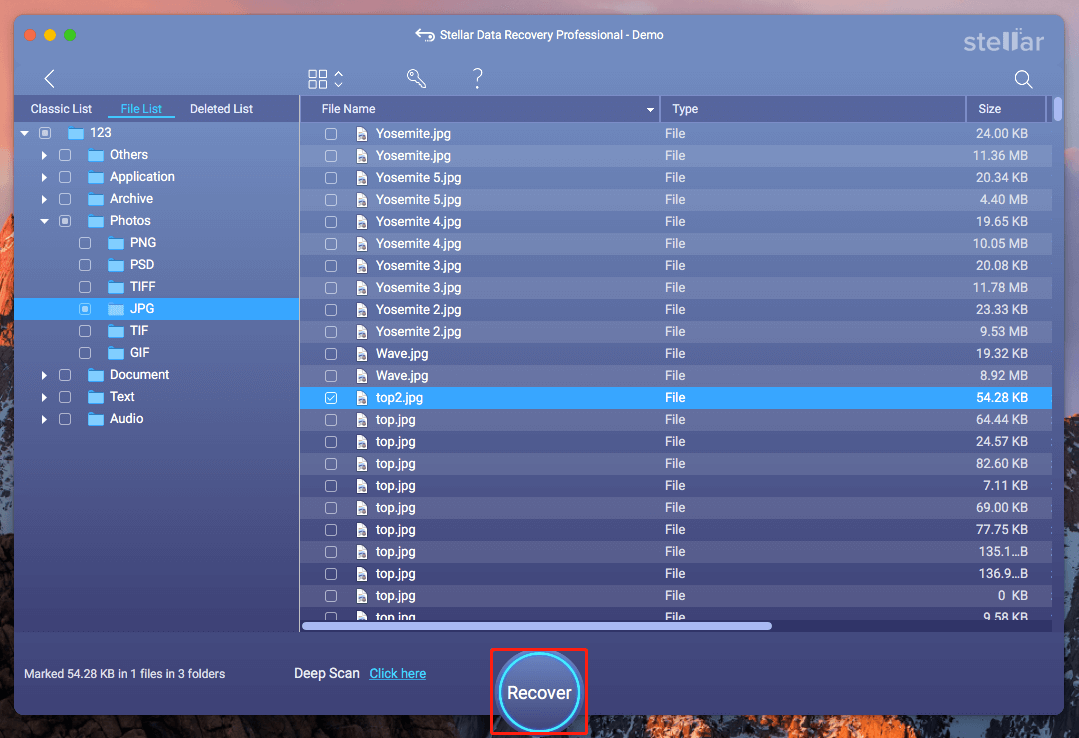
Step 3: When the scan process ends, find the needed files from the file list.
Step 4: Finally, check the boxes for the files and click Recover.
Option 5: Contact OneDrive Support
If the Recycle Bin, backup options, or data recovery software don’t work, contacting OneDrive Support is a critical step in ensuring data security and seeking further assistance.
The support team can thoroughly investigate the cause of file loss, verify account permissions, and, in some cases, provide background recovery methods. This is a crucial step in resolving issues, especially for critical files or enterprise users.
How to Protect OneDrive Files
1. Use a Personal Safe
This is an encrypted space provided by OneDrive, perfect for storing sensitive or important files. It requires additional authentication to access, preventing accidental deletion or tampering.
2. Limit sharing permissions
If you share files or folders with others, do as follows:
- Set permissions to read-only to prevent others from deleting or editing them.
- Regularly review your sharing list and remove unnecessary access.
3. Enable file sync protection
In OneDrive settings, turn off automatic sync deletion to prevent local deletions from being synced to the cloud. Use selective sync to sync only the folders you need to reduce the risk of accidental operations.
4. Regularly back up to another location
Regularly back up important files to an external drive, other cloud services (such as Google Drive or Dropbox), or a local, non-synced folder.
5. Enable Recycle Bin reminders
Although the OneDrive Recycle Bin retains files for 30 days, you can set reminders or use third-party tools to monitor deletion activity.
Final Thoughts
Whether it’s accidental deletion or some other reason, recovering your OneDrive files is not difficult.
By utilizing OneDrive’s built-in recycle Bin, relying on local synced copies, and using professional data recovery tools like MiniTool Power Data Recovery or Stellar Data Recovery for Mac, you can potentially recover deleted files from OneDrive.
While data loss is frustrating, prompt action is crucial. And if you need to recover files in the future, remember this guide is here to help.
If you have any questions when using the MiniTool product, please contact us through [email protected].
User Comments :