
WD My Passport not showing up is usually caused by missing drive letters, USB connection issues, driver problems, or partition corruption. In most cases, the drive can be repaired and recovered using appropriate methods or free data recovery software.
Quick Answer:
If your WD My Passport is not showing up in File Explorer or Disk Management, follow the methods based on its status:
| Situation | Likely cause | Solution |
| Shows in Disk Management but not File Explorer | Missing drive letter or file system issues | Add a drive letterRun CHKDSK |
| Shows as Unallocated in Disk Management | Partition loss | Perform data recovery or partition recoveryCreate new partitions |
| Shows only in Device Manager | Driver issues | Update or reinstall the disk driver |
| Not detected anywhere in Windows | USB issues or possible hardware failure | Try another USB port or cableRun DiskPart to check disk statusReplace the disk |
WD My Passport Is Not Showing up or Detected
Western Digital’s My Passport series is popular for its compact design and reliable storage solutions. However, users may encounter the frustrating issue of their WD My Passport (Ultra) not showing up on their computer.
Here are different issue reports:
- WD My Passport is not showing up in File Explorer
- WD My Passport Ultra is not showing up in File Explorer
- WD My Passport Ultra is not detected by my computer
- WD My Passport is not working
- WD Passport shows as “Unknown Device” in Device Manager
- WD Passport appears without a drive letter
Causes of WD My Passport Is Not Showing Up
If your WD My Passport is not working because it is not showing up or being recognized by your computer, consider the following situations:
- Connection Issues: Ensure that the USB cable connecting the WD My Passport to the computer is functional. Try using a different USB port on your computer to rule out port-related problems.
- Driver Problems: Outdated or corrupted device drivers can prevent proper communication between the WD My Passport and your computer.
- Drive Letter Missing: If the WD My Passport lacks a drive letter, it will not appear in File Explorer, leading you to believe it is not recognized by your computer. Adding the drive letter back can restore normal functionality.
- File System Corruption: File system errors on the WD My Passport can lead to it not being recognized by the operating system. To fix the file system, you can run chkdsk or format the hard drive to normal.
- Partition Issues: Partitions may become corrupted or accidentally deleted, causing the drive to be invisible. In a situation like this, you can recover data from the lost partition or perform a partition recovery using a professional partition manager.
Data Recovery with MiniTool Power Data Recovery
Before applying any repair methods, it is strongly recommended to recover important data first in case of permanent file loss.
How Data Recovery Works When WD My Passport Is Not Showing Up?
Data recovery tools like MiniTool Power Data Recovery can scan storage devices at the sector level, which means:
- The drive does not need to appear in File Explorer
- Deleted or lost partitions can still be detected
- Data can be reconstructed even from damaged file systems
However, data recovery is only possible when the WD My Passport drive is detected at the Windows system level.
MiniTool Power Data Recovery provides a free edition that supports free disk scanning, file previewing, and 1 GB of data recovery. Download it and try it.
MiniTool Power Data Recovery FreeClick to Download100%Clean & Safe
How to Recover Files from WD External/Internal Hard Drive?
Step 1. Scan the WD device
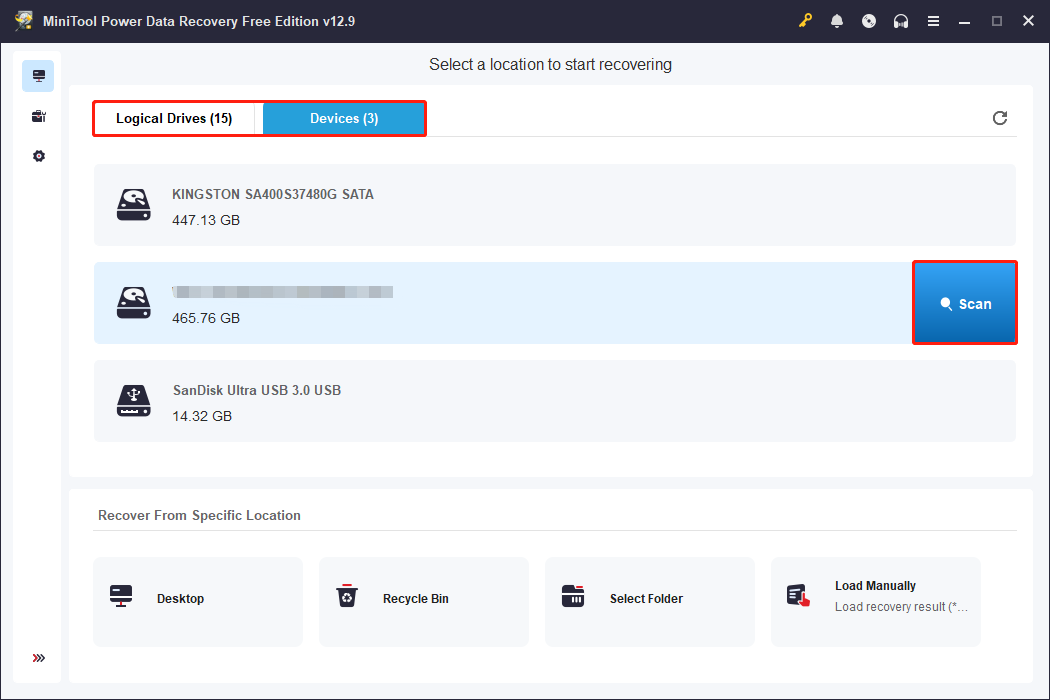
First, ensure the WD drive is properly connected to your computer via USB or internal interface. Launch the software, and you will see two scan modules:
- Logical Drives: Displays detected partitions with the drive letter, file system, and capacity information. Missing partitions show as Lost Partition.
- Devices: Displays disks connected to your computer. Use this option if multiple partitions are lost or you are unsure which partition to scan.
Select the partition or disk to scan. The scan duration depends on disk size and condition:
- Small drives: a few minutes
- Large or damaged drives: up to several hours
Step 2. Find and preview files
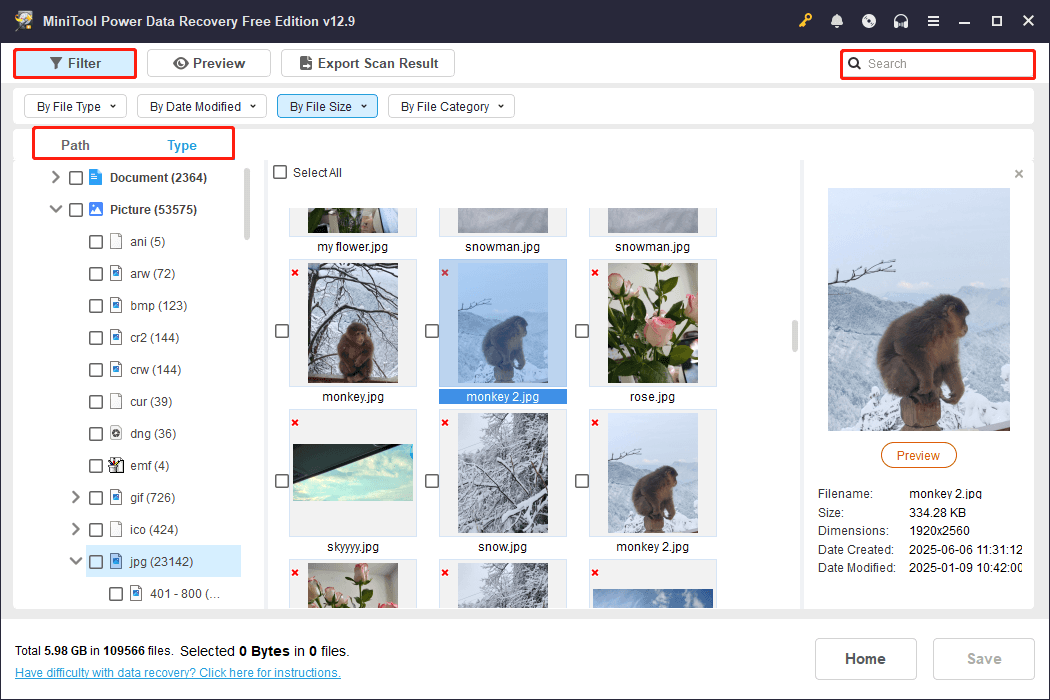
After scanning is completed, the software will display all recoverable files. You can locate files using multiple methods:
- Browse by folder structure (under Path)
- Filter by file type (under Type)
- Filter files by type, modification date, size, and category
- Search by file name keywords
Before recovery, double-click the files to preview to confirm file integrity.
Step 3. Save required files
Select the files you want to restore and click Save. In the new window, choose another hard drive to store the recovered files.
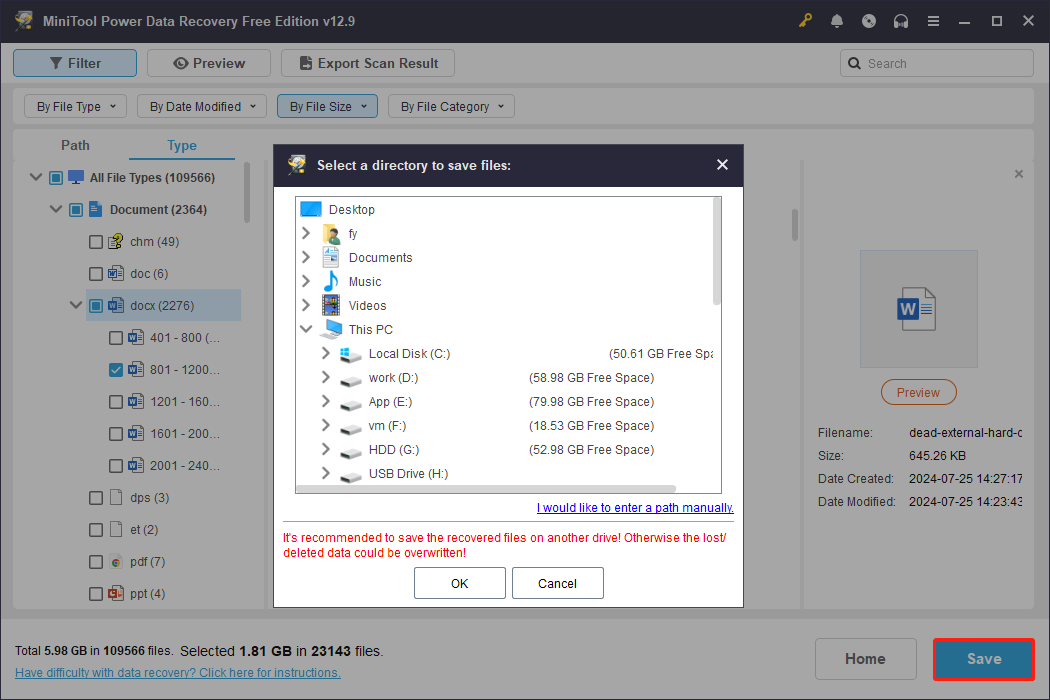
With the free edition of this data restore tool, you can recover 1GB of files for free. If the size of the files you want to recover exceeds this limit, you can upgrade to a full edition.
Fixing WD My Passport Not Showing Up
Now, your data is safe. You can feel free to fix your WD My Passport drive. We gather some easy solutions that are worth trying.
Fix 1: Add a Drive Letter for WD My Passport
When a WD My Passport is missing its drive letter, it will not show up in File Explorer. This will make you think that the drive is not recognized by your computer. You can just add back the drive letter, then you will be able to see that drive in File Explorer.
You can add a drive letter using the Windows built-in tool: Disk Management.
Step 1. Right-click the Start menu and select Disk Management from the WinX menu to open it.
Step 2. Find your WD My Passport drive, then right-click on it and select Change Drive Letter and Path.
Step 3. On the next interface, click the Add button to continue.
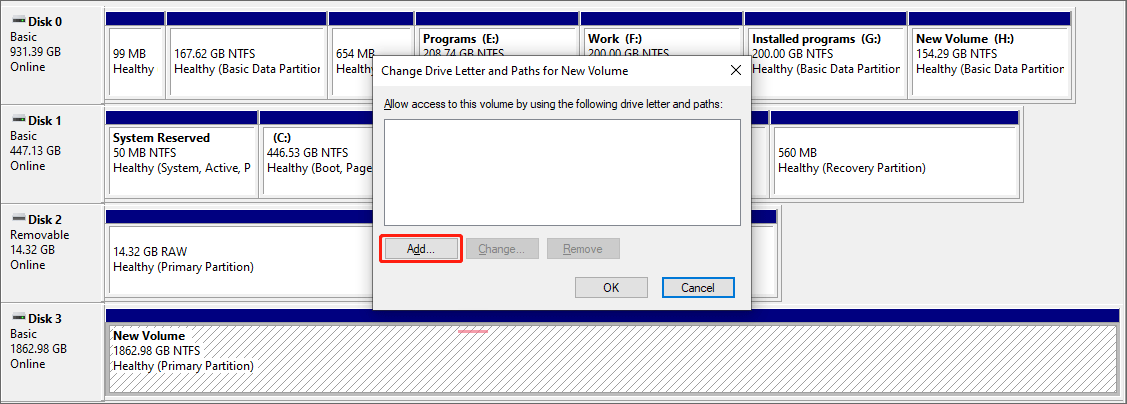
Step 4. Assign a drive letter for the drive.
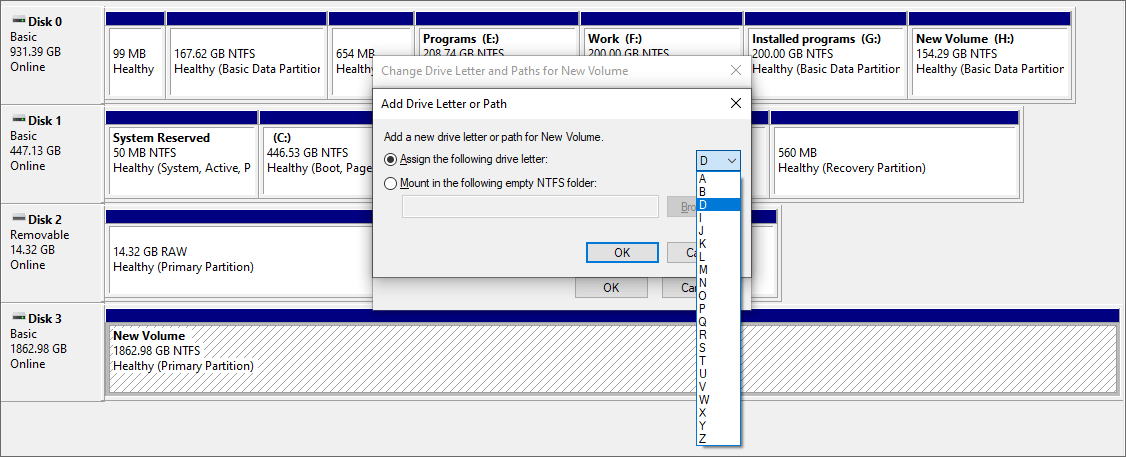
Step 5. Click OK to save the settings.
After these steps, you can go to File Explorer to see if the WD My Passport drive is visible.
Fix 2: Update the Device Driver for WD My Passport
In case that the device driver for WD My Passport is outdated, you can use the following steps to perform a driver update:
Step 1. Right-click the Start button and select Device Manager.
Step 2. Expand Disk drives.
Step 3. Find the WD My Passport drive and right-click it, then select Update driver.
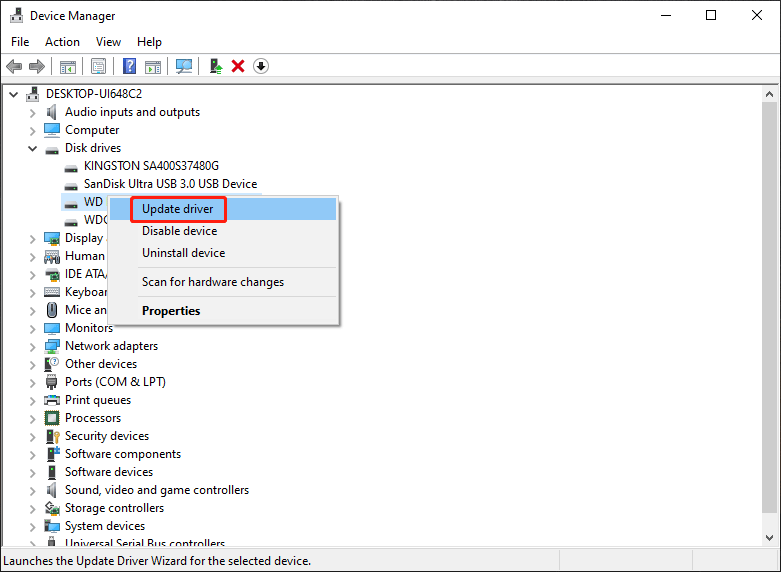
Step 4. Click Search automatically for drivers and follow the onscreen guides to update the driver to the latest version.
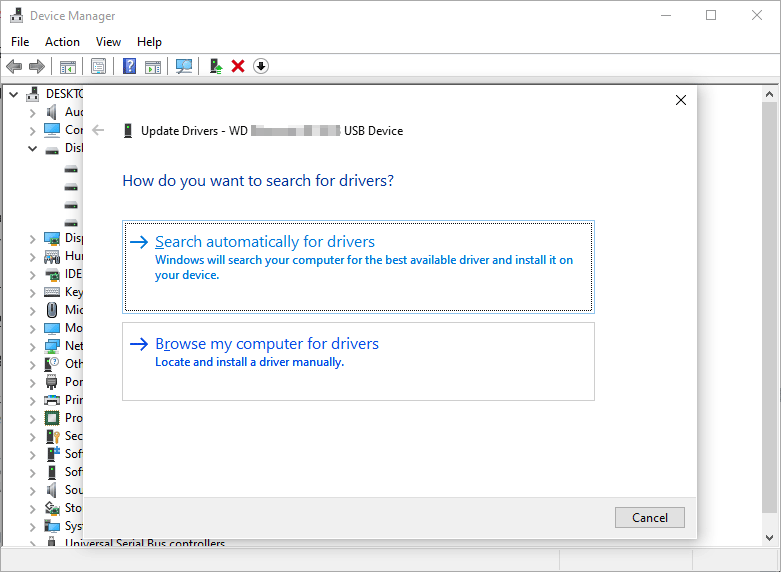
You can find more methods from this post: 4 ways to update device drivers on Windows.
Fix 3: Perform a Partition Recovery Using MiniTool Partition Wizard
If WD My Passport is not showing up or detected because the partitions on it are missing, you can use the Partition Recovery feature of MiniTool Partition Wizard to restore the missing partitions.
MiniTool Partition Wizard DemoClick to Download100%Clean & Safe
Step 1. Download and install MiniTool Partition Wizard on your PC.
Step 2. Launch the software to enter its main interface. Then, click Partition Recovery from the top toolbar to continue.
Step 3. Click Next on the pop-up interface.
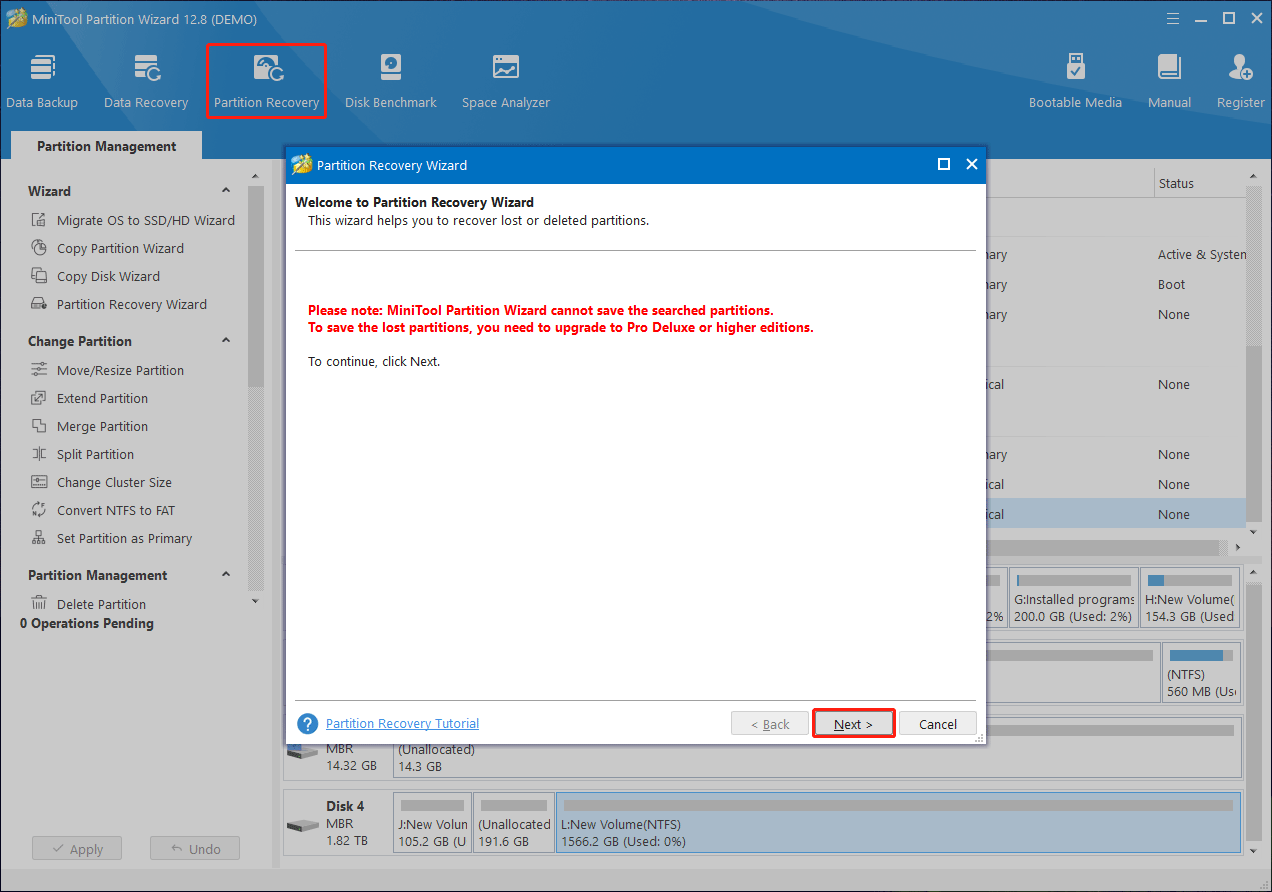
Step 4. On the next interface, select the disk you want to recover partitions from. Then, click the Next button to continue.
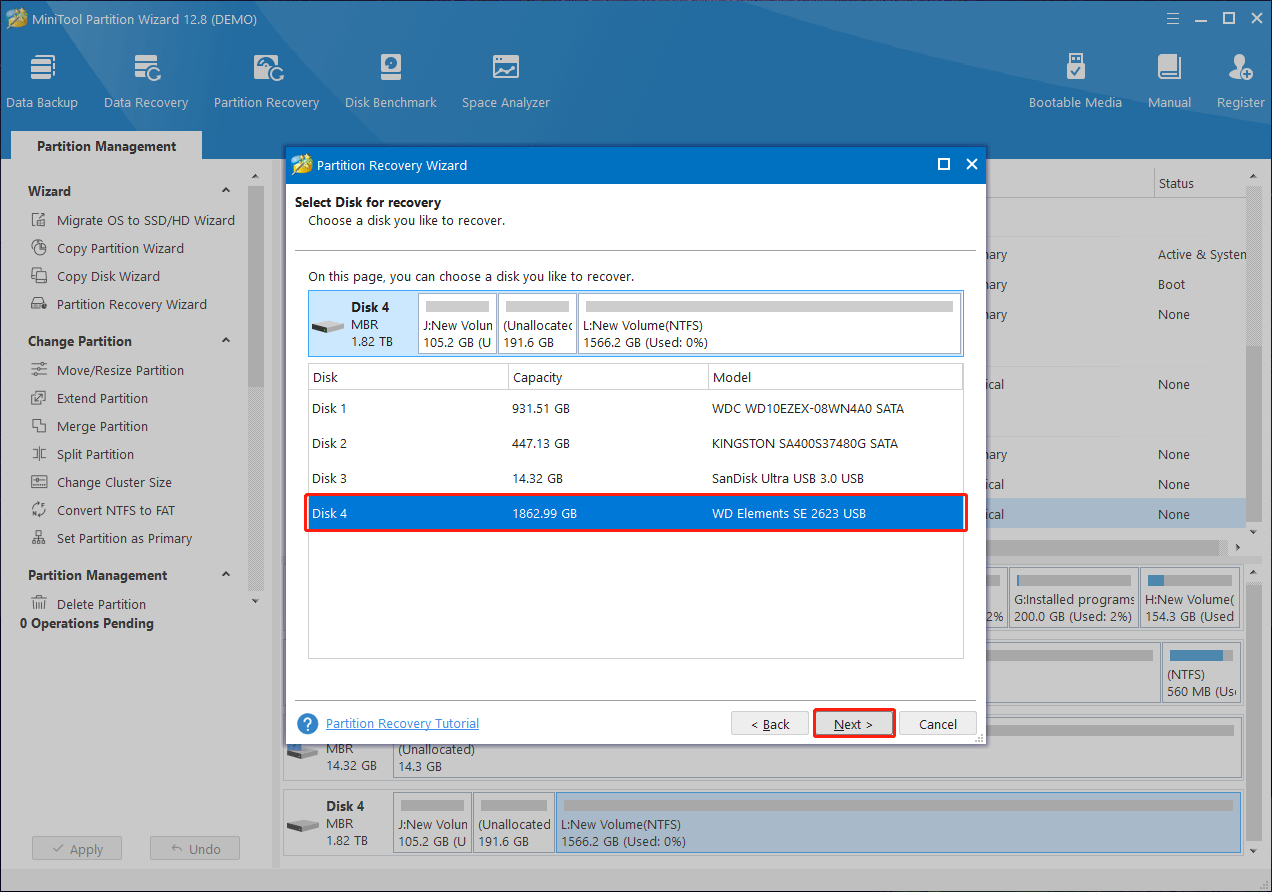
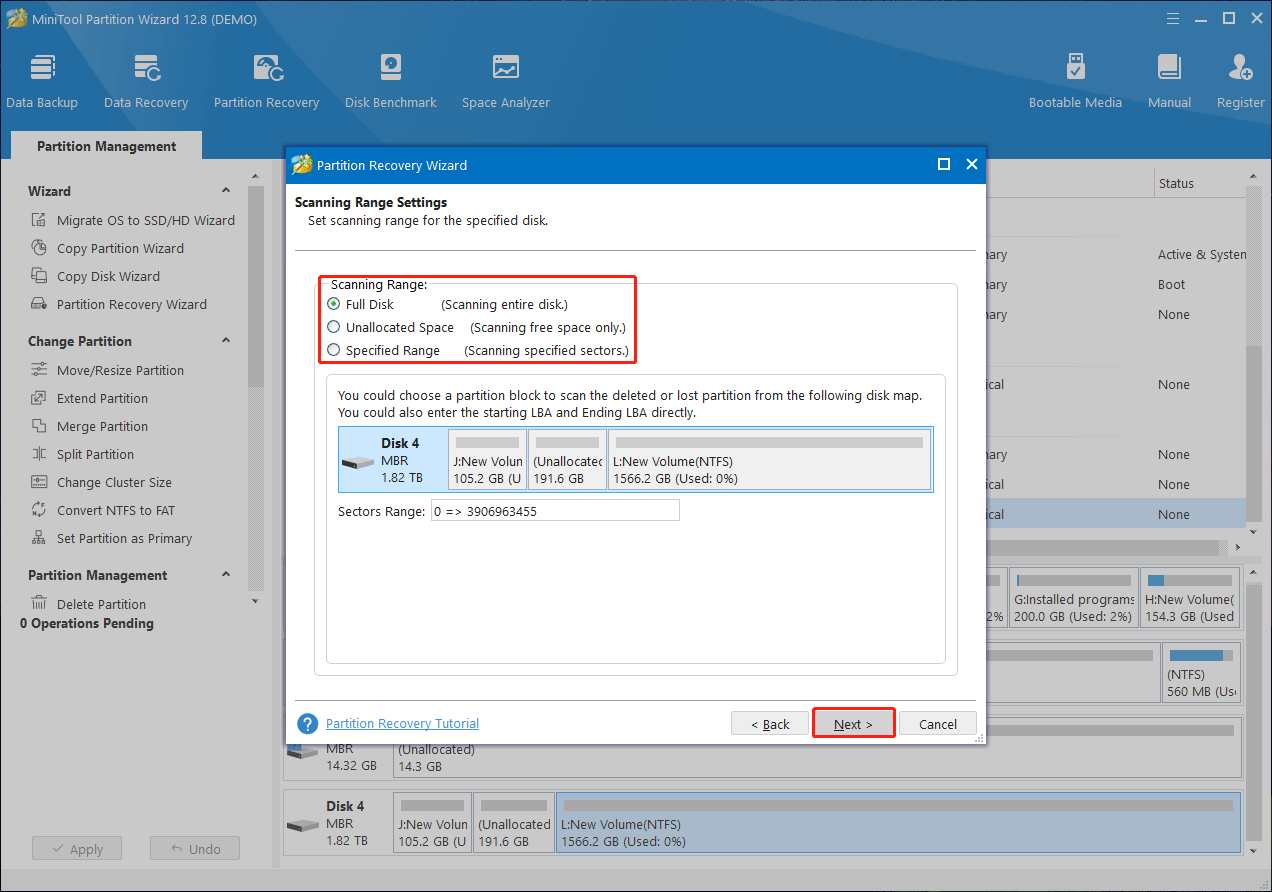
Step 5. You can see these three scanning ranges:
- Full Disk: Scan the entire disk.
- Unallocated Space: Scan free space only.
- Specified Range: Scan specified sectors.
You can select a scanning range according to your situation. Then, click Next.
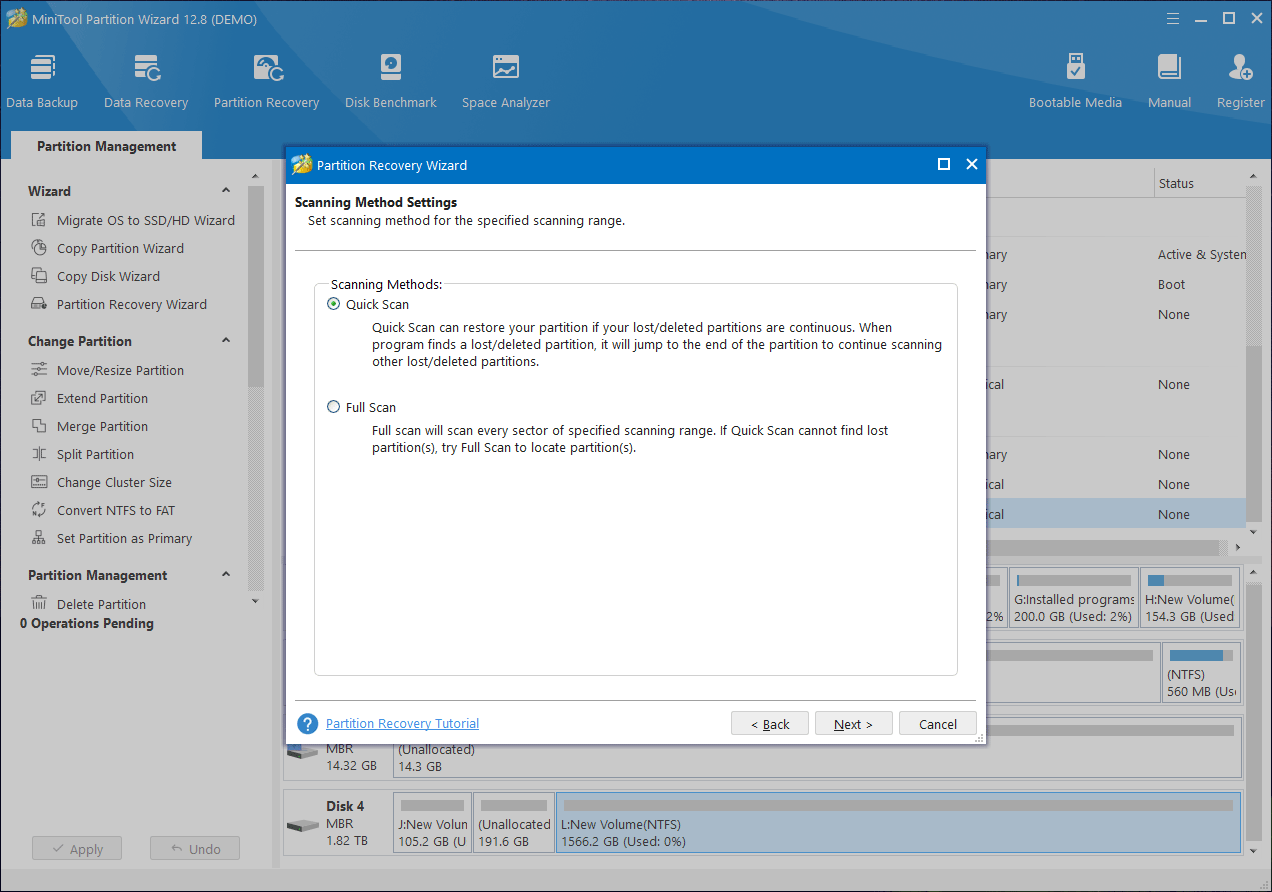
Step 6. When you see the following interface, select a scanning method and click the Next button to continue.
Step 7. When the scanning process ends, this software will show the partitions it can detect. The displayed partitions contain both existing and deleted ones. You need to select all your needed partitions in this step. Then click the Finish button.
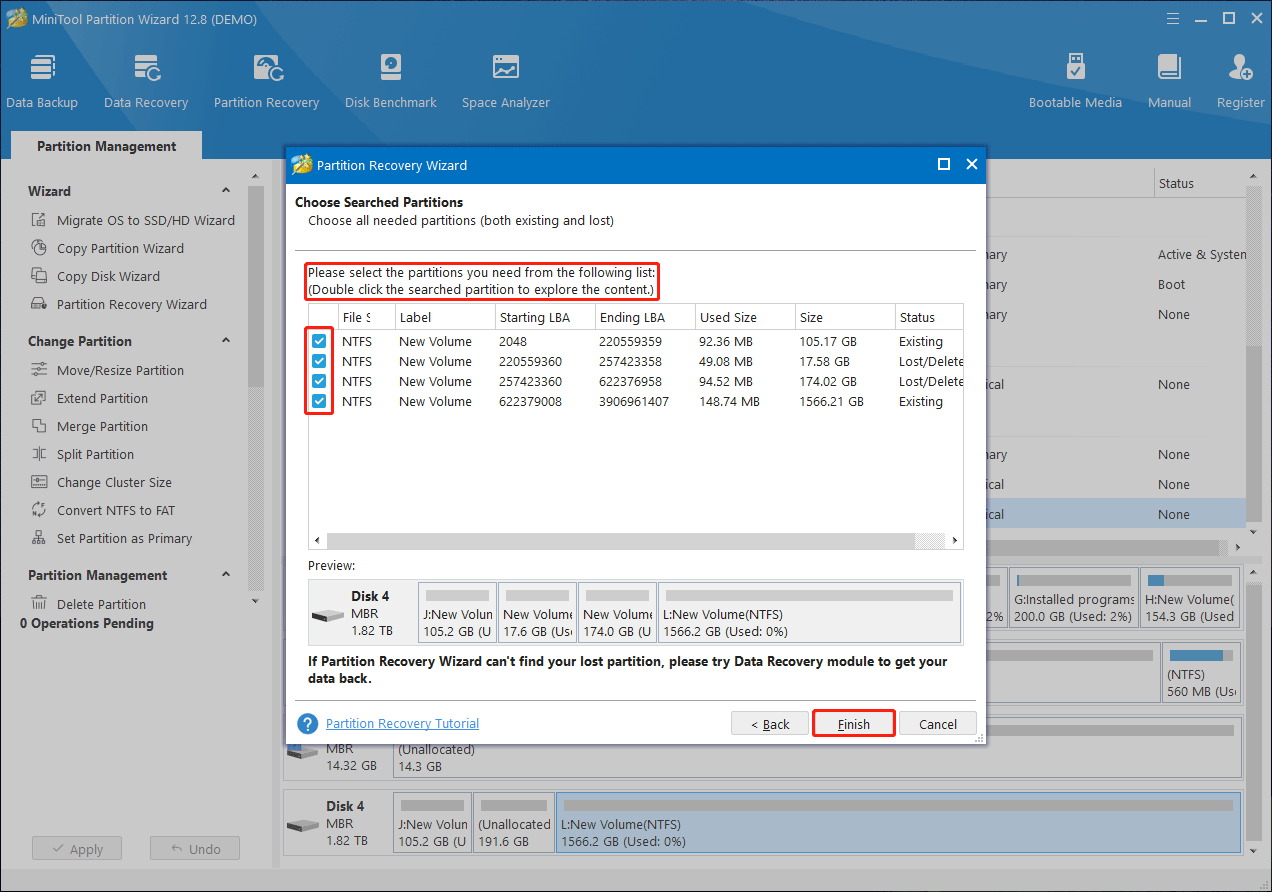
Step 8. Preview the partition recovery effect.
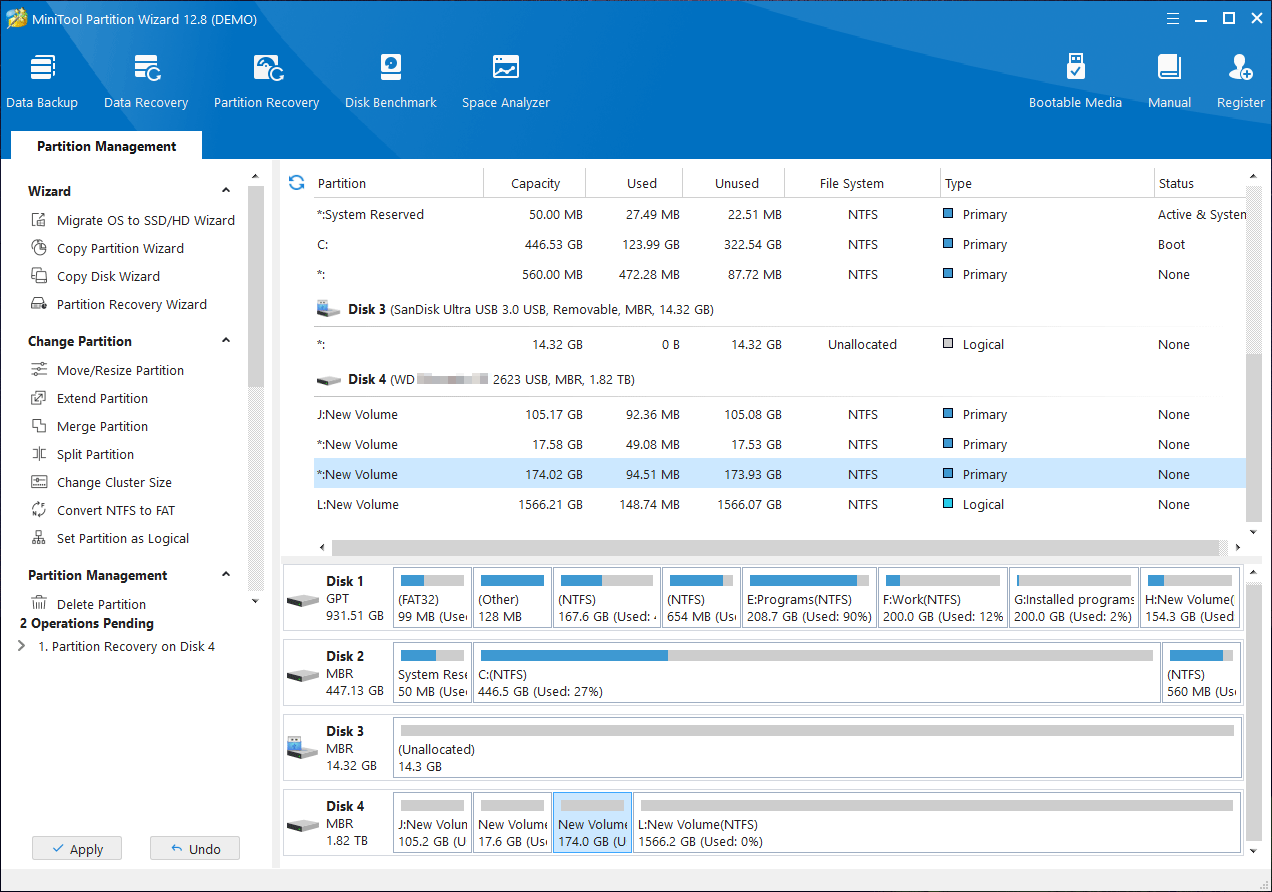
If you are satisfied with the recovery effect, you need to upgrade to a full edition to complete the process. After you get the license key, you can directly register the software on the above interface, which means you don’t need to scan the disk again.
Fix 4: Recreate Partitions on WD My Passport
To make a WD My Passport drive show up in File Explorer, you need to create partitions on it if it doesn’t have any.
You can partition a hard drive using Disk Management, MiniTool Partition Wizard, or Command Prompt. Now, find these ways from this article: How to Partition a Hard Drive for Use?
Fix 5: Run CHKDSK
If the file system of the drive is damaged, you can run chkdsk to fix it.
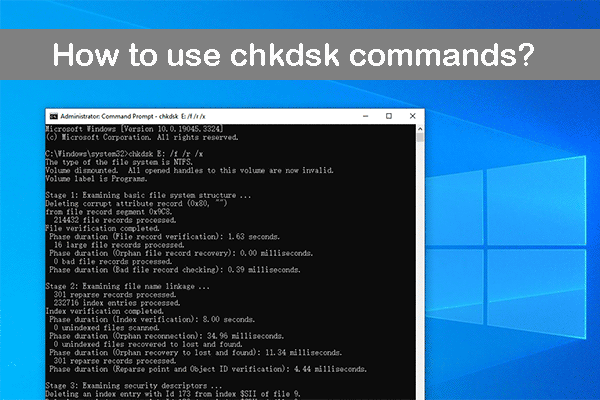
Step 1. Run Command Prompt as administrator.
Step 2. Run chkdsk /f /r *: in Command Prompt. In this step, * stands for the drive letter of the WD My Passport.
Chkdsk can find and automatically fix the found errors. You should wait until the process ends.
Fix 6: Clean WD My Passport
If your WD My Passport is not showing in either File Explorer or Disk Management, you can use DiskPart to verify whether the system detects the drive at a lower level.
If the disk is listed in DiskPart, you can use the clean command to remove corrupted partition metadata that could prevent Windows from recognizing the drive properly.
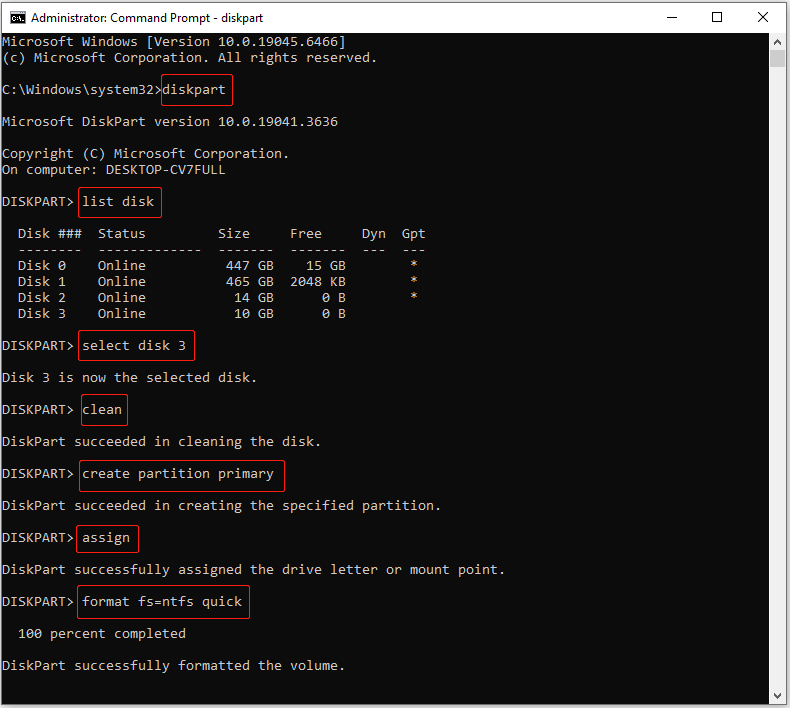
How to clean your WD My Passport disk?
Step 1. Type cmd in Windows search. Then right-click Command Prompt and choose Run as administrator.
Step 2. Type the following commands one by one, and press Enter after each:
- diskpart
- list disk
- select disk # (replace # with the actual number of your WD disk)
- clean
- create partition primary
- assign
- format fs=ntfs quick (you can replace ntfs with another file system, such as exfat or fat32)
Back up Your Data on the WD My Passport Drive
No matter which brand of hard drive you use, data loss may occur for various reasons. To safeguard your files on the drive, it’s advisable to regularly back up your data using professional Windows backup software like MiniTool ShadowMaker.
With this free backup software, you can securely back up files, folders, partitions, disks, and systems to another drive, ensuring the protection of your data and system. Refer to the user manual to learn how to use it for backing up and restoring your files.
MiniTool ShadowMaker TrialClick to Download100%Clean & Safe
Bottom Line
It is a stressful experience when your WD My Passport is not showing up or detected, but with the right tools and solutions, you can recover your data and fix the problem.
Remember to use MiniTool Power Data Recovery for data recovery, follow the suggested fixes to address the issue, and implement regular backups with MiniTool ShadowMaker to ensure the safety of your valuable data. By taking these steps, you can maintain the reliability and functionality of your WD My Passport storage device.
Besides, if you encounter issues while using MiniTool software, you can let us know via [email protected].
About The Author

Position: Columnist
Shirley holds a bachelor’s degree in English and has been an editor at the MiniTool Team for many years. She specializes in IT-related content, with a focus on data recovery, file backup, disk management, and other technical topics. She is committed to delivering clear, accurate, and practical solutions to help users resolve common computer issues.
User Comments :