
Contacts Disappeared from iPhone!
iPhone contacts may disappear due to accidental deletion, iOS updates, syncing issues with iCloud or other accounts, or system errors. Fortunately, missing contacts are not always permanently lost. Depending on your situation, you may be able to recover them from iCloud, iTunes backups, or recover them directly from your iPhone.
In this guide, we will explain why contacts disappear from iPhone and show you several effective methods to retrieve deleted phone numbers iPhone.
- Restore iPhone contacts from iCloud
- Recover iPhone contacts from a backup file
- Rescue iPhone contacts with PhoneRescue for iOS
Solution 1: Restore iPhone Contacts from iCloud
It is quite possible that you deleted contacts on your iPhone by mistake. As long as you are sure that the deleted iPhone contacts are included in the previous iCloud backup file, you can go to the iCloud official site to restore contacts from iCloud.
Here is a step-by-step guide:
1. Open iCloud.com, sign in with your Apple ID and password, and click Settings at the lower-right side to enter the settings interface.
2. Click Restore Contacts from the lower-left side Advanced section to continue.
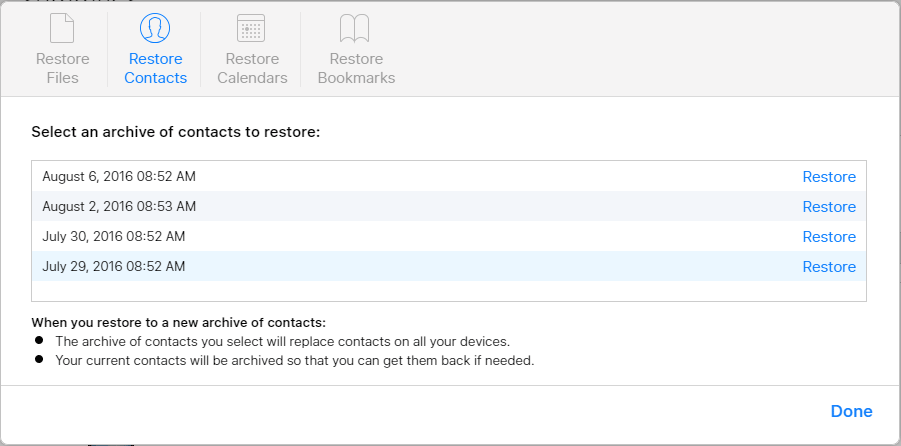
3. You will get a pop-up window as below. All available iCloud versions will be listed in this window with their archived date and time. Here, all you need to do is select the version that contains the contacts you want and click Restore to start the restoring process.
4. Follow the wizard to complete the restoring process.
5. Press Done when all done.
You need to know that when you restore your iPhone contacts from an earlier version, the version that you select will replace the existing contacts on all your iOS devices. At the same time, your current contacts will be archived. So, you are allowed to reverse the restore by repeating the above four steps.
Solution 2: Recover iPhone Contacts from a Backup File
Frankly speaking, this method is applicable if you lost all data on your iPhone. Otherwise, the backup files will replace the existing data on your iPhone. You can read this post: Restore your iPhone from a backup to get the specific steps.
Obviously, the above two methods can assist you in getting your deleted contacts back. But there are some limitations: both of them don’t give you the right to choose the ones you want to recover. However, sometimes you don’t need to recover all contacts in the backup.
In addition, when you restore your iPhone contacts from an iTunes or iCloud backup file, the selected iTunes or iCloud backup will replace all the current data on your iPhone, which is really unnecessary most of the time unless you lost all your data.
You might be wondering: Is there another method that can break these limitations?
The answer is YES!

Solution 3: Rescue iPhone Contacts with Data Recovery Software
Tools such as PhoneRescue for iOS allow you to selectively recover only the contacts you need from iTunes or iCloud backups without replacing your current iPhone data.
To save recovered contacts to your iPhone, connect your device to your computer.
Option 1. Restore Only Contacts from an iTunes Backup
If you need to recover deleted contacts from an iTunes backup but do not want to restore the entire iPhone, you can use PhoneRescue for iOS to extract only the contacts from an iTunes backup.
PhoneRescue for iOS also supports comparing the contacts found in the backup with the contacts currently stored on your iPhone, helping you identify missing or different entries before saving them.
Step 1. Choose the backup recovery mode
Download, install, and launch PhoneRescue for iOS on your computer.
Phone Rescue for iOS (Windows)Click to Download100%Clean & Safe
Phone Rescue for iOS (Mac)Click to Download100%Clean & Safe
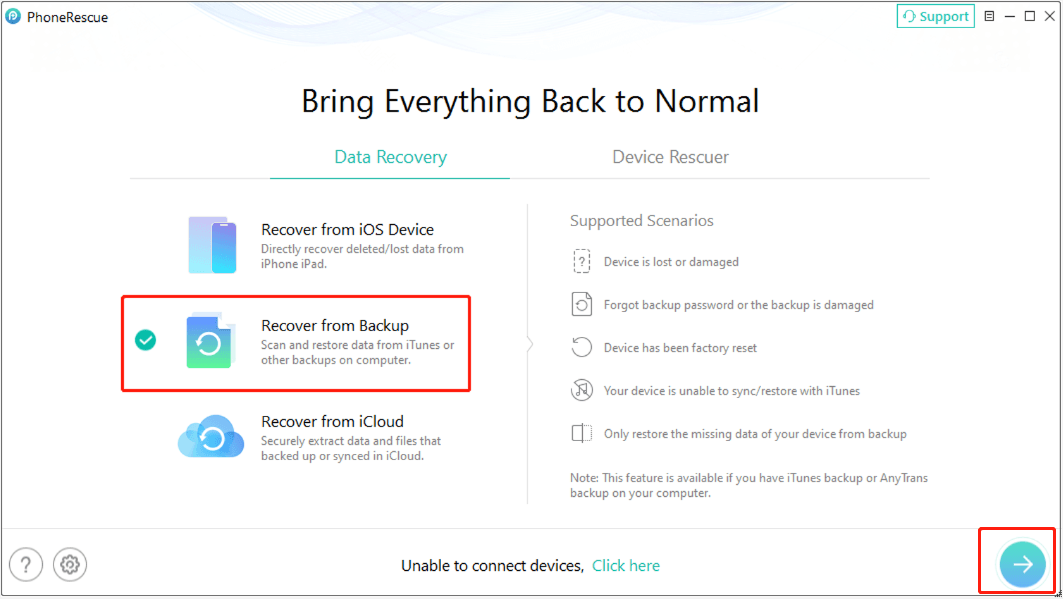
From the main interface, select Recover from Backup and click the Arrow button to continue.
Step 2. Select an iTunes backup to analyze
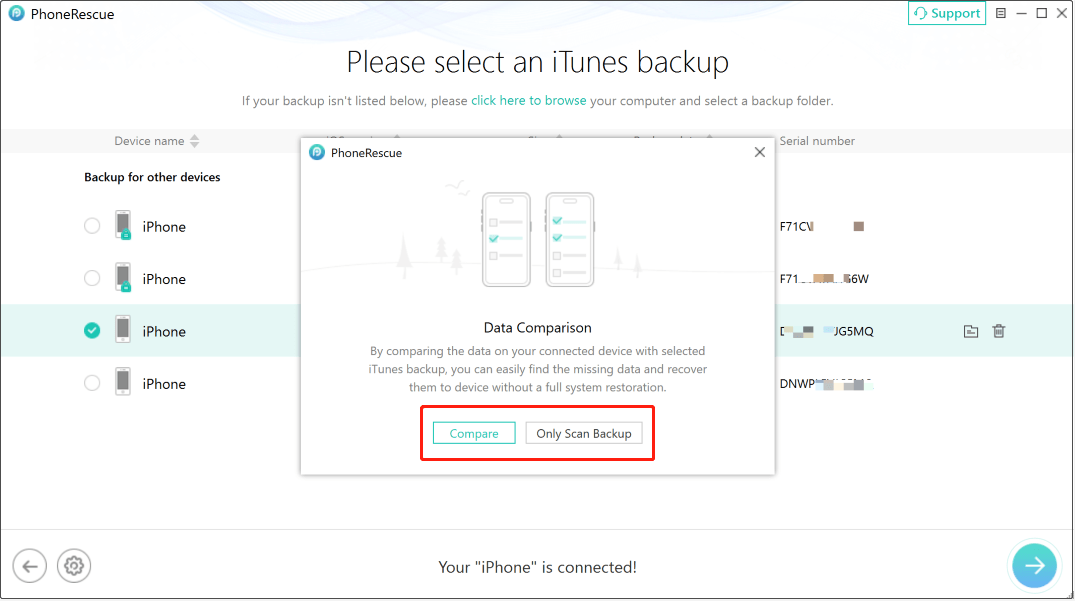
PhoneRescue will automatically detect available iTunes backups stored on your computer.
Select the backup file that may contain the deleted contacts according to the backup date, then click the Arrow button.
When prompted, choose Compare or Only Scan Backup.
Step 3. Select Contacts and scan the backup
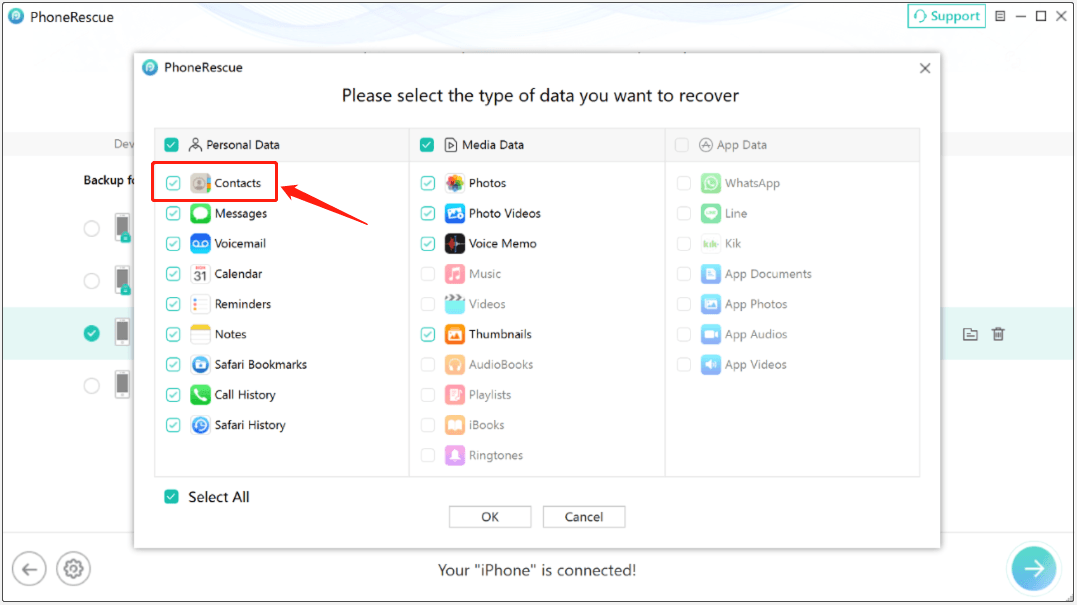
In the data selection window, choose Contacts and click OK.
PhoneRescue will scan the selected iTunes backup and display the contacts available for recovery.
Step 4. Recover selected contacts
After scanning, choose the contacts you want to restore and click the option to save them to your phone or computer.
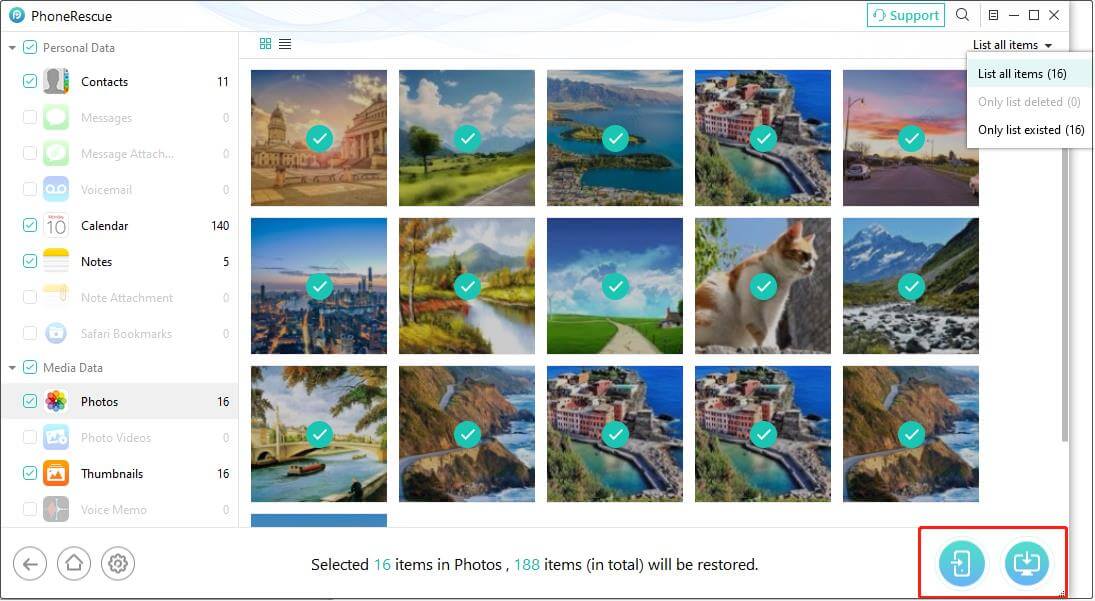
The selected contacts will be exported and saved to your computer without replacing all existing iPhone data.
Option 2. Restore Only Contacts from an iCloud Backup
If your deleted contacts were included in an iCloud backup, you can also use PhoneRescue for iOS to extract contacts from the backup without erasing your iPhone.
Step 1. Select iCloud recovery mode
Launch PhoneRescue for iOS and choose Recover from iCloud from the main interface.
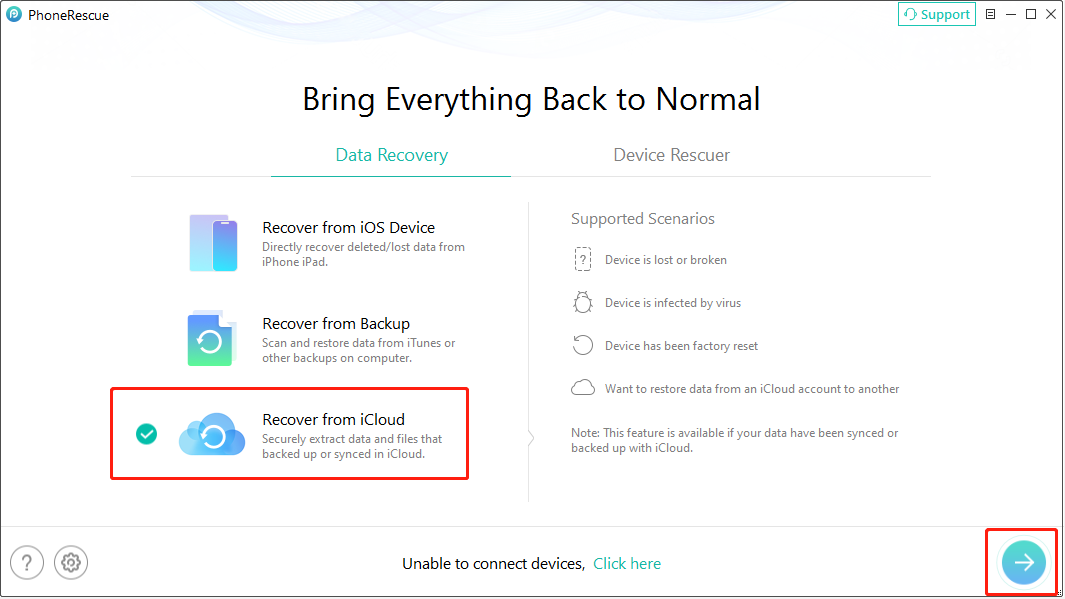
Step 2. Access and scan an iCloud backup
Sign in with the Apple ID associated with your iCloud backup.
Select the iCloud Backup category and choose the backup that may contain your missing contacts.
After downloading the backup information, scan the backup file.
Step 3. Recover contacts
Select Contacts from the available data types and start scanning.
Once the scan is complete, select the contacts you want to restore and save them.
Option 3. Recover Permanently Deleted Contacts from Your iPhone
If you permanently deleted contacts and do not have an available iTunes or iCloud backup, you can try recovering them directly from your iPhone.
PhoneRescue for iOS can scan your iPhone storage and search for recoverable contact information that has not been overwritten by new data.
Supported iPhone models: iPhone 3G to iPhone 17 series.
Step 1. Connect your iPhone and select recovery mode
Connect your iPhone to your computer using a USB cable.
Open PhoneRescue for iOS and select Recover from iOS Device from the main interface.
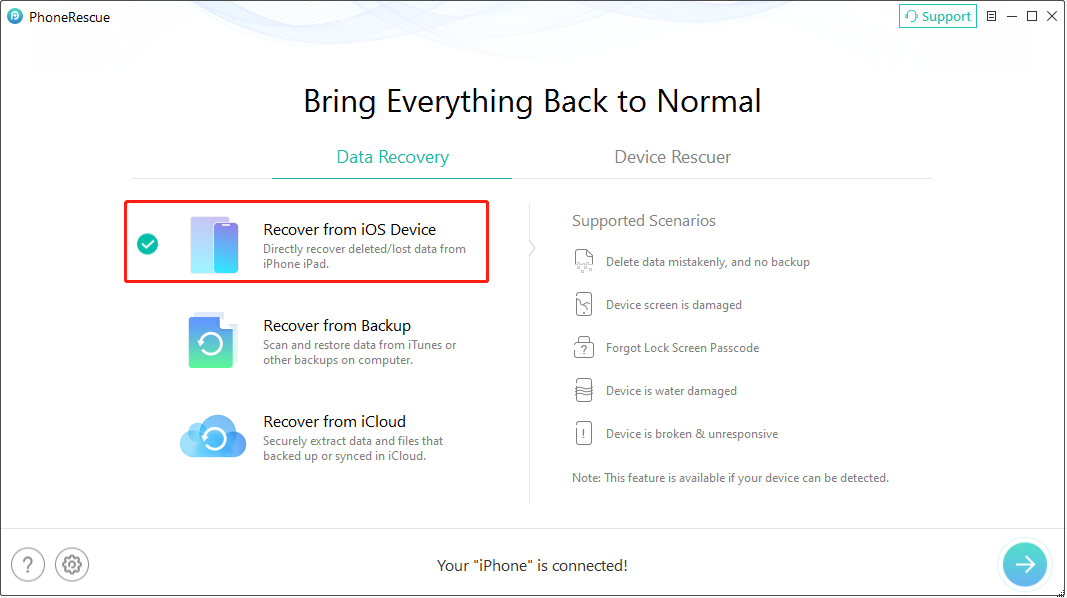
Step 2. Select Contacts to scan
In the data selection window, choose Contacts and continue.
PhoneRescue for iOS will analyze your device and scan for deleted or lost contact information.
Step 3. Restore contacts
After the scan finishes, review the recovered contacts and select the entries you want to restore.
Finally, save the recovered contacts to your computer or iPhone.
Some Useful Suggestions
From the above introduction, you can notice the importance of making and updating backup files. In general, backup files are used to restore the original data after its loss. Data overwriting is happening all the time.
If you can’t recover the lost data from your iPhone by using third-party software, you still can recover it through a previous backup file. For instance, you can recover data from a lost iPhone as long as there is/are available backup file(s).
There are many iPhone data backup solutions at present. For iPhone contacts, iCloud backup and iTunes backup are the two most commonly used methods. You can also use a cloud service to back up your contacts. Google Contacts is a good choice.
Backup technology has really improved nowadays, and you can rely on it to add a layer of security to your iPhone data.
Bottom Line
This post tells you how to restore contacts on iPhone in 3 different ways. You can just select an available one according to your actual situation.
To improve the chances of successful recovery, it is recommended to act as soon as possible after losing important contacts and avoid creating new data that may overwrite the deleted information.
How to Get Deleted Contacts Back on iPhone FAQ
2. Connect your iPhone to your computer via a USB cable.
3. Open the software and choose the target scan option.
4. Select your needed contacts and recover them.
About The Author

Position: Columnist
Shirley holds a bachelor’s degree in English and has been an editor at the MiniTool Team for many years. She specializes in IT-related content, with a focus on data recovery, file backup, disk management, and other technical topics. She is committed to delivering clear, accurate, and practical solutions to help users resolve common computer issues.
User Comments :