
Part 1: iPhone Stuck in Recovery Mode!
As you know, putting an iPhone in recovery mode can resolve a lot of problems.
For instance, if you can’t update or restore your iPhone, you can put the device in recovery mode and then restore or update it with iTunes; or, if you forgot the password for your iPhone, you can also choose to use recovery mode to restore the device to unlock it.
However, some of you have experienced your iPhone getting stuck in recovery mode while trying to solve problems.
When your iPhone stuck in recovery mode, the screen will appear, with an iTunes mark, a white arrow and a cable. You will be unable to turn it on, let alone use it.
This problem can be caused by several factors, including a failed iOS update or restore, software errors, or other system issues.
If your iPhone is stuck in recovery mode, don’t rush to restore it to factory settings. Instead, try the less destructive solutions below first. If the problem persists, you can use an iOS repair tool or consider restoring the device after evaluating your data recovery options.
Part 2: Get iPhone out of Recovery Mode
Solution 1. Force Restart Your iPhone
The most effective way to get your iPhone out of Recovery Mode is to restore it through DFU mode. How to enter DFU mode? See the following steps:
Step 1: Just keep your iPhone connected to the computer and open the iTunes application.
Step 2: Enter DFU mode with these steps:
On an iPhone 6s/6s Plus and earlier device:
Press and hold the Sleep/Wake and Home buttons at the same time for about 8seconds.
Then release the Sleep/Wake button but continue to press the Home button until iTunes pops up an interface that says “iTunes has detected an iPhone in recovery mode. You must restore this iPhone before it can be used with iTunes”.
Release the Home button after that.
On an iPhone 7 or iPhone 7 Plus:
Press and hold the Sleep/Wake and Volume Down buttons at the same time for about 8 seconds.
Then release the Sleep/Wake button but continue to press the Volume button until a pop-out interface from the iTunes application says “iTunes has detected an iPhone in recovery mode. You must restore this iPhone before it can be used with iTunes”.
Release the Volume Down button.
On an iPhone 8, iPhone 8 Plus, and iPhone X:
Quickly press the Volume Up button.
Quickly press the Volume Down button.
Then, you need to hold down the Side button until the screen goes black. After that, please hold down both the Side button and the Volume Down button at the same time.
5 seconds later, you need to release the Side button but continue to hold down the Volume Down button.
Nothing will be displayed on the iPhone screen when it is in DFU mode. If you fail to enter DFU mode, please try these steps again.
Step 3: Your iPhone screen will be black if it enters DFU mode successfully. Click OK on the pop-up interface, and press Restore iPhone on the iTunes application interface. Then, iTunes will restore your iPhone to factory settings and download and install the latest iOS version to your iPhone. And you can use it as a new iPhone.

Solution 2. Update Your iPhone Using a Computer
If a force restart does not work, try updating iOS through a computer. An iOS update may resolve a software problem without erasing your personal data.
Step 1. Connect your iPhone to a Mac or Windows PC using a compatible USB cable.
Step 2. Open Finder on a Mac, or open the Apple Devices app on a Windows PC.
Step 3. Locate your iPhone. If the computer detects a device in recovery mode, you may see an option to update or restore it.
Step 4. Choose Update (NOT Restore) if it is available. This attempts to reinstall iOS while preserving your personal data. Wait for the process to finish, keeping your iPhone connected to the computer.
Solution 3. Use PhoneRescue for iOS to Repair the System
If your iPhone remains stuck in recovery mode after a force restart or an attempted iOS update, you can try PhoneRescue for iOS. It includes a Repair iOS System feature designed to address certain iOS system problems, including recovery mode loops.
PhoneRescue offers repair modes with different data-handling behavior. Standard Mode is designed to fix common iOS issues while keeping the original data, whereas Advanced Mode erases all data on the device.
Phone Rescue for iOS (Windows)Click to Download100%Clean & Safe
Phone Rescue for iOS (Mac)Click to Download100%Clean & Safe
Follow these steps to try repairing your iPhone:
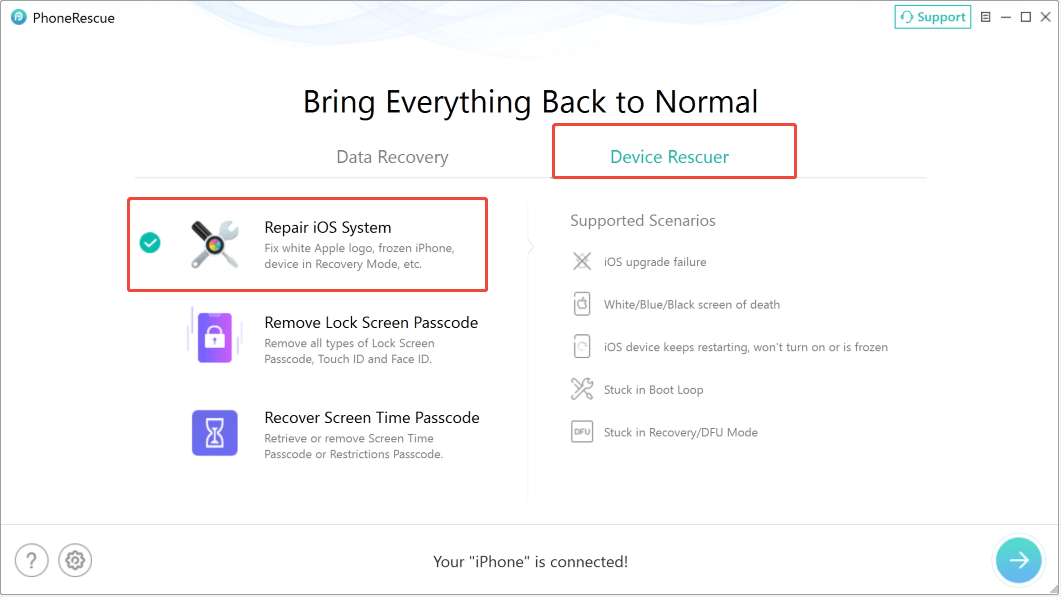
Step 1. Launch PhoneRescue on your computer, go to the Device Rescuer section, and choose the Repair iOS System mode.
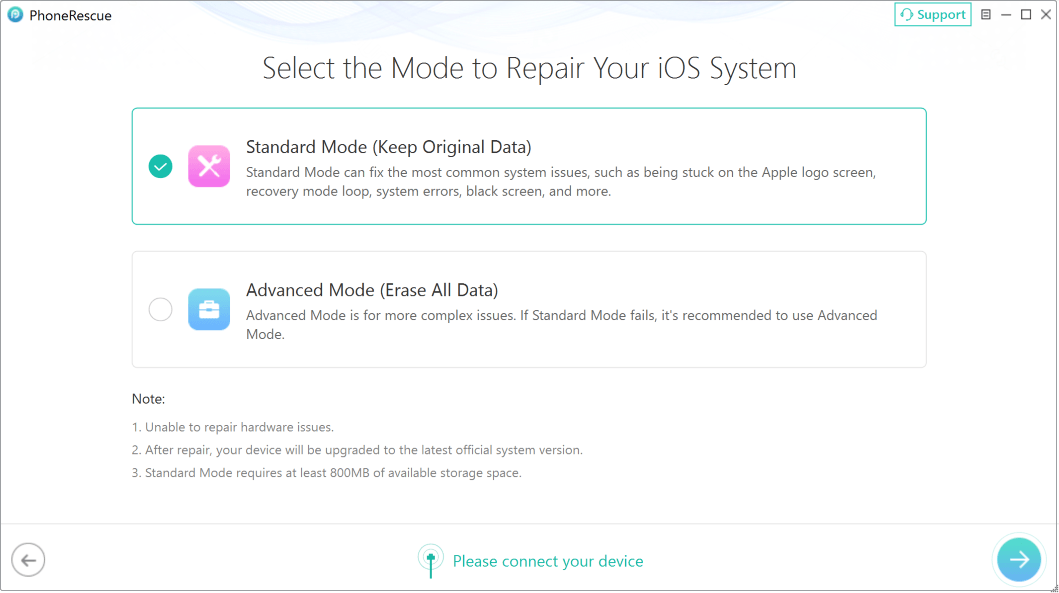
Step 2. Connect your iPhone to the computer, and you will see two options: Standard Mode and Advanced Mode. Select the former first.
Step 3. Follow the on-screen interface to put your device into Recovery Mode.
Step 4. Click the Download button to download the firmware for your iOS device. After that, PhoneRescue will start repairing your iOS automatically.
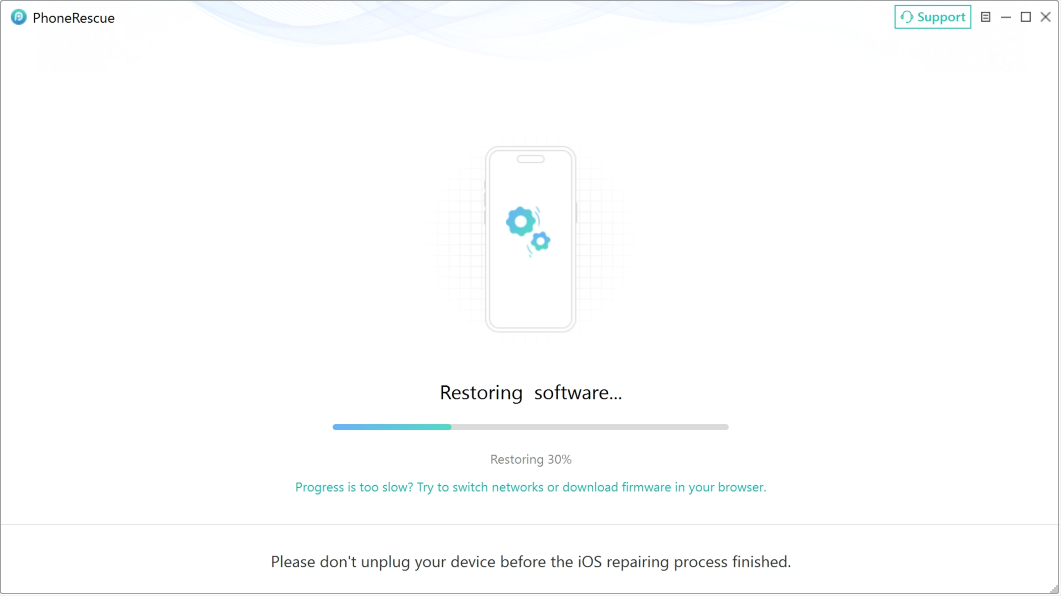
Wait for PhoneRescue to complete the repair, then check whether your iPhone can start normally.
Part 3: Recover Data from iPhone in Recovery Mode
When an iPhone gets stuck in recovery mode, you are unable to access the photos, messages, contacts, and other files stored on it. For data security, it is important to consider how you will recover your data before performing any operation that may erase it.
When iPhone data recovery is mentioned, your first thought probably is restoring the iPhone from an iTunes or iCloud backup, which is suggested by Apple’s official site. However, this method just restores all iTunes or iCloud backup data to your device without selection.
To selectively restore backup files or restore files from the iPhone directly, use PhoneRescue for iOS. This iPhone data recovery software provides three data recovery options: Recover from iOS Device, Recover from Backup, and Recover from iCloud.
This software is designed to recover all your lost data from iPhone, iPad, and iPod Touch. The recoverable data are various, including photos, videos, messages, contacts, and more.
Phone Rescue for iOS (Windows)Click to Download100%Clean & Safe
Phone Rescue for iOS (Mac)Click to Download100%Clean & Safe
Option 1. Recover Data Directly from Your iPhone
The Recover from iOS Device mode is intended to recover data directly from an iOS device that can be detected by the software.
Step 1. Connect your iPhone to the computer using a USB cable and make sure it is detected.
Step 2. Open PhoneRescue and select Recover from iOS Device.
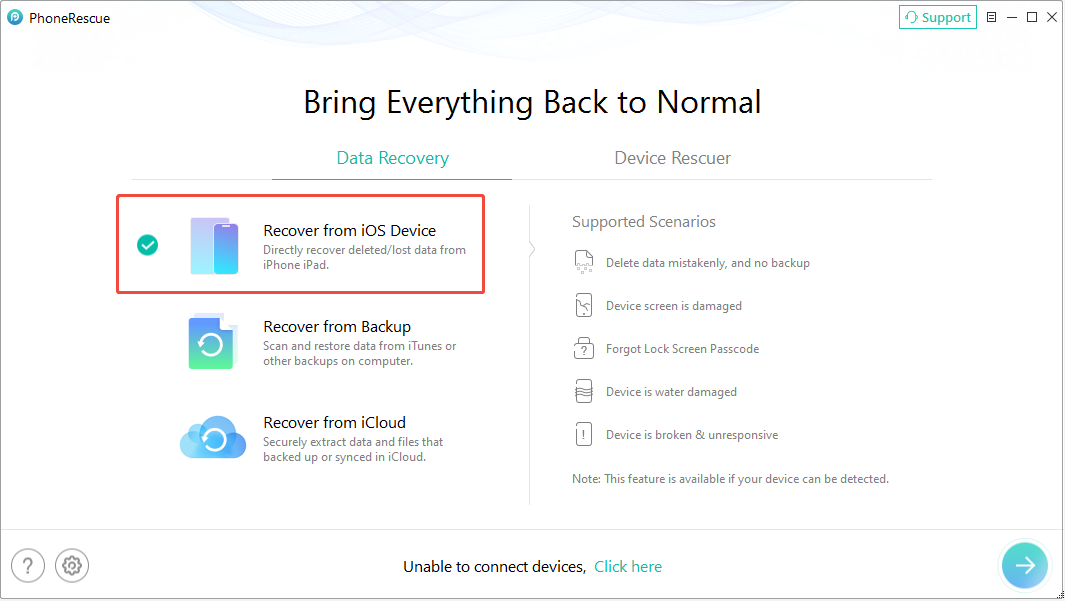
Step 3. Select the data types you want to scan and continue.
Step 4. After scanning, browse the available data and preview the recoverable items. Finally, select the files you need and follow the instructions to recover them to your computer or device.
Option 2. Recover Data from an iTunes Backup
If you previously backed up your iPhone to a computer using iTunes, you can try recovering data from that backup with PhoneRescue for iOS.
It allows you to preview and select particular files rather than restoring the entire backup to your iPhone.
Step 1. On the home page of the software, choose Recover from Backup.
Step 2. Choose the iTunes backup file that may contain the required files and scan it.
Step 3. Select the type of data you want to recover and continue.
Step 4. Once the scanning process is completed, expand each category to view the found files. You can also search for specific files by typing the keywords in the search box.
Step 5. Select the files you want to restore and save them to your device.

Option 3. Recover Data from iCloud
PhoneRescue also allows you to scan iCloud backups and restore the required items instead of replacing all the current data on your iPhone.
Step 1. Select the Recover from iCloud module to continue.
Step 2. Follow the instructions to sign in to your iCloud account.
Step 3. Select the relevant iCloud data source or backup and scan it. After that, choose the categories you want to retrieve.
Step 4. Preview the results and recover the files you want.
Part 4: Bonus Tips
Until now, I am sure that you have already known the importance of making iTunes and iCloud backups and updating them regularly(if you don’t know how to use iTunes and iCloud to back up your iPhone, please see the Apple official guide: How to back up your iPhone, iPad, and iPod touch).
Yes, with iTunes and iCloud backup, you can not only retrieve data from your iPhone stuck in recovery mode, but also have the chance to get your iPhone data back in case your device is ever replaced, lost, or damaged.
Part 5: Bottom Line
An iPhone stuck in recovery mode may be caused by an iOS update failure, a system error, or another software problem. You can try force restarting the device, updating iOS through a computer, or using PhoneRescue for iOS to repair the system.
If you need to recover data from an iPhone stuck in recovery mode, PhoneRescue for iOS offers three recovery options. Choose the method based on which backups or data sources are available.
About The Author

Position: Columnist
Shirley holds a bachelor’s degree in English and has been an editor at the MiniTool Team for many years. She specializes in IT-related content, with a focus on data recovery, file backup, disk management, and other technical topics. She is committed to delivering clear, accurate, and practical solutions to help users resolve common computer issues.
User Comments :