
Safari Bookmarks on iPad Disappeared!
Today, let’s start from the following issue:
Help please, how can I restore my Wife’s iPad, particularly the Bookmarks, I have somehow deleted her bookmarks, while I was using it because my MacBook Pro had gone wrong, I am in real deep Doo Doo! Hoping someone can help, else I’m DEAD!discussions.apple.com
If you like surfing the Internet, the upper issue is very easy to be understood. iPad is an iOS-based line of tablet computers designed and marketed by Apple Inc. and Safari is the default browser on it. Like other ordinary web browsers, Safari also has a bookmarking feature which allows you to tag of certain sites for reading later.
In general, these websites in bookmarks are important to you. But accidents happen every day. The Safari bookmarks may just disappear suddenly; or you delete them by accident; or after restoring iPad to factory settings, you discover that all Safari bookmarks are thrown away.
At that moment, you are certain eager to find a way to restore Safari bookmarks on iPad. So, next I will introduce three solutions to solve this issue accordingly.
Solutions to Restore Safari Bookmarks on iPad
Solution 1: Reboot Your iPad
This is a very simple solution, and please just follow these steps:
Step 1: Just press and hold the Top (or Side) button until the slider appears.
Step 2: Drag the slider to turn your device completely off.
Step 3: After the iPad turns off, press and hold the Top (or Side) button again until you see the Apple logo.
If you still can’t find Safari bookmarks after rebooting iPad, you can try to reset all settings on iPad. Go to Settings > General > Reset, then choose Reset All Settings. Don’t worry, all your preferences and settings are reset, while all media and data are kept well.
This solution can solve the sudden disappearance or unrecognized fault of Safari bookmarks on condition that you didn’t delete them really.
But, in most situations, the issue is not so simple. As long as you are sure that Safari Bookmarks are deleted from your iPad, you are unable to recover them by this way.
Solution 2: Restore Safari Bookmarks on iPad from iCloud.com
You are allowed to restore the Safari bookmarks from an earlier version that was automatically archived in iCloud. Just do as the following:
Step 1. Sign in iCloud.com, and click Setting from the home interface.
Step 2. Click Restore Bookmarks in the left-lower side Advanced section.
Step 3. All available versions are listed by the date and time they were archived. Select the version you want to restore, and click Restore to start restoring process.
At last, the restored bookmarks will appear on your iPad (In fact, they will appear on all your devices set up for iCloud Safari).
This solution is based on the premise that you have set iCloud to archive your Safari bookmarks automatically.
Is it the best recovery solution for you?
Not really.
Recovering Safari bookmarks from iCloud.com doesn’t allow you to select the ones you want to restore. Besides, there may be another bad situation: you haven’t set iCloud automatic archiving for Safari bookmarks.
Then, you may be searching for another ideal solution to solve this problem. So, it’s necessary for you to learn the next solution.
Solution 3: Restore Safari Bookmarks on iPad Using PhoneRescue for iOS
If you cannot restore your missing Safari bookmarks by restarting your iPad or using iCloud.com, try PhoneRescue for iOS. This iOS data recovery tool offers three recovery modes:
- Recover from iOS Device: Use this mode when you don’t have a suitable backup and want to scan your iPad directly for recoverable Safari bookmarks.
- Recover from Backup: Use this mode to look for missing bookmarks in an existing iTunes backup. You can recover the files you need only instead of restoring the entire backup.
- Recover from iCloud: Use this mode to look for Safari bookmarks in your available iCloud backup data without erasing your iPad.
The supported recoverable data types include Safari bookmarks, photos, videos, messages, contacts, call history, calendar, and more.
In addition, there are two different versions for your individual use: Windows version for the Windows operating system and Mac version for the Mac operating system. Download the correct version when you plan to use this software.
Phone Rescue for iOS (Windows)Click to Download100%Clean & Safe
Phone Rescue for iOS (Mac)Click to Download100%Clean & Safe
Option 1. Recover Safari Bookmarks Directly from Your iPad
If you don’t have a backup available, start with the Recover from iOS Device mode.
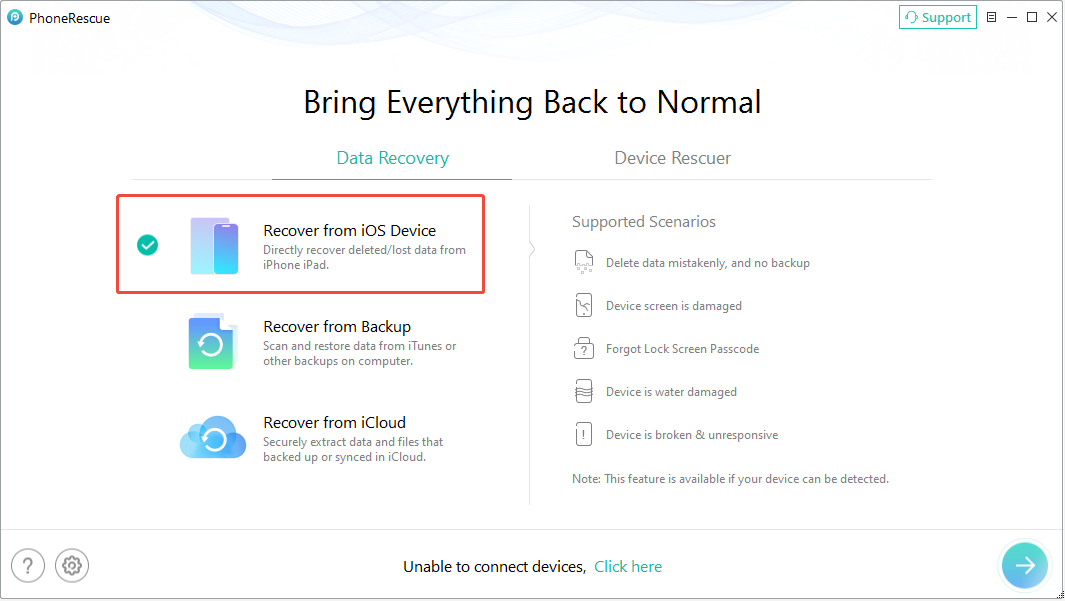
Step 1. Launch the program and connect your iPad to the computer using a USB cable. In PhoneRescue, choose Recover from iOS Device and continue.
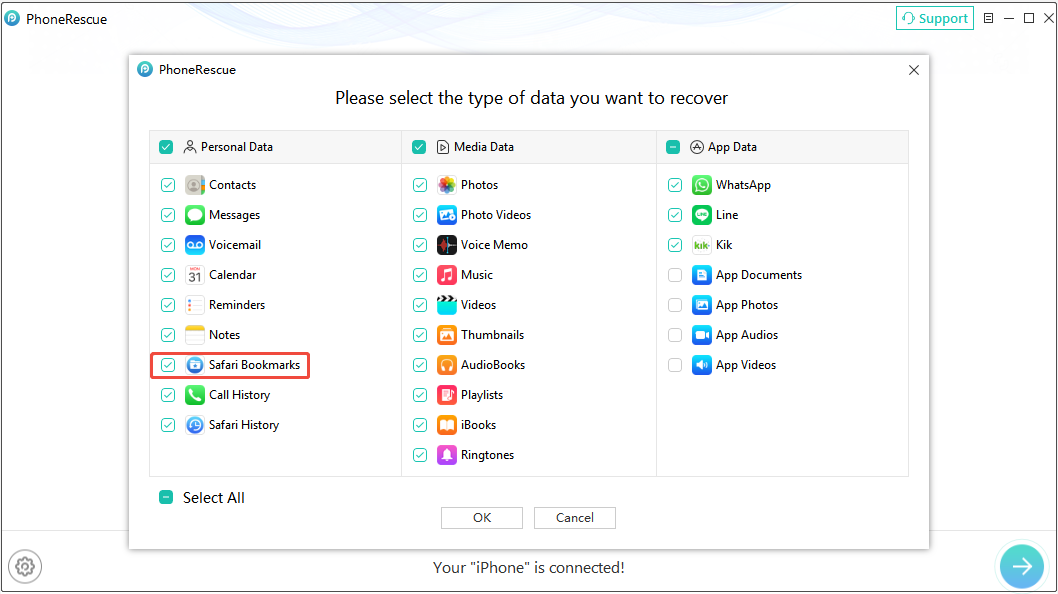
Step 2. After analyzing your device, select only the Safari Bookmarks category to scan.
Step 3. Wait for the scan to complete. Once it finishes, check the Safari bookmarks in the results.
Finally, select the bookmarks you want to recover and save them to your computer.
Option 2. Recover Safari Bookmarks from iCloud
If your missing bookmarks may be available in an iCloud backup, choose Recover from iCloud.
Step 1. On the home page of the iPhone recovery tool, select the Recover from iCloud mode.
Step 2. Follow the on-screen instructions to sign in to your iCloud account. The software will never record your Apple account information or content.
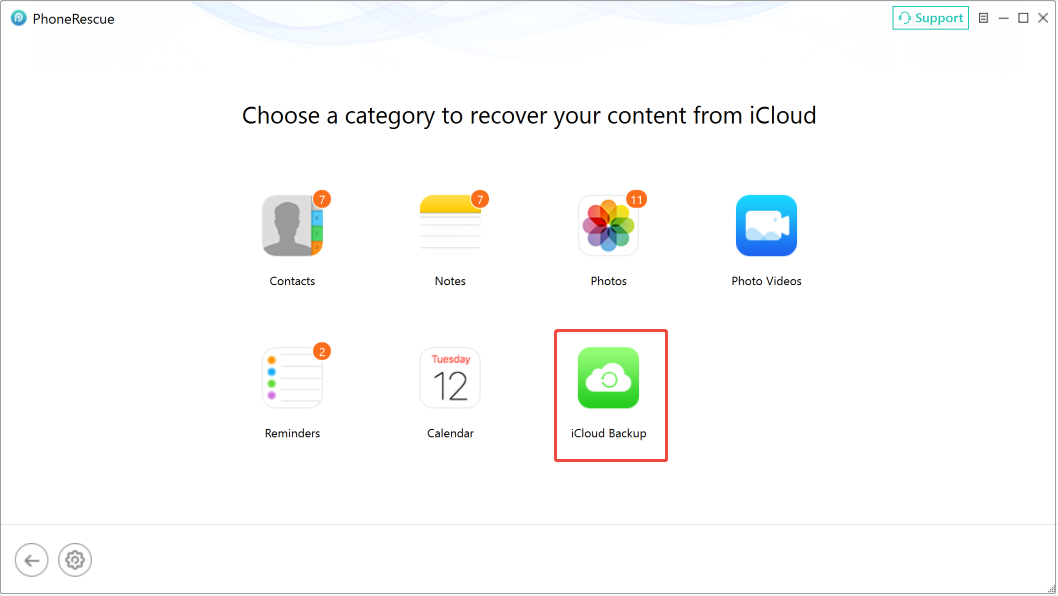
Step 3. PhoneRescue will detect all contacts, notes, photos, photo videos, calendar, and reminders you ever synced to iCloud. To recover bookmarks, select the iCloud Backup option to continue.
Step 4. Download the backup file that contains your bookmarks and scan it.
Step 5. Select the Safari Bookmarks category to scan.
Step 6. Find and select the bookmarks you want to recover, then save them to your computer.
Option 3. Restore Safari Bookmarks from an iTunes Backup
If you previously backed up your iPad using iTunes, try the Recover from Backup mode.
Step 1. Launch PhoneRescue for iOS and choose Recover from Backup.
Step 2. Select the available iTunes backup that may contain your missing Safari bookmarks to scan.
Step 3. Uncheck the Select All box, and choose the Safari Bookmarks type to scan.
Step 4. Select the Safari bookmarks you want to retrieve and follow the recovery instructions to save them.

Conclusion
Losing Safari bookmarks on an iPad doesn’t always mean they are gone permanently. Restarting your iPad may help resolve temporary glitches, while iCloud.com allows you to restore previously archived bookmarks.
If these methods don’t work, PhoneRescue for iOS offers three recovery modes to check your iPad, an iTunes backup, or available iCloud backup data for missing bookmarks. Choose the method that best matches your situation.
To reduce the risk of losing important bookmarks in the future, keep your Safari data synced with iCloud and maintain regular backups.
Restore Safari Bookmarks on iPad FAQ
2. Connect your iPad to your computer and open the software.
3. Make the software scan your device.
4. Select your needed Safari bookmarks and restore them.
On your Mac: go to Apple menu > System Preferences > iCloud and select Safari.
Then, you should make sure both the Wi-Fi connect on your iPad and internet connect on your Mac is enabled and work well.
Click Settings.
Click Restore Bookmarks.
Select the target version to restore.
About The Author

Position: Columnist
Shirley holds a bachelor’s degree in English and has been an editor at the MiniTool Team for many years. She specializes in IT-related content, with a focus on data recovery, file backup, disk management, and other technical topics. She is committed to delivering clear, accurate, and practical solutions to help users resolve common computer issues.
User Comments :