
Accidentally deleted an important text message or an entire conversation on your iPhone? Whether you lost messages while cleaning up your inbox, after an iOS update, or following a factory reset, there are several methods to try to get them back.
The best recovery method depends on when the messages were deleted and whether you have an available iCloud or iTunes backup. If you recently deleted a conversation, you may be able to restore it directly from the Messages app. If it is no longer available there, you can check your backups or use an iPhone data recovery tool such as PhoneRescue for iOS.
This guide explains four approaches to retrieve deleted text messages on iPhone, including how to recover messages without a backup.
How to Retrieve Deleted Messages on iPhone
Method 1. Recover Deleted Messages from the Recently Deleted Folder
Before using iPhone recovery software or restoring a backup, check the Recently Deleted folder in the Messages app. Apple introduced this feature in iOS 16, allowing you to recover deleted conversations within a limited period.
Follow these steps:
Step 1. Open the Messages app on your iPhone.
Step 2. On the conversation list, tap Edit or Filters, depending on your iOS version.
Step 3. Select Show Recently Deleted or Recently Deleted. Then browse the deleted conversations and select the ones you want to restore.
Step 4. Finally, tap Recover, then confirm by tapping Recover XX Messages. Your selected conversations will return to the Messages list.
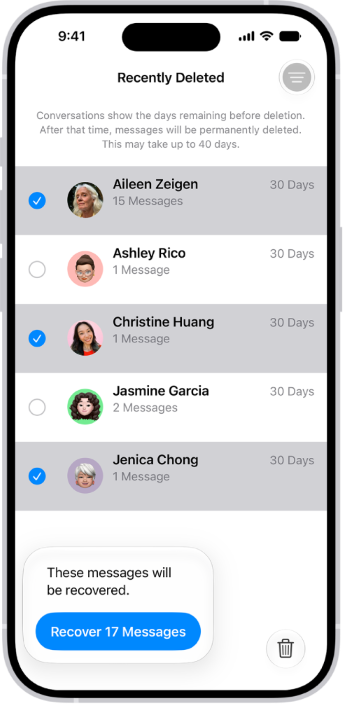
Image source: support.apple.com
Method 2. Retrieve Deleted Messages from an iCloud Backup
If you have an iCloud backup created before deleting your messages, you may be able to restore the conversations from it.
Step 1. Go to Settings > General > Transfer or Reset iPhone.
Step 2. Tap Erase All Content and Settings.
Step 3. After your iPhone restarts, follow the setup instructions to enter the Transfer Your Apps & Data screen, then select From iCloud Backup.
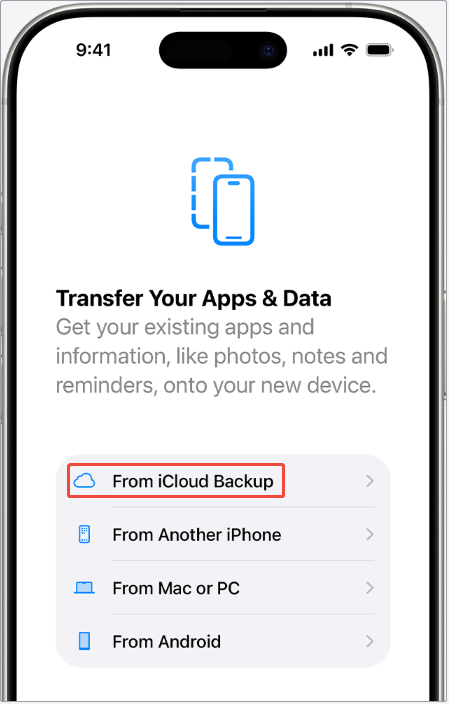
Image source: support.apple.com
Step 4. Sign in with your Apple Account and choose a backup created before the messages were deleted. Wait for the restoration to finish, then check the Messages app.
Method 3. Recover Deleted iPhone Messages from an iTunes Backup
If you previously backed up your iPhone to a Windows computer, you can try restoring deleted messages from the iTunes backup.
Step 1. Connect your iPhone to the computer containing the backup.
Step 2. Open Apple Devices, iTunes, or Finder. Then select your iPhone and click Restore Backup.
Step 3. Choose a backup created before the messages were deleted and follow the instructions to restore it.
Method 4. Retrieve Deleted Messages with PhoneRescue for iOS
If you cannot find deleted conversations in Recently Deleted or do not want to restore an entire backup, consider using a third-party iPhone data recovery tool.
PhoneRescue for iOS is an iOS data recovery program that provides several recovery options, allowing you to scan an iPhone directly or extract messages from available iTunes and iCloud backups.
Its main features include:
- Recover from an iOS device: Scan a connected iPhone for recoverable messages and other lost data without relying on an existing backup.
- Recover from an iTunes backup: Scan an available computer backup and selectively retrieve the messages you need.
- Recover from an iCloud backup: Access supported iCloud backup data and extract selected messages without restoring the entire iPhone.
Phone Rescue for iOS (Windows)Click to Download100%Clean & Safe
Phone Rescue for iOS (Mac)Click to Download100%Clean & Safe
Option 1. Recover Deleted Messages Directly from an iPhone
Step 1. Connect your iPhone to the computer using a USB cable. Trust your computer if prompted.
Step 2. Launch PhoneRescue for iOS and select Recover from iOS Device.
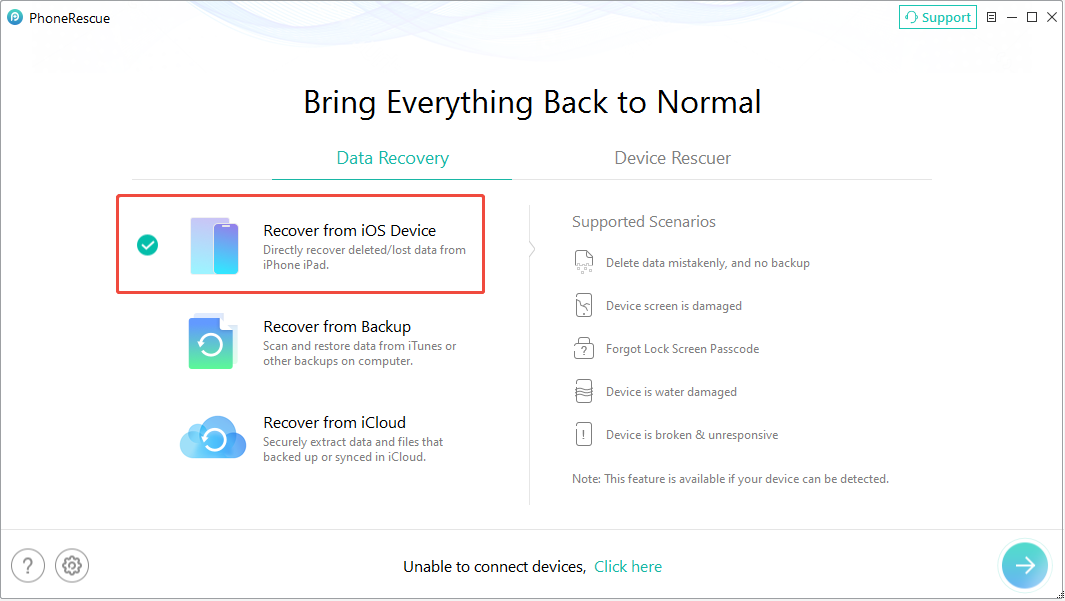
Step 3. Choose Messages from the available data categories to scan. You can deselect other categories if you only want to retrieve text messages.
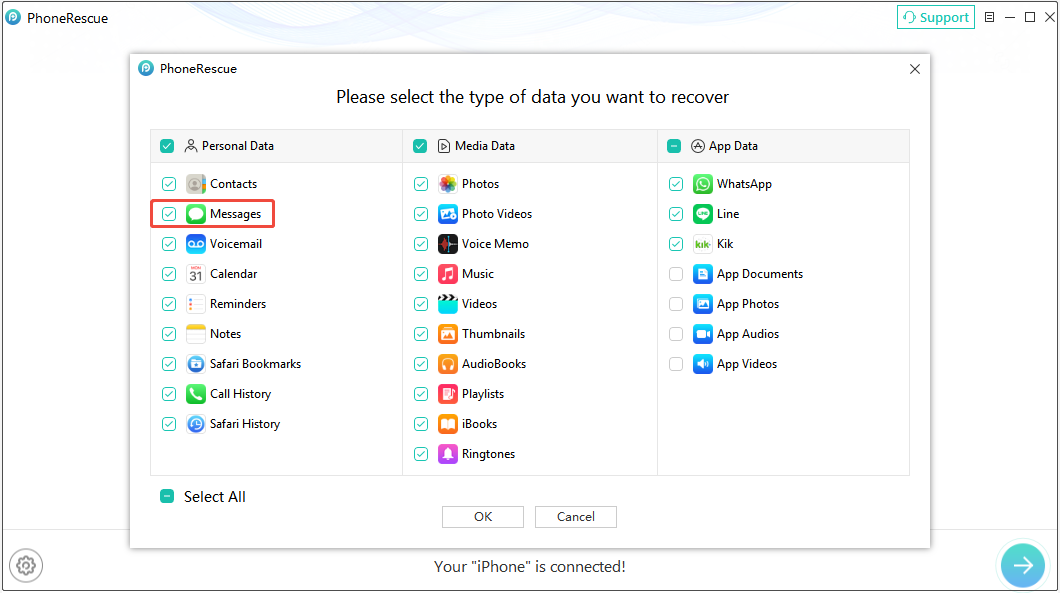
Step 4. When the scan finishes, browse the results and preview the available conversations. Select the messages you want to recover and click Restore to Computer or Restore to Device, depending on where you want to save the recovered messages.
Option 2. Recover Messages from an iTunes Backup
PhoneRescue for iOS can help you extract selected messages from iTunes without restoring the entire backup to your device.
Step 1. On the main interface of the software, select Recover from Backup.
Step 2. Choose the computer backup you want to scan. Check its date to make sure it was created before the messages were deleted.
Step 3. Start scanning the selected backup.
Step 4. When the scan finishes, select Messages from the data categories.
Step 5. After scanning, identify the messages you need and save them to your phone or computer.
Option 3. Recover Messages from iCloud
If you use iCloud to store or back up your iPhone data, PhoneRescue also provides an iCloud recovery mode. It does not require you to erase your iPhone.
Step 1. Launch the software and choose the Recover from iCloud module.
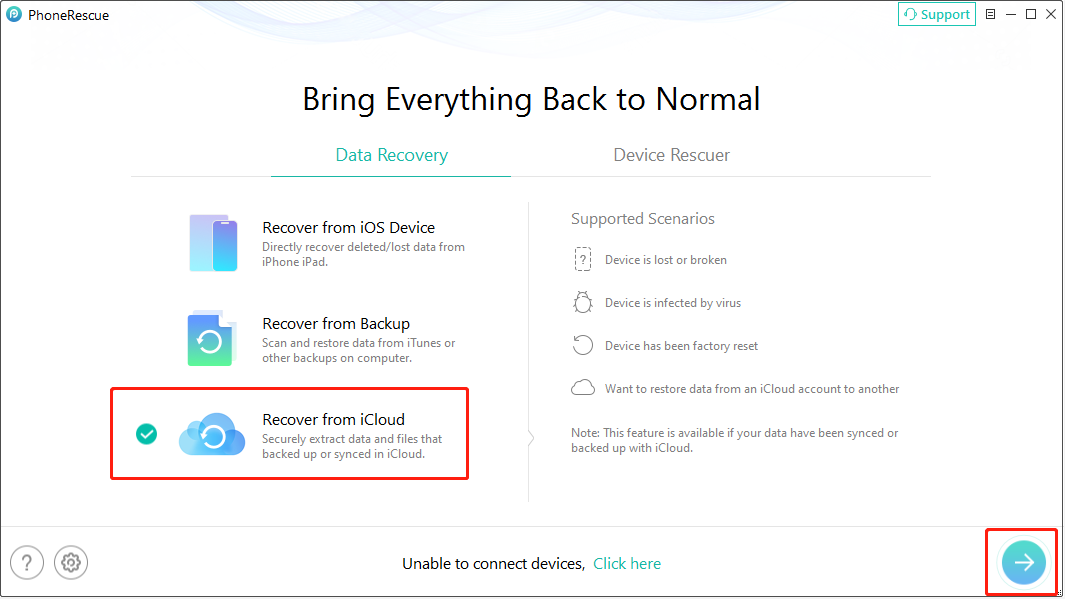
Step 2. Follow the on-screen instructions to sign in to your iCloud account.
Step 3. Select the available iCloud data source or backup you want to access.
After scanning, choose Messages from the available categories to scan.
Step 4. Locate and select the messages you want to retrieve, then save them to your device.

Some Useful Tips
Now, you know that it is possible to recover your deleted text messages on iPhone by using different ways. But we think you should form a good habit of making and updating iTunes and iCloud backups regularly to keep your iPhone data safe and avoid such an annoying issue.
Besides, when you need to delete some junk and inessential messages from your iPhone, check them carefully in case of an accident.
If, unfortunately, you delete some important messages, just stop using the device immediately to avoid data from being overwritten, which can increase the chances of recovery.
Bottom Line
Now you know how to retrieve deleted messages on iPhone, but the best method depends on when the messages were deleted and whether you have an available backup.
Start by checking the Recently Deleted folder in the Messages app. If the conversations are no longer there, look for an older iCloud or computer backup. If you want to selectively extract messages from supported backups or retrieve deleted text messages on iPhone without backup, PhoneRescue for iOS offers three recovery modes.
To reduce the risk of losing important conversations in the future, make regular backups.
About The Author

Position: Columnist
Shirley holds a bachelor’s degree in English and has been an editor at the MiniTool Team for many years. She specializes in IT-related content, with a focus on data recovery, file backup, disk management, and other technical topics. She is committed to delivering clear, accurate, and practical solutions to help users resolve common computer issues.
User Comments :