
As Apple always devotes itself to developing the performance of all aspects, the iPhone camera becomes stronger and stronger so that you don’t need to take an extra digital camera or heavy SLR camera with you when you need to capture some important moments at any time.
At the same time, iPhone photo loss is still an eternal concern, and how to recover deleted photos on iPhone is a hot topic on the net.
Can you Recover Deleted Photos on iPhone
Yes, depending on how and when the photos were deleted.
When you delete a photo on an iPhone, it is normally moved to the Bin or Recently Deleted album. Apple currently keeps deleted files there for 30 days. During this period, you can restore them directly to your photo library.
If the 30-day period has passed, or you manually removed the photos from Recently Deleted, you can then check whether another copy exists in an iCloud or iTunes backup. If no usable backup is available, PhoneRescue for iOS can scan the iPhone itself for recoverable photos.
Phone Rescue for iOS (Windows)Click to Download100%Clean & Safe
Phone Rescue for iOS (Mac)Click to Download100%Clean & Safe
In short, the iPhone photo recovery method depends mainly on where the missing photos exist:
- Recently Deleted/Bin: Restore them directly from the Photos app.
- iCloud or iTunes backup: Extract photos from backup.
- No available backup: Try scanning the iPhone with PhoneRescue for iOS.

How to Recover Deleted Photos from iPhone
Solution 1. Restore Recently Deleted Photos
Before trying any recovery software, check the Recently Deleted or Bin album.
How to find recently deleted photos:
Step 1. Open the Google Photos app.
Step 2. At the bottom, tap Collections > Bin.
Step 3. Touch and hold the pictures that you want to restore. At the bottom, tap Restore to recover your photos to the albums they were in or the Google Photos library.
Solution 2. Restore Deleted iPhone Photos from a Backup
If you are sure that your deleted important iPhone photos are stored in a previous iCloud or iTunes backup, you are able to restore them from a backup file.
You can get the detailed steps from the official Apple post: Restore your iPhone, iPad, or iPod touch from a backup.
However, you may notice that restoring your iPhone from an iCloud backup requires you to erase all of its content first, while restoring your iPhone from an iTunes backup will replace all data and files on your iPhone. These may cause data loss at the same time. For those who just want to recover deleted photos on iPhone, this solution is not so perfect.
Solution 3. Recover iPhone Photos Using PhoneRescue for iOS
If you don’t have a suitable backup or don’t want to erase the existing data on your iPhone, you can try using PhoneRescue for iOS to recover deleted photos.
PhoneRescue for iOS provides three recovery options to help you find deleted photos in different situations:
- Recover from iOS Device: Scan your iPhone directly when you do not have a backup.
- Recover from Backup: Extract photos from an existing iTunes backup without restoring the entire backup.
- Recover from iCloud: Find photos from an iCloud backup without erasing your current iPhone data.
This tool supports recovering personal data, media data, and app data, including photos and other types of files.
Download and install PhoneRescue for iOS on your computer. Then launch it to recover photos.
Phone Rescue for iOS (Windows)Click to Download100%Clean & Safe
Phone Rescue for iOS (Mac)Click to Download100%Clean & Safe
Option 1. Recover Deleted Photos Directly from iPhone
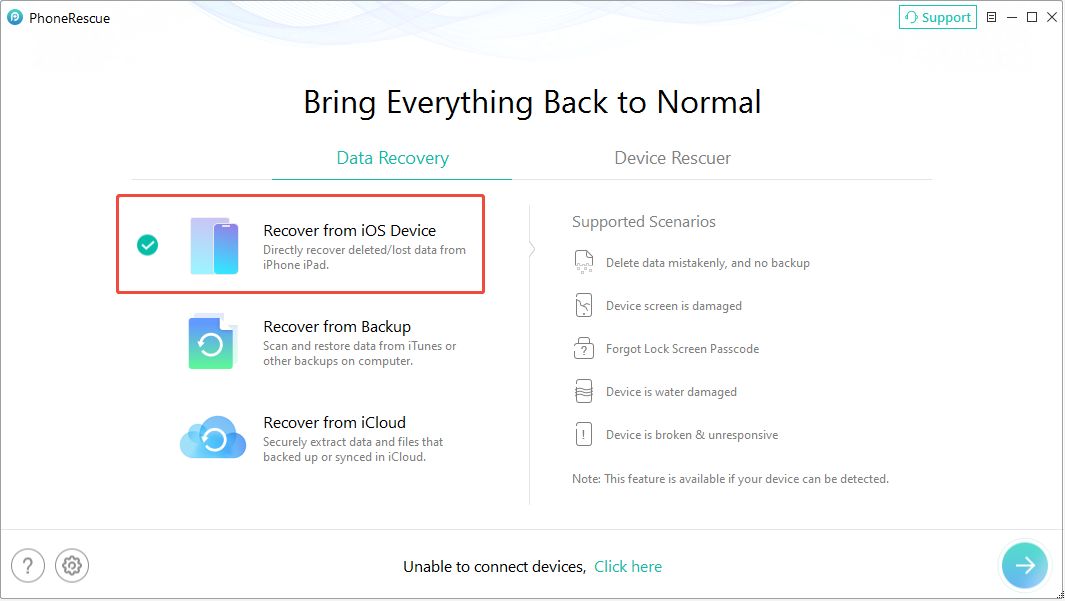
Step 1. Connect your iPhone to your computer using a USB cable. On the main interface of the iPhone data recovery tool, select Recover from iOS Device and continue.
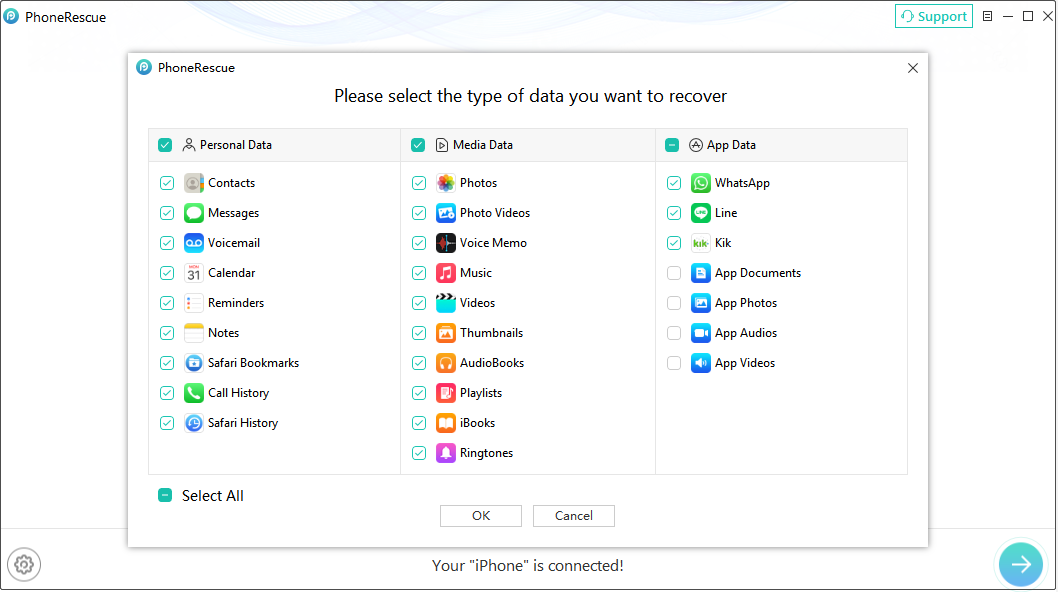
Step 2. Uncheck the Select All option, select photos from the data categories, and start the scan.
PhoneRescue for iOS will analyze your iPhone and look for recoverable pictures.
Step 3. After the scan is complete, preview the found photos, select the items you need, and recover them to your computer or iPhone.
Option 2. Recover Deleted Photos from iTunes Backup
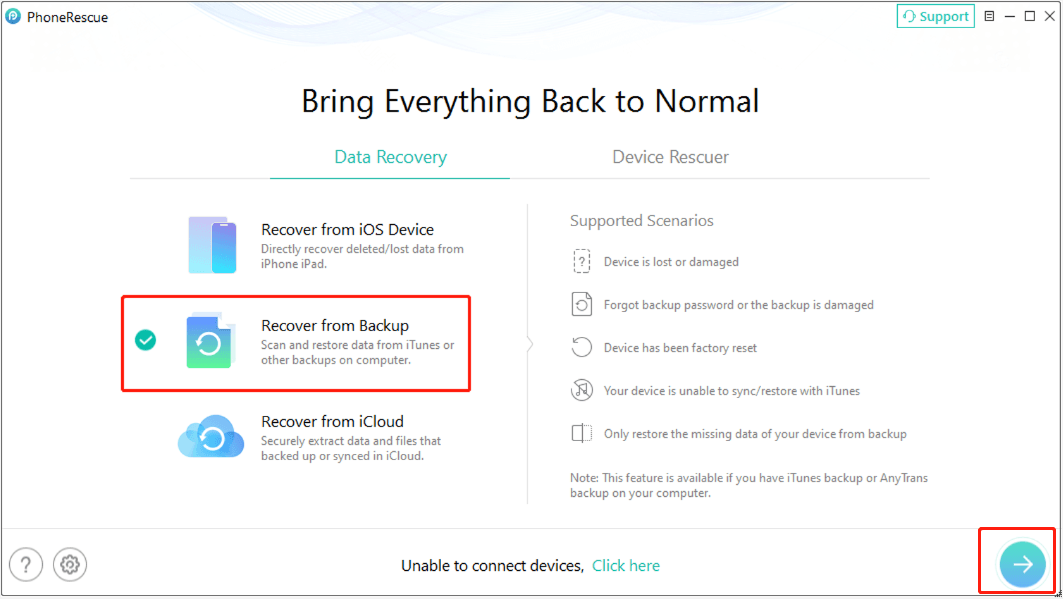
Step 1. Choose Recover from Backup from the main interface of the software and continue.
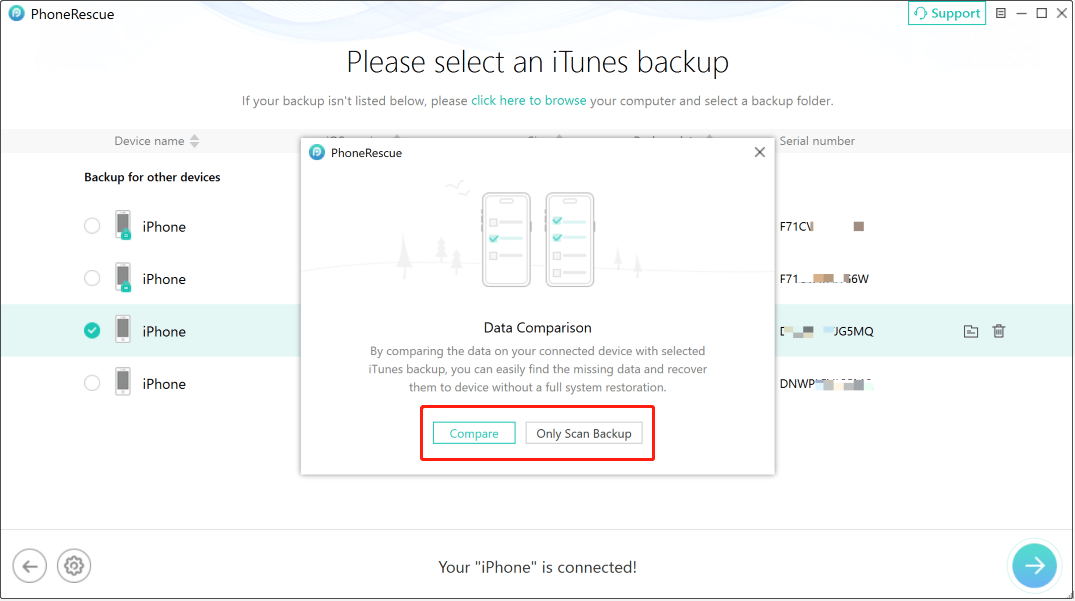
Step 2. Choose the iTunes backup file that may contain your deleted photos and continue.
PhoneRescue for iOS provides two options:
- Click Only Scan Backup to scan and display all recoverable data stored in the selected backup.
- Click Compare to compare the backup data with the current data on your iPhone. After comparison, PhoneRescue will only show the data that is not currently available on your device. This option requires your iPhone to be connected to the computer.
Step 3. Select photo-related types and start scanning the backup.
Step 4. After scanning, preview the recoverable photos, select the pictures you want, and save them to your computer or iPhone.
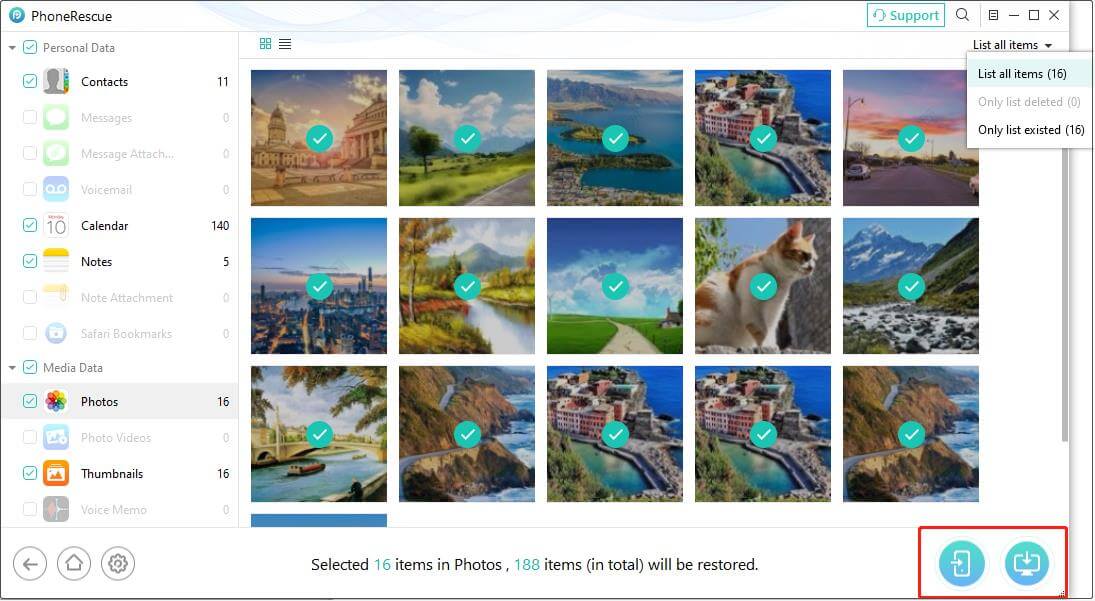
Option 3. Recover Deleted Photos from iCloud Backup
Step 1. Select the Recover from iCloud recovery module.
Step 2. Follow the instructions to sign in to your iCloud account and access your backup information.
Step 3. Choose the Photos data type to scan. If you want to recover more types of data, choose the iCloud Backup function.
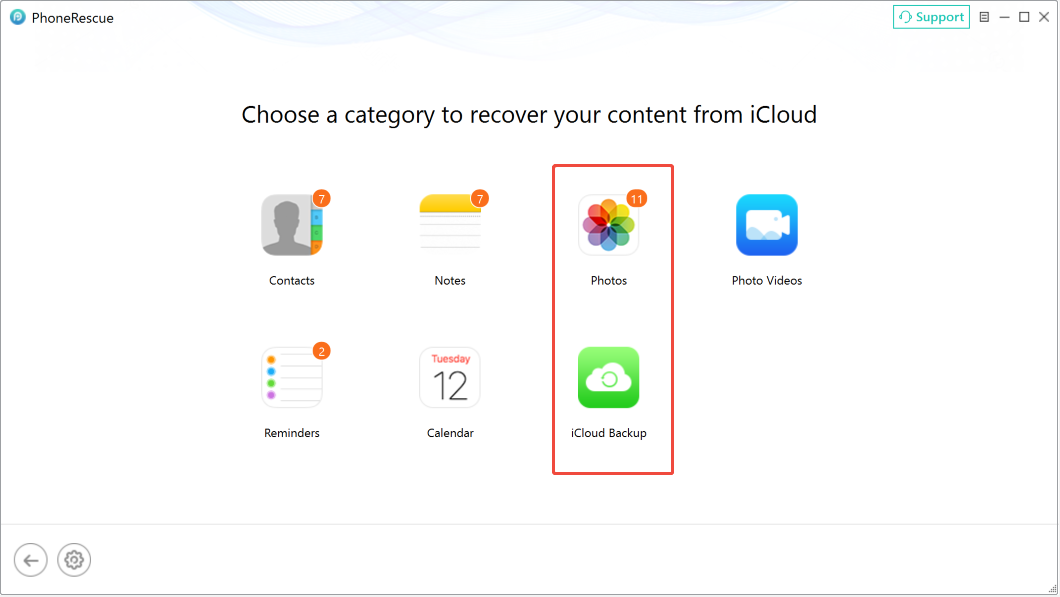
Step 4. After scanning, preview and save the required pictures.

Back up Your iPhone Photos to Keep Them Safe
From this post, you know that you can only recover your permanently deleted iPhone photos from the backup files. Thus, it is so important for you to form a good habit of backing up and updating iPhone data regularly.
General speaking, there are two Apple-officially recommended backup methods that are widely known by iPhone users, and they are iCloud backup and iTunes backup.
For more information about making iCloud backup and iTunes backup, you can see the Apple Support article: How to back up your iPhone, iPad, and iPod touch.
Now, you have made a backup of your iPhone data, which can keep your important iOS data safe even if you lose your iPhone data by mistake.
Bottom Line
Deleted photos on iPhone are not always gone permanently. If you want to recover deleted photos from iPhone, the first thing to check is the Recently Deleted or Bin album in the Photos app. If the photos are no longer available there, try restoring them from an iCloud or iTunes backup.
If you do not have a backup or want a more flexible method to recover specific photos, use PhoneRescue for iOS.
How to Recover Deleted Photos from iPhone Free FAQ
About The Author

Position: Columnist
Shirley holds a bachelor’s degree in English and has been an editor at the MiniTool Team for many years. She specializes in IT-related content, with a focus on data recovery, file backup, disk management, and other technical topics. She is committed to delivering clear, accurate, and practical solutions to help users resolve common computer issues.
User Comments :