
Can You Recover Deleted Videos on iPhone?
They say the best camera is the one that you have with you. If you are using an iPhone, it will be your best camera. You can use the device to shoot videos and then share them with others in different methods.
But recently, we saw this case online:
I was trying to upload a video from my iPhone onto YouTube when I fell asleep. This morning, the video was in the process of downloading and I wanted to stop the download to do something else with the video. But I hit the delete button thinking it would just stop the download not remove the video from my phone. How to recover deleted videos from iPhone?discussions.apple.com
This is a typical iPhone video loss issue. Here, it is necessary to mention that when you delete the iPhone videos for the first time they are not removed from your device immediately, but transferred to the Recently Deleted album where these videos show you the days remaining before deletion.
After that time videos in that folder will be permanently wiped from your iPhone forever. Before this you are able to recover them from the Recently Deleted album. So, you can check this album to verify whether your deleted iPhone videos are stored on it or not.
If the iPhone videos are deleted from the Recently Deleted album, the nature of this issue is changed.
Once a video is removed from the Recently Deleted album, the normal recovery option provided by the Photos app is no longer available. However, this does not necessarily mean that your only choice is to give up on the deleted video.
The key is to determine whether another copy of the video exists in an iCloud or iTunes backup, or whether the deleted video may still be recoverable from the iPhone itself. Your recovery method should depend on what resources are available.
If you have a suitable backup, you can restore your iPhone using Apple’s built-in recovery options. However, Apple’s standard restoration process is designed to restore an entire backup rather than let you pick out individual videos. If you want to recover only the videos you need, third-party iPhone recovery software can provide a more selective approach.
Below are five methods to recover deleted videos from an iPhone.

How to Recover Deleted Videos from iPhone
Method 1. Restore Deleted Videos from an iCloud Backup
If your iPhone was backed up to iCloud before the videos disappeared, you may be able to get them back by restoring the corresponding backup.
Apple allows you to restore an iPhone from an iCloud backup.
Follow these steps:
Step 1. Open Settings > General > Transfer or Reset iPhone.
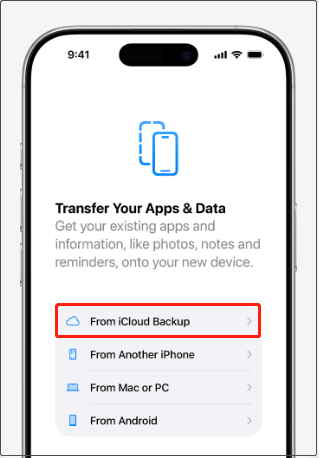
Step 2. Tap Erase All Content and Settings and follow the on-screen instructions. After the iPhone restarts, continue through the setup process until you reach Transfer Your Apps & Data.
Step 3. Select From iCloud Backup.
Step 4. Sign in to your Apple Account. Choose an iCloud backup created before the videos were deleted, and wait for the restoration process to finish.
If the selected backup contains the missing videos, they can be restored along with the other data included in that backup.
Method 2. Restore Deleted Videos from an iTunes Backup
An iTunes backup can also be useful if you previously backed up your iPhone before deleting the videos.
To restore iPhone videos from an iTunes backup:
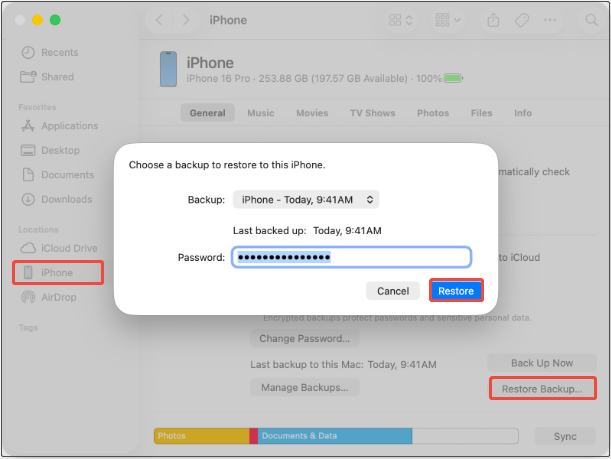
Step 1. Connect the iPhone to the computer that contains the backup. Open Finder, Apple Devices, or iTunes, depending on your setup.
Step 2. Select your iPhone.
Step 3. Choose Restore Backup.
Step 4. Check the dates and select a backup created before the video loss, then click Restore and wait for the process to complete.
Method 3. Selectively Recover Videos from an iTunes Backup with PhoneRescue for iOS
If you have an iTunes backup but do not want to restore the entire backup to your iPhone, you can try PhoneRescue for iOS. Instead of replacing the current contents of your iPhone with an old backup, the software can analyze the backup and allow you to select only the data you want to recover.
Phone Rescue for iOS (Windows)Click to Download100%Clean & Safe
Phone Rescue for iOS (Mac)Click to Download100%Clean & Safe
Steps to recover only videos from an iTunes backup:
Step 1. Launch PhoneRescue for iOS on your computer. On its main interface, select the Recover from Backup module to continue.
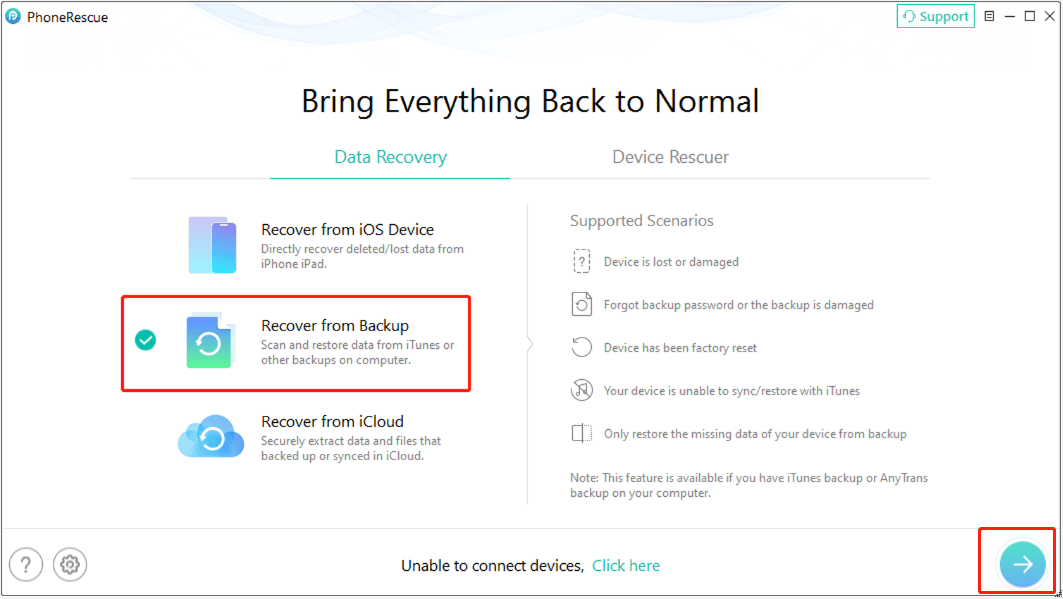
Step 2. Choose an iTunes backup created before the videos were deleted. Select the appropriate data category and start scanning the backup.
Step 3. Preview the videos found in the scan results. Then select the videos you want to recover and follow the on-screen instructions to save them to your iPhone or computer.
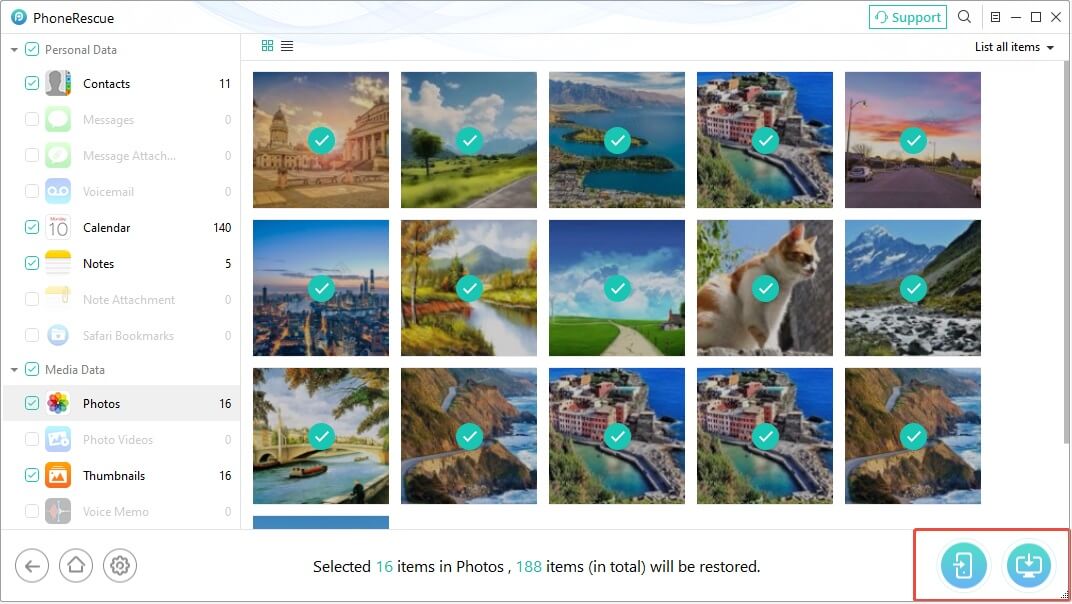
The main advantage of this method is that you can focus on the videos you need instead of restoring the entire backup to your iPhone.
Method 4. Selectively Recover Videos from an iCloud Backup with PhoneRescue for iOS
An iCloud backup can also be analyzed with PhoneRescue for iOS when you want to retrieve specific videos instead of performing a full-device restoration.
This can be particularly useful when you have a suitable iCloud backup but do not want to erase your current iPhone just to restore an older backup.
Step 1. Open the software and select Recover from iCloud.
Step 2. Sign in with the Apple Account associated with the relevant iCloud data.
Step 3. Choose the Photo Videos or iCloud Backup option to continue.
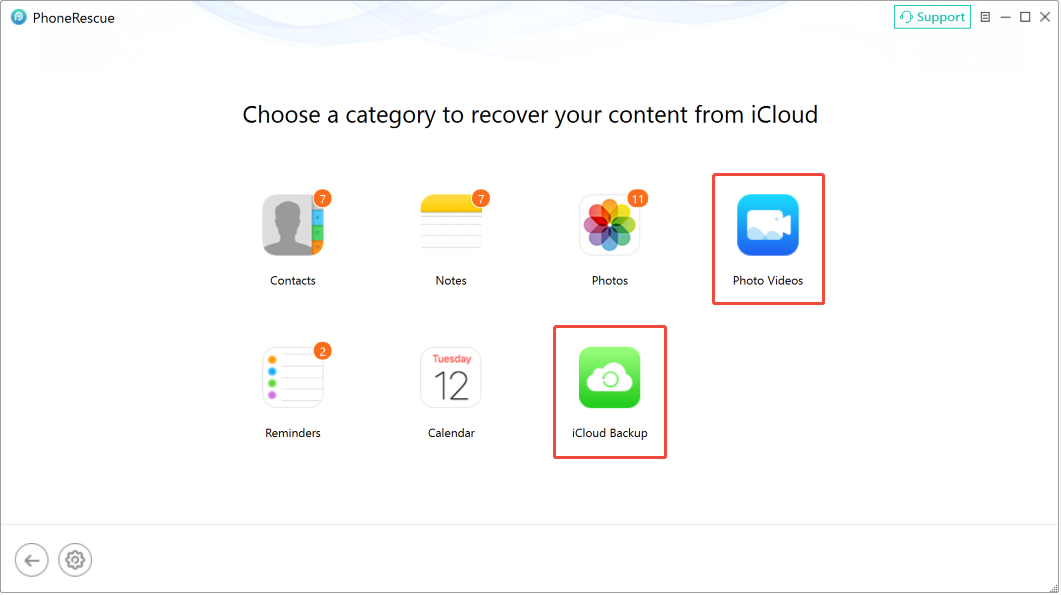
Step 4. Scan the selected data category and wait for the process to complete. After that, browse the scan results and select the videos you want.
Finally, save them to your computer or iPhone.
Method 5. Recover Permanently Deleted Videos from iPhone Without Backup
What if you have no iCloud or iTunes backup?
You can still try to recover permanently deleted videos from an iPhone with PhoneRescue for iOS. The software has a Recover from iOS Device module that supports scanning the connected iPhone for data that has not been overwritten by new data.
The software supports all iOS devices with iOS version 5 and above. Supported file types to recover include Photo Videos, Videos, App Videos, and more.
Step 1. Connect your iPhone to the computer with a USB cable.
Step 2. On the main interface of the iOS data recovery tool, select Recover from iOS Device.
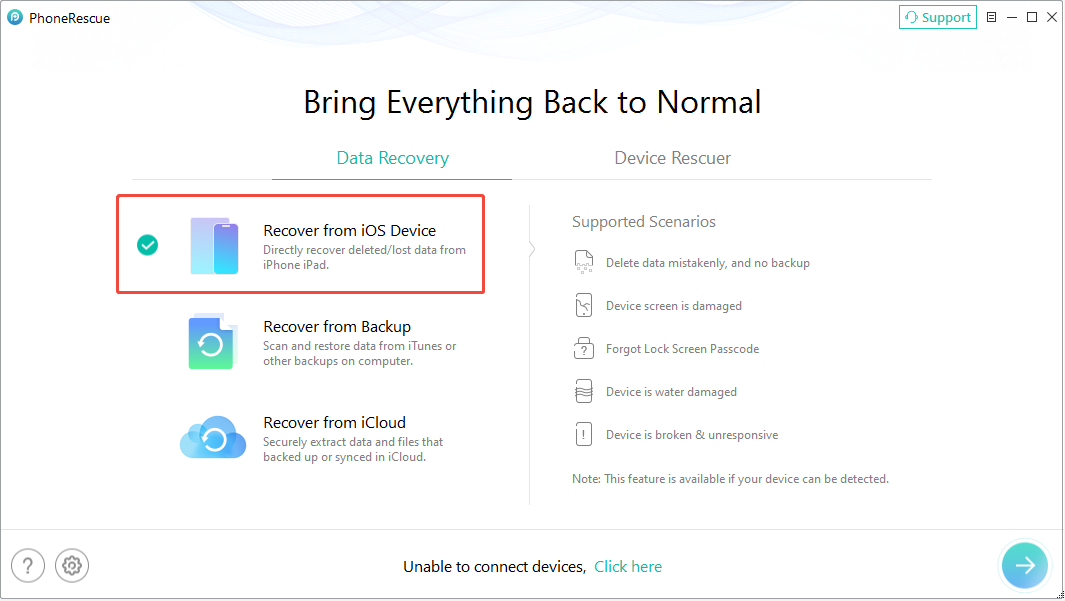
Step 3. Select the data type related to videos and start the scan.
Step 4. After scanning, preview the listed videos, preview them, and store them to your computer or iPhone.
Which Method Should You Try
The appropriate method depends mainly on whether you have a backup and whether you want to restore the entire backup or only retrieve specific videos.
| Situation | Recommended method |
| Videos are still in Recently Deleted | Recover them directly from the Photos app |
| You have an iCloud backup and don’t mind restoring the backup | Reset the iPhone and restore it from an iCloud backup |
| You have an iTunes/computer backup and don’t mind restoring it | Restore the iPhone from an iTunes backup |
| You have an iTunes backup but only need specific videos | Recover videos selectively from an iTunes backup with PhoneRescue for iOS |
| You have an iCloud backup but only need specific videos | Extract required videos from the backup with PhoneRescue for iOS |
| You don’t have a backup | Scan the iPhone and recover lost videos with PhoneRescue for iOS |
Bonus Tips
There are some useful tips you should pay attention to when you are managing your iPhone videos:
- Please think twice before you delete videos on iPhone, especially when you try to delete them from the Recently Deleted album forever.
- From the above content, you will know that if you permanently delete the videos on your iPhone by an accident, the best method to get them back is to retrieve them from the previous iTunes or iCloud backup files. That’s why we advocate making and updating iTunes and iCloud backups regularly.
Conclusion
This post tells you how to recover deleted videos from iPhone with PhoneRescue for iOS. Of course, you can also use this software to rescue other types of files from your iPhone like photos, messages, contacts, and more.
About The Author

Position: Columnist
Shirley holds a bachelor’s degree in English and has been an editor at the MiniTool Team for many years. She specializes in IT-related content, with a focus on data recovery, file backup, disk management, and other technical topics. She is committed to delivering clear, accurate, and practical solutions to help users resolve common computer issues.
User Comments :