
OneDrive is a Microsoft cloud service that allows you to store, protect, and share your files. Sometimes, you might get error code 0x8004de81 while signing into OneDrive on your computer. What’s wrong with it? How to fix this error? Follow this guide on MiniTool to get all the potential causes and solutions now.
OneDrive Error Code 0x8004de81
OneDrive is an online cloud storage service from Microsoft. It allows you to access, edit, and share your files from all your devices. You might occasionally run into error code 0x8004de81 when trying to access your OneDrive account. The complete error message is:
There was a problem signing you in: Sorry, there was a problem with OneDrive. Please try again in a few minutes. (Error code: 0x8004de81)
After investigation, we network connection issues and incorrect account settings might be responsible for OneDrive error code 0x8004de81.
How to Fix OneDrive Error Code 0x8004de81 on Windows 10/11?
Fix 1: Run the Network Troubleshooter
At first, make sure there is no problem with your internet connection. Windows 10/11 comes with an inbuilt troubleshooter that allows you to fix internet connection issues. Here’s how to do it:
Step 1. Open Windows Settings.
Step 2. Navigate to Update & Security > Troubleshoot > Additional troubleshooters.
Step 3. Click on Internet Connections and hit Run the troubleshooter.
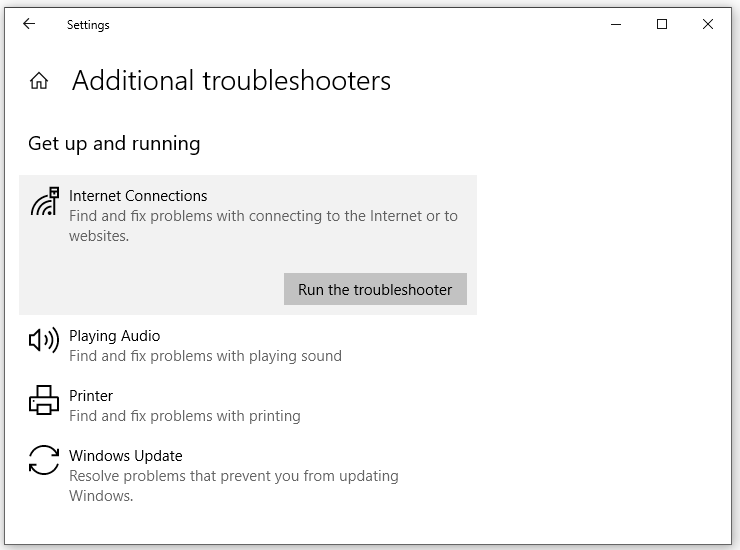
Step 4. Apply the offered fixes and then reboot your system.
Fix 2: Unlink and Relink OneDrive
Many OneDrive issues like error code 0x8004de81 can be fixed by unlinking and relinking your computer. By doing so, it will refresh OneDrive’s configurations. Follow these steps:
Step 1. Click on the OneDrive icon in the system tray.
Step 2. Click on the gear icon > hit Settings > Account > Unlink this PC > Unlick account.
Step 3. After signing out, input the login credentials to sign in again.
Fix 3: Reset OneDrive
Another way is to reset OneDrive to refresh your account settings and file sync. Here’s how to do it:
Step 1. Press Win + R to open the Run box.
Step 2. Copy & paste the following text and hit OK.
%localappdata%\Microsoft\OneDrive\onedrive.exe /reset
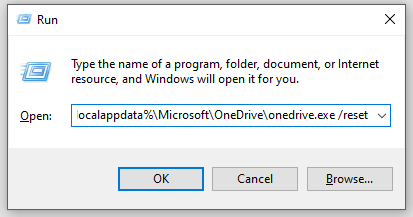
If it returns an error, type the command below instead and hit Enter:
%programfiles(x86)%\Microsoft OneDrive\onedrive.exe /reset
Fix 4: Reset Your Network
Resetting your network connection is also effective. Here’s how to do it:
Step 1. Type cmd in the search bar to locate Command Prompt and right-click on it to choose Run as administrator.
Step 2. In the command window, run the following commands one by one and hit Enter after each of them.
ipconfig /flushdns
ipconfig /registerdns
ipconfig /release
ipconfig /renew
netsh winsock reset
Fix 5: Reinstall OneDrive
If none of the solutions helps you to get rid of OneDrive error code 0x8004de81. The last resort is to reinstall OneDrive. Here’s how to do it:
Step 1. Press Win + R to open the Run box.
Step 2. Type appwiz.cpl and hit Enter to open Features and Programs.
Step 3. Now, you can view all the programs installed on your computer. Locate OneDrive > right-click on it to choose Uninstall > confirm this action > follow the instructions on the screen to complete the process.
Step 4. Restart your computer.
Step 5. Go to the OneDrive official website to download and install this program.
Suggestion: Back up Your Data with Another Handy Tool – MiniTool ShadowMaker
In addition to OneDrive, you can transfer your files via another handy tool called MiniTool ShadowMaker. This free PC backup software allows you to protect your data by backing up or syncing your files in the local. It is available in Windows 11/10/8.1/8/7. Also, it supports cloning HDD to SSD or moving Windows to another drive for better system performance.
Now, let me show you how to create a file backup with this tool:
Step 1. Launch MiniTool ShadowMaker to enjoy its service for free.
MiniTool ShadowMaker TrialClick to Download100%Clean & Safe
Step 2. Navigate to the Backup page > SOURCE > Folders and Files to check the files you want to back up.
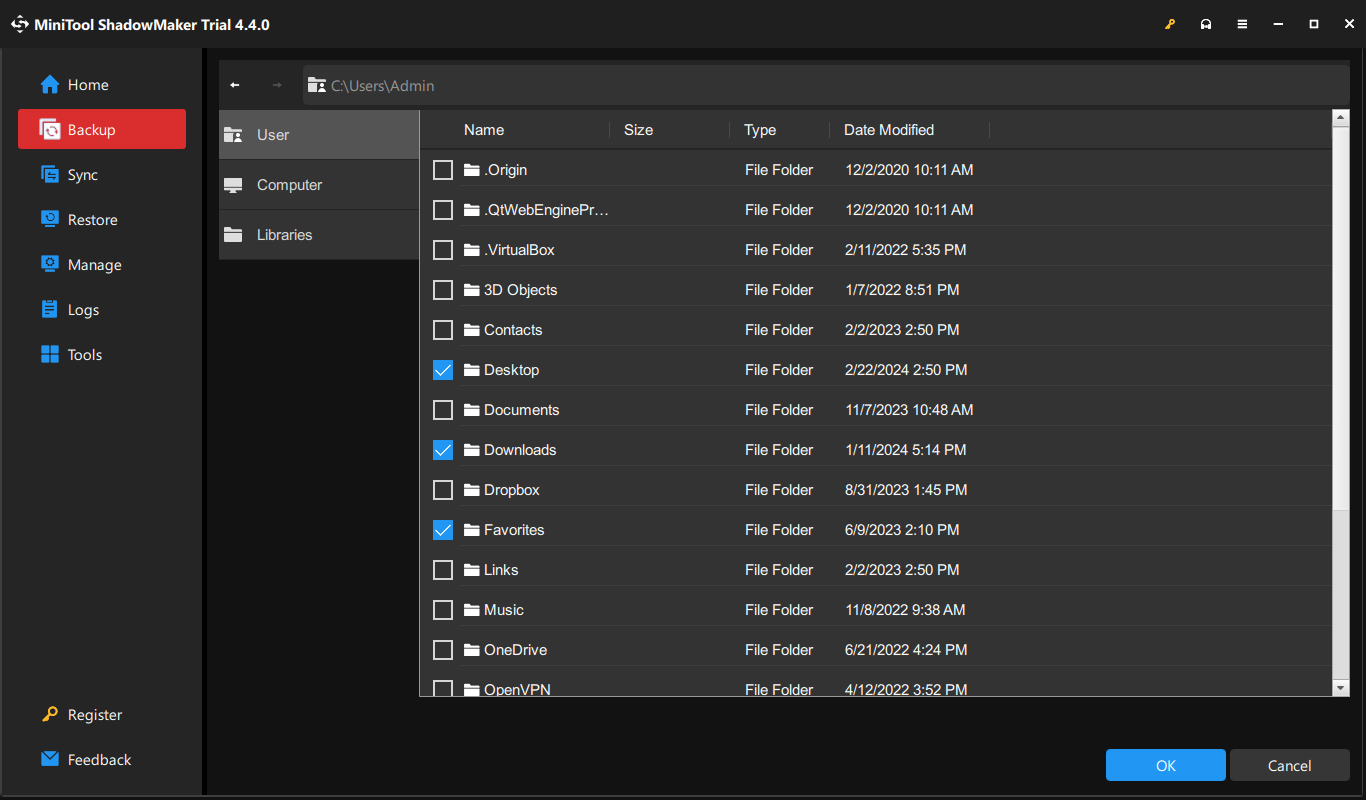
Step 3. To select a storage path for the backup image file, go to DESTINATION.
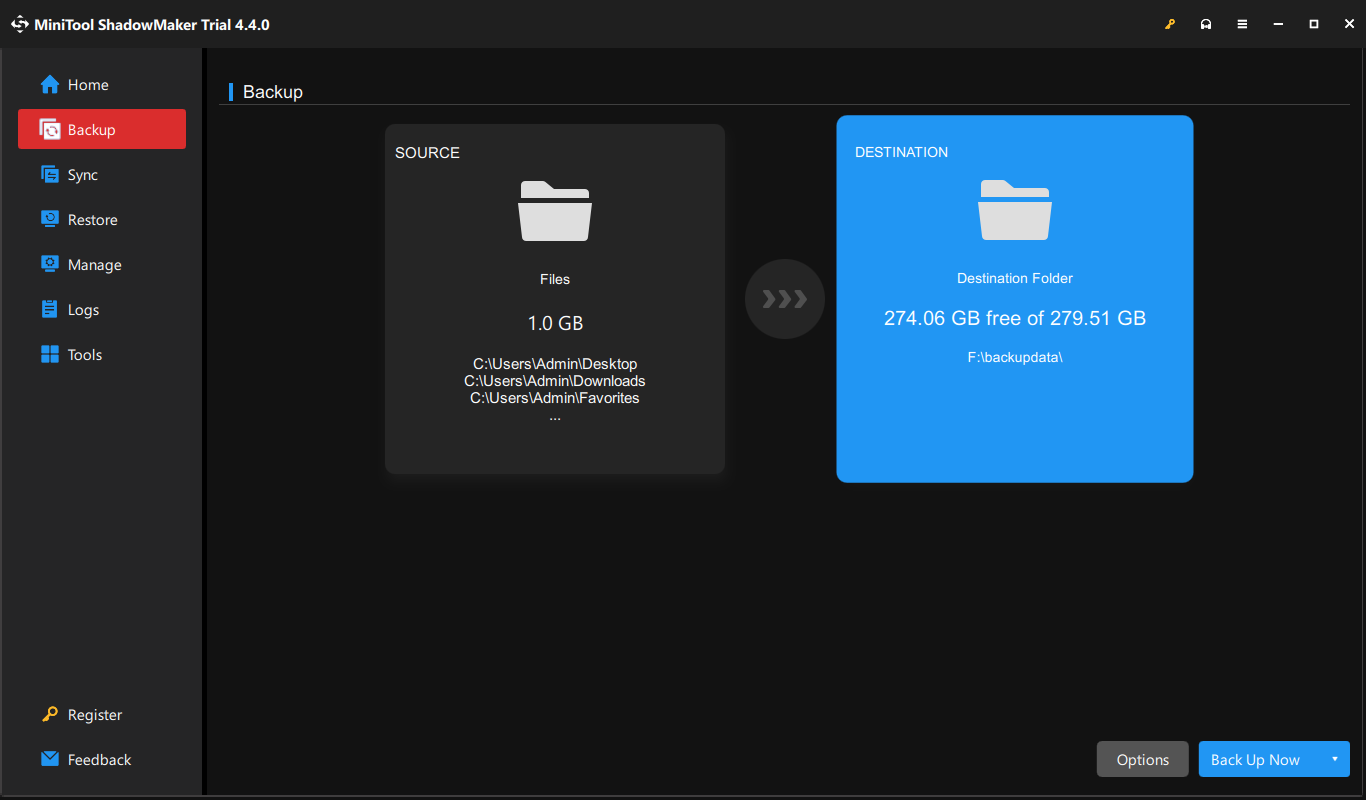
Step 4. Click on Back Up Now to start the process in no time.
Final Words
This post shows you how to get rid of OneDrive error code 0x8004de81 in 5 ways and introduces another freeware – MiniTool ShadowMaker to keep your data safe. Hope that you can benefit from the content above.
User Comments :