
When do you meet the error code 0x8007043c? How to solve the Windows update error code 0x8007043c? This post from MiniTool will show you how to solve the error 0x8007043c Windows 10. In addition, you can also visit MiniTool to find more Windows update errors and solutions.
Some users complain that they encountered the error code 0x8007043c when they updated their current OS. They seek out solutions to this Windows update error code 0x8007043c online.
However, do you know what may cause this Windows update error 0x8007043c Windows 10? As a matter of fact, it can be caused by a lot of reasons.
Here, we briefly list some causes that may give rise to the error 0x8007043c.
- Incompatible Windows update.
- The third-party antivirus program.
- Corrupted system files.
- Broken operating system component.
Meanwhile, the most important thing is to solve the error 0x8007043c. Hence, in the following section, we will show you how to solve the Windows Media Creation Tool error code 0x8007043c.
Solution 1. Perform a Full Virus Scan
To solve the Windows update error code 0x8007043c, you can perform a full virus scan first.
Now, here is the detailed tutorial.
Step 1: Press Windows key and I key together to open Settings, then choose Update & Security to continue.
Step 2: In the pop-up window, choose Update & Security to continue.
Step 3: Then choose Windows Defender on the left panel. Click Turn on Windows Defender Antivirus to continue.
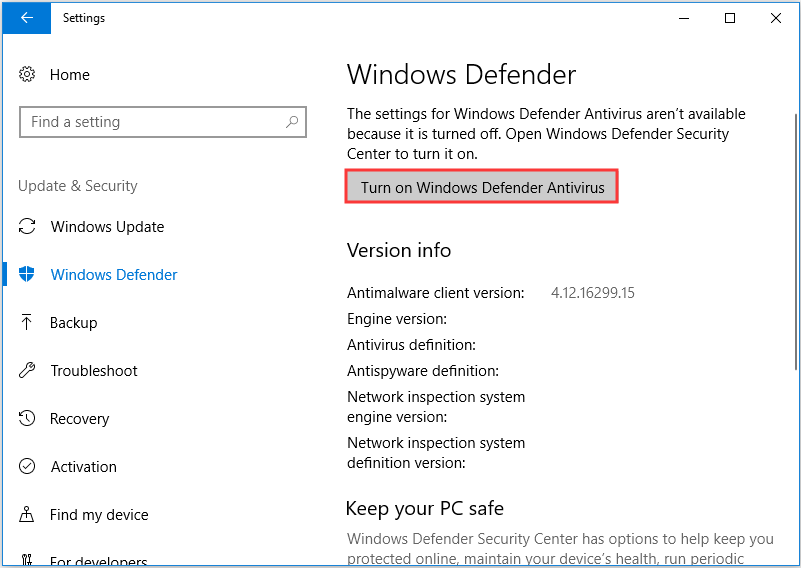
Step 4: Next, click Virus & threat protection to continue.
Step 5: In the pop-up window, click Advanced scan and choose Full scan to continue.
When the scanning process is finished, reboot your computer and run Windows Update again to check whether the error code 0x8007043c is solved.

Solution 2. Run Windows Update Troubleshooter
The second solution to fix the Windows update error code 0x8007043c is to run Windows update troubleshooter.
Now, here is the tutorial.
Step 1: Press Windows key and I key together to open Settings, then choose Update & Security to continue.
Step 2: In the pop-up window, click Troubleshoot on the left panel. Then choose Run the troubleshooter under Windows Update section to continue.
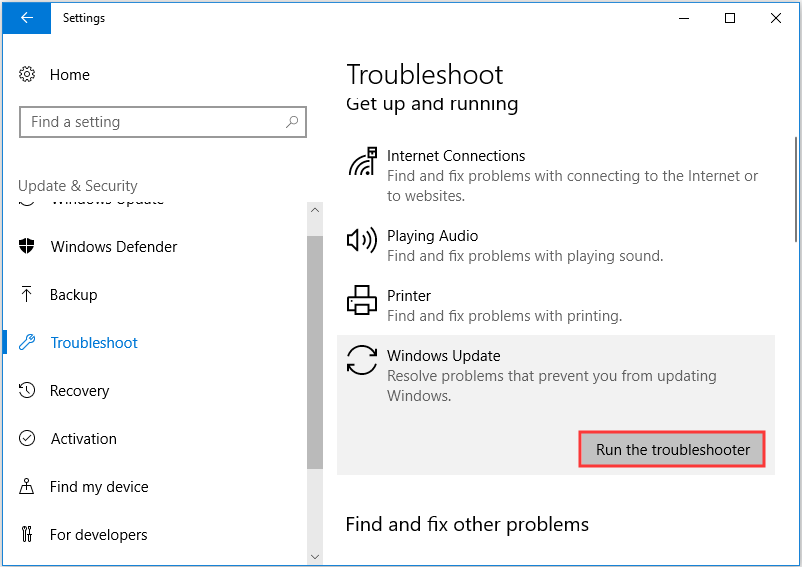
After that, you can follow the wizard to continue. When all steps are finished, run Windows Update again to check whether the Windows error 0x8007043c is solved.
Solution 3. Disable Third-Party Antivirus Software
If the above method is not effective, you can try disabling third-party antivirus software temporarily. In general, disable antivirus software can solve a lot of problems. So, if you have encountered the same problem, try this solution.
If you are using the Avast, just go to the Setting page of Avast, and choose to disable it.
After fixing the Windows update error code 0x8007043c, you can enable the antivirus software again.
Solution 4. Update Device Driver
The fourth solution to fix the Windows 10 update assistant 0x8007043c issue is to update device drivers.
Now, here is the tutorial.
Step 1: Press Windows key and R key together to open Run dialog, then type devmgmt.msc in the box and click OK to continue.
Step 2: In the Device Manager window, find out the failure driver and choose Update driver from the context menu to continue.
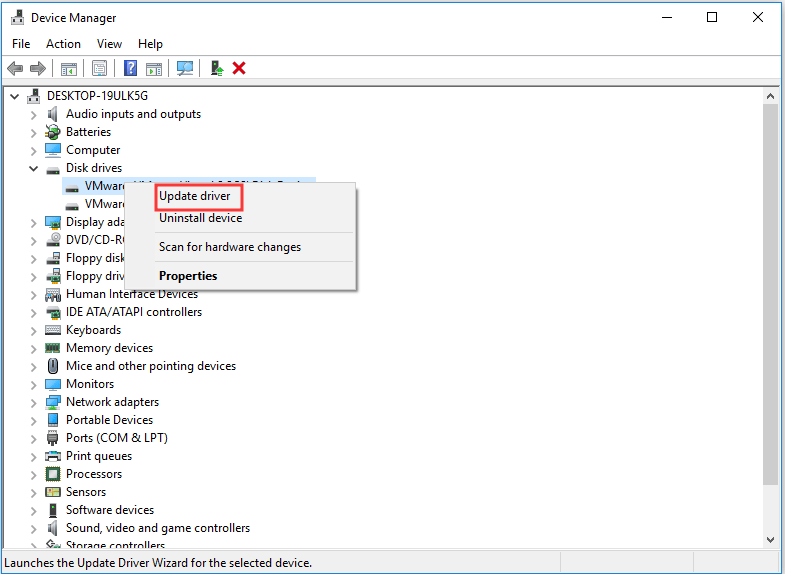
Step 3: Next, choose Search automatically for update driver software to continue.
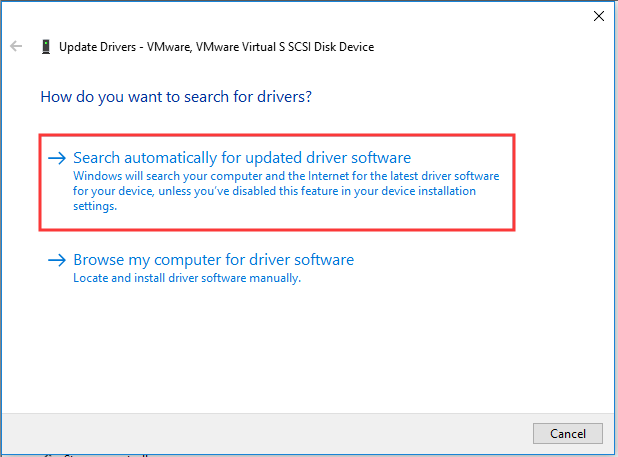
Then you can follow the wizard to continue. When the process is finished, reboot your computer and run Windows update again to check whether the Windows update error code 0x8007043c Windows 10 is solved.
Solution 5. Run System File Checker
As we have mentioned in the above part, the corrupted system files may also lead to the error code 0x8007043c. So, in order to solve this issue, you can run System File Checker to scan and fix the corrupted system files.
Now, here is the tutorial.
Step 1: Type Command Prompt in the search box of Windows and choose the best-matched one. Right-click it to choose Run as administrator to continue.
Step 2: In the pop-up window, type the command sfc /scannow and hit Enter to continue.
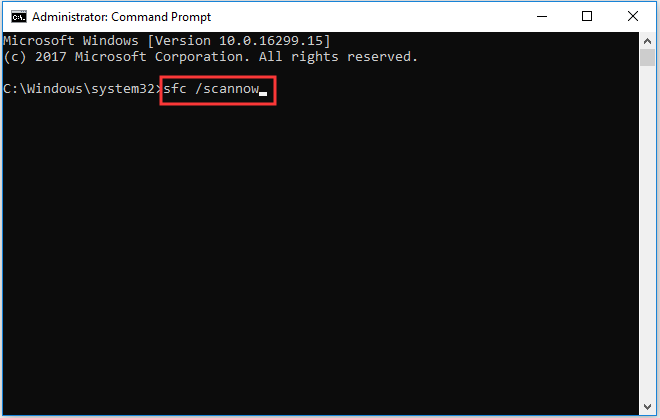
Then the scanning process will begin. Please do not exit the command line windows until you see the message verification 100% complete.
When the process is finished, reboot your computer and check whether the Windows update error code 0x8007043c is solved.
If the System File Checker fails to work, you can read the post: Quickly Fix – SFC Scannow Not Working (Focus on 2 Cases) to find the solution.
Solution 6. Run DISM Tool
Besides the System File Checker, you can also run the DISM tool to scan and fix the corrupted system files.
Now, here is the tutorial.
Step 1: Open Command Prompt as an administrator with the method mentioned in the above part.
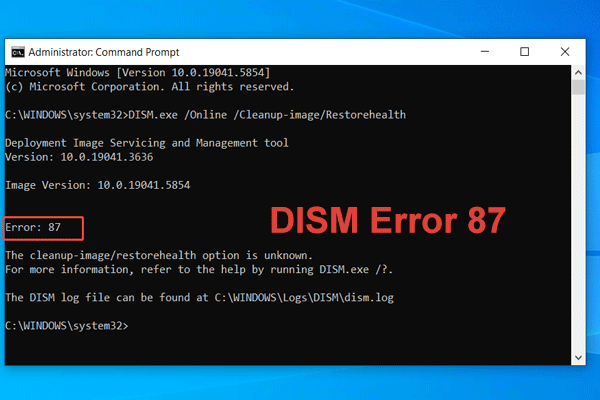
Step 2: Type the command DISM /Online /Cleanup-Image /RestoreHealth and hit Enter to continue.
When the process is finished, reboot your computer and check whether the error code 0x8007043c is solved.
Solution 7. Reinstall Windows
If the above solutions can’t solve the Windows update error code 0x8007043c, you may need to reinstall the operating system. In general, reinstalling OS is an effective way to solve all system-related problems.
But, reinstalling OS will lead to data loss. So, before proceeding, you need to back up all important files.
Final Words
To sum up, this post has introduced 7 ways to fix Windows update error code 0x8007043c. If you encounter the same problem when updating systems, try these solutions.
User Comments :