
0x800704E8 is a Windows Defender update error and it often occurs when you attempt to update your Windows Defender. So, how to get rid of the Windows Defender update error code 0x800704E8? If you are struggling with the issue, you can follow this post on MiniTool Website.
Windows Defender Error 0x800704E8
It is important to keep your Windows Defender up to date so that the bank of observable viruses or malware can be extended and enhanced. Some people choose to update Windows Defender but it turns out showing an error code 0x800704E8.
The most direct way to fix the 0x800704E8 is to manually update it via CMD and for specific steps you can go to the last method in the next part. Some other available solutions are also introduced in the next part.
Suggestion: Back Up Your Data Regularly
As we have recommended, Windows Defender need to be updated to extend the protective shield against more types of viruses and malware; and some bugs can be repaired and functions can be enhanced.

However, when you fail to update the tool, the protection can be jeopardized. You may resort to other channel for a better data protection, such as a data backup plan. MiniTool ShadowMaker, free backup software, can help you back up systems, files & folders, and partitions & disks.
It can also help you perform a regular backup via Schedule Settings, including Daily, Weekly, Monthly, and On Event. Backup schemes are also available, such as full, incremental, and differential backup.
Fix the Error 0x800704E8
Fix 1: Run Windows Update Troubleshooter
Windows Update troubleshooter can help resolve the Windows update issues and you can try this tool to diagnose if there are any issues with Windows Defender update.
Step 1: Go to Start > Settings > Update & Security > Troubleshoot.
Step 2: Click Additional troubleshooters from the right panel and click Windows Update under Get up and running.
Step 3: Click Run the Troubleshooter to start the check and repair.
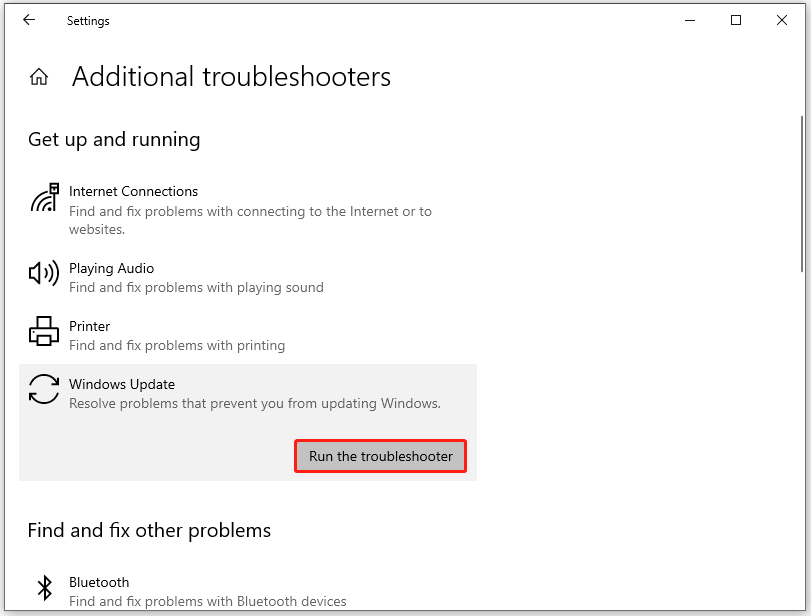
Then the tool will start scanning and show you the result it finds. You can follow the recommended solutions it will provide to fix the issues.
![[Full Guide] How to Fix Windows Update Troubleshooter Not Working](https://images.minitool.com/minitool.com/images/uploads/2023/03/windows-update-troubleshooter-not-working-thumbnail.png)
Fix 2: Perform SFC and DISM Scans
Another method that worth trying is to run SFC and DISM scans for your system. These two tools can help check and repair system file corruptions.
Step 1: Type Command Prompt in Search and choose Run as administrator.
Step 2: Type sfc /scannow in the window and press Enter to start running.
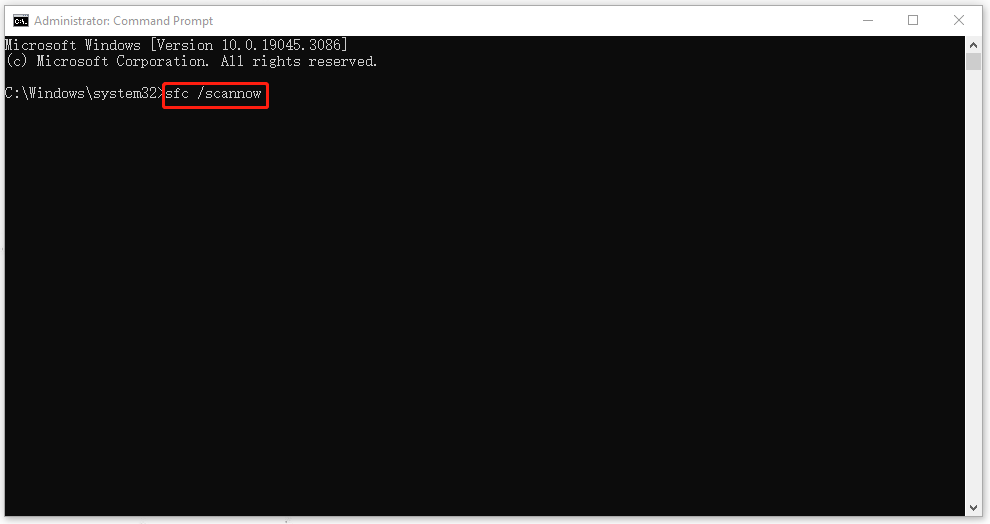
Wait until the process finishes and then you can perform another command for further check.
Step 3: When done, input and run this command – DISM /online /cleanup-image /restorehealth.
After that, you can close the window and restart your computer to check if the 0x800704E8 error has been fixed.
Fix 3: Remove the Windows Defender Signature File
Since a corrupted signature file can prevent Microsoft Defender from updating, you can download a new one by removing the old one.
Step 1: Turn off your Windows Defender and open Run by pressing Win + R.
Step 2: Then copy and paste this command – Msiexec /x {A5CC2A09-E9D3-49EC-923D-03874BBD4C2C} and press Enter.
After that, you can launch Windows Defender to try the update again. When the process finishes, you can restart your computer.
Fix 4: Manually Update Microsoft Defender through CMD
You can manually update Windows Defender via Command Prompt as the following steps.
Step 1: Run Command Prompt as an administrator and copy and paste this command to enter to clear the cache – “%ProgramFiles%\Windows Defender\MpCmdRun.exe” -removedefinitions -dynamicsignatures.
Step 2: When that finishes, run this command to update definitions – “%ProgramFiles%\Windows Defender\MpCmdRun.exe” –SignatureUpdate.
Then you can restart your computer to launch Windows Defender to update it to see if the 0x800704E8 error has been fixed.
Bottom Line:
This article is helpful to get rid of the error code 0x800704E8. You can follow the guide to try the introduced solutions for troubleshooting.
User Comments :