
What causes the Windows update error 0x8024002e? How to fix the 0x8024002e Windows 10? This post from MiniTool will show you how to solve this Windows update error. Besides, you can also visit MiniTool to find more Windows update problems and solutions.
What Causes Windows Update Error 0x802400e?
Updating the operating system is necessary since it can help to fix some bugs and make some improvements. However, some users complain that they encounter the error 0x8024002e when trying to update. The same error also appears on the Windows Server Update service.
Then what may cause the 0x8024002e Windows 10?
The Windows Update 0x8024002e error stops you from downloading the Windows updates on your computer. It usually caused by a bad gateway. It also caused by a malware that blocking Windows Update or Windows Server Update Service. Hence, you will fail to update the operating system.
So, in the following section, we will show you how to fix the 0x8024002e error.
3 Solutions to Fix Windows Update 0x8024002e
Solution 1: Run Windows Update Troubleshoot
To begin with, we will show you the first way to fix the Windows update error 0x8024002e. In this solution, you can run Windows Update Troubleshoot.
Now, here is the tutorial.
Step 1: Press Windows key and I key together to open Settings. Then choose Update & Security to continue.
Step 2: In the pop-up window, click Troubleshoot on the left panel. Choose Run the troubleshooter under Windows Update to continue.
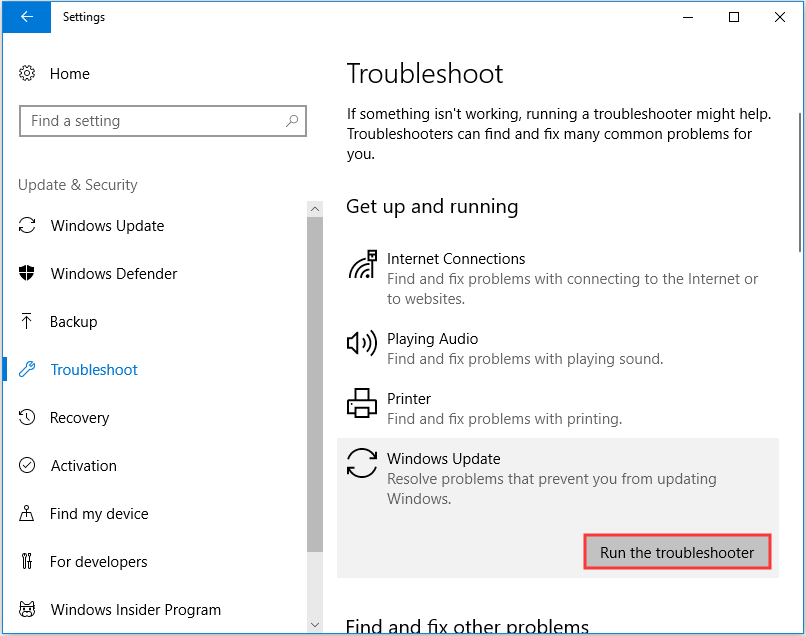
Then the Troubleshooter will begin to scan the problems on your computer and fix them. When it is finished, reboot your computer and run Windows Update again to check whether the Windows update 0x8024002e WSUS error is solved.
Solution 2. Check Registry Editor
If the above solution is not effective, you can try this solution. In this solution, you need to modify the Registry Editor.
Now, here is the tutorial.
Step 1: Press Windows key and R key together to open Run dialog, then type regedit in the box and click OK to continue.
Step 2: In the Registry Editor window, navigate to the following folder.
HKEY_LOCAL_MACHINE\Software\Policies\Microsoft\Windows\WindowsUpdate
Step 3: On the right panel, find the DisableWindowsUpdateAccess and double-click it. Then change its value data to 0.
Close the Registry Editor window and restart your computer. Then check whether the Windows update 0x8024002e is solved.
Solution 3. Run System Restore
Here is an available way for you to fix Windows Update 0x8024002e error. If you want to use this solution, the precondition is that you have created a system restore point before. The restore point can help restore your computer to a previous state so as to solve the error 0x8024002e Windows 10.
Now, here is the tutorial.
Step 1: Type Create a restore point in the search box of Windows and choose the best-matched one to continue.
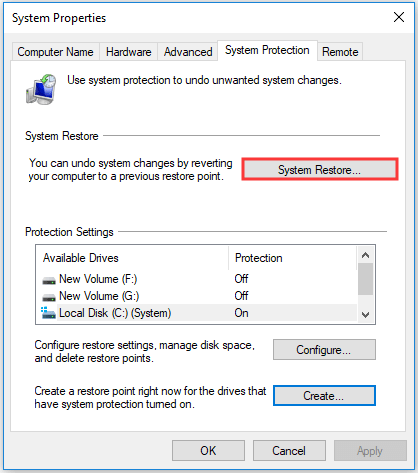
Step 2: In the pop-up window, go to the System Protection tab, and then choose System Restore… to continue.
Step 3: Click Next.
Step 4: In the pop-up window, you will see the restore point if you have created one before. Then select it and click Next.
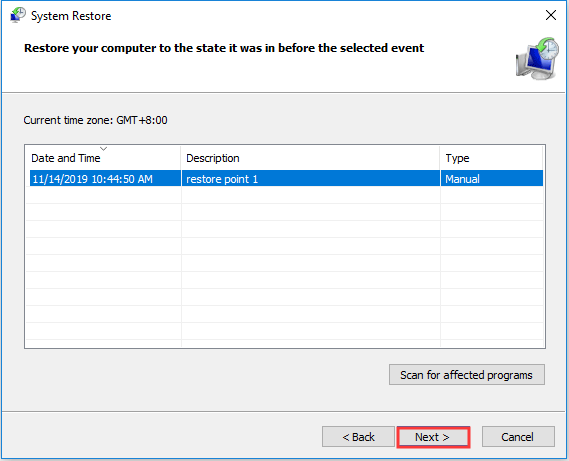
Step 5: Then you need to confirm the restore point information and click Finish to continue.
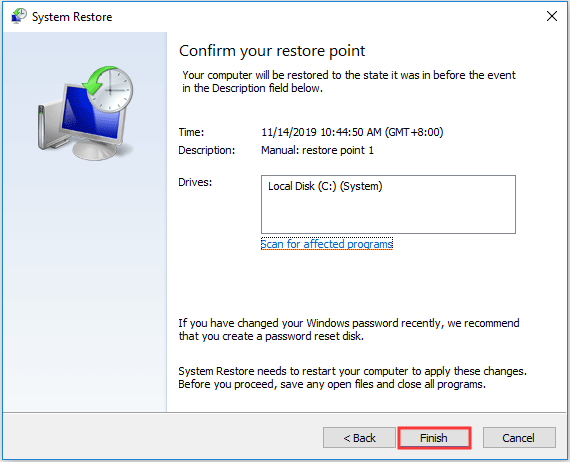
When the restore process is finished, reboot your computer and check whether the Windows update 0x8024002e WSUS is solved.
As a matter of fact, besides the restore point, you can also choose to create a system image to keep your PC safe.
Final Words
To sum up, this post has shown 3 ways to fix the Windows Update error 0x8024002e. If you have come across the same problem, this post can help you out.
User Comments :