
What is the error 0x8024401f? What causes the error 0x8024401f? How to fix the Windows Update error 0x8024401f? This post from MiniTool will show you 4 ways to solve the error 0x8024401f. In addition, you can visit MiniTool to find more Windows errors and solutions.
What Causes the Error 0x8024401f?
Some users have complained that they are unable to update their operating system to the latest version and they came across the error 0x8024401f. Usually, they encountered the Windows Update error 0x8024401f while trying to update a UWP app via the Windows Store.
Then what may cause the error 0x8024401f?
In general, the error 0x8024401f may be caused by the following reasons.
- Third-party security interference.
- Bad Windows update.
- Corrupted Windows Store cache.
- Interfering Proxy or VPN connection.
However, do you know how to fix the Windows Update error 0x8024401f? So, in the following section, we will show you the solutions to the error 0x8024401f. If you do not know how to fix this error, keep on your reading.
Top 4 Solutions to Windows Update Error 0x8024401f
In this part, we will show you how to solve the error 0x8024401f.
Way 1. Disable Third-Party Antivirus Software
As we have mentioned in the above part, the Windows Update error 0x8024401f may be caused by the third-party antivirus software. So, in order to solve the error 0x8024401f, you can try disabling the antivirus program.
If you are using the Avast antivirus program, you can read the post: Multiple Ways to Disable Avast for PC and Mac Temporarily/Completely
After that, you can check whether the Windows Update error 0x8024401f is fixed. If this solution does not work, you can try other solutions.
Way 2. Run Windows Update Troubleshooter
If you encounter the Windows Update error 0x8024401f, you can run the Windows Update troubleshooter.
Now, here is the tutorial.
- Press Windows key and I key together to open Settings.
- Then choose Update & Security to continue.
- On the left panel, choose Troubleshoot.
- On the right panel, click Windows Update and choose Run the troubleshooter.
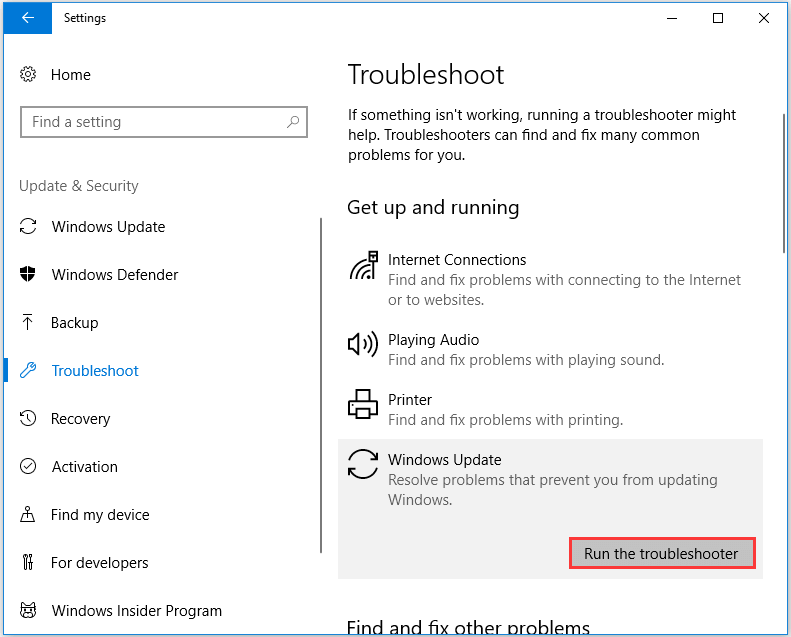
After that, the Troubleshooter will begin to scan and detect the problems on your computer. If there are problems, it will fix them.
When the whole process is finished, reboot your computer and check whether the error 0x8024401f is fixed.
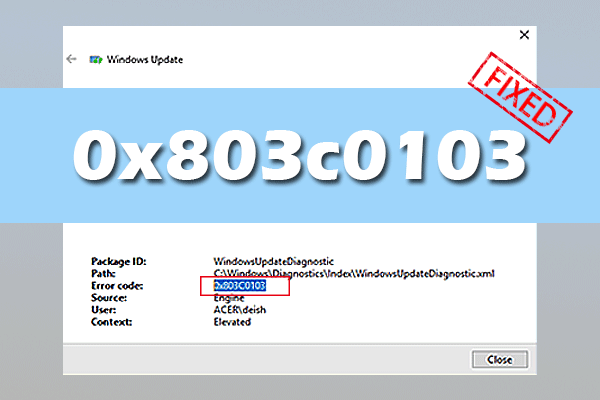
If this solution is not effective, try another one.
Way 3. Reset Windows Store Cache
If you encounter the error 0x8024401f while updating a UWP app via the Windows Store, this error may be caused by some degree of corrupted system files.
In this situation, you need to reset Windows Store cache.
Now, here is the tutorial.
- Open Command Prompt as administrator.
- In the Command line window, type the command wsreset.exe and hit Enter to continue.
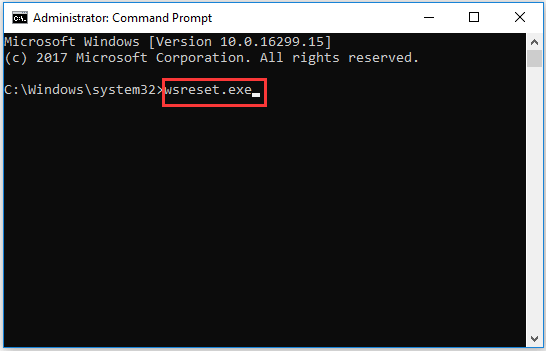
When the process is finished, reboot your computer and check whether the Windows Update error 0x8024401f is fixed.
Way 4. Disable Proxy Server VPN Client
If you have come across this far without a result and you are using a proxy server or a VPN solution to maintain your surfing anonymity, then your proxy/VPN is conflicting with the Windows Update client. You may also encounter the Windows Update error 0x8024401f because the Windows installation agent does not trust your private connection, so the update is never allowed to be installed.
In this situation, you can choose to disable Proxy Server VPN client.
Now, here is the tutorial.
- Press Windows key and I key together to open Settings.
- Then choose Network & Internet.
- On the left panel, choose Proxy.
- Then scroll down to Manual Proxy Setup.
- Then disable the option Use a proxy server.
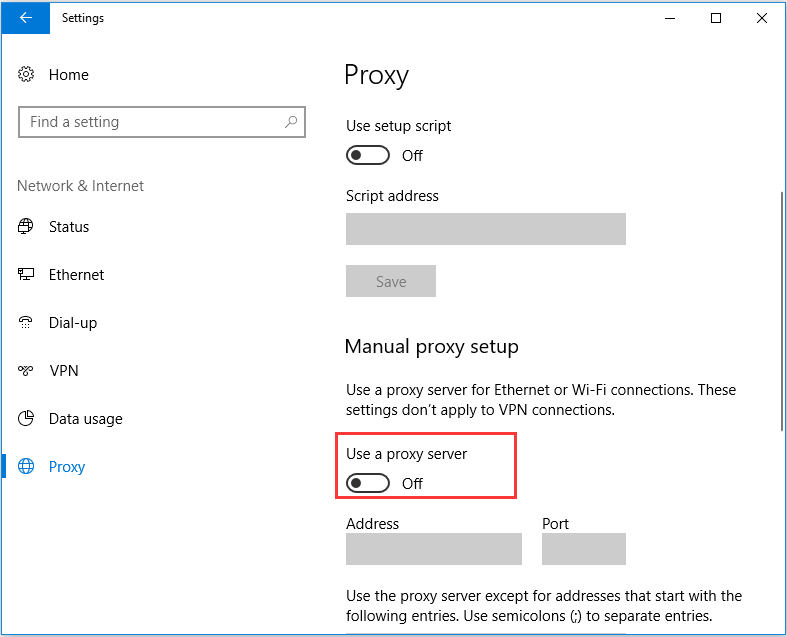
When all steps are finished, reboot your computer and check whether the error 0x8024401f is fixed.
Final Words
To sum up, this post has introduced 4 ways to fix the Windows update error 0x8024401f. If you come across the same error, try these solutions. If you have any better idea to fix this error, please share it in the comment zone.
User Comments :