
The Windows Update Troubleshooter is a built-in tool in Windows PCs designed to troubleshoot issues related to Windows Update.
However, some people report encountering error code 0x803c0103 while using it to troubleshoot update issues on their PCs.
If you are one of them, you come to the right place. This post examines the causes of the error and provides several effective solutions to resolve it.
What Is Error Code 0x803c0103 in Windows 10/11?
Error code 0x803c0103 signals a problem with the Windows Update Troubleshooter, making it difficult to resolve update issues. When this error appears, the troubleshooting process cannot proceed on your Windows device, and you can see the following error message:
An unexpected error has occurred. The troubleshooting wizard can’t continue.
After searching for this error on the Internet, we find that the error can be caused by various reasons, including:
- Corrupted system files
- Network conflicts
- Windows Update service issues
- Conflicting software
- Virus or malware infection
- Corrupted Windows Update components
- Cache problems
- Misconfigured registry key
Suggestion: Back Up Data Before Fixing Error Code 0x803c0103
Sometimes, it’s easy to lose data during the process of fixing errors on a computer, including the error code 0x803c0103. Hence, it is highly recommended to use PC backup software to make backups of your important data.
MiniTool ShadowMaker is such a professional tool that can satisfy you. It offers the Backup feature to help you perform a file backup and system backup.
Here’s how to use this software:
Step 1. Click the following download button to get MiniTool ShadowMaker’s installation package. Then, run the file to install it on your PC.
MiniTool ShadowMaker TrialClick to Download100%Clean & Safe
Step 2. Open this software to its main interface and go to the Backup tab.
Step 3. Enter SOURCE, choose Folders and Files, and then check all the files that you want to back up. Next, click OK to continue.
Step 4. Go to DESTINATION, choose a location you prefer to store the backup files, and click OK.
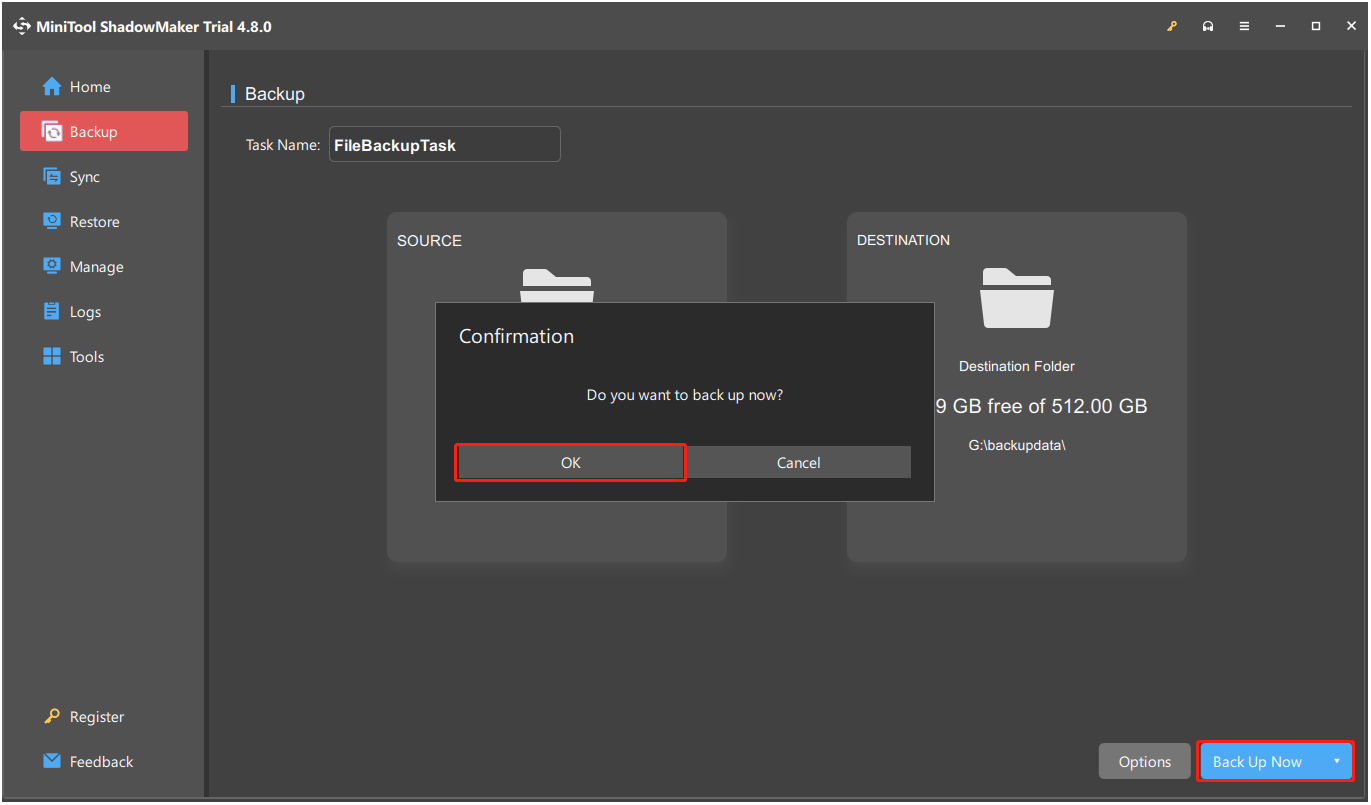
Step 5. Click Back Up Now at the bottom right corner and OK in the pop-up Confirmation window.
How to Fix Error Code 0x803c0103 in Windows 10/11
To resolve the Windows Update Troubleshooter 0x803c0103 error in Windows 10/11, try running SFC and DISM, resetting Windows Update components, performing a system restore, and other approaches. Here’s the detailed breakdown:
Approach 1. Run SFC and DISM
Corrupted system files can cause various errors, including Windows Update error 0x803c0103.
DISM can solve stability and performance issues by repairing images of Windows. SFC can scan and fix corrupted or missing system files.
Therefore, try performing DISM and SFC on your PC to fix the error. Here’s the guide:
Step 1. Run Command Prompt as administrator.
- Press Win + S to open the Search window.
- Type cmd.
- Right-click Command Prompt under Best Match.
- Select Run as administrator.
- Click Yes in the prompted UAC window.
Step 2. Execute the following commands one by one in the elevated Command Prompt window to perform a DISM scan:
- DISM.exe /Online /Cleanup-Image /ScanHealth
- DISM.exe /Online /Cleanup-Image /CheckHealth
- DISM.exe /Online /Cleanup-Image /RestoreHealth
Step 3. Once the process finishes, type sfc /scannow and press Enter.
Step 4. Reboot your computer and run Windows Update Troubleshooter again to check if the error persists.
Approach 2. Scan the Virus on Your Computer
A virus or malware infection on a computer can corrupt system files or interfere with Windows Update and other processes, thereby causing error code 0x803c0103. To fix it, scan your computer with the following steps:
Step 1. Open Search, type windows security, and press Enter.
Step 2. Choose Virus & threat protection in the prompted window.
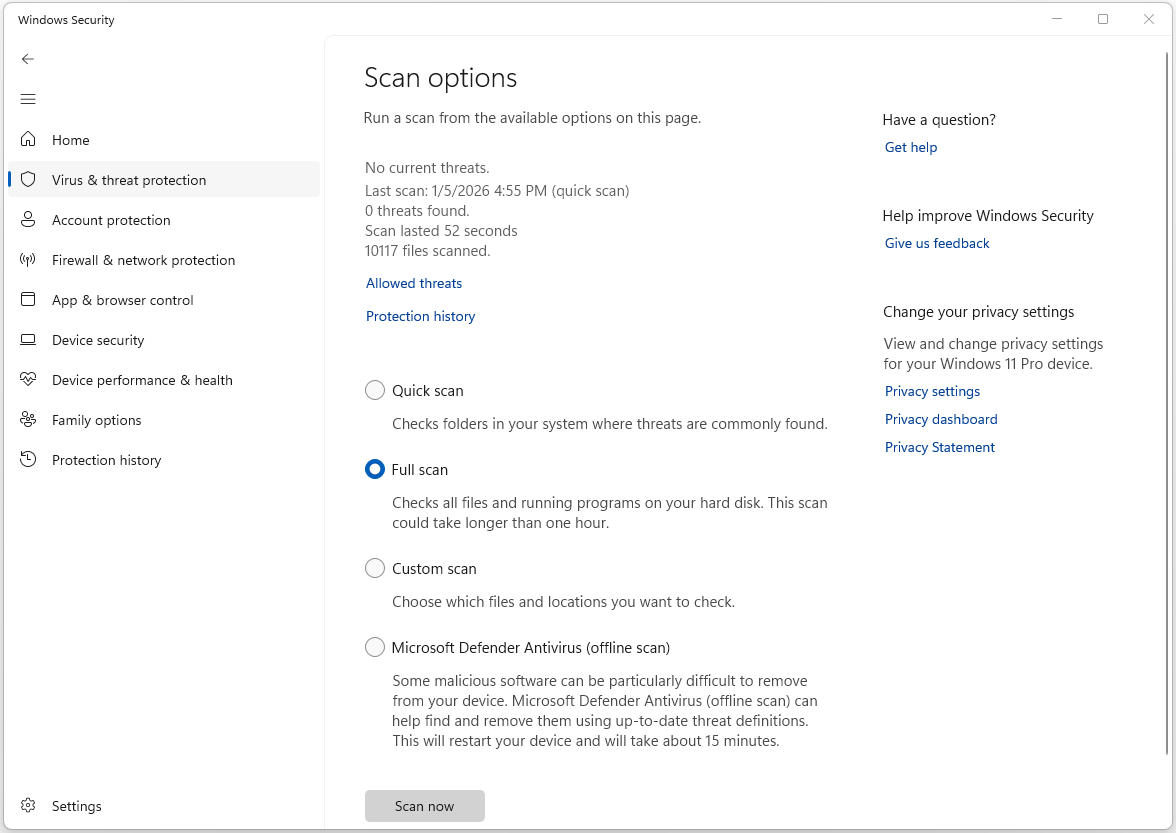
Step 3. Click Scan options to proceed.
Step 4. Choose a scan option you prefer and click Scan now.
- Quick scan: It is the recommended scan for daily maintenance because it is fast.
- Full scan: When you strongly suspect your device is infected, choose this scan method. Additionally, this method can ensure no remnants remain if a Quick Scan found a threat.
- Custom scan: If you only want to check whether a specific folder, file, or external device have a virus, choose this scan method.
- Microsoft Defender Antivirus (offline scan): If you suspect a virus that hides itself so the standard scan can’t find it, use this scan method for deeply embedded malware.
Step 5. Once the scan process is finished, go to the Protection history page to see what was detected.
Step 6. Locate the found threats and choose Remove, Quarantine, or Allow (If you’re certain it’s safe, but be cautious).
Approach 3. Temporarily Disable Third-Party Antivirus Software
Sometimes, third-party antivirus software may interfere with the Windows operating system and result in the Windows Update Troubleshooter error code 0x803c0103. In this case, try temporarily disabling it to fix the error. Here’s the guide:
Step 1. Click the up-arrow symbol in your taskbar to show hidden icons and find your antivirus program’s icon.
Step 2. Right-click the icon to open its context menu.
Step 3. Look for options like Pause Protection, Disable, Shut Down Protection, or Stop Protection.
Step 4. Choose a time limit (such as 15 minutes, 1 hour, or other) to ensure you don’t leave your system unprotected for too long.
Step 5. Click Yes or OK to confirm the operation.
Step 6. Run Windows Update Troubleshooter again and check if the error appears again.
Approach 4. Clear Caches
Cache problems may also be related to Windows Update Troubleshooter error code 0x803c0103. In this situation, try clearing the cache to fix the error. Here’s how to do that:
Step 1. Press Win + R to open Run.
Step 2. Type services.msc, and press Enter to open Services.
Step 3. Find Windows Update from the services list, right-click it, and select Stop.
Step 4. Open File Explorer, go to C:\Windows\SoftwareDistribution, open the folder, and delete everything inside.
Step 5. Go back to Services, right-click Windows Update, and select Start.
Approach 5. Reset Windows Update Component
Corrupted Windows Update components can also trigger the Windows Update Troubleshooter error code 0x803c0103. To address it, follow the steps to reset these components.
Step 1. Open Run, type cmd, and then press Ctrl + Shift + Enter to run Command Prompt as an administrator. Next, you can see the User Account Control window prompt, click Yes to approve.
Step 2. In the elevated Command Prompt, execute the following commands one by one to stop Windows Update, Cryptographic, BITS, and MSI Installer services:
- net stop wuauserv
- net stop cryptSvc
- net stop bits
- net stop msiserver
Step 3. After stopping those services, run the following commands one by one to rename the SoftwareDistribution and Catroot2 folders:
- ren C:\Windows\SoftwareDistribution SoftwareDistribution.old
- ren C:\Windows\System32\catroot2 Catroot2.old
Step 4. Now, enter the following commands one by one to restart the previously stopped services:
- net start wuauserv
- net start cryptSvc
- net start bits
- net start msiserver
When the process is finished, reboot your computer and run Windows Update Troubleshooter again to check whether the error code 0x803c0103 is solved.
Approach 6. Perform a Clean Boot
A clean boot starts Windows with a minimal set of drivers and startup programs. Therefore, performing it can help you determine whether a third-party program is interfering with your operation and then result in the error 0x803c0103. Here’s the guide:
Step 1. Open Run, type msconfig, and click OK.
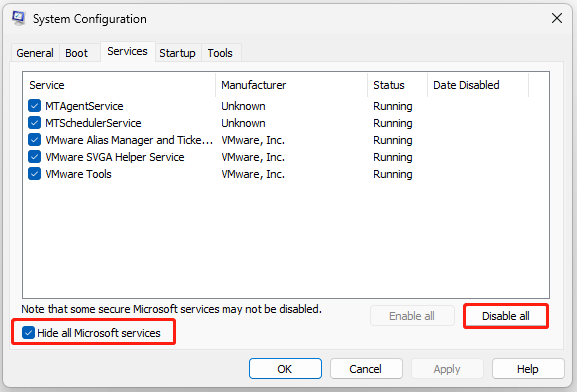
Step 2. In the pop-up System Configuration window, go to the Services tab, and check the Hide all Microsoft services option. Next, click Disable all and click Apply.
Step 3. Go to the Startup tab and click Open Task Manager.
Step 4. Right-click the apps you suspect and select Disable. After that, exit Task Manager, and click OK under the Startup tab.
Then, your computer will restart into a clean boot environment. Now, try running Windows Update Troubleshooter again and check if the issue has been resolved.
Step 6. If yes, it means that the culprit is third-party programs. Then, try to find out the culprit and boot into normal Windows.
Approach 7. Perform System Restore
System Restore creates a restore point of your working system to revert the computer to an earlier state. If there is an available restore point created before the error code 0x803c0103 occurred, try performing a system restore.
Here’s how to perform that:
Step 1. Press Win + I to open Settings.
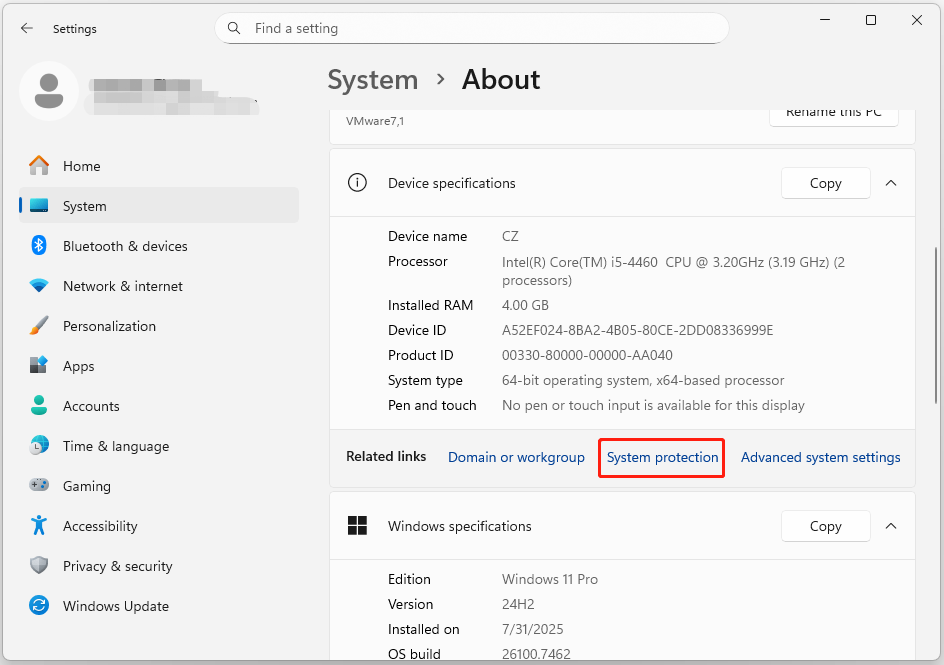
Step 2. Go to System > About, and then select the System protection link on the right panel.
Step 3. In the System Properties window, click System Restore and click Next in the pop-up window.
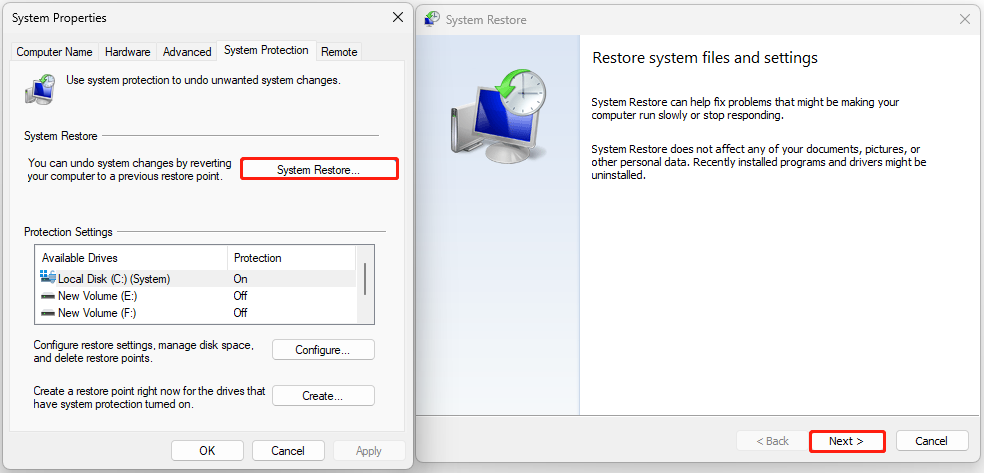
Step 4. Select the restore point you want and click Next.
Step 5. View the description of the restore point in the new window and click Finish to confirm.
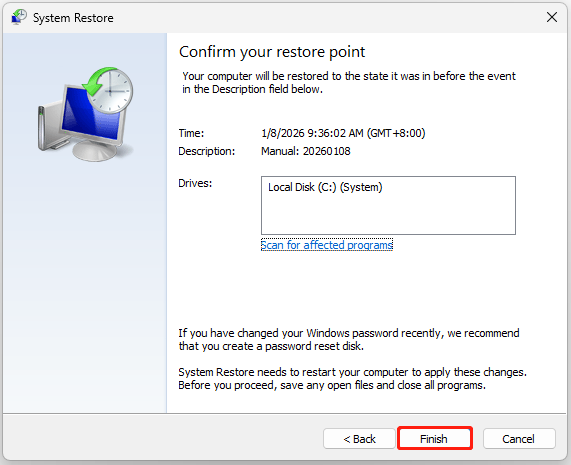
Step 6. Choose Yes to continue in the prompted window. Then the System Restore process will begin. Wait for this process to be completed.
Once done, your Windows will revert to the previous state. Now, run Windows Update Troubleshooter again and check if the error has been resolved.
Approach 8. Reset This PC
Generally, resetting the computer reinstalls the operating system to fix performance issues, malware, or software conflicts. After performing it, your computer can get a fresh system. Therefore, if none of the above approaches can help you solve error 0x803c0103, try it.
Here’s how to do that:
Step 1. Open Settings and go to System > Recovery.
Step 2. Under the Recovery options section, click the Reset PC button next to Reset this PC.
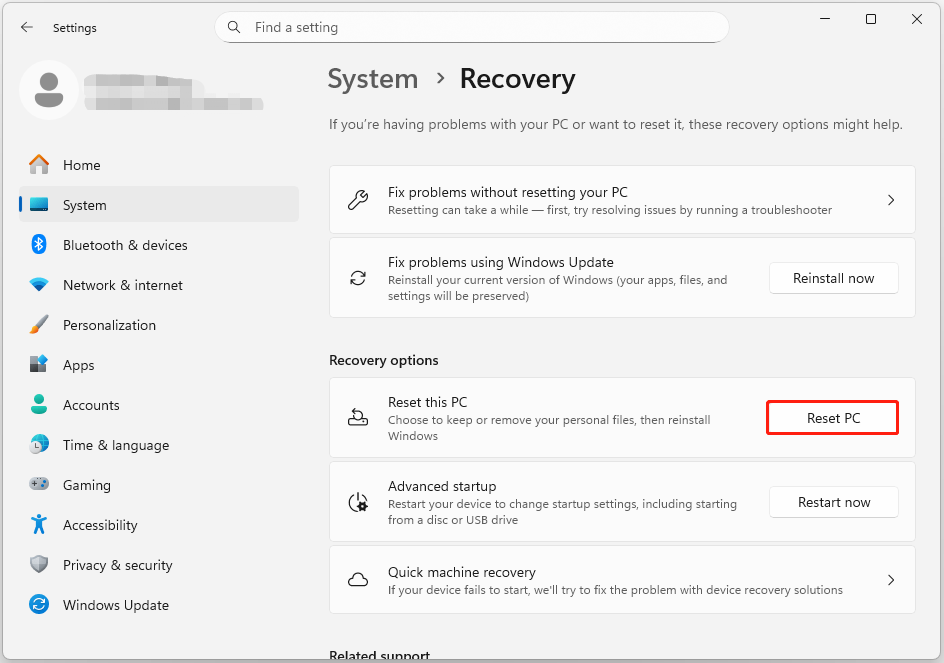
Step 3. In the Choose an option window, choose the option you like:
- Keep my files: Removes apps and settings, but keeps your personal files.
- Remove everything: Removes all of your personal files, apps, and settings.
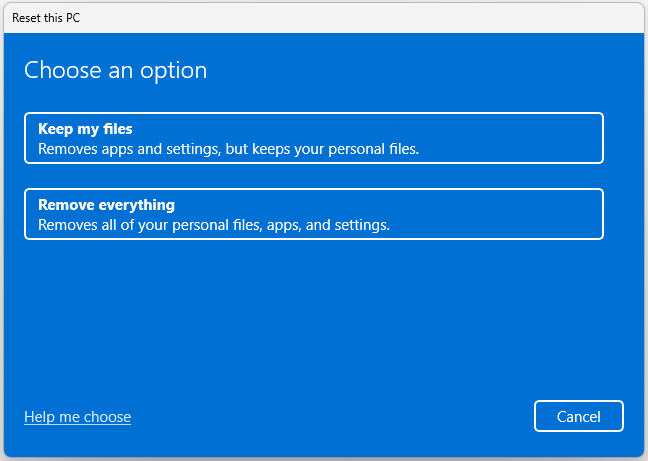
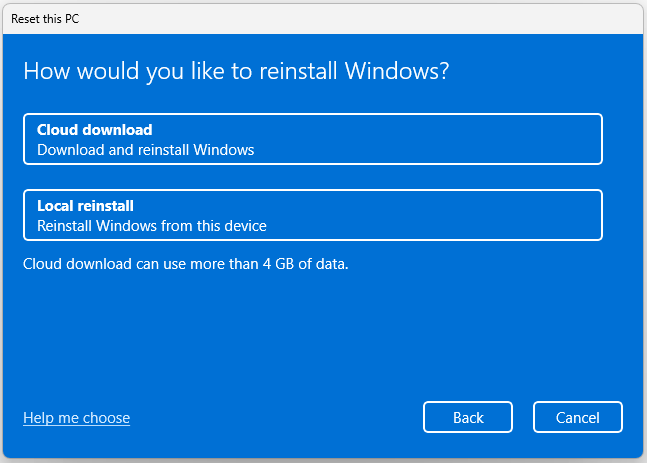
Step 4. In the next window, choose a method to reinstall Windows:
- Cloud download: Downloads and reinstalls Windows.
- Local reinstall: Reinstalls Windows from this device.
Step 5. Follow the on-screen instructions to complete the process. Once done, run Windows Update Troubleshooter again and check if the error is fixed.
Final Words
This post explains how to fix Windows Update Troubleshooter error code 0x803c0103. If you encounter the same error on your PC, try the mentioned methods.
If you have any questions about MiniTool ShadowMaker, please let us know by sending an email to [email protected].
0x803c0103 FAQ
If you encounter error 0x80070643 when you install KB5034441, try manually resizing the recovery partition.
About The Author

Position: Columnist
Charlotte is a technology columnist with a strong focus on the Windows operating system, specializing in disk management, backup, and data recovery. She is passionate about analyzing computer errors, identifying root causes, and delivering practical solutions. In her free time, she stays updated on the latest developments in computer systems and hardware while continuously learning new technologies to broaden her expertise. Her writing style is clear and easy to understand, making complex technical topics accessible even to users with limited computer knowledge.
User Comments :