
Windows Login Error 0x80280013
Windows 10/11 comes with 4 ways to log into your computer: PIN login, Security key, Facial recognition, and Fingerprint recognition. PIN login seems the most preferred option among Windows users. One of the common issues you might encounter is the error code 0x80280013 while you are trying to unlock your computer with your PIN.
The possible causes for this issue include:
- Corrupted Windows updates.
- Incomplete NGC folder.
- Enabling Fast Startup.
MiniTool ShadowMaker TrialClick to Download100%Clean & Safe
Also see: Fixed: Windows Hello PIN This Option Is Currently Unavailable
How to Fix Windows Login Error 0x80280013?
Fix 1: Disable Fast Startup
Although enabling Fast Startup can make your computer boot faster, it will bypass critical steps during a shutdown. What’s worse, some data may fail to be written properly to the hard drive. In this case, disabling this feature might help you to solve 0x80280013 login error. To do so:
Step 1. Type Control Panel in the search bar and hit Enter.
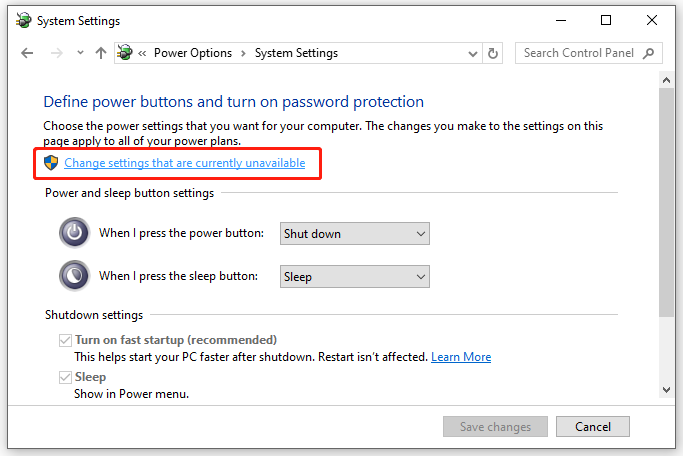
Step 2. Navigate to System and Security > Power options > Choose what the power buttons do.
Step 3. Click on Change settings that are currently unavailable > uncheck Turn on fast startup (recommended) > Save changes.
Fix 2: Delete NGC Folder
Your computer will create a dedicated folder called NGC to store all the PIN information. Once this folder is damaged for certain reason, it will prevent you from logging into your Windows device. Deleting this folder might do the trick. Here’s how to do it:
Step 1. Press Win + E to open File Explorer.
Step 2. Head towards:
C:\Windows\ServiceProfiles\LocalService\AppData\Local\Microsoft
Step 3. Find the Ngc folder, right-click on it and select Delete. Once the folder is deleted, the operating system will create a new one automatically.
Fix 3: Reset the PIN
To address Windows Login error 0x80280013, another option is to reset the PIN. Follow these steps:
Step 1. Press Win + I to open Windows Settings and select Accounts.
Step 2. In the Sign-in options tab, click on Windows Hello PIN and select Change PIN.
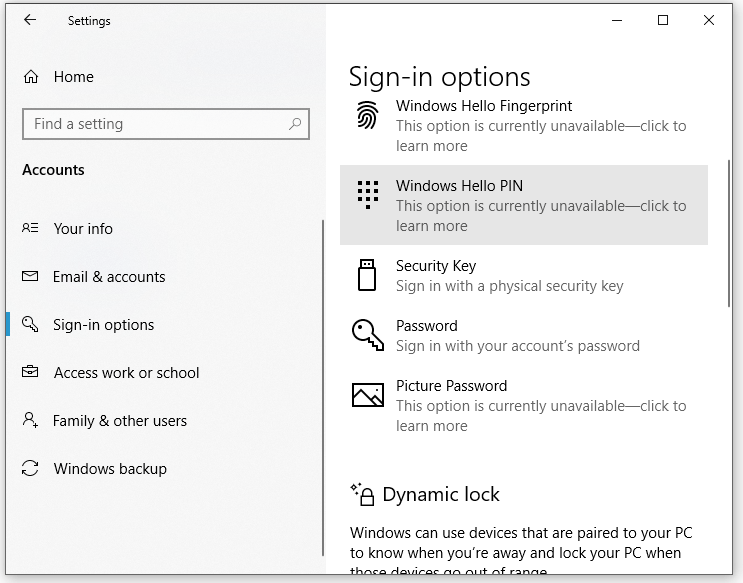
Step 3. Type the existing PIN and enter your new PIN.
Fix 4: Update or Roll back Windows Update
The current Windows version you are running might contain some bugs and glitches, resulting in PIN error 0x80280013. In this condition, you can eliminate this error by downloading and installing the latest Windows update. To do so:
Step 1. Open Windows Settings.
Step 2. Go to Update & Security > Windows Updates > Check for updates.
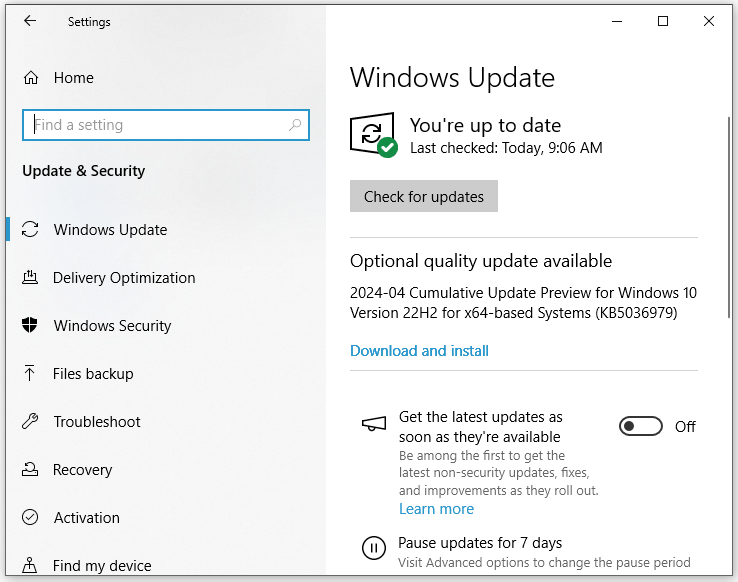
Step 3. If there is any available update, click on Download and install.
Final Words
By now, one of these solutions above can help to get rid of PIN error 0x80280013. Meanwhile, you can consider other log in options and modify your password & username regularly to prevent any unauthorized access. Have a nice day!
User Comments :