
Do you receive Boot Configuration Data error code 0xc0000454 during the Windows 10/11 startup? If yes, take it easy! You are not alone! In this guide from MiniTool Website, we have racked our brains to find the most effective solutions for you.
Boot Configuration Data Missing 0xc0000454
Are you stuck on a blue screen with Boot Configuration Data error code 0xc0000454 when your computer boots up? The complete error message is:
Your PC needs to be repaired.
The Boot Configuration Data for your PC is missing or contains errors.
File:\boot\bcd
Error code: 0xc0000454
You’ll need to use the recovery tools on your installation media.
This error indicates that Windows Boot Manager cannot function properly at the moment. In most cases, a simple restart of the system can get rid of error code 0xc0000454. If a reboot doesn’t work for you, you can scroll down to find more feasible solutions.
# Back up Your File Before Hand!
Errors like Boot Configuration Data error code 0xc0000454 are very common in Windows 10/11. If they are not handled properly, it is easy to suffer from data loss. To secure your data, it’s better to use MiniTool ShadowMaker to create a backup of your important files.
This Windows backup software is available on Windows 10/11/8/7 and it creates an extra protection layer for your data by offering multiple backup solutions. Click on the button below to try this freeware now!
MiniTool ShadowMaker TrialClick to Download100%Clean & Safe
How to Fix Boot Configuration Data Error Code 0xc0000454 on Windows 11/10?
Fix 1: Run Automatic/Startup Repair
Windows Automatic Repair or Startup Repair can help you to troubleshooting some boot problems like Boot configuration Data error code 0xc0000454. To do so:
Step 1. Create Windows 10 installation media using a USB drive.
Step 2. Plug the USB flash drive into your device and reboot your computer.
Step 3. Press any key to boot from the installation media.
Step 4. Enter your language & other preferences and hit Next.
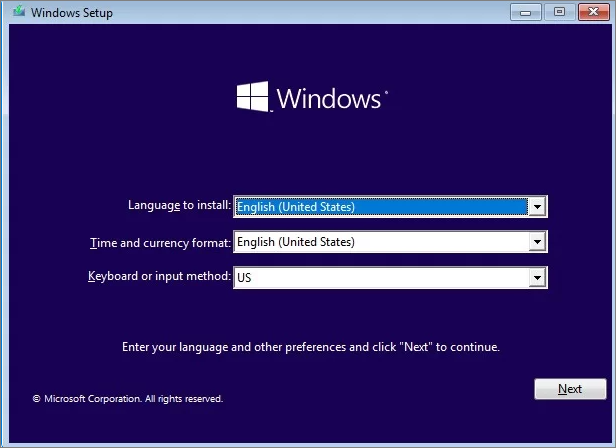
Step 5. Hit Repair your computer and select the type of operating system you want to repair.
Step 5. Go to Troubleshoot > Advanced options > Automatic Repair or Startup Repair. If Boot Configuration Data error code 0xc0000454 is still there after the Automatic Repair process is done, you can try the next solution.
Fix 2: Rebuild Boot Configuration Data
Since Windows error 0xc0000454 is related to Boot Configuration Data, another solution is to rebuild the BCD. Follow these guidelines:
Step 1. Click on the power button to shut down your PC and then boot it again.
Step 2. When you see the Windows logo, press the power button again to reboot your computer.
Step 3. Repeat these steps two or three times until the Automatic/Startup Repair screen appears.
Step 4. Hit Advanced options > Troubleshoot > Advanced options > Command Prompt.
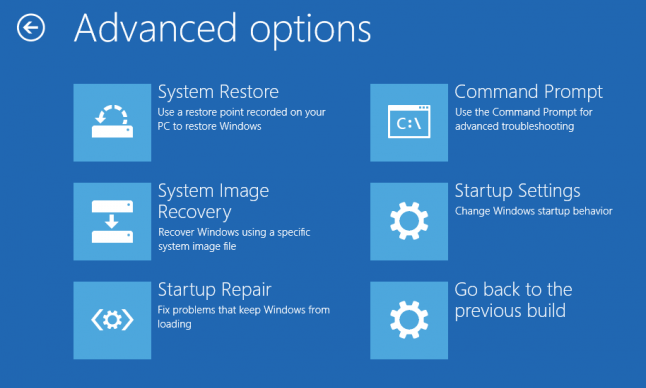
Step 5. In the command window, run the following command one by one and don’t forget to hit Enter after each command.
bootrec /fixMBR
bootrec /fixBoot
bootrec /rebuildBCD
Related article: how-to-rebuild-bcd
Fix 3: Reset BIOS to Default
To address Boot Configuration Data error code 0xc0000454, you can consider resetting BIOS to default settings. After resetting your BIOS, you can change each setting individually to find the one causing issues. Here’s how to do it:
Step 1. Reboot your computer.
Step 2. Before you see the Windows logo, press the F2 or F10 key (depending on your computer manufacturer) repeatedly to enter BIOS.
Step 3. Use the arrow keys on the keyboard to locate Load Setup Defaults and hit Enter to select it.
Step 4. In the confirmation window, select Yes and hit Enter to confirm the action.
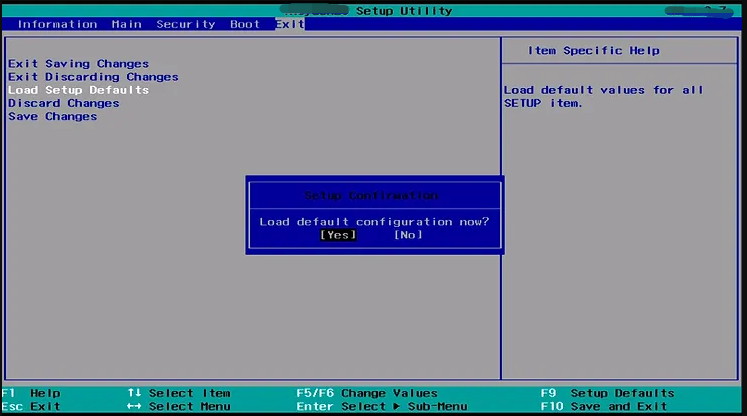
Step 5. Press F10 to save the changes and exit the BIOS.
User Comments :