
“Whenever I am working on my laptop and go for a break, then if I return and wake up my computer from sleep mode, I find that all my apps are closed. Please help me with this. I didn't find the solution to this problem on Google also.”learn.microsoft.com
If you only need to step away from your computer, especially a laptop, for a short period, you may choose to put the computer into sleep mode. This mode uses less power and starts your computer faster when you return to it. However, as the user encountered above, sometimes Windows sleep mode closes all applications. Is this what should happen normally?
Does Sleep Mode Close Programs
Click the Windows logo button > Power, hover your cursor over the Sleep option, and you can see “The PC stays on but uses low power. Apps stay open so when the PC wakes up, you’re instantly back to where you left off.” This indicates that Windows sleep mode does not close applications.
“Windows sleep mode closes all programs” may associated with misconfigured power plan, corrupted or damaged system files, problematic Windows updates, etc. Now, you can continue reading to learn how to keep programs running while computer sleeps.

How to Fix if Windows Sleep Mode Closes All Programs
Solution 1. Run the Power Troubleshooter
Windows offers a built-in Power troubleshooter to help you diagnose and resolve problems with your PC’s power settings. You can run this troubleshooter if Windows sleep mode closes all programs.
Step 1. Press the Windows + I key combination to open Windows Settings.
Step 2. Select Update & Security > Troubleshoot. In the right panel, click Additional troubleshooters.
Step 3. Next, scroll down the page to find and click Power > Run the troubleshooter.
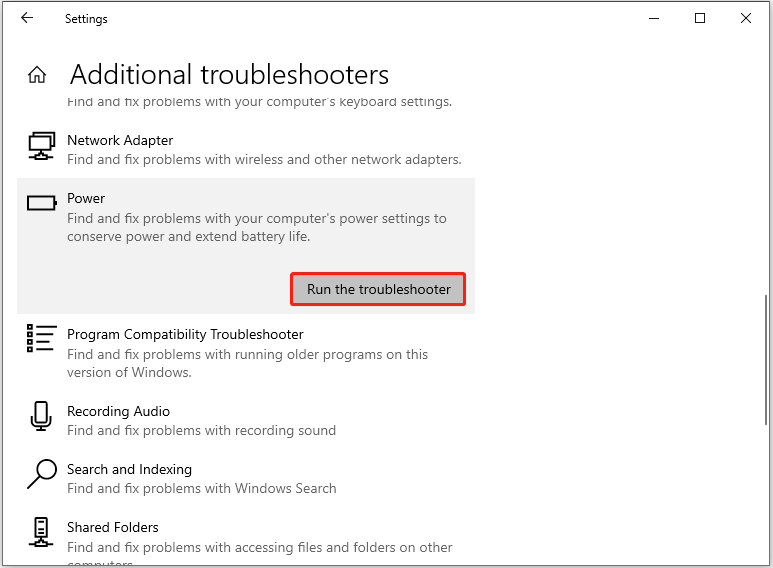
Wait until the issue (if exists) is detected and resolved.
Solution 2. Run DISM and SFC Scan to Repair Corrupted System Files
Corrupted system files can trigger lots of Windows issues, including the programs closing automatically problem. To find and repair corrupted/missing system files, you can choose to run the DISM and SFC scan.
Step 1. Open an elevated Command Prompt.
Step 2. Next, type the following command line and press Enter. This command may take several minutes to complete.
DISM.exe /Online /Cleanup-image /Restorehealth
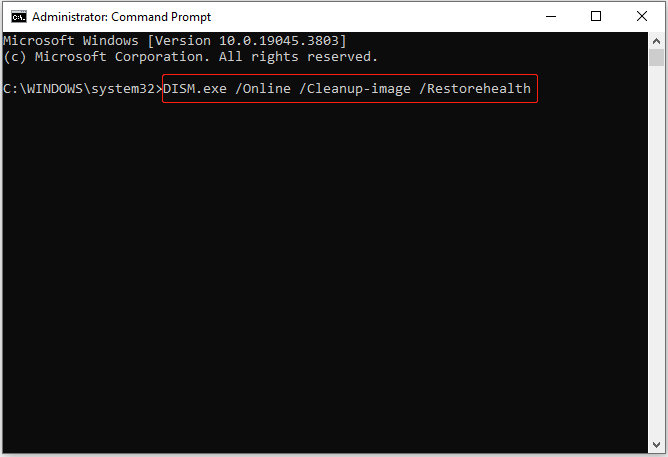
Step 3. Type sfc /scannow and press Enter. It will scan all protected system files and replace corrupted files with a cached copy. Once the process is completed, you will get the scan results.
Related article: Quickly Fix – SFC Scannow Not Working (Focus on 2 Cases)
Solution 3. Enable Hybrid Sleep
Hybrid sleep mode puts open documents and programs into memory and hard drives so you can quickly resume work from sleep mode. Many users claim that enabling hybrid sleep mode is one of the successful ways to solve the problem of apps being closed in sleep mode.
How to enable hybrid sleep mode?
Step 1. In the Windows search box, type Edit power plan, then click it from the best match result.
Step 2. In the new window, click Change advanced power settings.
Step 3. Now, click the + icon next to Allow hybrid sleep, and switch the button next to Setting to On. Sequentially, expand the Hibernate after option and set it up to Never.

Step 4. Click Appy and OK sequentially to make this change take effect.
Solution 4. Uninstall Windows Updates
If the issue of “all apps close when computer is in sleep mode” happens after you update Windows, you may consider uninstalling the recent updates to get it resolved.
Step 1. Press Windows + I to open Settings, and click Update & Security.
Step 2. In the Windows Update section, click View update history, and then click Uninstall updates.
Step 3. In the Control Panel, right-click the recent updates and select Uninstall.
MiniTool Power Data Recovery FreeClick to Download100%Clean & Safe

Bottom Line
This post focuses on how to address the matter of “all apps close when computer is in sleep mode”. You can implement the solutions one by one until the issue has been resolved.
If you encounter any issues while using MiniTool Power Data Recovery, please contact us via [email protected].
About The Author

Position: Columnist
Shirley holds a bachelor’s degree in English and has been an editor at the MiniTool Team for many years. She specializes in IT-related content, with a focus on data recovery, file backup, disk management, and other technical topics. She is committed to delivering clear, accurate, and practical solutions to help users resolve common computer issues.
User Comments :