
When you boot your Android device, you may encounter the issue - Android is starting optimizing app. It is very common and can be fixed. In this post, MiniTool will tell you some simple methods to help you get rid of the trouble. Now, let’s see them.
Android Is Starting Optimizing App Loop
Is your Android device behaving strangely during the boot process? Is it stuck on Android is starting or Android is upgrading optimizing app every boot, followed by optimizing app 1 of 1? If your applications are much, you may be stuck on the screen for a few minutes or more than 1 hour. This is very annoying.
The possible reasons for this issue are Android version upgraded, unsuitable or broken apps, etc. Don’t be frustrated with this problem and you can try many methods to fix it. In the next part, we will show you how to solve it.
How to Fix Android Is Starting Optimizing App 1 of 1
Unplug Device Before Reboot
If your Android device is in charge mode and you reboot it, you may encounter the app optimizing problem. So, you should unplug the charger before rebooting your device. This method is very easy, and just have a try to see if it can solve your issue.
Uninstall Some Apps from Your Android Phone
If you have recently installed certain applications and then receive the error Android is starting optimizing app, the issue is related to the apps and you should uninstall them.
Step 1: Go to Settings > Installed Apps.
Step 2: Choose the recently installed apps on by one and click Uninstall.
Boot the Device in Safe Mode
To fix the issue – Android is upgrading optimizing app every boot, you can boot the device in Safe Mode. Only the default and necessary applications required for the mobile phone are loaded and the third-party apps won’t be loaded.
Step 1: Press the Power button until you see the boot options on the screen.
Step 2: Long press the Power off button until you see the message “Reboot to safe mode”. Confirm the operation.
You may not encounter the optimizing app 1 of 1 issue. The third-party apps may be the problem and you should uninstall them by following method 2.
Remove Your SD Card and Reinsert It
If you install some apps on the SD card, removing the card may stop the Android is starting optimizing app loop. Just turn off your Android device, remove the SD card, then power on the device, and insert the card. Next, move the apps from the card to the device’s internal memory and update these apps.
Wipe Cache Partition
This is a common solution to fix many Android issues including Android is starting optimizing app. So, you can also have a try.
Step 1: Press and hold the volume button and power button at the same time. Then, release them when the device vibrates.
Step 2: In the recovery mode, press the power button to confirm booting to the mode.
Step 3: Choose Wipe cache partition.

Reset Network Settings on Android
This method can reset all the settings regarding Bluetooth, Wi-Fi, and mobile data. So, you should make sure you have noted down all the information beforehand.
Step 1: Go to Settings > Backup & Reset.
Step 2: Choose Network settings reset.
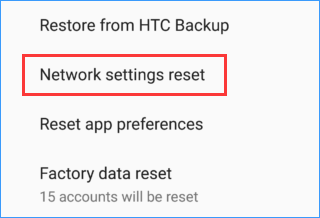
Step 3: Select Reset settings and confirm the operation.
Factory Reset
If these ways fail to fix your issue, the last way is to restore the Android device to factory defaults.
Step 1: Go to Settings > System > Reset.
Step 2: Choose Factory data reset > Reset Phone. You may be asked to type the password or PIN.
Step 3: Click Erase Data finally.
Bottom Line
Are you bothered by the issue- Android is starting optimizing app? These solutions are helpful and you can try them to easily fix it. Take action!
About The Author

Position: Columnist
Vera has been working at the MiniTool Team for over 10 years as a technical editor and content writer. She mainly focuses on disk and partition management, data recovery, Windows backup and restore, and PC troubleshooting. Through in-depth software testing and hands-on experience, she has helped users solve a wide range of computer problems and better protect their data on Windows devices.
User Comments :