
Have you gotten the Blade & Soul NEO game? Several game players report Blade & Soul NEO crashing from time to time, and some of them receive a fatal error message while crashing. If you are also troubled by this issue, try the following four solutions to resolve it.

Way 1. Upgrade the Graphics Driver
Similar to other game crashing issues, you should do some basic checks, including upgrading the outdated graphics driver. It is important to ensure the graphics driver is up-to-date, as an outdated or corrupted graphics driver can lag the computer performance and crash programs. Here is how to check your graphics driver.
Step 1. Right-click on the Windows icon and choose Device Manager from the WinX menu.
Step 2. Expand the Display adapters and find your graphics driver.
Step 3. Right-click on the driver and choose Update driver from the context menu.
Step 4. Select Search automatically for drivers in the following window.
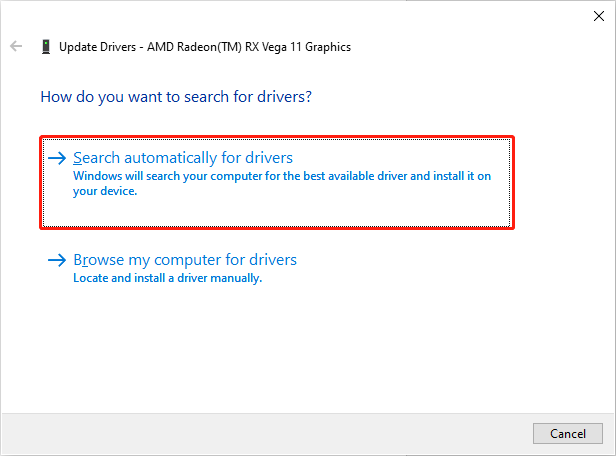
Afterward, launch the game to see if the crash error is resolved. If not, try the next methods to fix Blade & Soul NEO crashing.

Way 2. Install Microsoft Visual C++ Redistributable
Microsoft Visual C++ Redistributable packages are required by your computer programs. As different programs require different packages, you should ensure the computer contains the corresponding one for the proper performance of programs.
Therefore, you can go to the Microsoft Official download page and download the proper one. Depending on the different computer configurations, you are suggested to download both the x64 and x68 packages.
Way 3. Update/Uninstall TortoiseGit or TortoiseSVN
For some game players, uninstalling or updating TortoiseGit or TortoiseSVN helps them to resolve the problem that Blade & Soul NEO crashes with a fatal error. You can completely uninstall them via the Windows Control Panel with the following steps.
Step 1. Type Control Panel into the Windows search bar and press Enter to open the window.
Step 2. Click Uninstall a program under the Programs section. Now, you can browse the program list to locate the TortoiseGit or TortoiseSVN.
Step 3. Right-click on the program and choose Uninstall.
Way 4. Update BIOS
The last method is updating the BIOS. When you discover a new version of your BIOS, and you experience Blade & Soul NEO fatal crashing constantly, try this method. However, updating BIOS should be carefully done as improper operations can cause severe outcomes.
Before updating BIOS, you should back up your operating system and crucial files. This not only protects your files but also enables you to restore the Windows system when any problems happen. MiniTool ShadowMaker can be an eligible option for you. This software supports back up files, folders, partitions, and disks conveniently. You can get the trial edition to back up your computer with those robust features.
MiniTool ShadowMaker TrialClick to Download100%Clean & Safe
Afterward, you can start to update the BIOS on your computer. Please read and operate carefully.
Step 1. Press Win + R to launch the Run window.
Step 2. Type msinfo32 into the dialog and press Enter to launch the System Information window.
Step 3. You should find and remember the motherboard model information. Then, head to the official website of your computer manufacturer and go to the Download page to download the latest BIOS file.
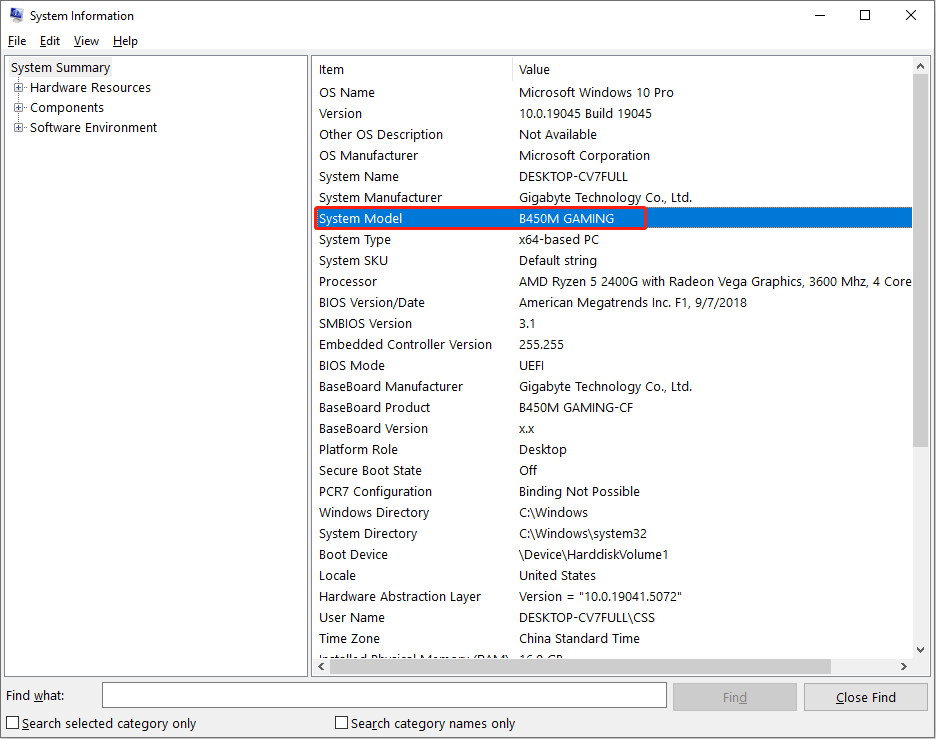
Step 4. Extract BIOS files from the compressed folder and copy them to a USB drive. Now, you can restart your computer and boot it into the BIOS menu.
Step 5. Change to the Boot tab (or other similar option) with the arrow keys to select the USB drive. Change to the Advanced tab to select Start Flash. Your computer will load the BIOS file and start to update.
When the process is completed, your computer will reboot automatically. You can go to check if the Blade & Soul NEO fatal crashing error still appears.
Final Words
This is the end of the post. The four solutions resolve the Blade & Soul NEO crashing issue for different people respectively. Due to the various causes, you should take the proper solution. Hence, try them one by one to find one that works in your case.
User Comments :