
Compared with professional cameras, the camera app on Windows or phones is more suitable for most people to record their lives. Thus, it can be disheartening when find the camera app can’t save photos. How to handle this problem to avoid photo loss in the future? The following content shows you different solutions in different scenarios.
#1. Take Pictures with Windows Camera App
Way 1: Check Storage Permissions
If the camera app doesn’t have enough permission to save data on your device, you cannot save photos from the camera app as well. When get the 0xA00F424F<PhotoCaptureFileCreationFailed> (0x80070005) error, you can first go to check the permission of the camera app. Here is how to do it.
Step 1: Press Win + I to open Windows Settings.
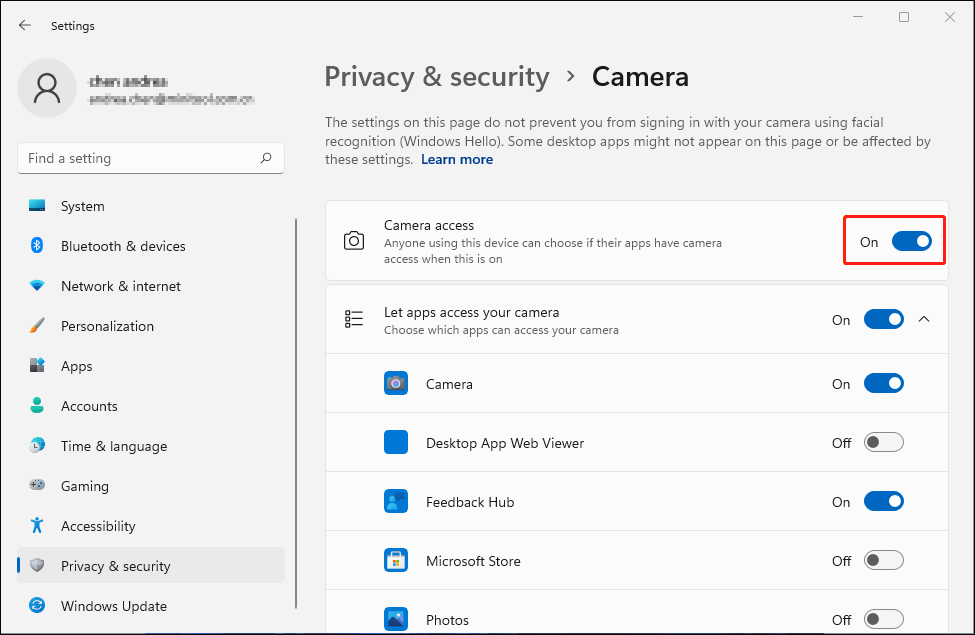
Step 2: Select Privacy & security > Camera, then toggle the switch of the Camera access option to On.
After this, you can take photos to see whether it can be saved normally. If not, please move on to the next method.
Way 2: Update Camera Driver
Windows camera not saving pictures might also be caused by an outdated or corrupted camera driver. To solve the picture not saving problem caused by this reason, you can try to update or reinstall the corresponding driver. Please follow the steps below.
Step 1: Right-click on the Windows icon button and choose Device Manager from the WinX menu.
Step 2: Find and expand the Cameras option to locate the problematic driver.
Step 3: Right-click on it and choose Update driver from the context menu.
Step 4: Choose Search automatically for drivers from the prompt window.
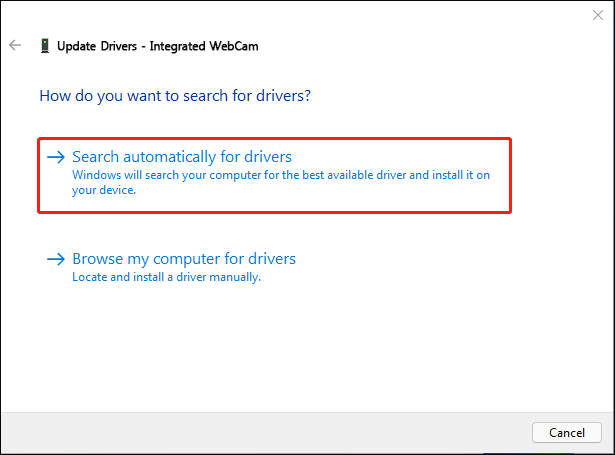
Wait for the process to complete. Windows will find and install the latest compatible driver for your computer automatically.
If your problem still exists, you can choose Uninstall device from the same context menu and click Uninstall again to confirm. Afterward, you can reboot your computer to let it download the corresponding driver automatically.
Way 3: Repair and Reset the Camera App
Windows camera app can’t save photos probably caused by the corrupted camera app. You can use the Repair and Reset functions in Windows to fix the application error. Here are steps to use the Repair feature.
Step 1: Press Win + I to open the Settings window.
Step 2: Shift to Apps > Apps & features, then select the Camera app.
Step 3: Click on the three-dot icon to choose Advanced options. You can scroll down to choose the Repair button.
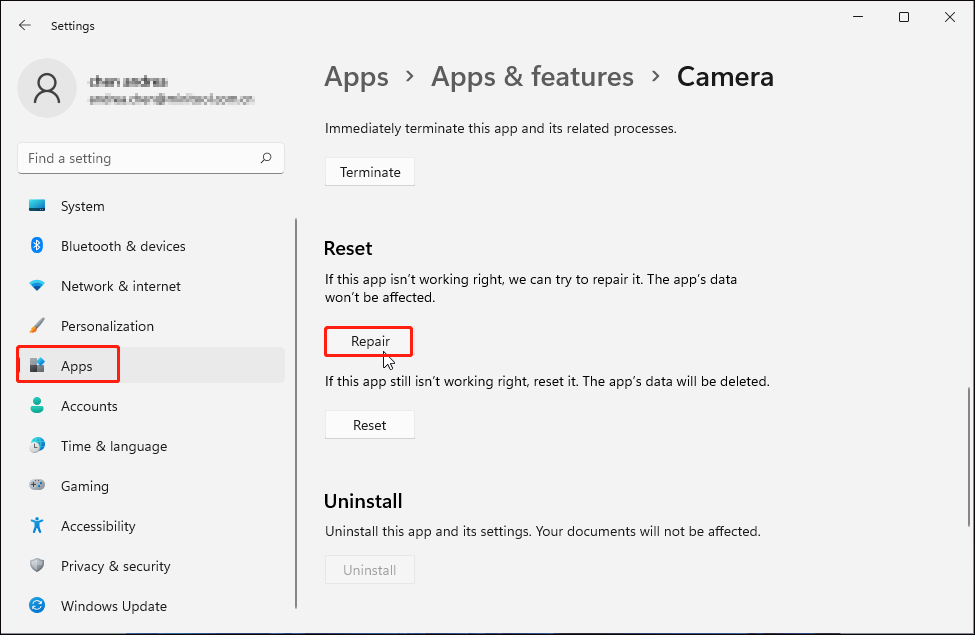
When the repair process is completed, you can check whether the problem is fixed. If the problem still happens, you can follow steps 1-3 and choose Reset to reset its original settings.
Alternatively, you can uninstall and reinstall the Camera app on your computer to try to handle the problem.
#2. Take Pictures with a Mobile Phone (Android & iPhone)
You may find that your phone camera not saving pictures to Photos as well. Both Andriod and iPhone users report that they have encountered this problem. Several reasons can cause this problem, such as insufficient data storage, app-related issues, device issues, etc.
Try the following methods to fix the photos and videos not saved in Gallery problem.
Fix 1: Reboot Your Phone
Like computers, some glitches might happen to your phone causing the taken photos not to be saved to Gallery. You can restart your phone to see if this problem is fixed. Sometimes, the transient and minor issues can be troubleshooted by restarting.
Fix 2: Check Phone Storage
If there is not enough storage capacity on your phone, the pictures taken by the Camera app can’t be saved as well. You can go to the Settings page on your phone to check the phone storage. If the storage is going to be full, it’s time for you to clear unwanted and unnecessary files. You can read to learn how to clear Media Storage and internal storage space.
Fix 3: Clear the Cache of the Camera App (For Android)
If you have been using the Camera app for a long time, it should have accumulated cache content which may lead to several issues including photos and videos not saved in Gallery. You can go to clear the Camera cache to try to resolve this problem.
Open Settings > Apps > Camera and select Storage (or other options that are similar to Storage). Then, you can choose Clear Cache to erase its cache content.
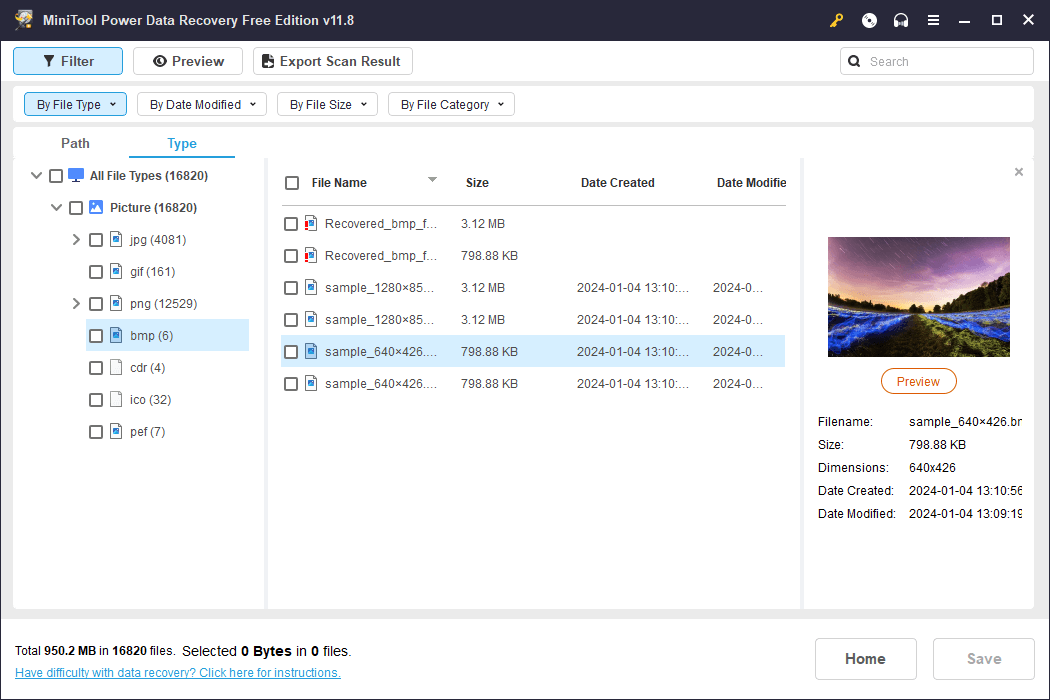
Recover Lost Pictures with MiniTool Power Data Recovery
In addition to the camera app failing to save photos, many other reasons can cause photo or video loss as well, like deletion, device corruption, accidental format, virus infection, etc. To get these precious photos and videos back, you can try MiniTool Power Data Recovery. This free file recovery software is able to recover photos and videos in different formats as well as other types of files.
You can get the free edition of this powerful software to scan and recover 1GB of files for free.
MiniTool Power Data Recovery FreeClick to Download100%Clean & Safe
Final Words
If the camera app can’t save photos or videos on Windows or your phone, you can try the corresponding fix in this post. You need to tackle this problem as soon as possible to avoid further file loss situations.
User Comments :