
This comprehensive guide from MiniTool compares cloud backup vs local backup in terms of accessibility, scalability, cost, security, and performance. It helps you understand which backup option fits different usage cases.
Data is valuable for individuals and organizations in a digital age. However, the significant risks of data loss are often underestimated.
Critical files can be deleted due to hardware failure, cyber threats, human error, natural disasters, and system issues. To safeguard data against loss, a robust backup strategy is a crucial step.
Local backup and cloud backup are two common backup options.
We will introduce them to you, including their concepts, differences, use cases, practical steps, and the best backup strategies.
About Local Backup
What Is Local Backup
A local backup, also known as on-premises backup, refers to the process of storing data copies to a physical storage device located on-site.
Local backups offer fast recovery and full control, making them essential for a powerful data protection strategy.
Key Features
- It allows for direct, fast access to data with no internet connection.
- You have complete control over your data since you manage the hardware and storage location without depending on third parties.
- A local backup supports various backup types, including full, incremental, and differential backups.
- Restoring large files or entire systems is faster as it doesn’t rely on internet connectivity.
- Local backups are less vulnerable to cyberattacks such as ransomware since they can be disconnected from the internet. However, they are susceptible to local disasters if not protected.
Types of Local Backup Storage Devices
#1. External Hard Drives
External hard drives (HDDs & SSDs) are portable storage devices. They are often connected to a computer, phone, or tablet using a USB-C/Thunderbolt interface.
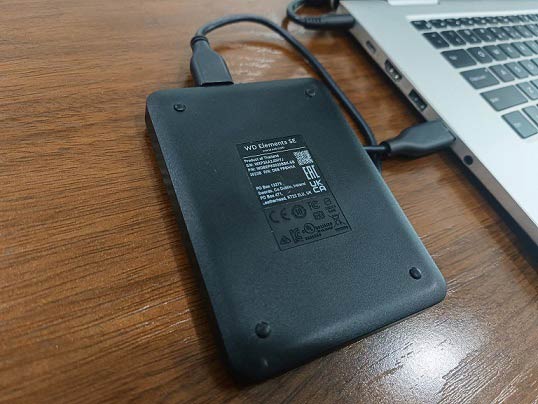
In terms of a local backup, an external hard drive is a smart choice due to its key advantages:
- Portability: It is plug-and-play and can be taken to a different location.
- High storage capacity: The capacities range widely, from 500GB to over 30TB in modern consumer and enterprise products.
- Cost-effectiveness: It is affordable. And a one-time purchase eliminates monthly cloud subscription fees, making it cheaper in the long term.
- Fast transfer speeds: External SSDs utilize flash memory for incredibly fast read/write speeds up to 2000MB/s.
- Accessibility: It is available to access backups anytime, anywhere.
#2. USB Flash Drives
USB flash drives are used for small, quick backups mainly owing to their portability, ease of use, durability, and affordability.
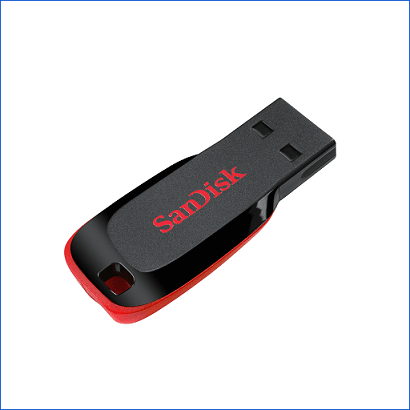
(Image from SanDisk)
- Portability: USB drives are designed in a compact size, making them extremely easy to carry.
- Ease of use: They are plug-and-play and have universal USB compatibility, requiring no installation on modern operating systems.
- Durability: The absence of moving parts makes them silent and resistant to physical shocks.
- Affordability: USB flash drives with a wide variety of storage options are generally available at a low cost.

#3. Network-Attached Storage (NAS)
NAS is a dedicated file storage device connected to a network for storing and sharing files from a centralized location. It can offer easy data backup, remote access, and media streaming.
Although NAS relies on the network connection, it functions as a local backup because the NAS device is located on premises, such as at home or the office.
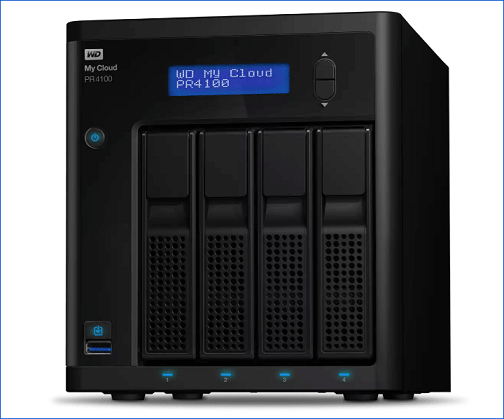
(Image from Western Digital)
Here are some benefits of a local NAS backup:
- Centralized storage: One device stores all backups from multiple computers, allowing for centralized management.
- High-speed recovery: NAS offers fast file transfers and quick recovery over the local network (LAN).
- Automated backups: NAS systems usually have integrated software to schedule regular backups to protect data.
- Data redundancy: A NAS device uses RAID (Redundant Array of Independent Disks) to protect against a single hard drive failure. If a disk fails, data remains available.
#4. Tape Drives
Tape drives are primarily used in enterprise environments for long-term, large-scale data backup, archiving, and disaster recovery. They are prized for:
- High capacity: Tape drives use the LTO (Linear Tape-Open) Ultrium technology to offer massive storage. For example, LTO-9 drives can store up to 45TB of compressed data.
- Durability: Magnetic tape media can last 30+ years.
- Cost-effectiveness: A tape drive has a low cost per gigabyte and low power usage.
#5. Optical Media
CDs, DVDs, and Blu-ray discs use lasers to read and write data on discs. They are still used for long-term, offline archiving of data. Nevertheless, they are largely being replaced by digital alternatives, such as streaming services and cloud storage services.
About Cloud Backup
What Is Cloud Backup
Cloud backup, also known as online backup, is the process of securely copying and storing digital data from a device to a remote cloud server. With the Internet, photos, videos, and files can be uploaded to the cloud. The off-site servers are managed by third-party providers.
Key features
- Disaster recovery: This backup approach stores data offsite, protecting against local disasters, including floods, fire, hardware failure, ransomware, and other attacks.
- Accessibility: It supports easy recovery since you can access backed-up data from anywhere using the cloud platform.
- Automation: Cloud services support automatic backups, keeping data current with minimal effort.
- Scalability: Cloud backup solutions offer flexibility, allowing for easy scaling of storage as needed.
- Cost-effectiveness: The pay-as-you-go (PAYG) model eliminates upfront hardware investment and maintenance. You need to pay only for the resources you consume.
Types of Cloud Backup Solutions
Cloud backup types can be classified by deployment model, including public, private, and hybrid clouds. Each offers different levels of scalability, control, and security.
#1. Public Cloud
A public cloud shares resources over the Internet, including servers, storage, and apps, managed by a third-party provider. Although multiple organizations use the same physical infrastructure, data remains isolated and secure.
AWS (Amazon Web Services), Azure, and Google Cloud are public clouds.
Pros:
This cloud model is highly scalable and cost-effective.
Cons:
1. Depending on providers, it allows for less control. You cannot customize specific configurations.
2. A shared environment can pose risks to sensitive data.
3. During peak times, slower performance can occur due to resource sharing.
Best for:
A public cloud is ideal for startups, small to medium-sized businesses (SMBs), app development/testing, remote work, and big data analytics.
#2. Private Cloud
A private cloud is dedicated exclusively to a single organization. It can be hosted by a third-party provider or on-premises (located in the company’s data center).
Pros:
1. It offers higher security, data privacy, and access control to resources.
2. It supports customization to meet specific business needs, without public cloud limitations.
Cons:
1. Costs are high because of upfront investment in setup, hardware, and staff.
2. Organizations are fully responsible for security, backups, updates, monitoring, and troubleshooting, which demands advanced skills.
3. This cloud type requires purchasing and installing new hardware when scaling up.
Best for:
A private cloud is widely used in industries that need to handle sensitive data, such as Finance, Healthcare, and Government. In addition, it is best for demanding workloads such as AI.
#3. Hybrid Cloud
It combines both a public and private cloud. Typically, this option is used to back up critical data privately and less sensitive data publicly.
Pros:
This approach features extreme flexibility and balances cost, security, and scalability.
Cons:
1. Management is more complex than a single cloud.
2. Initial and hidden costs are higher.
3. Potential integration issues can occur.
Best for:
Hybrid cloud is suitable for businesses that need to balance security and flexibility. It allows them to optimize storage costs while having diverse data protection needs.
After learning the fundamental information about local backup and cloud backup, understanding the differences helps make an informed choice.
Cloud Backup vs Local Backup: What’s the Difference
Cloud backup and local backup differ in accessibility, scalability, cost, security, and performance.
Below is a detailed comparison of their key differences.
#1. Accessibility
Local backups are fast and stable. Nevertheless, they are limited by physical devices.
- Quick access: Data is on-site, for example, an external hard drive, NAS, or flash drive, offering immediate access.
- No network connection: A local backup does not rely on the Internet. Even when disconnected from the network, the backup can be used normally. It is suitable for unstable network or offline environments.
- Device limitations: Access is limited to local devices. If you use a NAS device in the office, it is impractical to access it when going out. This requires a complex remote access setup if off-site access is needed.
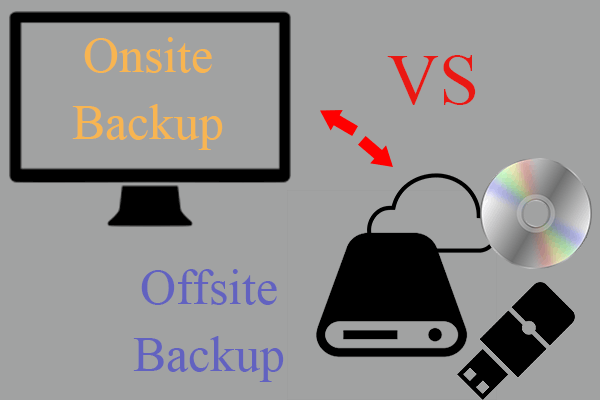
Cloud backups can be accessed anytime and anywhere. However, they depend on the Internet.
- Cross-device access: With an active internet connection, you can view, download, or modify files using a computer, mobile phone, or tablet at any time. This ensures consistent availability regardless of location or device.
- Real-time syncing: Changes made to a file on one device can be updated automatically across the cloud and all linked devices. You always have the latest version.
- Network connection dependency: When the connection is disconnected, uploading or accessing is impossible. Moreover, large file backups/downloads are also affected by the network speed. In non-Wi-Fi environments, a cloud backup may even consume data traffic.
#2. Scalability
Limited Local Backup Scalability
To back up huge volumes of data to a local device, the storage space may not be enough. In this case, it is necessary to purchase additional drives, more complex storage arrays, or new hardware systems to expand capacity.
In conclusion, the scalability of local backups is limited by physical hardware, requiring costly upgrades and maintenance as data grows.
High Cloud Backup Scalability
In contrast, a cloud backup offers superior scalability. The storage capacity can be instantly scaled up or down by adjusting subscription plans to meet demand, avoiding manual hardware upgrades. It is crucial for handling the unpredictable data growth.
#3. Cost
The initial investment in local backups is high, but it is more economical in the long run.
- High upfront cost: Hardware purchase (external hard drives, NAS, or other devices), software licenses, and installation/setup (staff) are required.
- Hidden cost: Ongoing expenses such as hardware maintenance, upgrades, and electricity need to be taken into account.
- Low long-term cost: After the initial one-time investment, the primary expenses shift to only maintenance costs. This method proves more cost-effective over the long term, particularly for enterprises with large and stable data volumes.
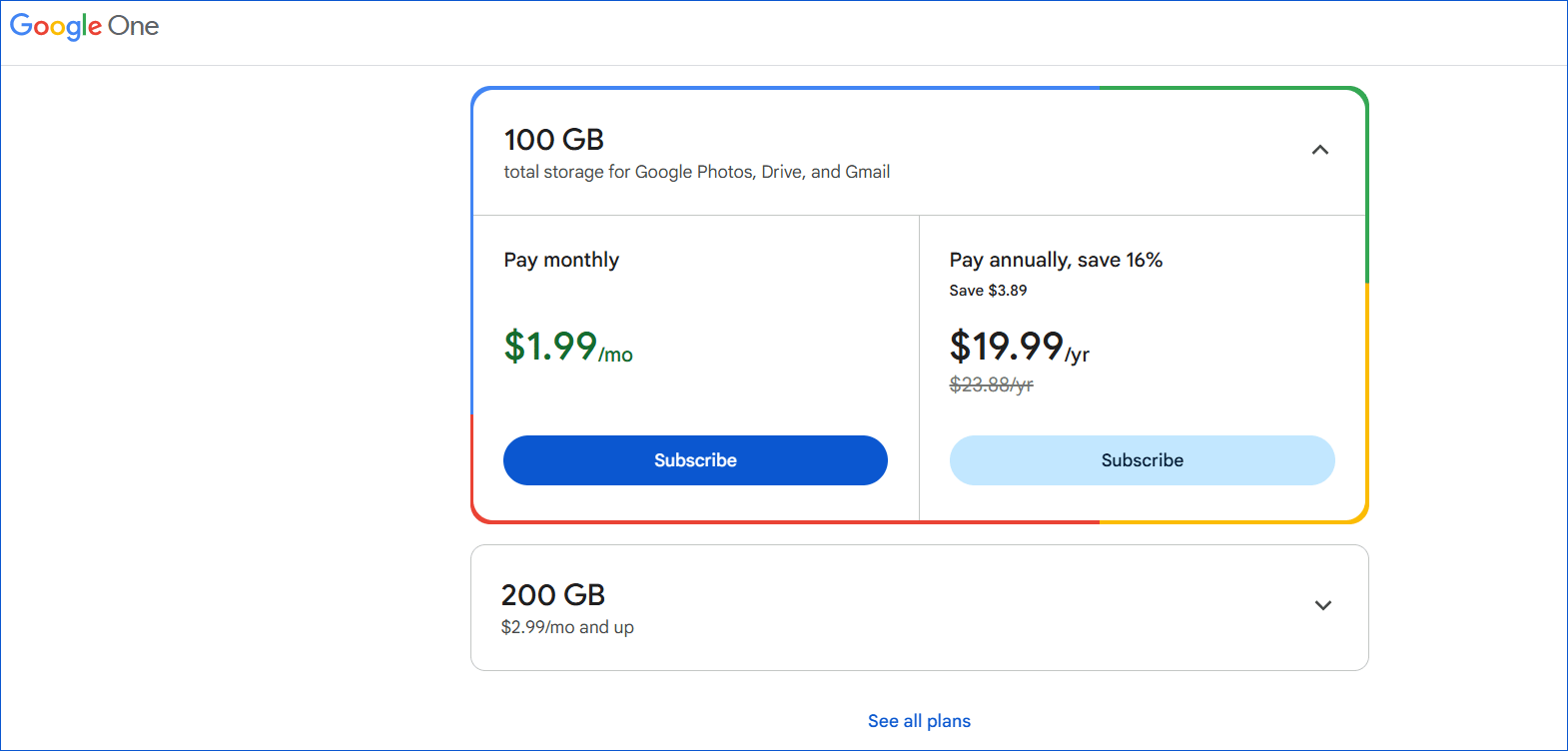
Cloud backups provide flexible payment options, but they have a higher long-term cost than local backups.
- Low upfront cost: You don’t need to purchase hardware, but pay monthly/annually, often based on the amount of data.
- Hidden cost: The significant hidden expenses include data transmission costs, migration costs, API request costs (charged by the number of requests), and operational costs. Here, migration refers to moving data between different regions and storage tiers or switching cloud providers.
- High long-term cost: The total cost of ownership (TCO) of cloud backups can exceed the investment in local hardware as data volume grows.
#4. Security
Local Backup
Local backups provide total control over your data, allowing you to manually manage security measures. For example, encrypt the backup to prevent unauthorized access and periodically test backup files to confirm they are intact and can be successfully restored.
Additionally, data is stored on a local device without relying on the network connection, protecting it from cyber threats such as ransomware.
However, if the storage device is faulty or is stolen, or natural disasters occur, data loss can occur.
Cloud Backup
Compared to a local backup, a cloud backup features robust, enterprise-level security.
Reputable providers implement sophisticated security measures, including encryption in transit and at rest, strong access controls, and secure data centers, to safeguard data.
Moreover, data can remain intact even in the event of a local disaster, such as hardware failure, theft, fire, or floods.
However, sensitive data can still be vulnerable due to misconfigurations, inadequate access controls, and human error.
#5. Performance and Speed
Local backups are significantly faster when backing up and restoring large amounts of data. During backup, data transfer happens over a direct connection or within the local network. In the recovery process, files are accessed directly from the physical device.
Cloud backups offer slower data transfer speeds, as they are affected by the internet bandwidth. Sometimes, downloading large files can take hours or even days, which depends on the internet download speed and data volume.
Comparison Table
The following table summarizes key differences between local and cloud backup solutions for quick reference.
| Feature | Local Backup | Cloud Backup |
| Storage Location | External hard drives, NAS, flash drives, tape drives, and CDs/DVDs. | Remote servers managed by providers. |
| Accessibility | Limited to on-site devices. | Anywhere with Internet, easy remote access. |
| Scalability | Limited by purchased hardware; requires buying new devices to expand storage. | Highly flexible; easily add more storage on demand. |
| Cost | Higher initial hardware investment; lower continuous operational costs. | Low initial hardware cost; ongoing subscription fees. |
| Speed | Faster; depends on device speed. | Slower; depends on the internet bandwidth. |
| Control & Management | Full control and self-management. | Less direct control; provider manages maintenance. |
| Security | Protected from online threats when offline, but vulnerable to local disasters or theft. | Enterprise-level encryption and redundancy, but online threats and provider misconfigurations remain a risk. |
Local vs Cloud Backup: Which One to Use
After understanding the information on cloud backup vs local backup, it is easy to determine which solution best fits specific needs.
Best Scenarios for Local Backup
In general, it is recommended to create local backups for rapid recovery of large files and have complete control over data.
The following are some key scenarios:
- Fast file recovery: Individuals or organizations need to quickly restore the entire system or large files, minimizing downtime and business disruption.
- Limited or unreliable internet connectivity: Cloud backups are slow or impractical in areas with poor network services. Local backups are ideal where internet connectivity is limited or unreliable.
- Large media files: For individuals or businesses who need to work with massive files, such as video or photo production, local backups are recommended.
- Strict compliance and privacy requirements: Certain industries, for instance, medical, legal, and finance, must store data locally to gain greater control over access and security.
- Small businesses: Local backups are ideal for small businesses with modest data since they provide affordable and quick backups.
Best Scenarios for Cloud Backup
Consider making cloud backups in the following cases:
- Individuals and organizations need off-site data protection against physical disasters and cyberattacks.
- Employees need to access files from any device for remote work and quick recovery, which improves work efficiency.
- If data volume changes, it is easy to scale without managing physical hardware upgrades.
- Organizations want automated backups that run in the background without manual intervention.
- Businesses and individuals have a limited hardware budget and prefer predictable subscription pricing.
- To free up device storage space, backing up photos, videos, and other files to the cloud is a smart choice.
- For business migration and deployment, consider a cloud backup. This is because it provides essential data protection and flexibility during the transition, ensures data availability, and minimizes downtime.
Cloud vs Local Backup: Practical Steps
How to Create a Windows Local Backup
There are three options to perform a local backup on a Windows computer: MiniTool ShadowMaker, Backup and Restore (Windows 7), and File History.
Option 1: MiniTool ShadowMaker
MiniTool ShadowMaker is recommended due to its comprehensive backup, recovery, and cloning solutions.
The following are some highlighted features:
- Supports various data types, including files, folders, systems, partitions, and disks.
- Compatible with Windows 11/10/8/7 and Windows Server 2025/2022/2019/2016, making it ideal for personal use and business environments.
- Supports 3 common backup types, such as full, incremental, and differential backup.
- Schedules a backup plan to regularly back up important data, for example, daily, weekly, monthly, or on an event.
- Manages old backup versions to free up disk space on the target device.
- Backs up a computer to an external hard drive, USB flash drive, NAS, DAS, or other local devices.
- Supports HDD to SSD cloning, file synchronization, and advanced backup configuration.
Follow the steps for a local backup.
Step 1: Connect an external drive to your computer and launch MiniTool ShadowMaker.
MiniTool ShadowMaker TrialClick to Download100%Clean & Safe
Step 2: Navigate to the Backup page in the left pane.
Step 3: The local backup software selects the backup source by default, namely the current operating system.
To back up files, choose SOURCE > Folders and Files > Computer. Then, browse your computer, select the files or folders you decide to back up, and click OK to confirm the selection.
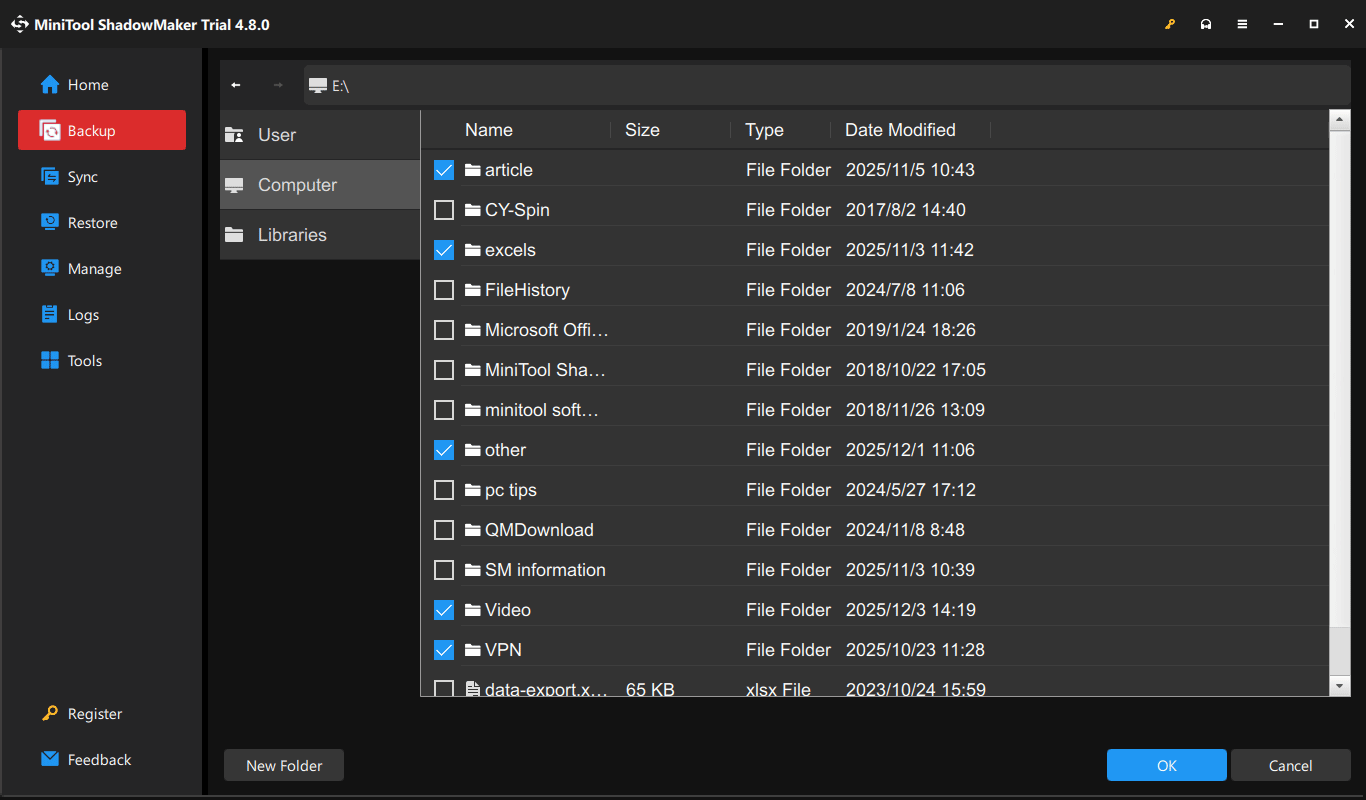
Step 4: Click DESTINATION, select the connected external drive, and click OK to proceed.
Step 5: Choose Back Up Now to execute the data backup task.
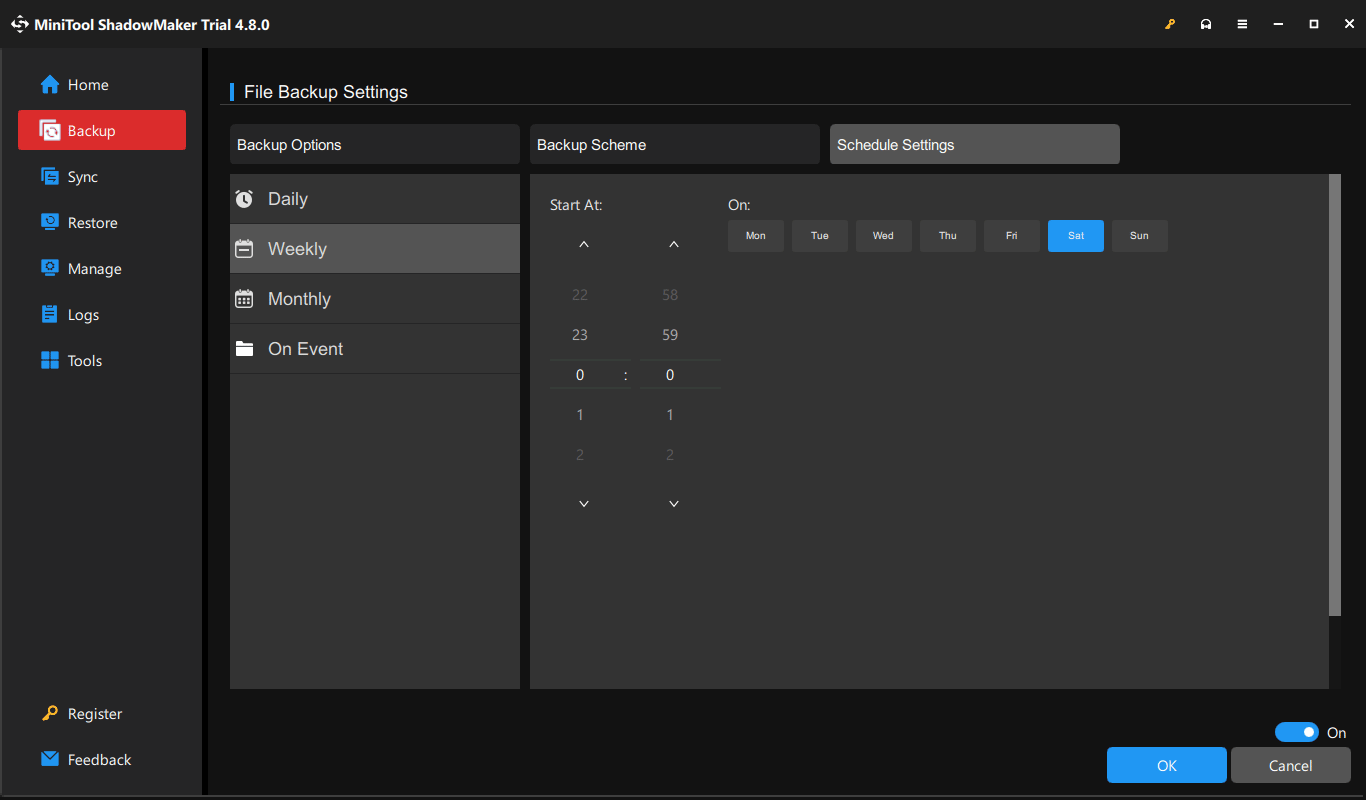
Option 2: Backup and Restore (Windows 7)
It is the built-in backup software, designed to create a full system image of Windows installation, programs, settings, and files.
If Windows becomes unstable or unbootable, perform a full system recovery to restore the system to the state captured in the image.
Additionally, Backup and Restore (Windows 7) supports backing up files to an external hard drive, USB drive, or a network location.
Follow the instructions to back up your computer locally.
Step 1: In the Search box, type Control Panel, and press Enter to open this utility.
Step 2: Choose Large icons from the drop-down menu of View by to display all the control panel items.
Step 3: Select Backup and Restore (Windows 7).
Step 4: Create a system image backup or back up files.
Back up system
1. Click Create a system image.
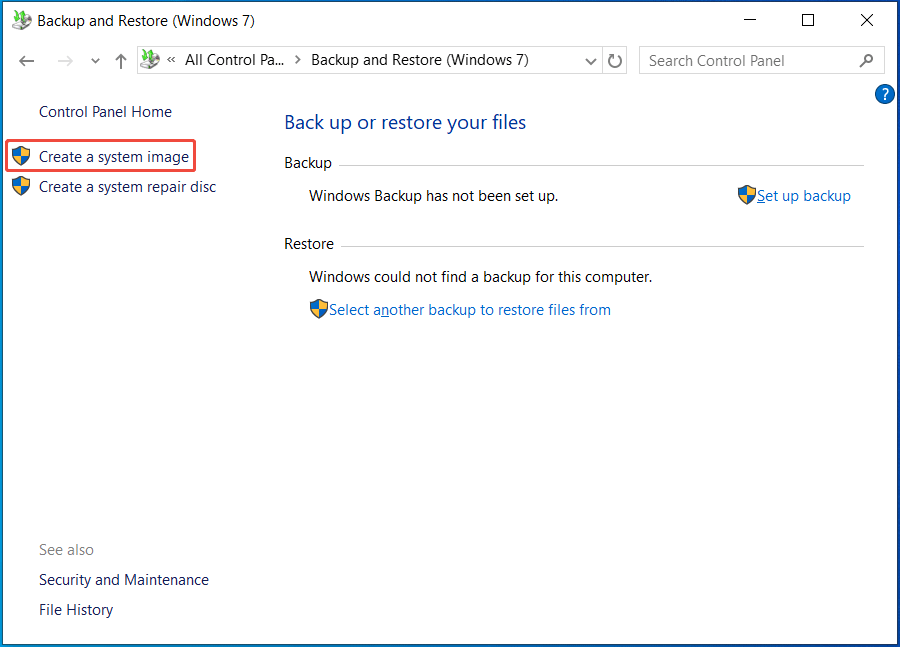
2. Choose a partition of your external hard drive and click Next.
3. Review the system backup settings.
4. After confirmation, click Start backup.

Back up files
1. Click Set up backup under Back up or restore your files.
2. Choose an external drive to save your backup.
3. Tick Let Windows choose (recommended) or Let me choose according to actual needs.
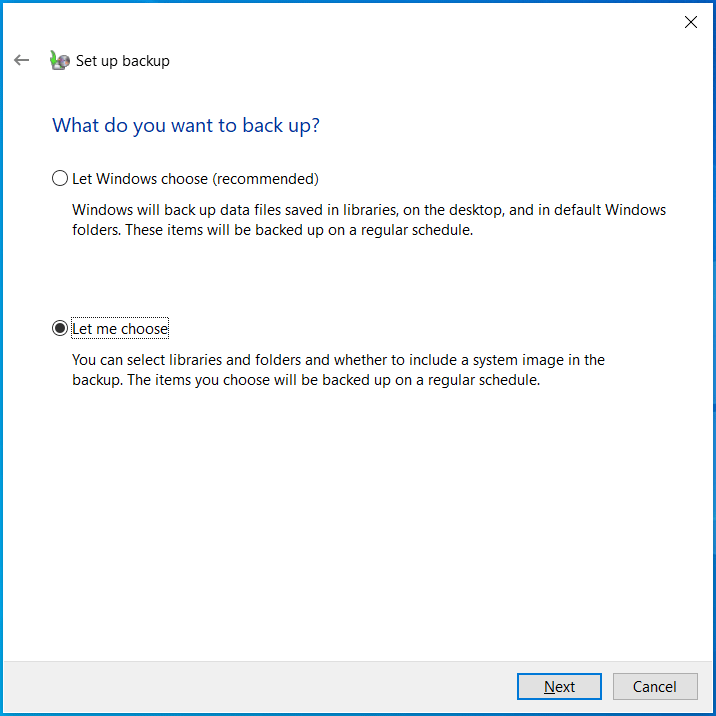
4. If required, select what you want to back up.
5. Click Save settings and run backup to execute the file backup.
Option 3: File History
File History is a built-in feature in Windows 11/10 that can automatically back up your personal files from Libraries, including Documents, Pictures, Desktop, Downloads, and other folders.
Usually, it keeps multiple versions of files on an external drive or a network location. If files are deleted or corrupted, it is easy to restore individual files or entire folders from the previous versions.
To set up File History, follow these steps.
Step 1: Access Control Panel, set View by to Large icons, and choose File History.
Step 2: Connect your external hard drive to the computer, click Select drive, and choose the external drive.
Step 3: Click Turn on to enable the feature to start the backup.
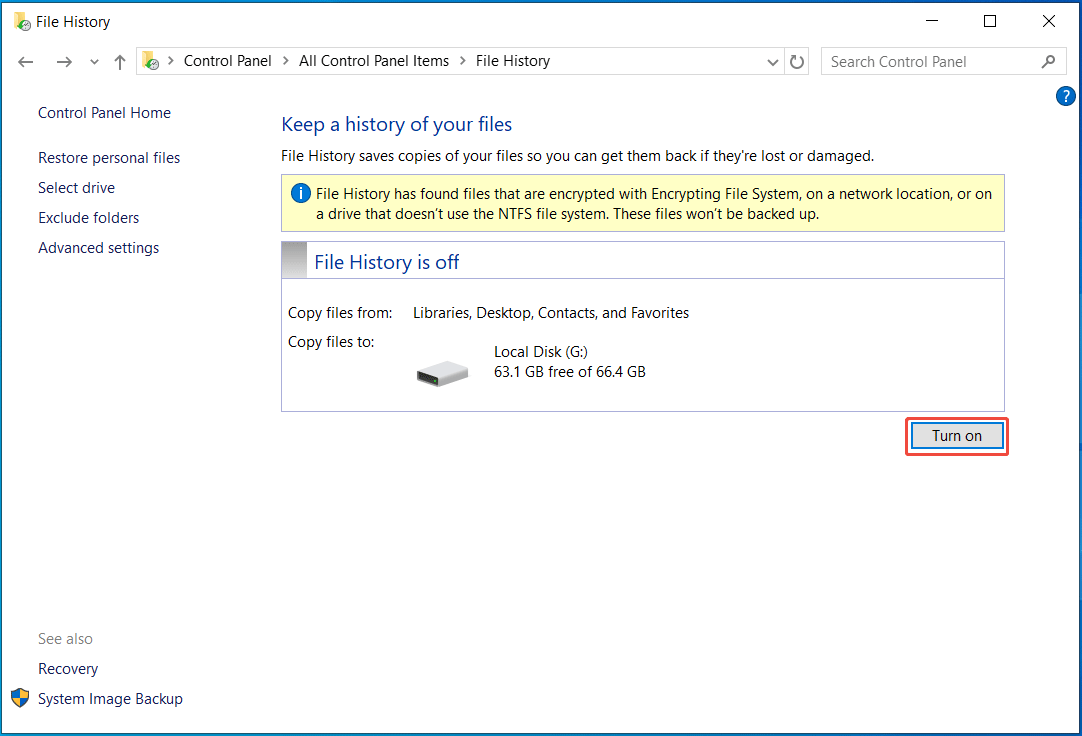
Step 4: Click Advanced settings to configure backup frequency and how long backups are kept.
How to Create a Cloud Backup in Windows
To back up your PC data to the cloud, we recommend using the Windows Backup app, OneDrive, or a third-party cloud storage service.
Option 1: Windows Backup
Windows Backup, available on Windows 10 and 11, can back up files from the Desktop, Documents, and Pictures folders, installed apps and pinned app preferences, and Windows settings to OneDrive.
Windows Backup makes it easy to restore your setup to a new device that uses a Microsoft account, aiming for a seamless transition to new hardware.
Follow these steps:
Step 1: Type Windows Backup in the Search box and press Enter to open this app.
Step 2: Configure what you want to back up and click Back up.
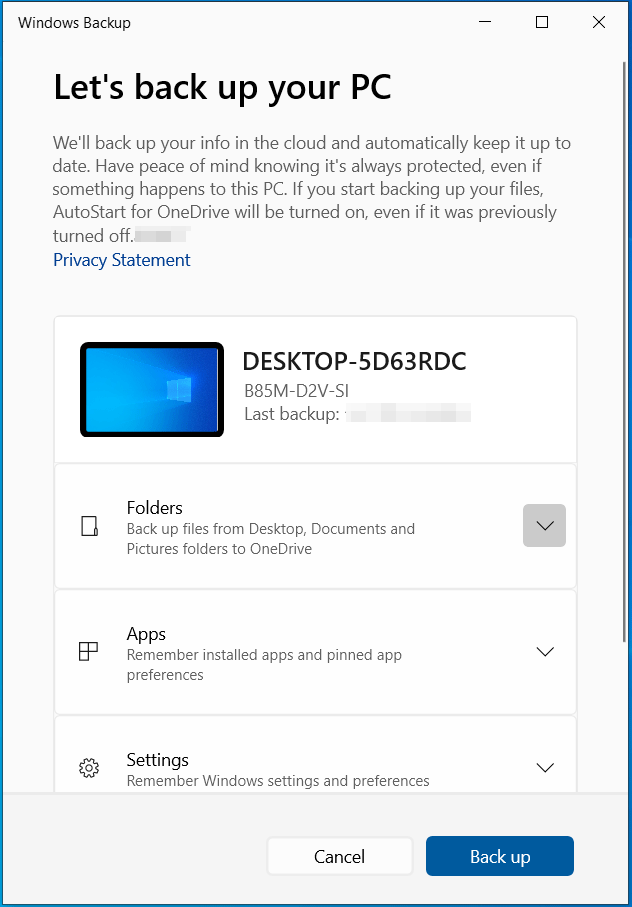
Step 3: Perform the restoration operation during the initial setup process. For details, refer to the Windows Backup app guide.
Option 2: OneDrive
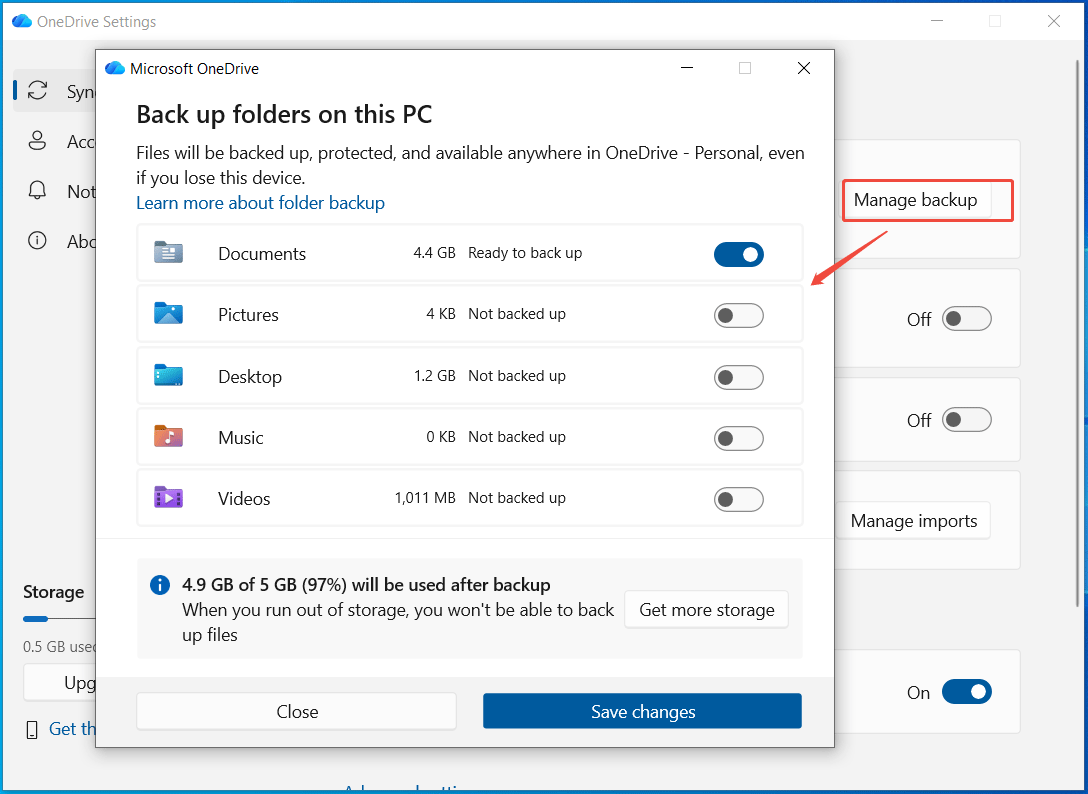
Microsoft OneDrive provides 5GB of cloud storage and supports syncing and backing up Desktop, Documents, and Pictures to OneDrive. Here’s how to run OneDrive for cloud backups:
Step 1: Open OneDrive through the Search box.
Step 2: Click the OneDrive icon in the system tray and choose Settings.
Step 3: In Sync and backup, click Manage backup, enable the folder that you want to back up, and click Save changes.
Then, files are being backed up in the background.
Option 3: Third-Party Apps
In addition, many reputable third-party providers offer cloud storage services, including Google Drive, Dropbox, IDrive, and so on. Use one of them to back up computer data to the cloud, based on your storage and backup needs.
Refer to our backing up computer to the cloud drive guide for detailed instructions.
After learning “cloud backup vs local backup: differences, use cases, and practical steps”, it is also crucial to understand the best backup strategies for data protection.
Best Backup Strategies
Local backups offer fast recovery, lower long-term cost, and full control over data, while cloud backups provide off-site data protection, scalability, and remote access. In light of their advantages, a comprehensive data protection plan is crucial.
We strongly suggest implementing the 3-2-1 backup strategy, automating backups, encrypting data, and testing backups regularly.
3-2-1 Rule
The 3-2-1 backup rule is the industry standard for data protection, minimizing single points of failure and ensuring data recovery against hardware issues, human error, cyberattacks, and natural disasters.
For both individuals and enterprises, it becomes a foundational strategy that combines local backups and cloud backups.
Here is an explanation of this rule:
- 3 copies of data: Keep at least 3 copies, including the original data and two backup copies.
- 2 different media types: Store backups on 2 different devices, for example, a local device (such as an external hard drive), and the cloud. This ensures data redundancy and prevents all copies from being lost at the same time.
- 1 off-site copy: Maintain one copy in a separate location to protect against local disasters. Usually, it is in the cloud.
View an example that follows the 3-2-1 strategy:
Step 1: Run MiniTool ShadowMaker, go to SOURCE to choose files, click DESTINATION to select an external drive or USB drive, and begin the local backup.
You have two copies of data.
Step 2: Launch OneDrive to create a third copy (off-site).
Check the details of this optimal backup rule.
Automated Backups
Scheduling backups to run regularly, for instance, every day/week/month, can effectively ensure that files are consistently protected and available on local or cloud storage.
You always have up-to-date copies of data, mitigating risks of accidental deletions, natural disasters, hardware malfunctions, and online threats.
It is a critical practice for maintaining data integrity and business continuity without manual intervention.

Encryption
Encrypting backup data can effectively prevent sensitive information from unauthorized access.
If your physical backup devices are stolen or lost, anyone without the key cannot read the data. Furthermore, cloud-side encryption helps protect sensitive data even if a provider’s servers are compromised.
AES (Advanced Encryption Standard) is a widely used symmetric-key encryption algorithm. Most cloud storage providers use AES-256 to protect stored data.
Regular Test
It is crucial to regularly test backups to verify data recoverability.
This helps identify backup corruption caused by human error or hardware/software failures and detect issues before a real disaster occurs. This action can reduce downtime and ensure business continuity.
Here are key testing practices:
- Schedule tests: Set a plan to periodically test backups, for example, monthly or quarterly file tests and yearly full system tests.
- Simulate scenarios: Create a test environment and attempt to perform the actual disaster recovery to avoid impacting live systems.
- Automate: Use tools to automate the tests to reduce manual effort and improve consistency, if possible.
- Document everything: Record details of tests, found issues, and resolutions, and keep the records properly documented for future reference.
Version Control
Keeping multiple file versions is a key part of a robust data backup strategy.
When files are accidentally deleted or corrupted, version control enables quick and simple recovery.
Additionally, if ransomware encrypts files, rolling back the system or specific files to a previous, clean version before the infection occurred is effortless. This can minimize data loss without paying the ransom.
Backup Trends
In the future, hybrid backup and AI will become prevailing trends.
#1. Hybrid backup:
It combines the immediate availability of local backups and the off-site security and scalability of the cloud. This strategy has significant advantages, such as fast, on-site recovery, scalable protection for disasters, cost-effectiveness, and scalability, making it a future standard.
#2. AI and Automation:
AI is increasingly integrated into backup solutions, automating data selection, filtering, and scheduling. Moreover, AI supports predictive analytics and proactive maintenance and detects abnormal data activity, ensuring backup reliability and security.
This makes backups smarter and reduces manual effort.
Conclusion
In this post, we demonstrate detailed information on local vs cloud backup.
After understanding the differences between them, you can decide when to create a cloud backup and when to make a local backup. Then, follow the instructions to back up your computer data to a local device or the cloud.
If you experience some issues when running MiniTool ShadowMaker for local backups, contact us at [email protected].
Cloud Backup vs Local Backup FAQ
2. Internet dependency
3. Potential privacy concerns, as Apple manages encryption keys for iCloud Backup
4. Limited versioning compared to some professional backup solutions
2. Security and privacy risks
3. Ongoing costs such as subscriptions
4. Limited control over data
5. Server outages impacting reliability
About The Author

Position: Columnist
Vera has been working at the MiniTool Team for over 10 years as a technical editor and content writer. She mainly focuses on disk and partition management, data recovery, Windows backup and restore, and PC troubleshooting. Through in-depth software testing and hands-on experience, she has helped users solve a wide range of computer problems and better protect their data on Windows devices.
User Comments :