
What is CloudApp? If you want to use this software for capturing or recording screens, download and install CloudApp. To know some details, go to read this post from MiniTool focusing on CloudApp download for Windows, Mac, iOS, and Chrome& installation. Besides, how to uninstall CloudApp from Windows is also introduced here.
Overview of CloudApp
In general, CloudApp is an all-in-one screen capturing and screen recording software that can be used to capture HD videos/screenshots, record screens, create GIFs, etc.
For professionals, CloudApp is an instant video and image-sharing platform. The files including screenshots, GIFs, videos, and more you have created can be securely saved to the cloud and you can access them via the native Windows or Mac app, or they can be shared to the web via secure, unique, and password-protected cl.ly short links.
CloudApp simplifies the way that teams work together since its screen recorder lets it easy to collaborate across multi-functional teams via visual communication. Besides, it is easy to capture anything with the CloudApp snipping tool and this software can help create GIFs, annotate images and videos, and upload and store files.
CloudApp is available on Windows, Mac, iOS, and Chrome. If you are interested in this app, download and install it on your device. See how to do this task in the following part.
To record screens, you can use another professional tool called MiniTool Video Converter. In addition, other tools can also be recommended, like Screen Recorder Pro, Xbox Game Bar, Bandicam, etc. To know much about them, refer to this post 10 Microsoft Screen Recorders to Record Screen on Windows.
CloudApp Download for Windows 10 & Installation
CloudApp Free Download Windows
How to download CloudApp for Windows PCs? The operation is very easy.
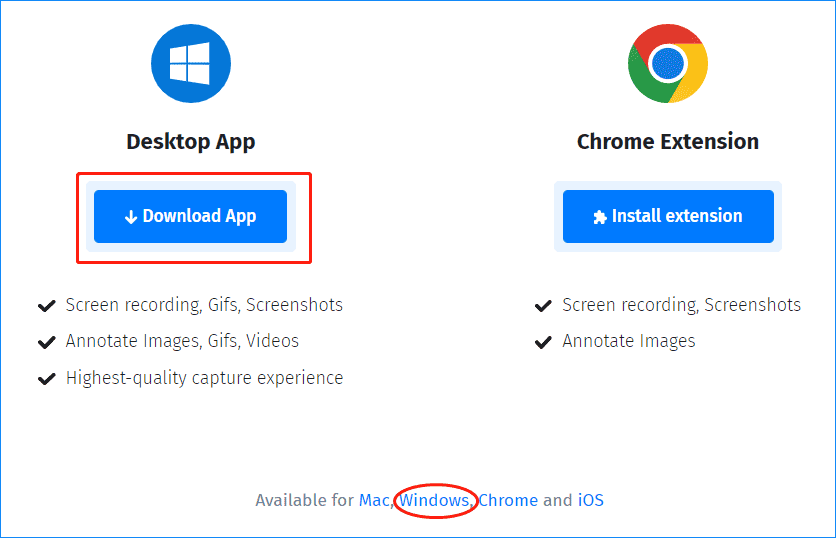
Step 1: Visit the official CloudApp Download page.
Step 2: Click the button of Download App to get the installation file – CloudApp.msi. Or, you can click the Windows link to get this file.
CloudApp Install
How to install CloudApp on Windows 10? See what you should do.
Step 1: Double-click on the .msi file and click Run to go on.
Step 2: Click Next on the welcome screen.
Step 3: Specify an installation path by clicking Change. By default, it is C:\Program Files (x86)\CloudApp\. Besides, you can decide whether to create a desktop shortcut or start menu shortcut or start the app automatically.
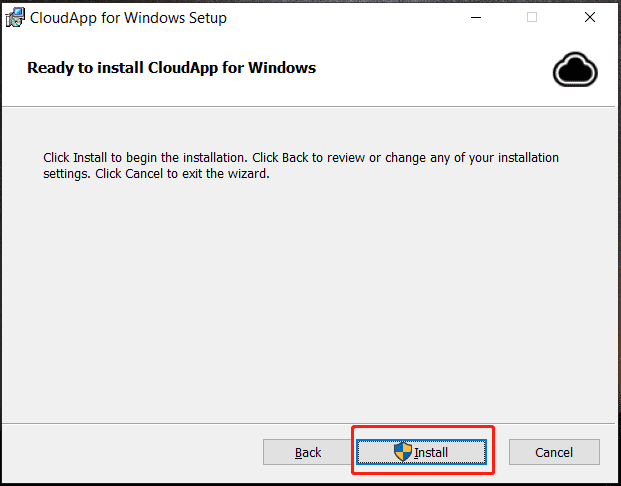
Step 4: Click the Install button to begin the installation.
How to Use CloudApp and CloudApp Login
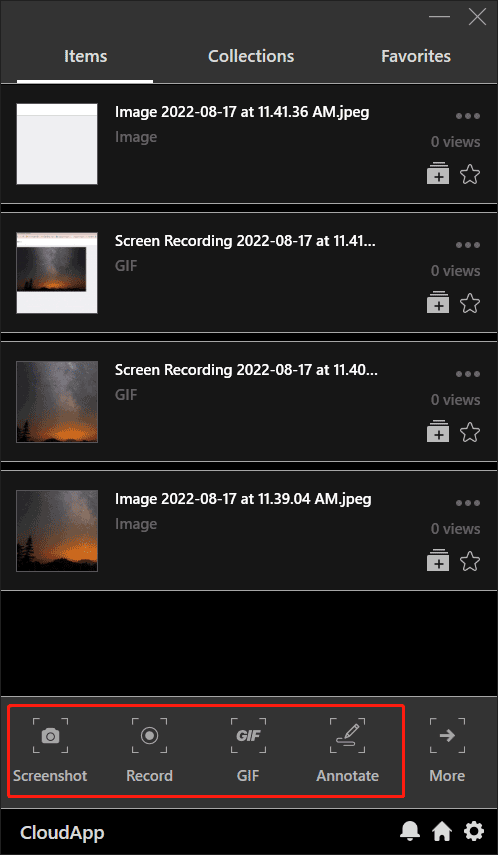
After downloading and installing CloudApp on your Windows 10, launch it and click one icon like Screenshot, Record, GIF or Annotate, then follow the on-screen instructions to capture your screen, record videos, make GIFs or add deeper context with annotation.
After finishing one operation, the file will be saved to the cloud at once. You need to login into CloudApp web via the website – https://share.getcloudapp.com/login. Then, you can see these files you created.
CloudApp Uninstall
Sometimes you don’t want to use this tool, you can uninstall it from your Windows 10 PC. How to uninstall CloudApp? Go to Control Panel, click Uninstall a program from the Programs section, right-click CloudApp for Windows and choose Uninstall.
CloudApp Download Mac
CloudApp can be also used on a Mac to allow quick and easy capture of video, webcam, GIFs, images, and screenshots. If you need to use it on macOS, you can go to the official download page and click the Mac link to get the CloudApp.pkg file. Then, use this file to install CloudApp.
CloudApp Snipping Tool Download iOS
If you want to use CloudApp on your iOS device, you need to open Mac Apple Store, search for CloudApp and download & install it.
CloudApp Chrome Extension
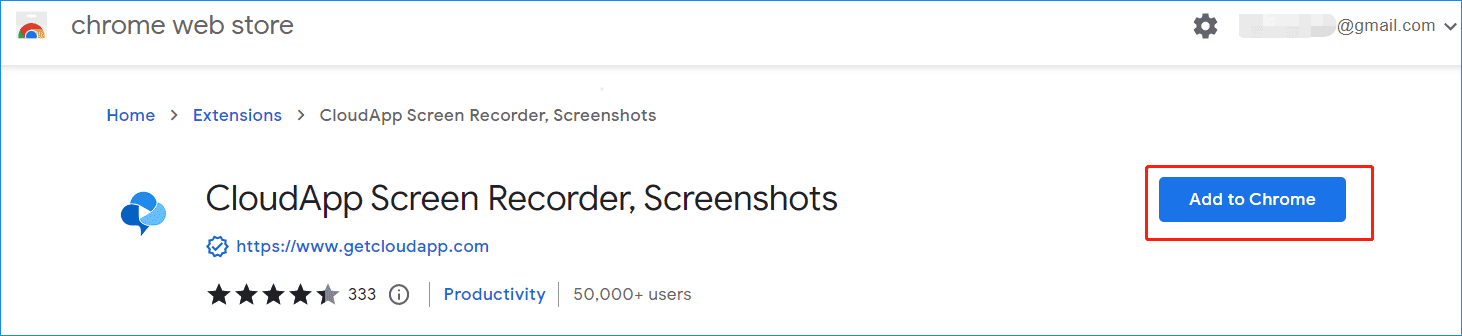
CloudApp can be as an extension to be added to Chrome for you to capture screens, recordings, screenshots, and annotate Images. Just visit the Google web store and click Add to Chrome > Add extension.
Bottom Line
That’s all the information about CloudApp – what CloudApp is, how to download CloudApp for Windows, Mac, iOS, Chrome, and how to install it. Besides, how to use it is also introduced. Just get it to capture videos/screenshots, record screens, make GIFs, etc.
About The Author

Position: Columnist
Vera has been working at the MiniTool Team for over 10 years as a technical editor and content writer. She mainly focuses on disk and partition management, data recovery, Windows backup and restore, and PC troubleshooting. Through in-depth software testing and hands-on experience, she has helped users solve a wide range of computer problems and better protect their data on Windows devices.
User Comments :