
Continuous Error From AIXHost.exe
I just bought a Lenovo Yoga Slim 7x with Windows 11. I am constantly getting an error message popping up that says this: C:\Windows\SystemApps\MicrosoftWindows.Client.AIX_cw5n1h2txyewy\AIXHost.exe The application is exiting and cannot service this request.” How do I resolve this issue?answers.microsoft.com
AlXHost.exe is a process associated with the AlExplorer feature in Windows 11. Its role is to use artificial intelligence to understand what is on the screen and provide contextually relevant actions. This process supports AI-driven features such as screen understanding and content discovery.
If you encounter errors with AIXHost.exe, such as “The application is exiting and cannot service this request”, there may be a problem with the Windows AI component. Some users have reported seeing AIXHost.exe-related errors when the Recall app crashes. When receiving continuous error from AIXHost.exe, you may be curious about its possible causes. Let’s take a closer look at why this problem occurs.
- Recall app crashes: If you try to open Recall and it doesn’t work properly, it may cause AIXHost.exe to exit.
- Windows AI component failure: AIXHost.exe depends on AI-related Windows components, and if these components are damaged or incompatible, errors may occur.
- System update issues: Some Windows 11 updates may affect Recall or AI-related functions, causing AIXHost.exe to crash frequently.

How to Fix Continuous Error From AIXHost.exe
Since this error may pop up frequently and affect normal use, it is important to find a solution. The following part introduces some solutions you can refer to.
Way 1: Uninstall the Component
This process is a Windows Al-related component, mainly used for Recall and Al Explorer functions. If AIXHost.exe has errors, crashes, or conflicts with the system, uninstalling related components can temporarily avoid the problem.
Step 1: Type cmd in the Windows search box, right-click Command Prompt, and choose Run as administrator.
Step 2: When prompted by the UAC window, click Yes to continue.
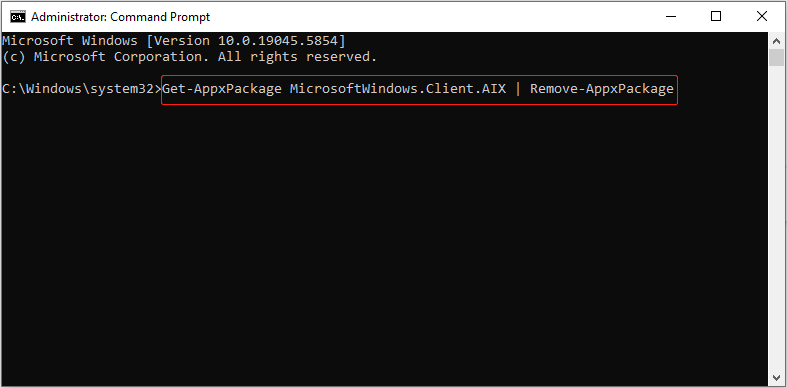
Step 3: Type the following command and press Enter.
Get-AppxPackage MicrosoftWindows.Client.AIX | Remove-AppxPackage
Step 4: After the process ends, restart your computer.

Way 2: Disable Windows Search
If Windows Search is running in the background, it may try to index recall-related data, causing AIXHost.exe to crash frequently. In this case, you can disable this feature. Here are the steps.
Step 1: Type Services in the Windows search box and press Enter.
Step 2: Locate the Windows Search service, right-click it, and choose Stop.
Way 3: Check and Repair System Files
AIXHost.exe relies on Windows AI components, and Windows updates or software conflicts may cause critical files to become damaged. If the related system files are damaged or missing, it may affect the stability of AIXHost.exe. By checking and repairing system files, you can ensure that Windows runs stably and reduce other potential errors.
Step 1: Type Command Prompt in the Windows search and press the Shift + Ctrl + Enter keys to open the Command Prompt as an administrator.
Step 2: Click Yes in the UAC window to continue.
Step 3: Type sfc /scannow in the window and press Enter. This command will scan all protected system files and replace damaged files.
Step 4: Type DISM.exe /Online /Cleanup-image /Restorehealth and press Enter. This command will use Windows Update as the repair source to help repair system files.

Way 4: Check the Recall Settings
AIXHost.exe is a Windows AI component used for the screenshot feature of Recall. If Recall is set up abnormally or there is a problem with the data storage, AIXHost.exe may crash and display “The application is exiting and cannot service this request.”.
Step 1: Click the Start menu and select Settings, and then go to Privacy and Security.
Step 2: Find Recall. Check to see if it’s enabled. If Recall is enabled, you can adjust snapshot storage, privacy options, and more.
This feature allows you to manage Recall data. You can choose to pause or Delete previous snapshots. It also supports searching past activity and getting back to earlier actions.
MiniTool Power Data Recovery FreeClick to Download100%Clean & Safe
Wrapping Things Up
AIXHost.exe errors usually conflict with AI-related components or the Recall app of Windows 11. By uninstalling the AIX component, adjusting the Recall settings, repairing system files, etc., the problem is likely to be successfully resolved.
If you still encounter the error, you can follow Windows Update or Microsoft Official Support to get the latest fix.
User Comments :