
The Elden Ring Nightreign connection error, which prevents you from playing game, can be annoying. This article from MiniTool explains possible causes to you and provides some effective methods to fix it.
Elden Ring Nightreign Connection Error
Elden Ring Nightreign is a new cooperative action RPG launched by FromSoftware, which was officially released on May 30, 2025. However, some gamers encounter the Elden Ring Nightreign connection error, which can affect the gaming experience. When Elden Ring Nightreign failed to log in to the game server, you may wonder why this happens. Now, learn more about the reasons so that you can better solve the problem.
- Server issues: If the server is under maintenance or encounters an outage, players may not be able to connect. This can usually be obtained through official social media or forums.
- Unstable network connection: Weak Wi-Fi signal, limited NAT type, or ISP network fluctuations can cause connection errors.
- Firewall or anti-virus software interference: Some security software may block the game’s network connection and affect normal access.
- Game or system problems: Corrupted game files, not updated to the latest version, or abnormal network settings of the operating system may also cause connection failures.
You can try to check the server status, optimize the network connection, adjust the firewall settings, or use a game accelerator to improve the Elden Ring Nightreign server issue. Keep reading to learn about the specific steps.

How to Resolve Connection Errors in Elden Ring Nightreign
Method 1: Check Elden Ring Nightreign Server Status
When you get a connection error, the first thing you should check is the server status to see if Nightreign is down for everyone or if it only happens to you.
Option 1: Visiting Official Resources
Check the official Elden Ring channels for server status updates:
- Elden Ring Twitter: FromSoftware often posts updates about ongoing maintenance.
- Official Website: You can find announcements about planned downtime or unexpected issues.
Option 2: Using Third-Party Websites
Websites like DownDetector and IsItDownRightNow can give you the real-time status of Elden Ring servers and help you determine if the problem is widespread.

Method 2: Check Your NAT Type
Elden Ring Nightreign multiplayer relies on peer-to-peer (P2P) connections, which allow your game to communicate directly with other players. If your NAT (Network Address Translation) type is not rated moderate, these connections may be blocked, causing network connectivity issues. Now, check your NAT type.
Step 1: Right-click the Windows icon and choose Settings.
Step 2: Select Network & Internet > Status and click Properties.
Step 3: Scroll down to NAT Type if it is displayed. If it is not displayed, use the command prompt:
Step 4: Type cmd in the Windows search box and press Enter to open Command Prompt.
Step 5: Type netsh interface Teredo show state and press Enter.
Step 6: Find NAT:. And for the best connection, it should say Open.
If it does not show open, you can change the NAT type.
Method 3: Restart Your Network Connection
Windows network plays an important role in playing games. If the connection error occurs, restart your network connection to fix the problem. Here is how you can do that.
Step 1: Press the Win + I keys to open the Settings app.
Step 2: Click Network & Internet > Status.
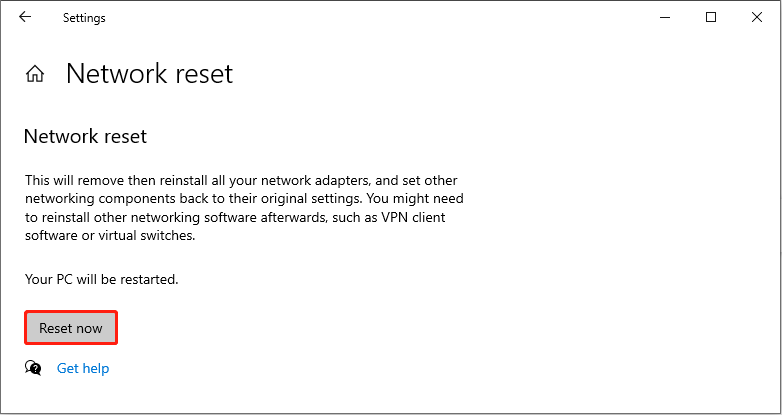
Step 3: Scroll down the list to the bottom and click Network reset.
Step 4: In the new window, click Reset now to start the process.

Method 4: Verify Integrity of Game Files
If some game files are corrupted or missing, it may cause connection issues. Verify Integrity can detect and replace these files to get the game back to normal operation. Here are the steps.
Step 1: Open Steam and go to the Library tab.
Step 2: In this section, find the game, right-click it, and choose Properties.
Step 3: Switch to the Installed Files section and click Verify integrity of game files.

Method 5: Allow the Game Through the Firewall
By default, firewalls block network access for certain applications, which can prevent the game from connecting to servers or other players. Allowing the Game Through the Firewall ensures that the game can connect to servers and function online properly.
Step 1: Open Control Panel, change the view to Large icons from the View by menu, and choose Windows Defender Firewall.
Step 2: Click Allow an app or feature through Windows Defender Firewall.
Step 3: Click Change settings > Allow another app to add the game to the list
Step 4: Tick the boxes for the game under the Private and Public tabs.
Step 5: Finally, click OK to apply the change.
MiniTool Power Data Recovery FreeClick to Download100%Clean & Safe
Final Words
The methods listed in this article, such as checking the server and NAT type, verifying game files, etc., are useful. Use them to fix the Elden Ring Nightreign connection error now!
User Comments :