
Starting with Windows 8, Microsoft introduced the Settings app to replace the aging Control Panel, but the Control Panel is still available today.
It means when Windows users need to change system settings, they can do so via Control Panel or Settings.
What’s the difference between Control Panel and Settings? Which one should be used in various situations?
To better distinguish Control Panel vs Settings, let’s first understand what the Control Panel and the Settings app are.
What Is Control Panel
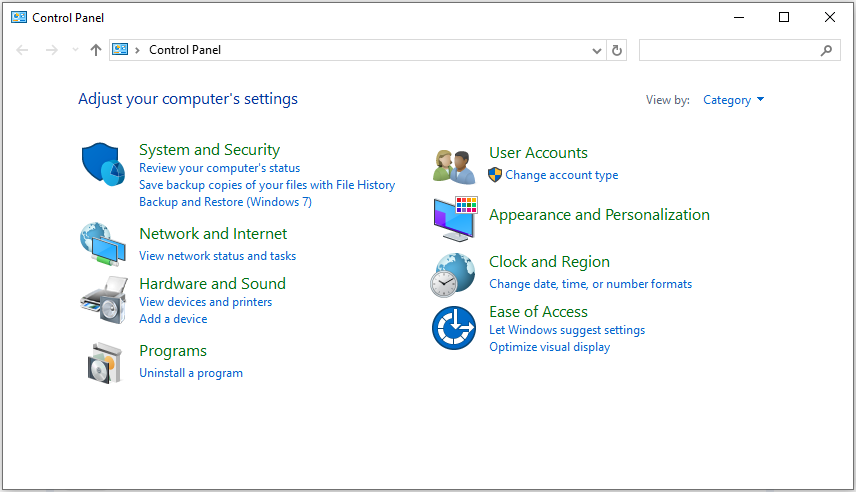
The Control Panel is a graphical interface that offers a centralized location to view and modify system settings for a computer or device.
It enables users to handle hardware and software configurations without the necessity of utilizing complicated commands.
Key functions of the Control Panel:
- System and Security: Manage security settings such as firewalls and user accounts.
- Network and Internet: Modify network connections and settings.
- Appearance and Personalization: Personalize the visual aspects of the operating system.
- Programs: Manage applications on the computer, including installing and uninstalling them.
- Hardware and Sound: Set up settings for devices like printers, displays, and mice.
What Is Settings
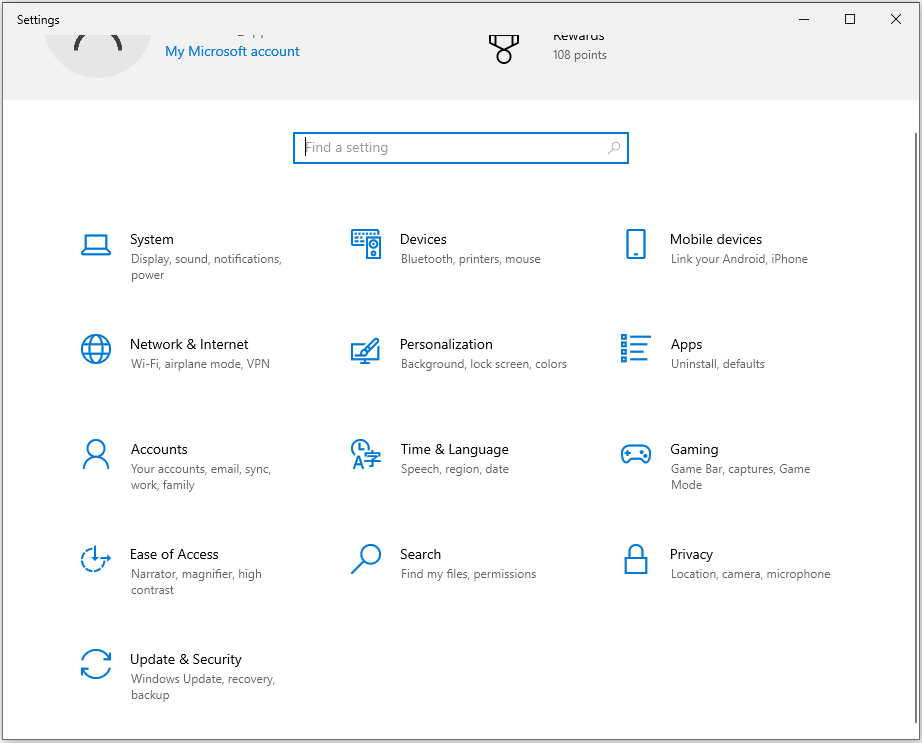
Windows Settings serves as the main application in Windows for managing and personalizing your PC, offering a user-friendly hub to adjust your operating system, device, and preferences.
It enables users to modify a wide range of settings, from display and network connections to account details, privacy settings, app settings, and support-related configurations.
The Settings app is continually updated to support the latest Windows features.
Key functions of Windows Settings:
- System: Manages display, sound, power, notifications, and multitasking.
- Devices: Sets up connected devices such as printers, mice, and keyboards, and manages Bluetooth connections.
- Network & Internet: Establishes Wi-Fi and Ethernet connections and adjusts network settings.
- Personalization: Customizes the look of your computer, including background images, color schemes, and taskbar customization.
- Apps: Manages installed software and their configurations, along with optional features.
- Accounts: Controls user accounts, sign-in methods, and integration with Microsoft accounts.
- Time & Language: Modifies date, time, regional, and language settings.
- Privacy: Manages privacy controls, app permissions, and security configurations.
- Update & Security: Manages Windows updates and recovery options.
After learning about the Control Panel and Windows Settings, let’s explore the difference between them.
Control Panel vs. Settings
Here’s a clear comparison between Control Panel and Settings in Windows:
| Control Panel | Settings | |
| Interface | The classic interface features an iconic design with multiple windows, allowing for easy navigation using a mouse and keyboard. | The modern interface offers a smooth, touch-friendly experience with a single-window layout with sidebar navigation. |
| Ease of Use | Less intuitive for new users due to its design and structure. | More user-friendly and easier to navigate, designed for simplicity. |
| Functionality | Provides advanced configuration tools (e.g., Administrative Tools, Device Manager). Some legacy settings are only available here (e.g., advanced network configurations, system and security tools, and older sound and device settings). | Covers most commonly used settings (e.g., display, sound, Bluetooth), with some directing users to the Control Panel for advanced options. |
| Availability | Still available in Windows 10 and 11, but gradually being replaced. Certain features direct users to the Settings app. | The default system settings app in Windows 10 and 11. Actively updated and improved by Microsoft. |
| Navigation | The structure is often hierarchical and can be intricate, requiring users to open multiple windows to access a particular setting. | Navigation is simplified through the use of search functions, categories, and back/forward buttons for fast access. |
| Integration | Limited integration with modern Windows features and apps. | Fully integrated with the Windows ecosystem (Microsoft account, OneDrive, Windows Update, etc.). |
Control Panel offers more traditional and legacy options, while Settings is the newer, more modern, and streamlined app that Microsoft is gradually migrating functionality into.
Settings organizes options into broader categories, though some advanced or legacy settings still exist only in the Control Panel.
As you can see, many settings can be found in both Control Panel and Settings, and you may be confused about them: Which one should be utilized?
Which One Should You Use: Control Panel vs Settings
Sometimes, when you try to access an option or setting in the Control Panel, Windows may redirect you to the Settings app instead.
For instance, if you want to change your user account in Control Panel under User Accounts > User Accounts > Make changes to my account and you will be redirected to Settings > Accounts > Your Info instead.
Likewise, if you try to alter any settings in the Taskbar and Navigation section of the Control Panel, Windows will launch the Personalization window in the Settings app.
This may confuse you and may lead you to question the location of a specific option or whether you should be using the Control Panel or the Settings app as your primary tool.
Deciding whether to use the Control Panel or Settings relies on the specific adjustments you want to make and your personal preferences.
- For basic users, Settings is enough for daily adjustments, such as display, updates, and privacy.
- For advanced users and IT admins, Control Panel remains necessary for system-level management.
For example, you can uninstall apps in both, but Settings focuses on modern apps, while Control Panel can uninstall legacy programs.
However, according to Microsoft’s report, it’s advisable to utilize Settings since, eventually, Control Panel will be phased out completely.
How to Access Control Panel and Settings
To open the Control Panel, you can use one of the following methods:
- Search for it in the Windows Search bar.
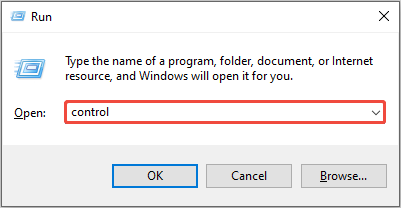
- Use the keyboard shortcut: Press Win + R, type control, and press Enter.
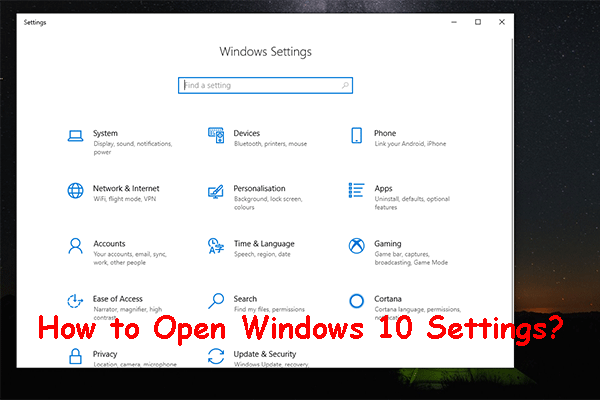
To open Windows Settings, you can use one of the following methods:
- Right-click on the Start icon and select Settings.
- Use the keyboard shortcut: Press Win + I.
Conclusion
Control Panel and Settings have both played crucial roles in the Windows operating system to modify settings. In this post, we discussed Control Panel vs Settings in overviews, differences, and usages.
Hope you can get effective information from this post.
User Comments :