
Controller Not Working in Avowed on PC
In game development, the normal operation of controller functions is crucial to the player experience. However, recently many players have reported that the controllers in the long-awaited RPG game “Avowed” have problems that do not work properly. This not only affects the smoothness of the game but also disappoints many long-awaited players.
This article will analyze the solutions that you can take to fix the problem of the controller/gamepad not working in Avowed and improve your gaming experience.
Fixes for Controller Not Working Error in Avowed
Fix 1: Restart the Steam App
Issues in the game can cause the problem of the controller not working in Avowed. The easiest way to fix the error is to restart Steam. Restarting Steam can help fix issues with game updates, verifying installations, internal errors, and Steam friend network errors. Close the Steam client or taskbar icon and restart Steam.
Fix 2: Update Controller Drivers
Controller drivers are related to functions and compatibility. Outdated drivers will cause the controller functions and compatibility to decline, resulting in malfunctions. Updating controller drivers can maximize the functions and compatibility of the controller. Here are the steps to update the controller driver.
Step 1: Connect the controller to your computer.
Step 2: Right-click on the Start button and choose Device Manager.
Step 3: Click on the small arrow in front of Human Interface Devices to expand it.
Step 4: Right-click on your controller and choose Update driver.
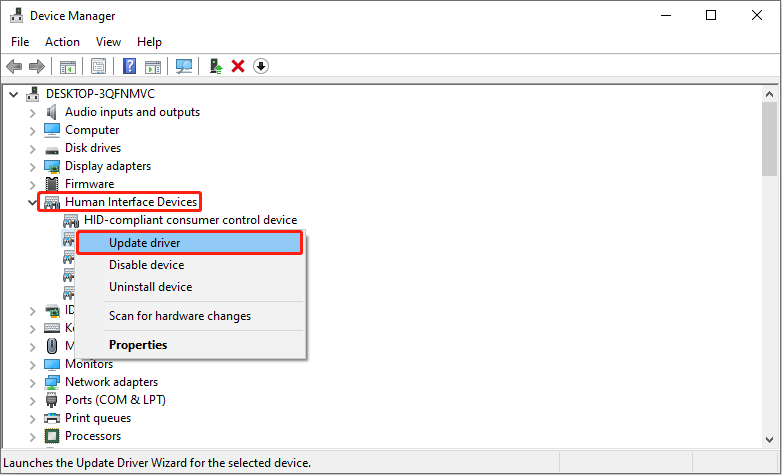
Step 5: Select Search automatically for drivers and allow Windows to install the latest update.
Once you completed these steps, restart your computer to check if the problem persists.
Fix 3: Enable/Disable Steam Input
Steam Input is a service on the Steam Deck (and other devices) that allows you to make any game work with a controller. While it is useful, its manipulation of controller input can ruin the gaming experience. Different controller options may be disabled by default due to Steam Input. In this case, you need to enable and disable it to see which state will make the issue disappear. Here is a way you can refer to.
Step 1: Open Steam, go to the Library tab, and right-click on the Avowed game to choose Properties.
Step 2: Go to the Controller settings and scroll down to find the Steam Input option.
Step 3: Select Enable and Disable successively to check if the problem can be fixed.
Fix 4: Verify the Integrity of the Game File
Corrupted game files can also be a cause of the Avowed controller not working issue. Verifying the integrity of game files will check if the files on your computer are corrupted. If some files are corrupted, they will be changed or repaired. Work with the operations below.
Step 1: In Steam, go to the Library tab, right-click on the Avowed game, and choose Properties.
Step 2: Switch to the Installed Files tab and click on Verify integrity of game files.
Fix 5: Update Your Windows System
The game running on the computer should be compatible with the Windows system. Therefore, an outdated Windows may lead to many issues, including the controller not working in Avowed. To fix it, you are supposed to check and update your Windows. Here is how you can do it.
Step 1: Press the Win + I keys to open the Settings app.
Step 2: Click on Update & Security > Windows Update.
Step 3: In the right pane, click on Check for updates to search for the available updates.
Step 4: Once an update is available, click on Download & install to get it.
See Also: Windows 10 Update Error 0x800705b4 -Now Quick to Fix It
MiniTool Power Data Recovery FreeClick to Download100%Clean & Safe
Bottom Line
In general, although the problem of the controller not working in Avowed has caused inconvenience to you, this problem is expected to be solved through active investigation.
In the future, the development team can avoid similar problems from happening again through more comprehensive testing and player feedback mechanisms.
User Comments :